Setting Up Liberty Listing Manager To List Your First Ebay Item
Here is the video that covers this content:
How To Setup The Liberty Listing Manager to List your First Item On eBay
- First, in the group of buttons on the top right-hand side of Liberty, we want to click the Listing Manager button to open the Listing Manager module.

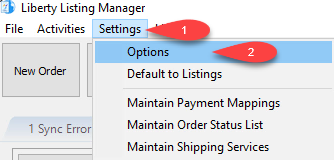
- Once the Listing Manager appears, click (1) Settings > (2) Options, then sign into Liberty when the User Login Dialog appears.
- Maintain Options window is where you will set your general eBay defaults and basic settings. Note that you’ll want to ensure these are configured to best fit your needs before listing.
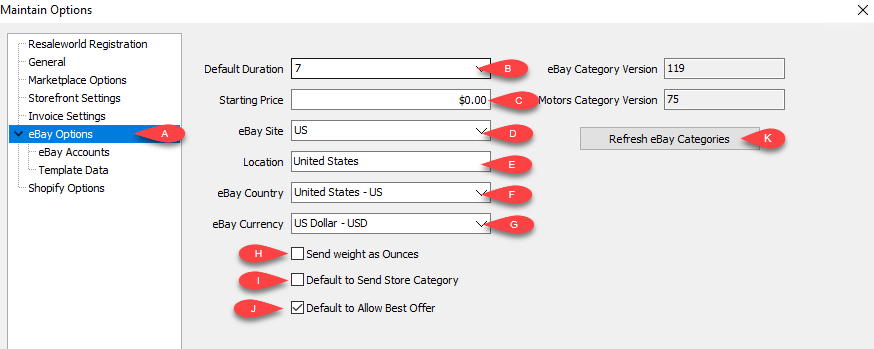
- To start, click (A) Ebay Options.
- Default Duration (B) - This sets the default number auctions are set to last. Note that this is still further configurable when setting up each individual auction.
- Starting Price (C) - This sets the default starting price for bidding on your eBay auctions. Like above, you can still further define this per auction.
- eBay Site (D) - You can define the default country/regional eBay site your listings appear in (for example “US”, “Canada”, etc.)
- eBay Location (E)- Sets your location that appears on your eBay listings.
- eBay Country (F)- Sets your country that appears on your eBay listings.
- eBay Currency (G) - Sets your currency used on your eBay listings.
- Set Weight as Ounces (H) - Changes the default online item weight unit as ounces, allowing access to using First Class Shipping with your eBay auctions (as this shipping method is not available for items listed in pounds).
- Default to Send Store Category (I)- Defaults your listings to go to your eBay store, if you have already set that up prior.
- Default to Allow Best Offer (J)- Allows for your eBay listings default to have the “Best Offer” option enabled. This allows buyers to send offers for your listed items, with a configurable automatic refusal below a certain amount.
- Refresh eBay Categories (K)- This allows you to download the most recent eBay categories. This is good to do every so often, as occasionally eBay changes them as they add new features and such, and this will allow your listings to post correctly if and when they do so.
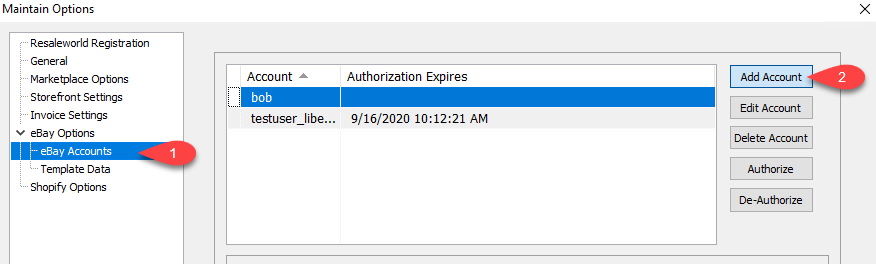
- After you have configured your eBay Options to best fit your needs, on the right hand side of the Maintain Options window, click the sub-option eBay Accounts (1). This menu is where you authorize your eBay account(s) to allow them to list with Liberty. To authorize a new account, click the Add Account (2) button on the right-hand side of the menu.
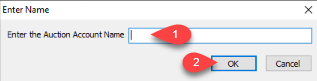
- In the Enter Name dialog, enter the eBay account username you want to add (1), then click OK (2).
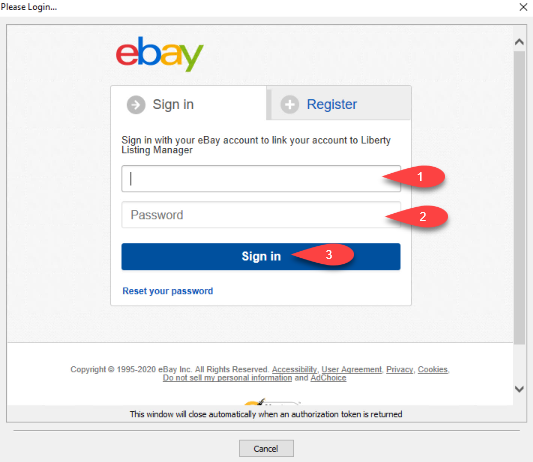
- From there, you will be directed to an eBay login form. This is so we can authorize Liberty to post to eBay on your behalf. Fill in the Username (1) and Password fields (2), and then click Sign In (3).
Note: If you do not have an eBay account yet, now would be a good time to register and make one so that you can continue with these instructions.
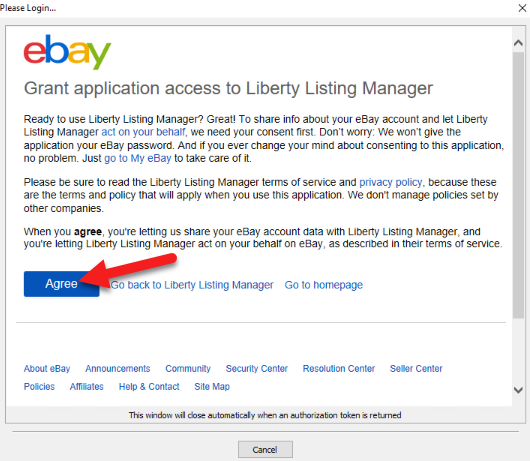
- On the next screen, click Agree so we can allow Liberty access to post through your account.


Opting In and setting up eBay Policies
- We heavily recommend Opting-In to eBay’s policies for Payment Policies, Return Policies, and Shipping Policies. These give you more options for setting and displaying these polices on eBay as a seller.
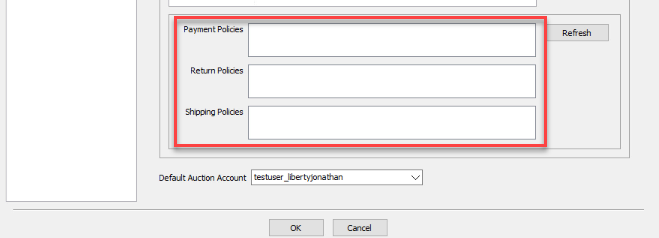
- Please visit the following page for information on how to accomplish this task, if you have not already set this up:
https:%%//%%help.resaleworld.com/libertyreact/ebaypoliciesoverview.html - Once your eBay policies are in place, click the Refresh button to pull down your default policies.
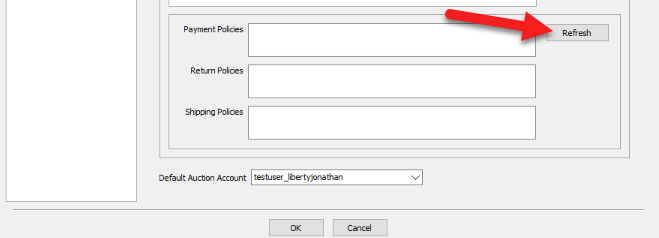
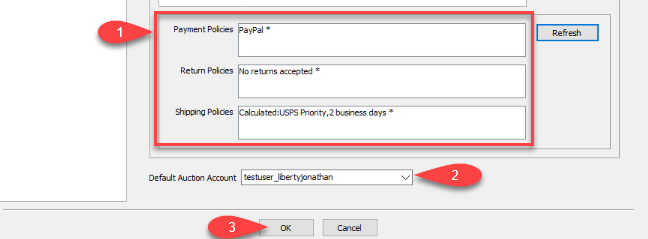
- After you refresh, the policies you set previously on eBay will show in the appropriate boxes (1). After those populate, you can set the Default Auction Account (2) that will be used to post to eBay (if you have only one, set the drop-down to that account). Click OK (3), when done.


Continuing with setting up eBay specific settings
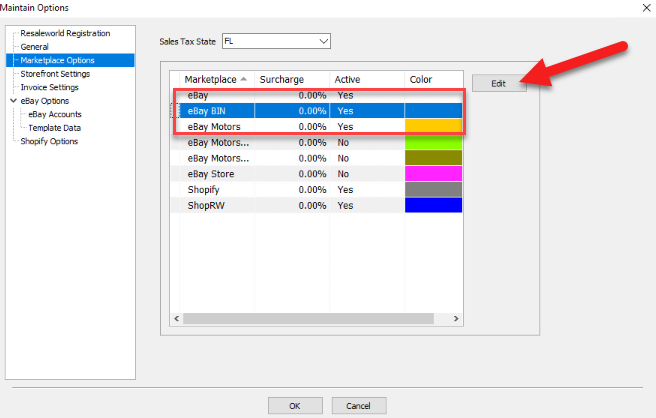
- On the Marketplace Options menu, you can set which marketplaces you will be able to select to post items online. We recommend heavily to make sure that eBay Buy-It-Now (eBay BIN in the menu) is enabled, so you can post Buy-It-Now listings on eBay. To do this, highlight the eBay BIN option in the list, then click Edit.
- This will bring up the Maintain Marketplace dialog for that particular marketplace. On this dialog you can configure various Liberty-specific and listing settings for the selected marketplace.
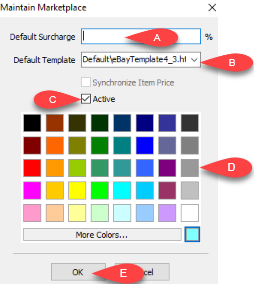
- Default Surcharge - This option allows you to set the default surcharge (as a percentage) to be added to items listed on the selected marketplace. Note this extra percentage added on will go straight to the store as profit, not the consignor.
- Default Template - Sets the default HTML template used for listings on the selected marketplace. We recommend the eBayBasic template for Liberty5
- Active - Sets the selected marketplace as active, allowing you to select it to post items to in the Listing Manager.
- Color Picker - This allows you to set what colour appears on the selected marketplace’s listings in the Listing Manager’s item list.
- When you are finished, click OK to return to the Maintain Options screen.
- Clicking on Storefront Settings will bring up several other options.
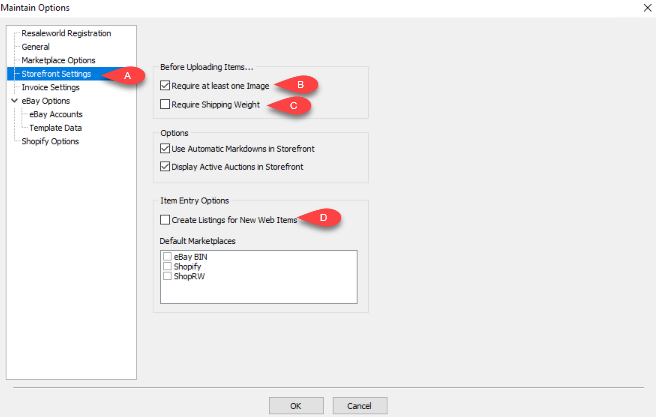
- Storefront Settings options - Brings up Storefront options.
- Require at least one image - If selected, you will need to add at least one image to a listing before it will go online.
- Require Shipping Weight - If selected, you will need to add a weight to each listing before it will go online.
- Create Listings for New Web Items - If selected, when checking the Web Item check box on an item, a listing will be automatically created when the Save button is pressed.
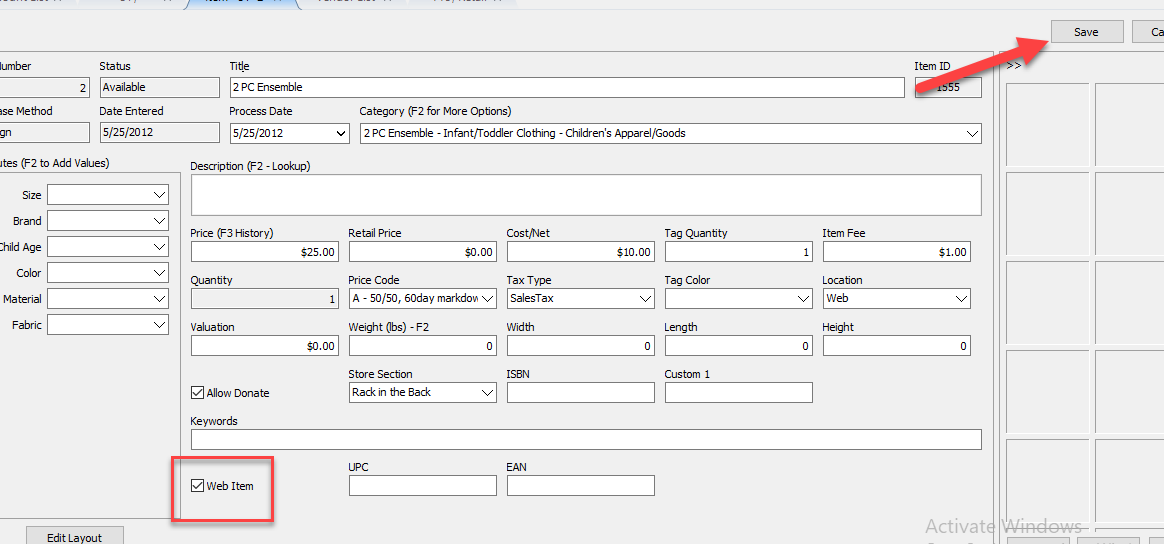
- Clicking on Template Data, in the eBay Options section, will allow you to add or edit template information
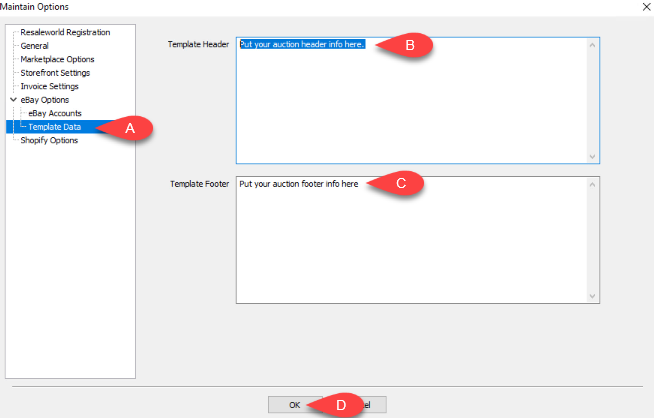
- Template Data - Brings up the Template Header & Footer
- Template Header - Text that is displayed on the top of a Template
- Template Footer - Text that is displayed on the bottom of a Template
- OK - Closes and saves the Header and/or Footer.
- You are now ready to add your first eBay item.


Please visit the following article for details on how to do this:
Next Article In Section
Click the following link to move to the next article in this section:
How To List An Item On eBay Using The Listing Manager
Related Topics
Setting Up Liberty Listing Manager To List Your First Ebay Item How To List An Item On eBay Using The Listing Manager
How To List An Item On eBay Using The Listing Manager eBay Business Policies Overview Creating an eBay Listing Overview eBay Specific Info. Listing Fields Adding eBay Package Information Adding An eBay Description Definitions of Ebay Description Processor Buttons Editing An eBay Description in HTML Previewing An eBay Web Description Adding Images To An eBay Listing