Adding Images To An eBay Listing
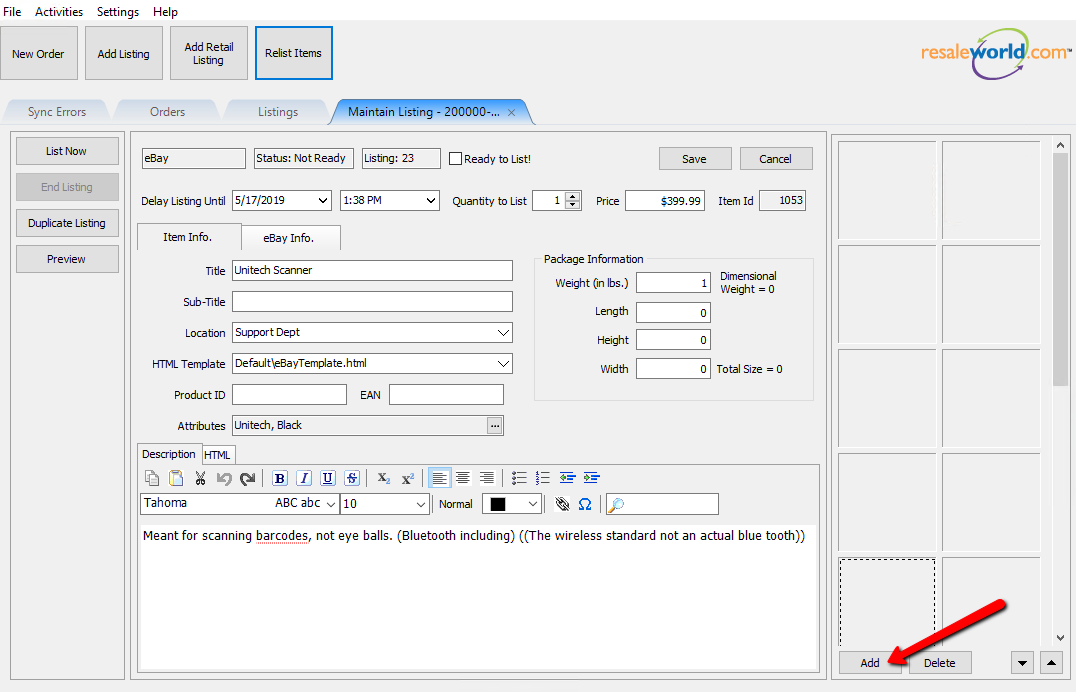
- To add images to a listing from Listing Manager open the listing and click the add button on the right in the images frame.
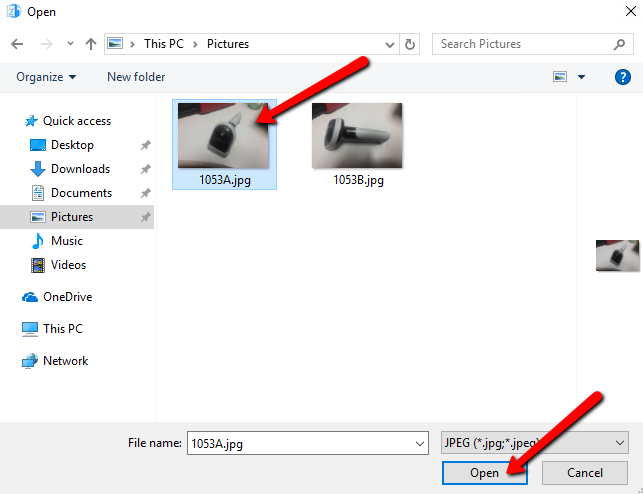
- Select an image to add to the listing.
You can select multiple images by using ctrl-click or shift-click.
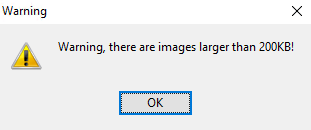
- If your image(s) are larger than 200KB, Listing Manager will give a warning. Click OK to proceed.
Note: It is recommended to keep images smaller than 200KB for web optimization purposes, but larger images are not restricted and will upload normally after the warning message.
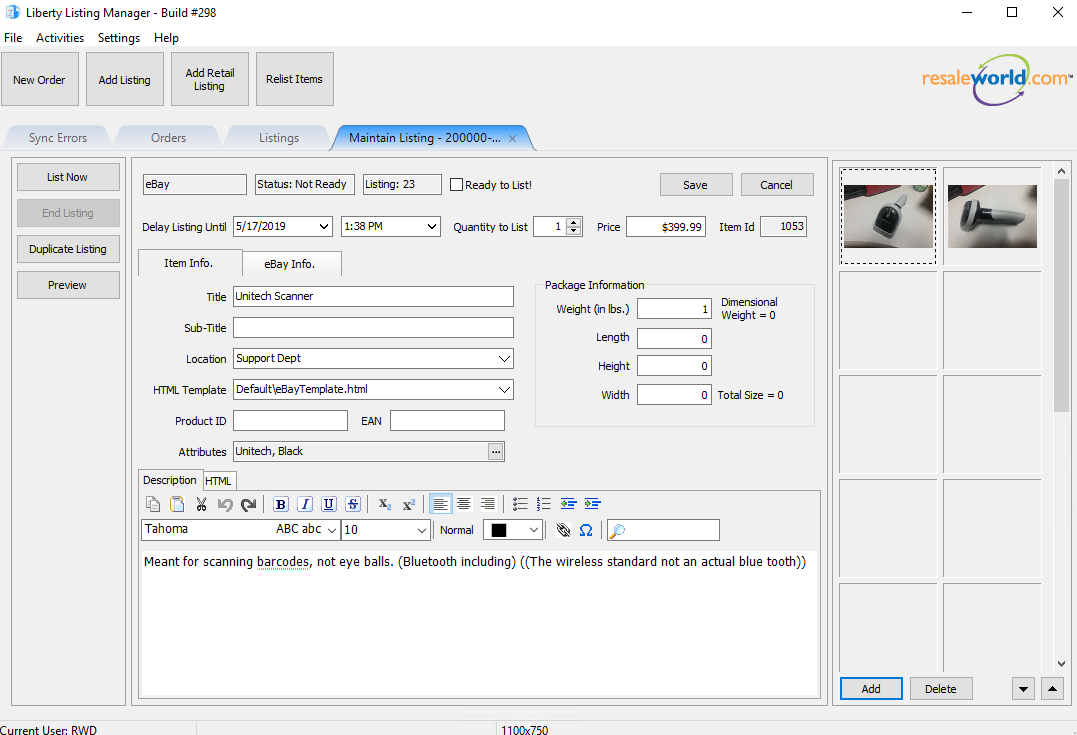
- Images for the listing will be displayed on the right side and will upload to the website when listing an item or updating a listing.
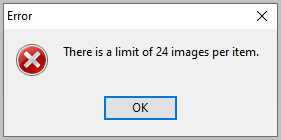
- Keep in mind, you can have a maximum amount of 24 images per item.
When you try to add another photo once reaching the 24 image limit
you will get this error message:


Next Article In Section
Click the following link to move to the next article in this section:
Deleting Images From An eBay Listing
Related Topics
Adding Images To An eBay Listing Setting Up Liberty Listing Manager To List Your First Ebay Item How To List An Item On eBay Using The Listing Manager Creating an eBay Listing Overview eBay Specific Info. Listing Fields Adding eBay Package Information Adding An eBay Description Definitions of Ebay Description Processor Buttons Editing An eBay Description in HTML Previewing An eBay Web Description Deleting Images From An eBay Listing