How To Add Images Using the Import Feature (From Local Disk and Other Sources) Android
How To Add Images Using the Import Feature (From Local Disk and Other Sources) Android
- Open the Liberty Photo App on your iDevice and then Sign In.
If you are not familiar with this procedure please visit the following page:
Opening The Liberty Photo App Android - Search for the item by using either Account-Item Number or by scanning a tag using the Scan Tag button.
Then open the item.
You can use the following articles for more information if needed:
How Use The Camera To Add Images To Items By Using Account - Item Number Android
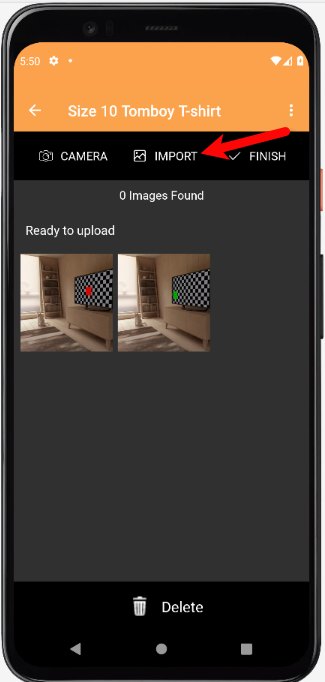
How To Add Images To An Item Using A Barcode On The Tag Android - Tap the Import button.
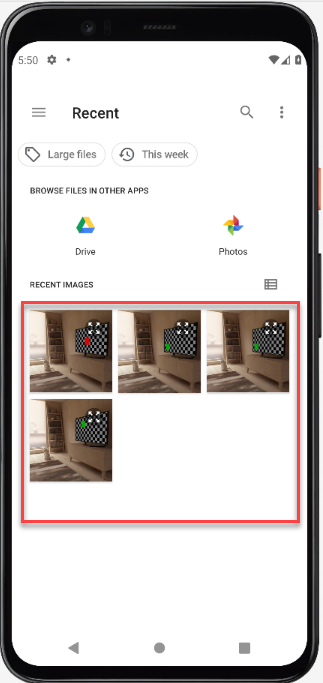
- You can select images that are directly on your Android device. You can also search through your images using the search option or navigate to another folder where your images are stored.
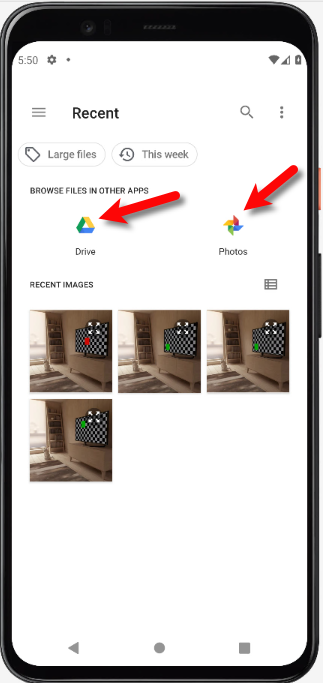
- On this same screen, you can browse other 3rd Party image sources like Google Drive or Google Photos.


Next Article In Section
Click the following link to move to the next article in this section:
Editing The Settings Within Liberty Photo App Android
Related Topics
How To Add Images Using the Import Feature (From Local Disk and Other Sources) Android How To Download and Setup The Liberty Photo App for Android How To Use The Liberty Photo App for Android Overview Opening The Liberty Photo App Android How Use The Camera To Add Images To Items By Using Account - Item Number Android How To Add Images To An Item Using A Barcode On The Tag Android How To Delete Images From The Liberty Photo App Android How to Edit A Photo That Is Attached To An Item Android Editing The Settings Within Liberty Photo App Android Placing a Watermark Image On Your Pictures Android Changing Which Server You Want To Connect To Android