Setting Up The Liberty Kiosk App For Inventory Dropoffs
This set up assumes you already have the Liberty Kiosk App configured to connect to your Liberty database.
If you have not set this up yet, please see the Liberty Kiosk App Set up documentation.
- Open the Settings app on your iPad.
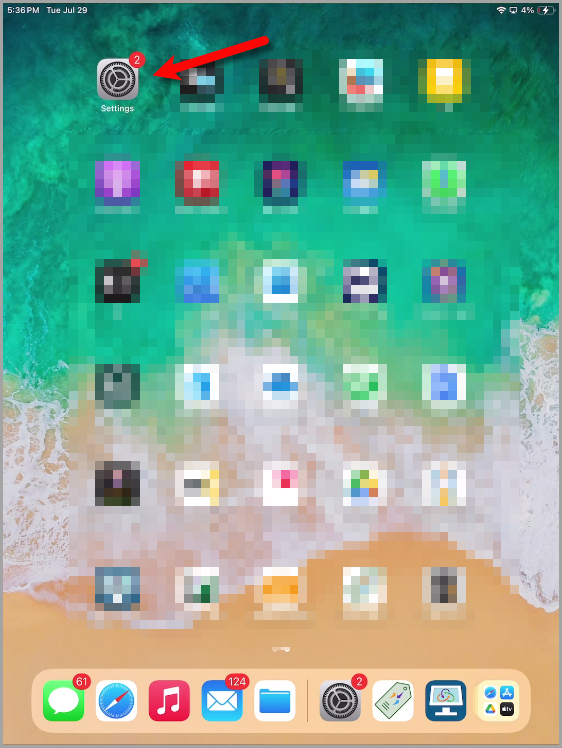
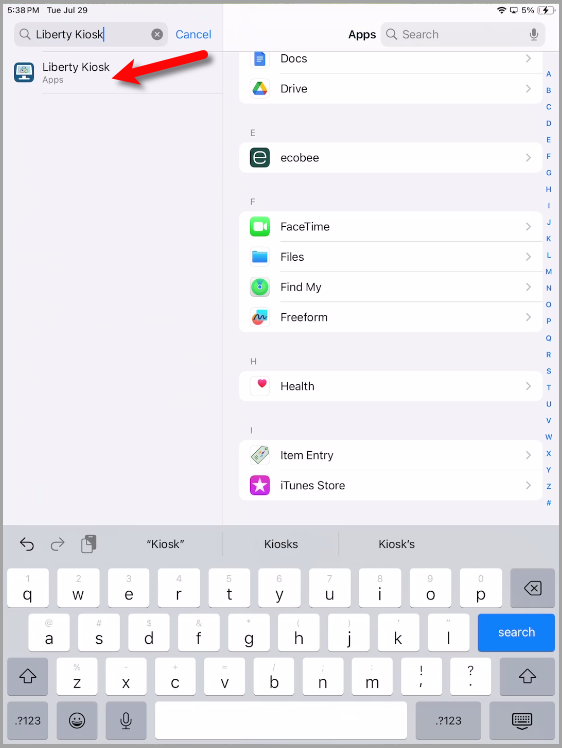
- Type Liberty Kiosk in the search area at the top left of the iPad settings app and then tap Liberty Kiosk.
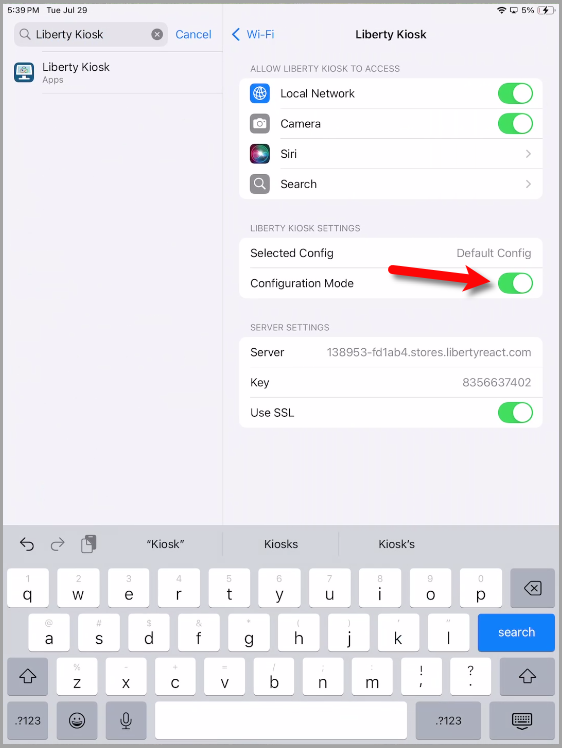
- Flip on the Configuration Mode option.
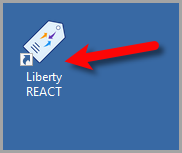
- Move over to your PC and then open the Liberty REACT Inventory Module.
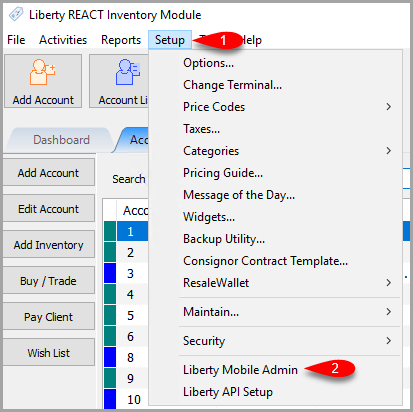
- Click on Setup and then Liberty Mobile Admin
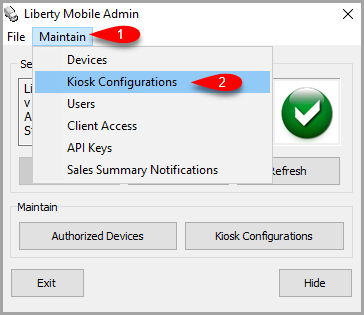
- Once the Liberty Mobile Admin opens up, click on Maintain then Kiosk Configurations
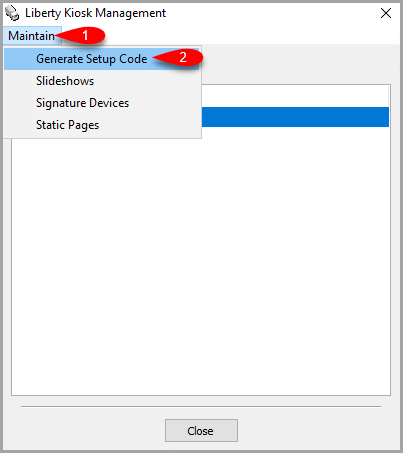
- Click on Maintain and then Generate Setup Code
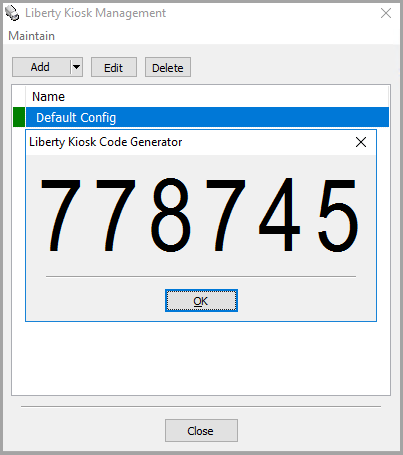
- A Liberty Kiosk 6 digit code will pop up that you will then use to configure the Liberty Kiosk App which is currently in Configuration mode.
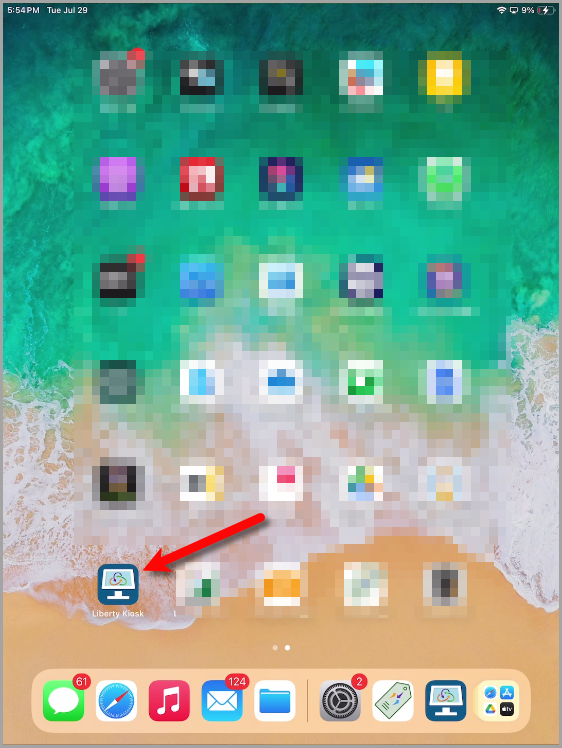
- Open the Liberty Kiosk app
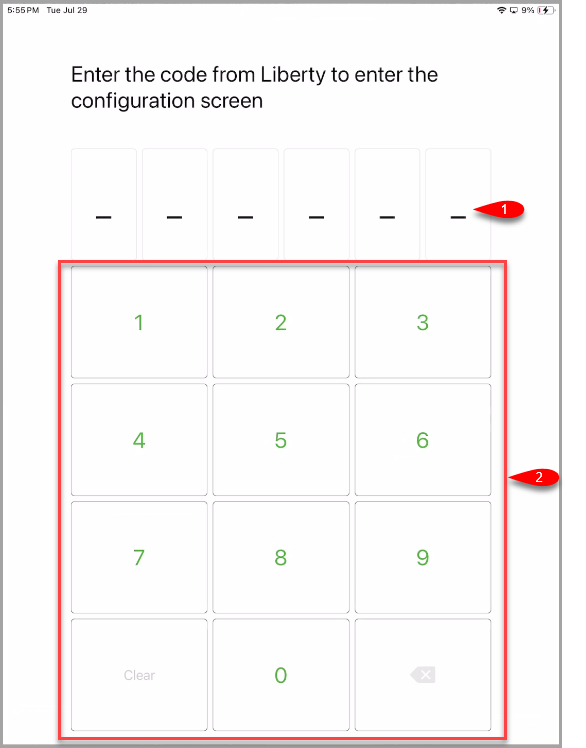
- Type the 6-digit code that appears on your PC
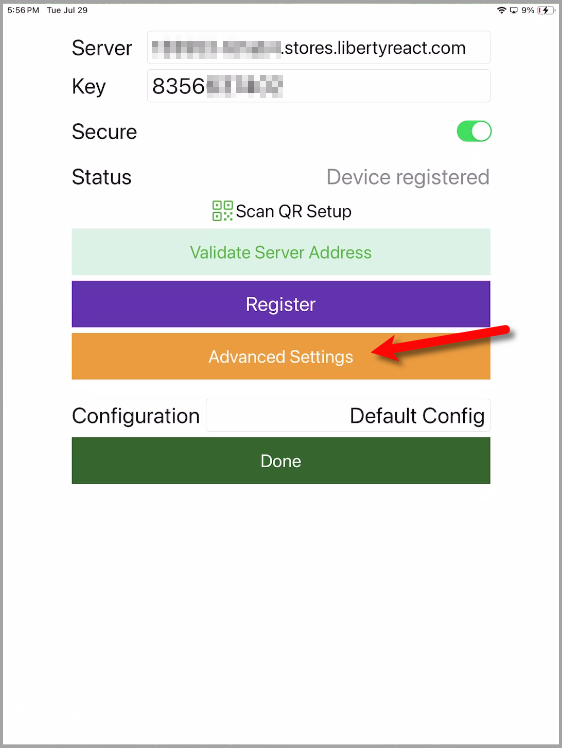
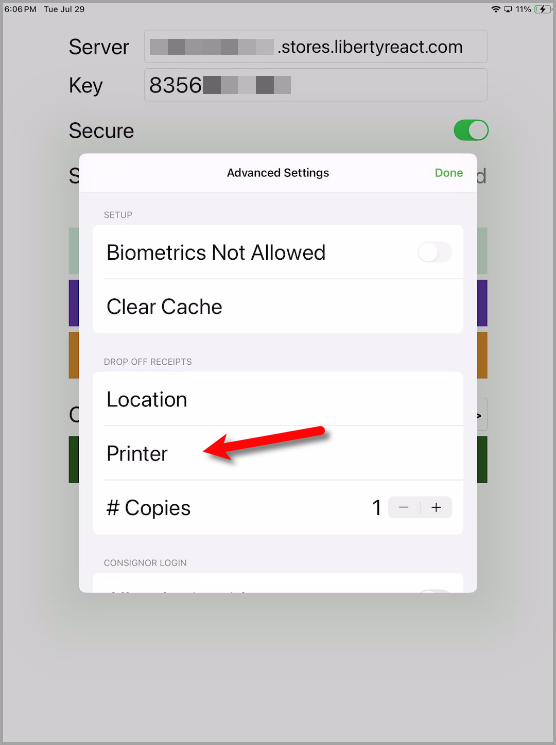
- Tap on the Advanced Settings area.
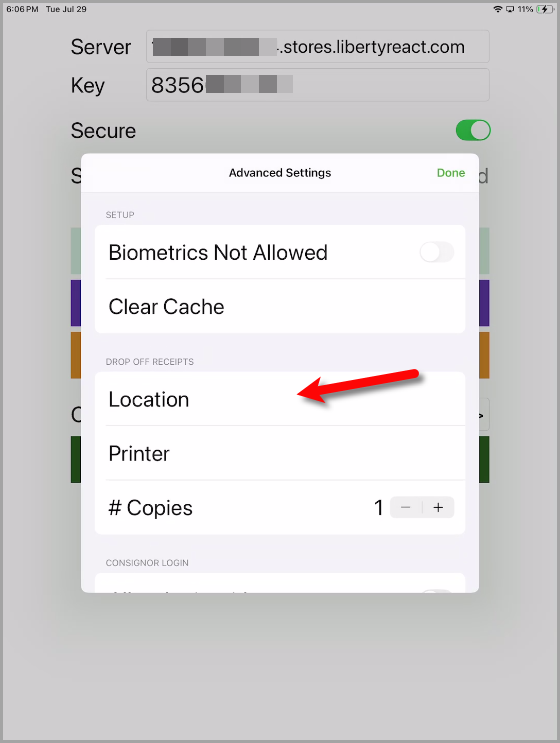
- Tap the Location option.
- Tap the Refresh button.
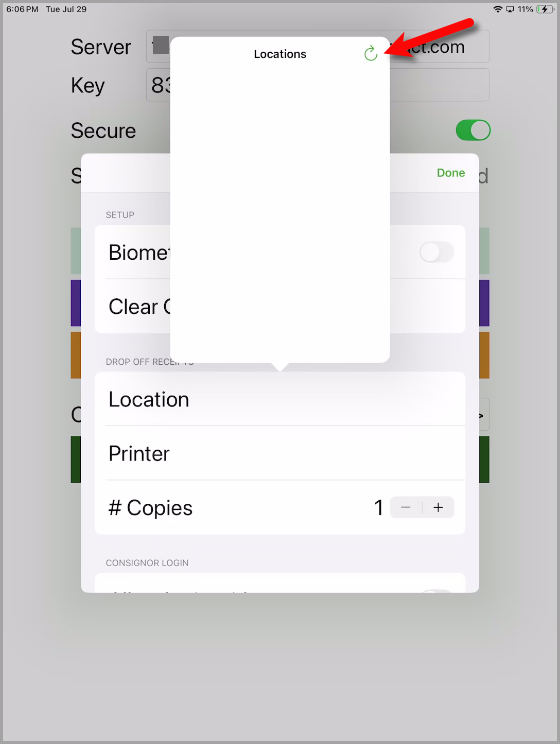
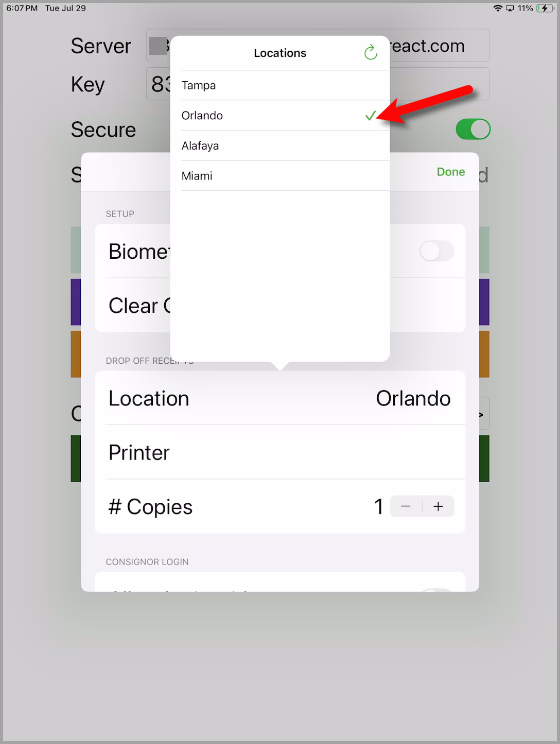
- If you have more than one location, tap which location you wish to link the Liberty Kiosk App too.
Otherwise, select your only location if you are just one location.
- Tap the Printer button.
- Tap the Refresh button.
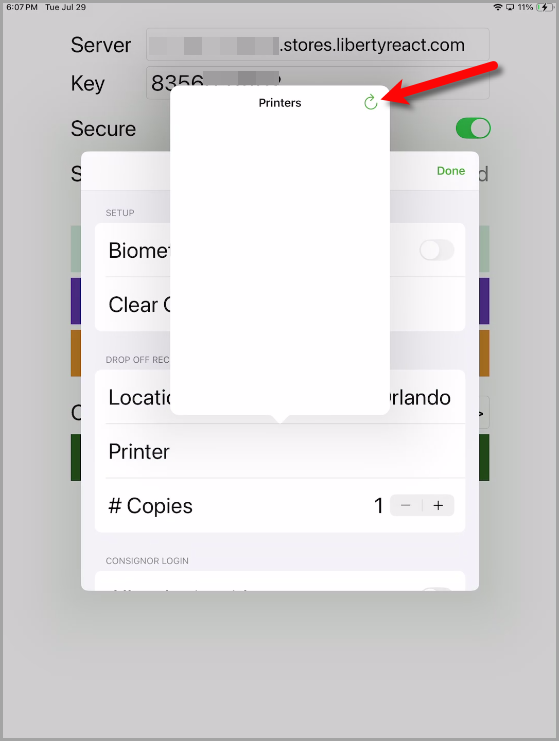
- Select which receipt printer you want Inventory Dropoff Receipts to print out of.
Please note, that you must have an ethernet receipt printer connected directly to your server in order to ensure smooth operation.
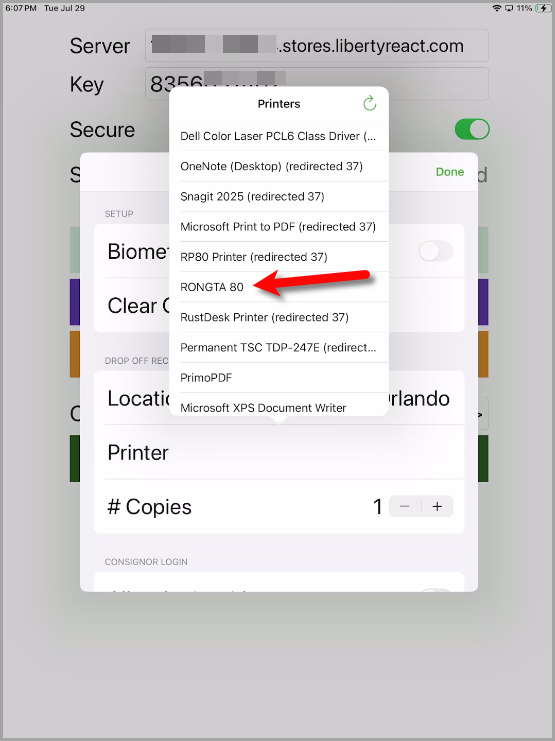
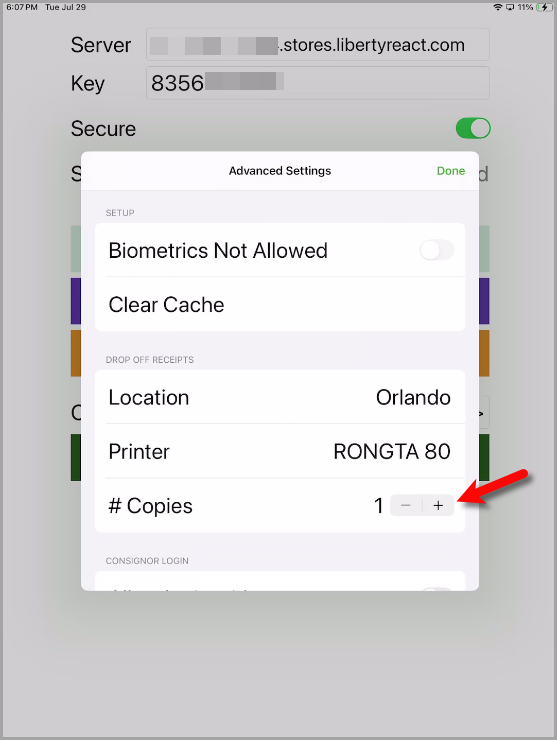
- Select how many copies of the Inventory Dropoff receipt you want to print out.
This is useful if you want your client to receive an Inventory Dropoff receipt in addition to the one that is going to be attached to their inventory container
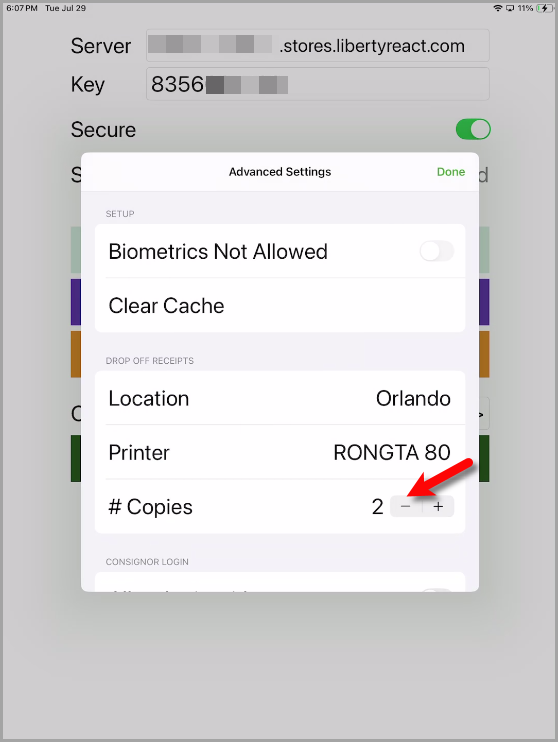
You can use the (-) or minus symbol to decrease the quantity if you need to.
- If you have Consignor Center, these instructions will be specific to your set up.
Under the Consignor Center area, enable the option for Allow login.
This will allow your clients to use their phones and a QR Code to verify their account and login to do Inventory Dropoffs.
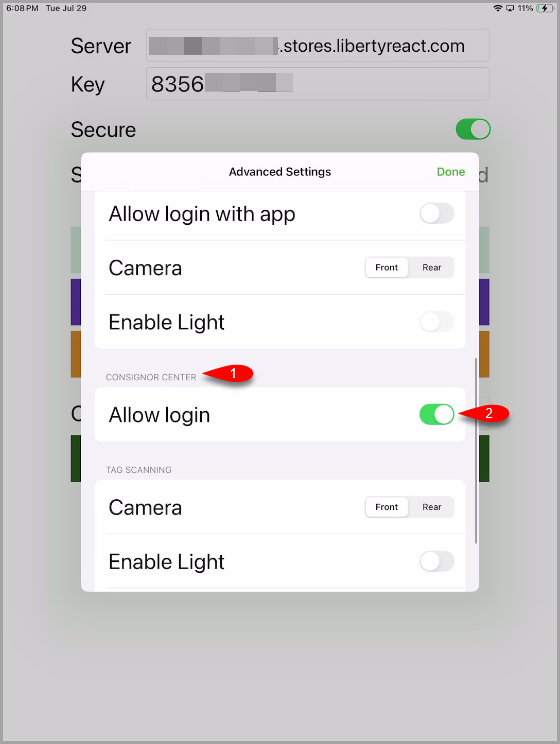
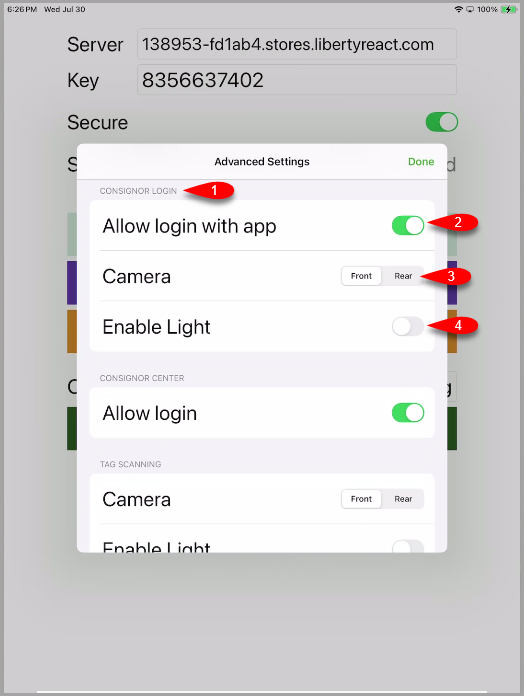
- If you are on the Consignor Login platform, you instead want to make sure that under the Consignor Login area, you select Allow login with app.
You also want to make sure to select the Rear option for Camera so your client can easily use the rear camera for the login process.
There is also an option to turn on the LED light using the Enable Light option, if needed.
Tap the Done button when finished on the top right.
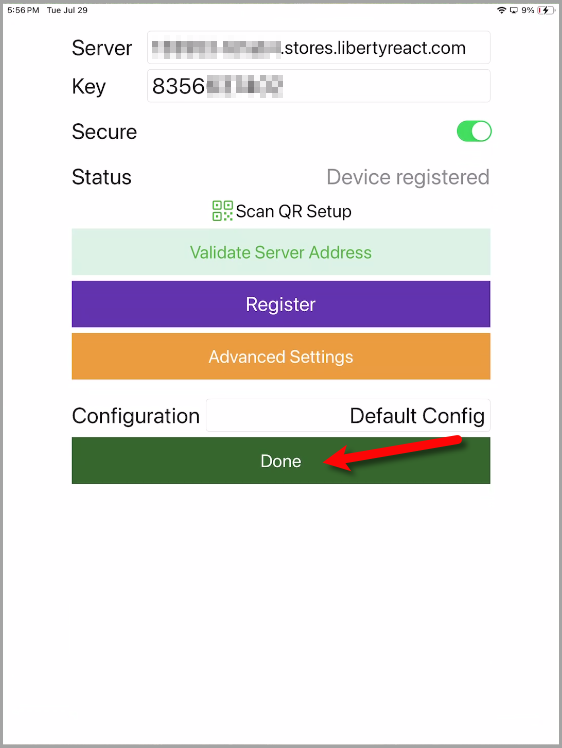
- You can now tap the Done button on the main Configuration screen.
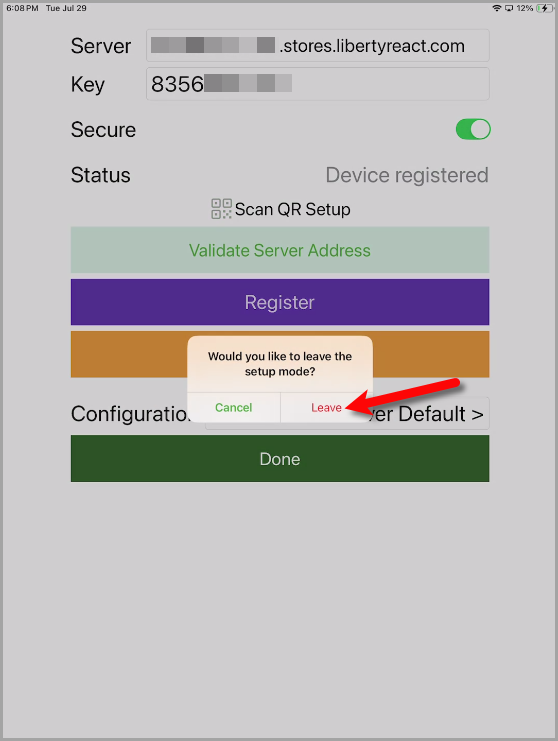
- Finally, tap the Leave option on the Would you like to leave the setup mode dialog box.


Next Article In Section
Click the following link to move to the next article in this section:
How To Create Dropoffs With The Kiosk App
Related Topics
Setting Up The Liberty Kiosk App For Inventory Dropoffs Inventory Drop Offs In The Liberty Kiosk Overview Inventory Dropoff With Consignor Center And The Liberty Kiosk App Inventory Dropoff With Consignor Login And The Liberty Kiosk App How To Create Dropoffs With The Kiosk App Setting Up The Customer Facing Display Mode Using the Customer Facing Display Account Management Feature Consignor Portal Feature Custom Page / Static Page Feature Item Lookup Feature