Custom Page / Static Page Feature
The following video chapter contains setup information on this topic:
https://www.youtube.com/watch?v=bm9YPwazle0&t=71s
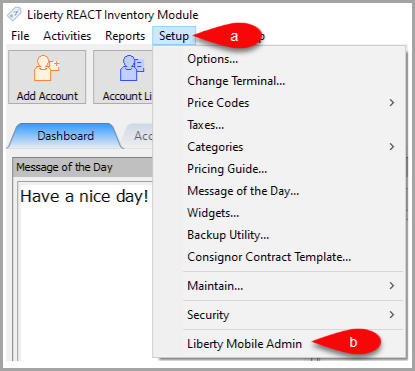
- Open Liberty and then click Setup and then Liberty Mobile Admin.
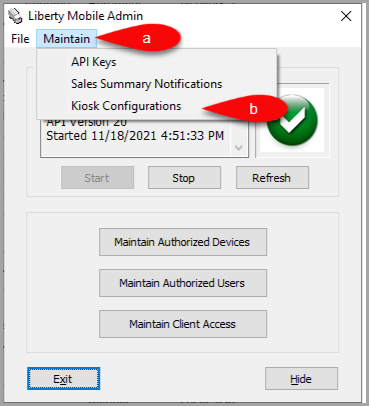
- Click Maintain and then Kiosk Configurations.
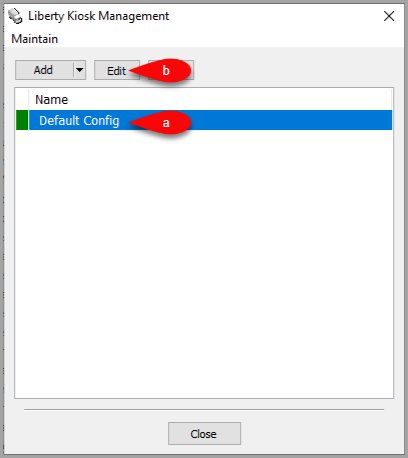
- Select the Configuration you want to edit and then click the Edit button.
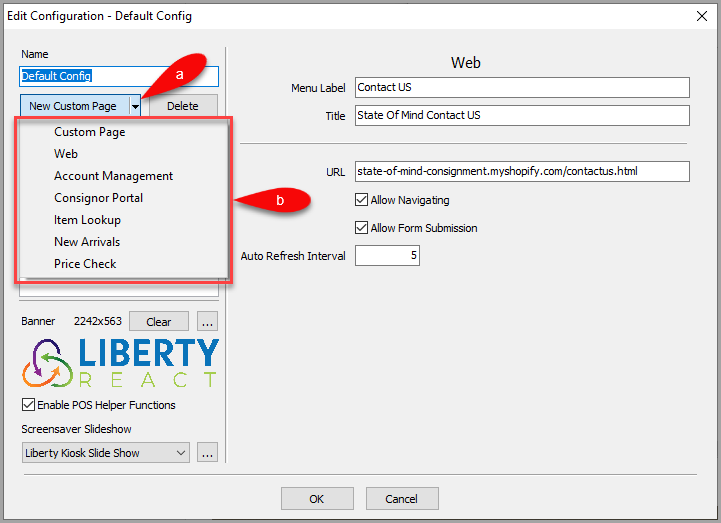
- Click the dropdown for New Custom Page, then select the Custom Page option.
Alternatively, you can click the New Custom Page button instead of the dropdown.
- You can now configure the Custom Page / Static Page feature which will add a panel within the Liberty Kiosk App.
Note: You can have more than one custom page panel showcasing different static pages of information you would like your consignors to view from the Liberty Kiosk App.
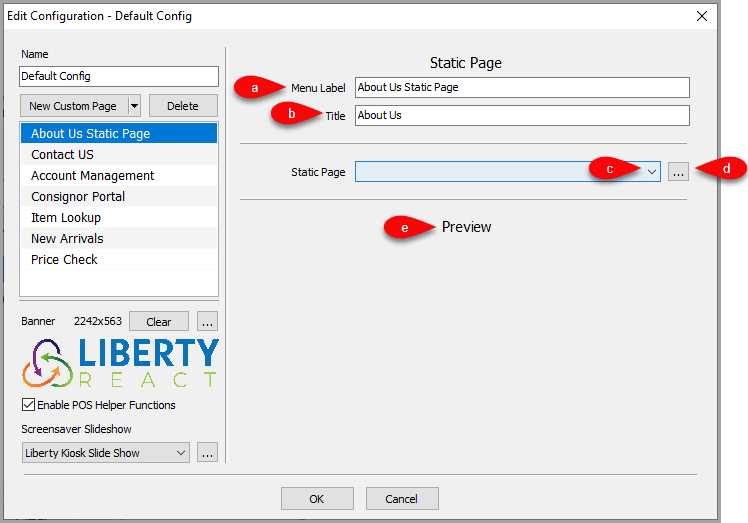
- Menu Label: This is the feature menu label that appears in the Liberty Kiosk App
- Title: Title of the page when shown in the Liberty Kiosk App.
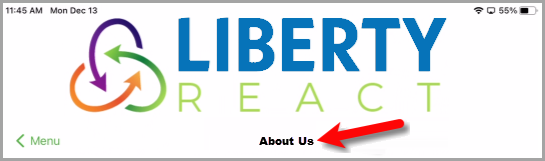
- Static Page: A list of static pages that you have created.
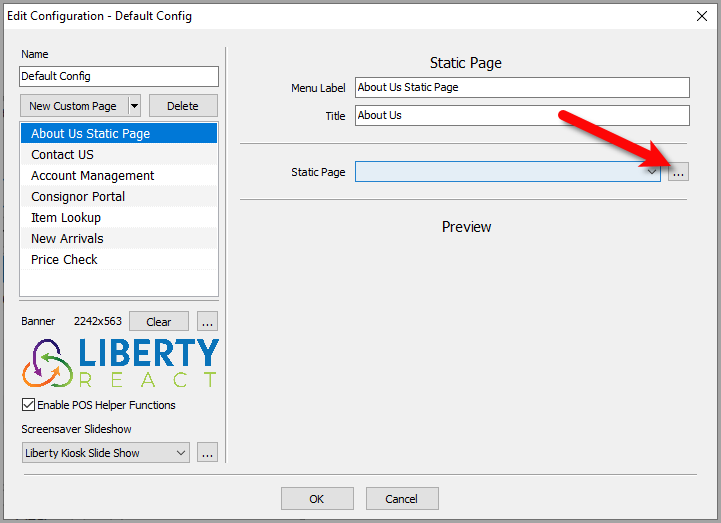
- Browse: Takes you to the Maintain Static Pages area where you can add, edit or delete static pages.
- Preview: Shows you what the currently selected static page will look like in the Liberty Kiosk app.
- To add, edit or delete static pages, click on the Browse button.
- To Add a Static Page, click the Add button.
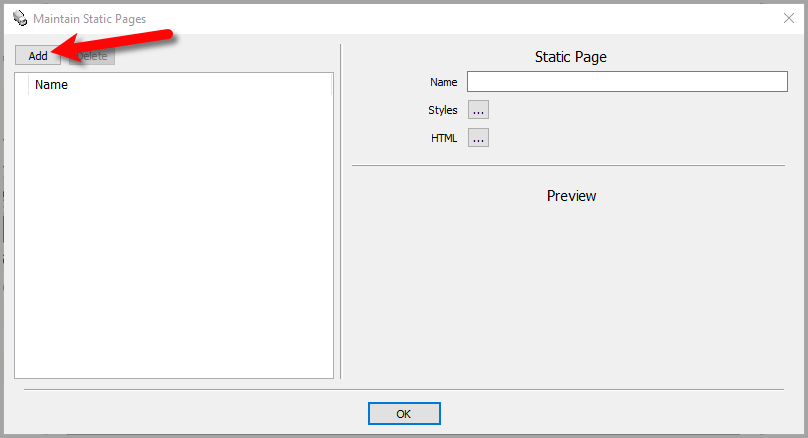
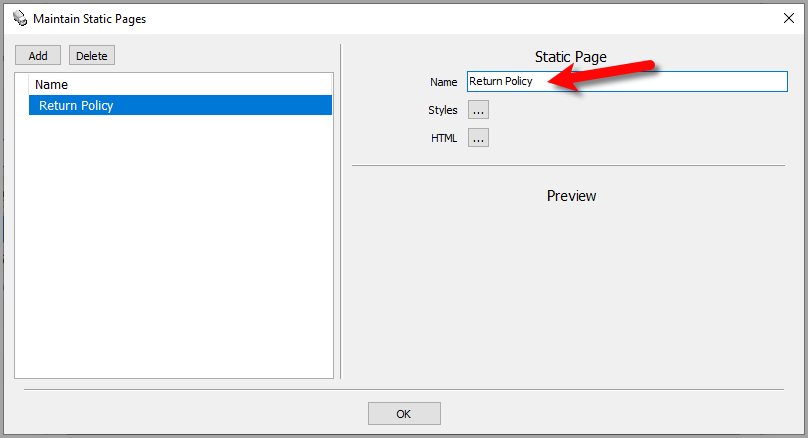
- Next, you can name the static page.
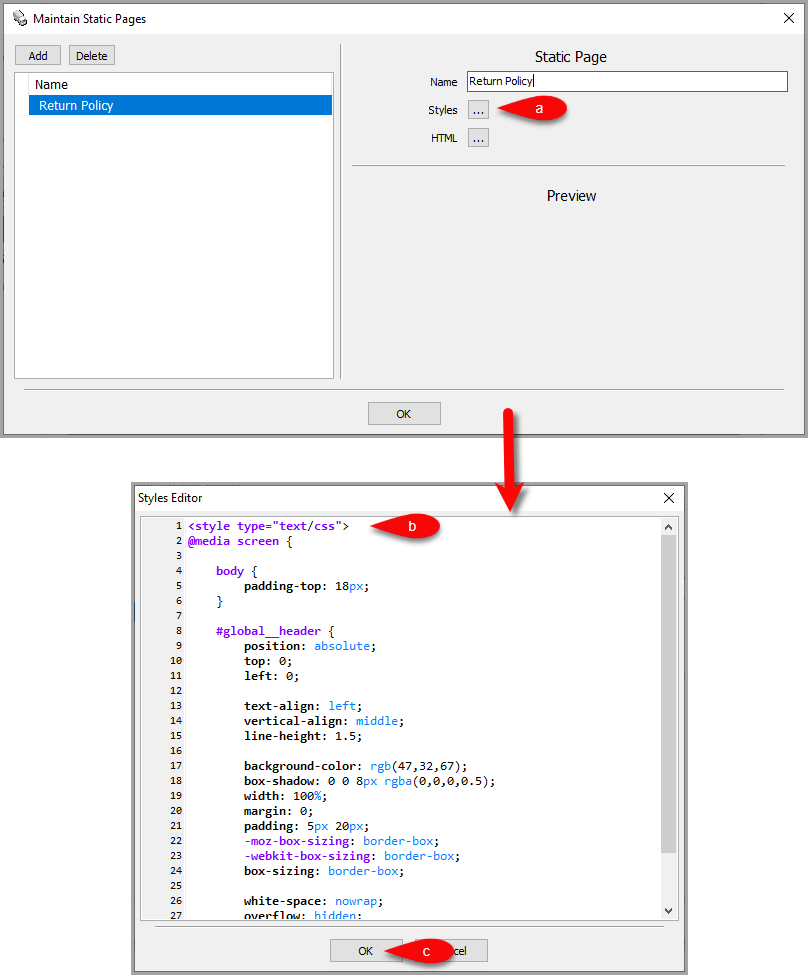
- You can click on Styles if you are familiar with Cascading Style Sheets (CSS) since it is possible to create your Static Page in HTML.
This will allow you to paste in your custom CSS code for use only on this static page.
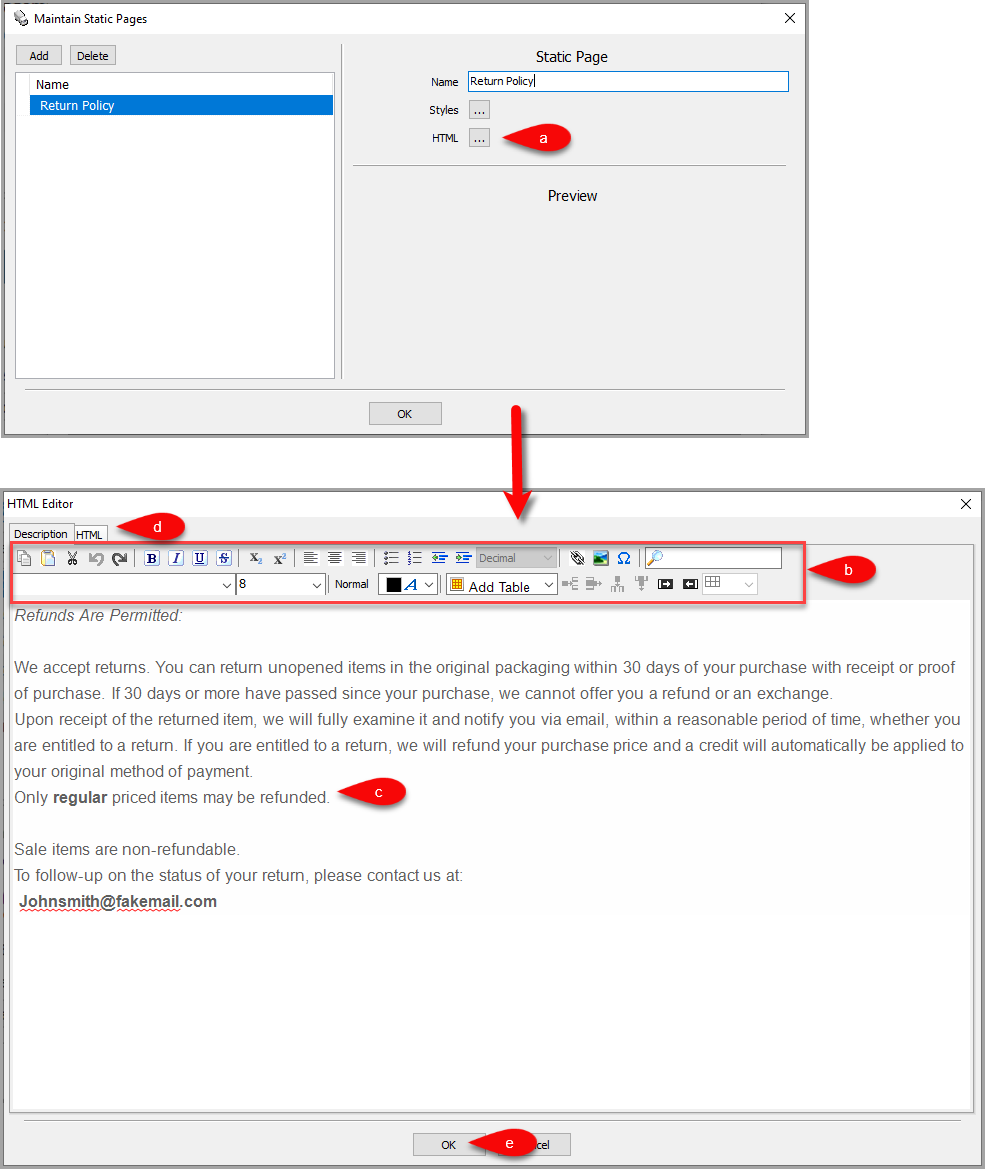
- Clicking the HTML button will allow you to type up your custom Static Page. By default a WYSIWYG editor will allow you to type the page up as if you were in a word processor program.
Many features like setting text to be Bold, italicized or underlined will be available to you.
You can also click on the HTML tab if you know HTML coding so that you can fine tune the page. This also gives you the ability to use pre-established Cascading Style Sheet (CSS) options you created under the Styles button.
Once you are finished, click the OK button.
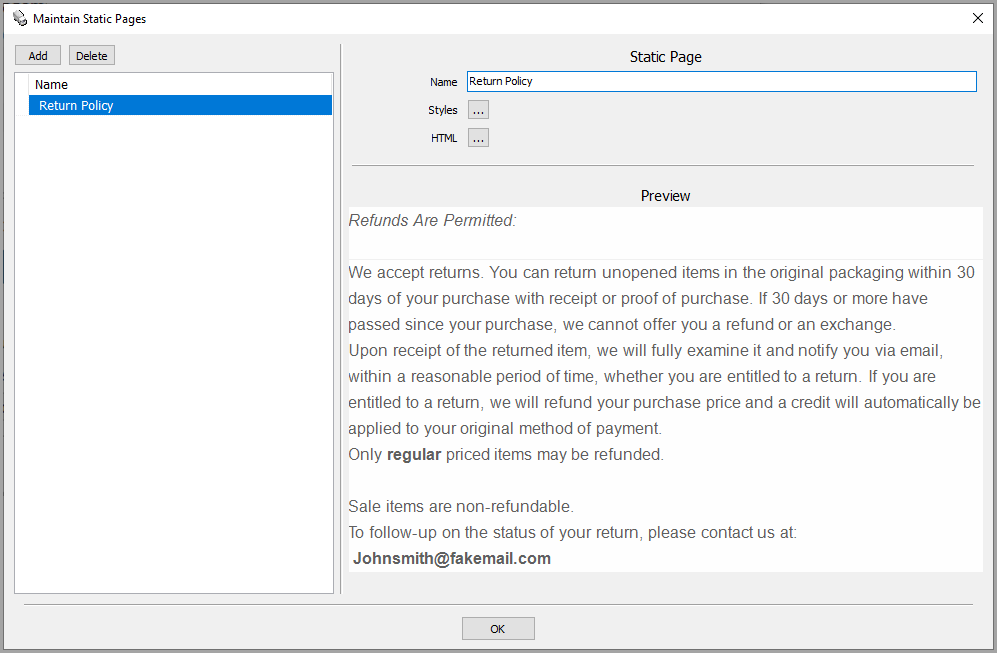
- You can now see a preview of what your static page will look like in the Liberty Kiosk app.


Next Article:
Next, you can add a website to be displayed using the web feature to the Liberty Kiosk app.
Please click on the following article to continue:
Next Article In Section
Click the following link to move to the next article in this section:
Web Feature