Using the Customer Facing Display
Once the Customer Facing Display is configured and set up in the POS, it will automatically display any sales that are in progress. It can be used either portrait or landscape and if ResaleRewards is enabled the display will include the ResaleRewards information.
Viewing the Display (No ResaleRewards, portrait)
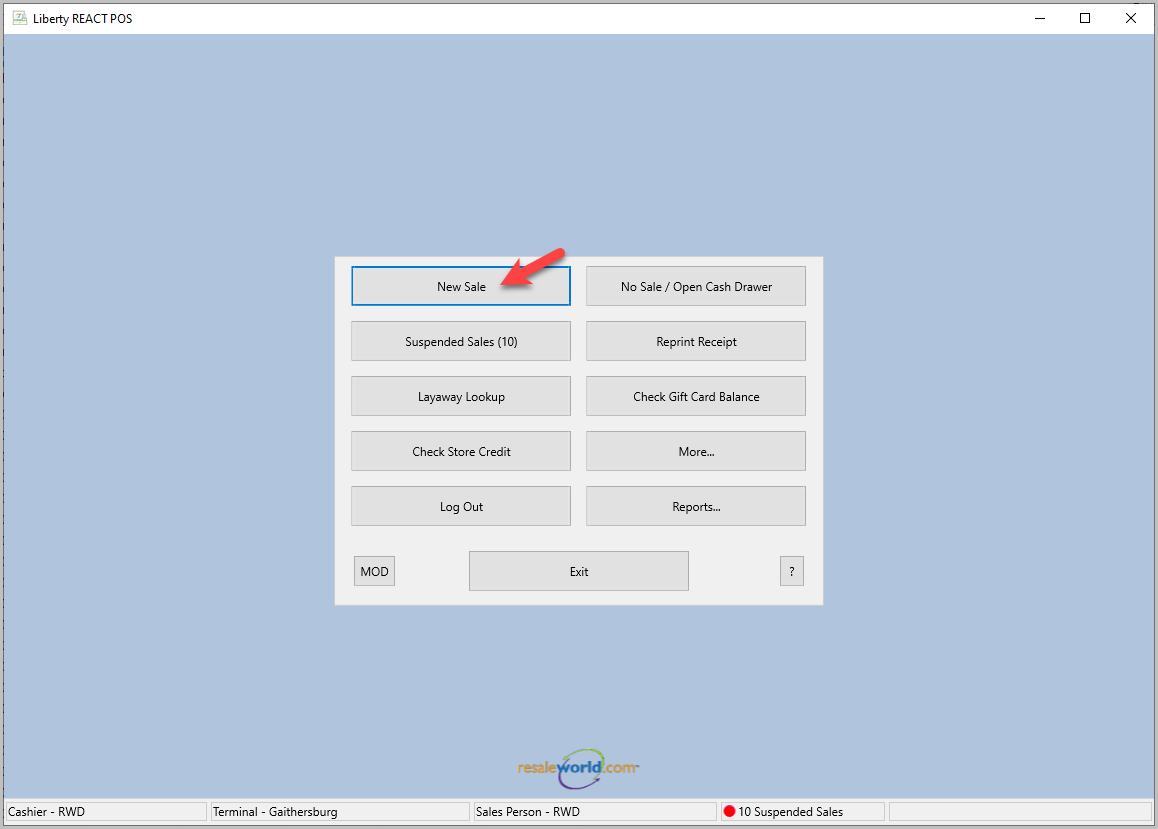
- Click New Sale in POS
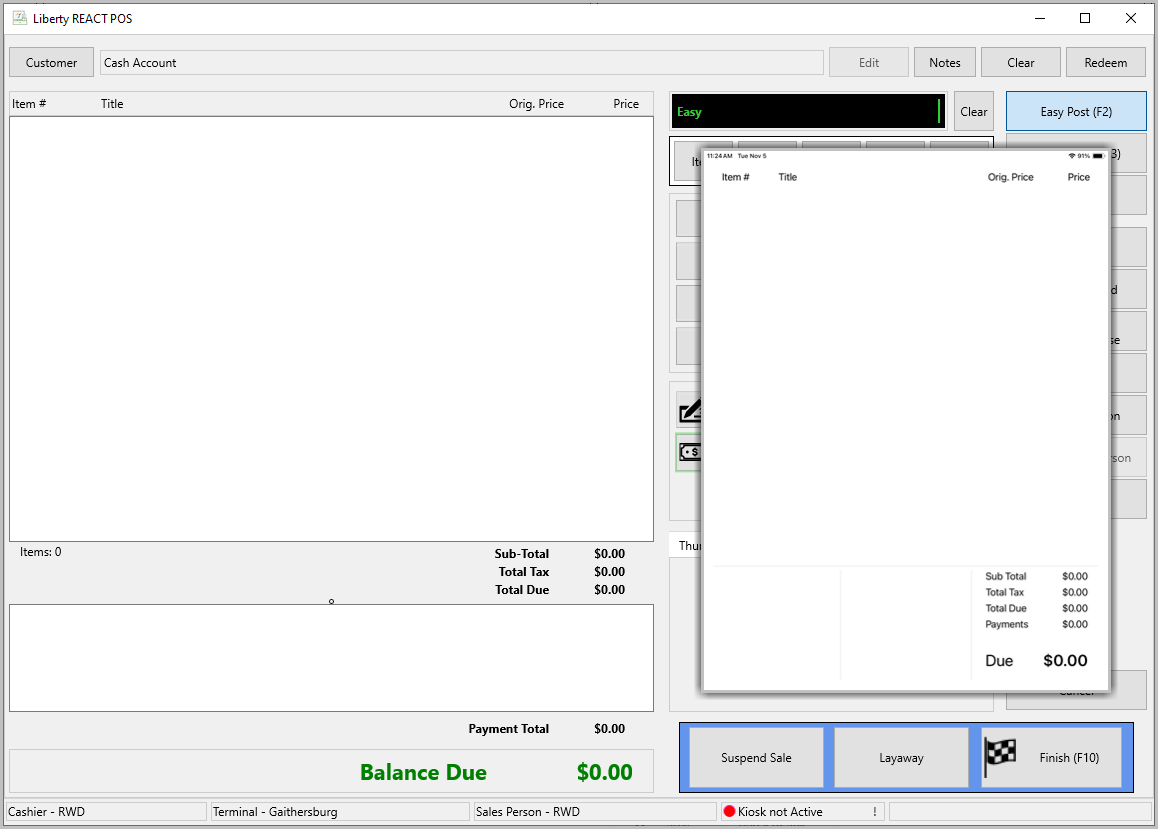
- The Kiosk will automatically show the sale information
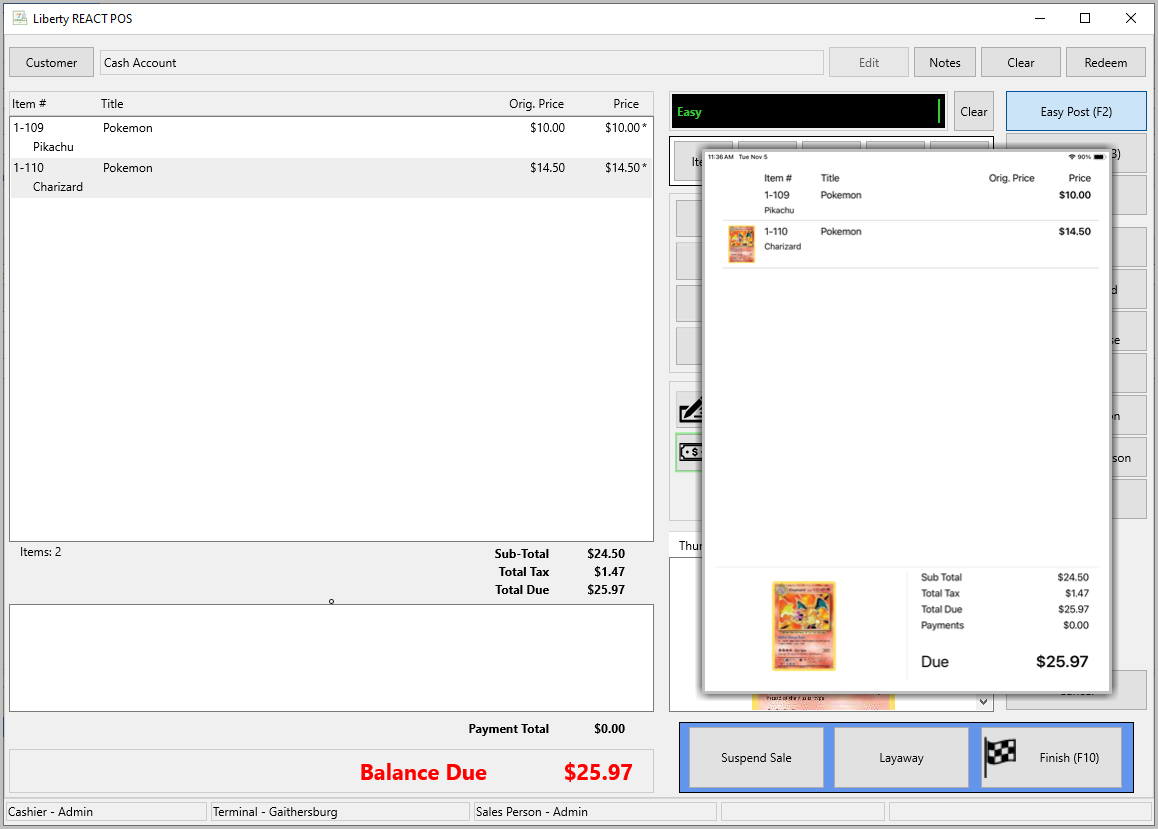
- As items are added to the sale they will appear on the kiosk, along with the price and an image if there is one
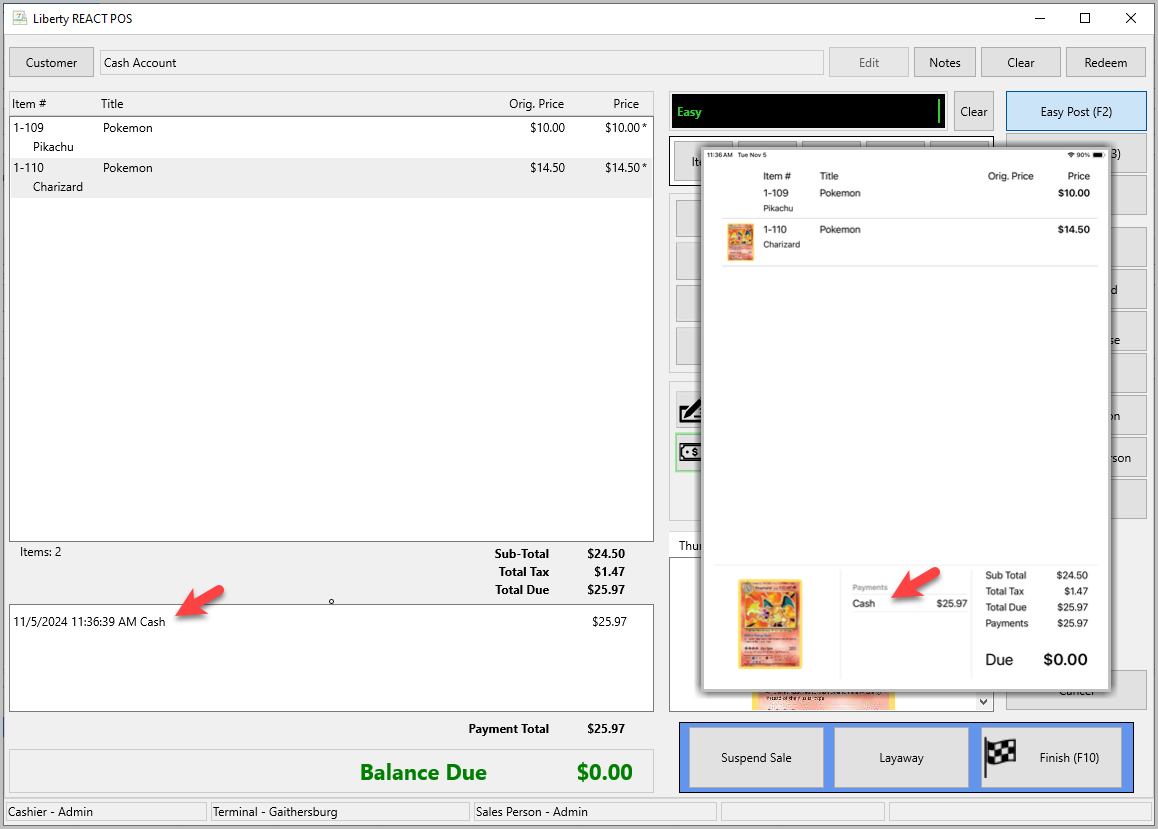
- Once a payment is added, it will also show up on the display
- Once you hit Finish the display will clear and be ready for the next sale


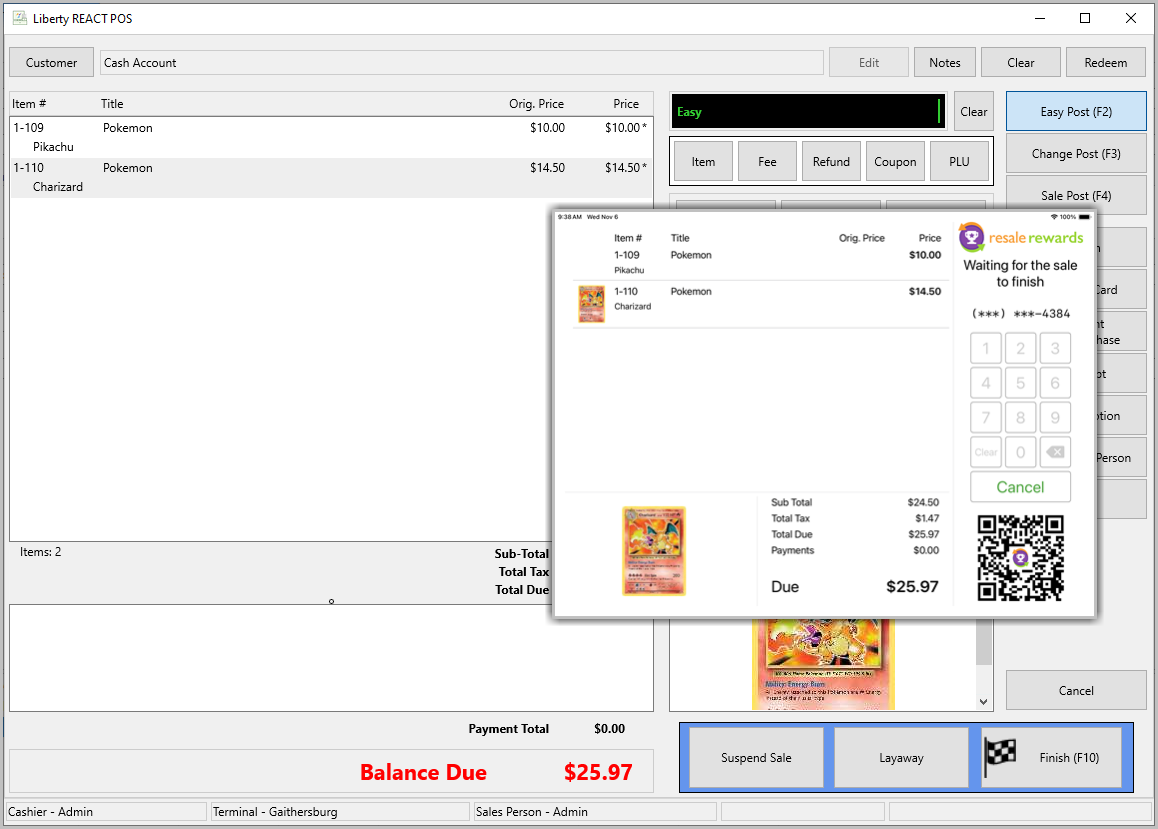
Viewing the Display (ResaleRewards, landscape)
- Click New Sale in POS
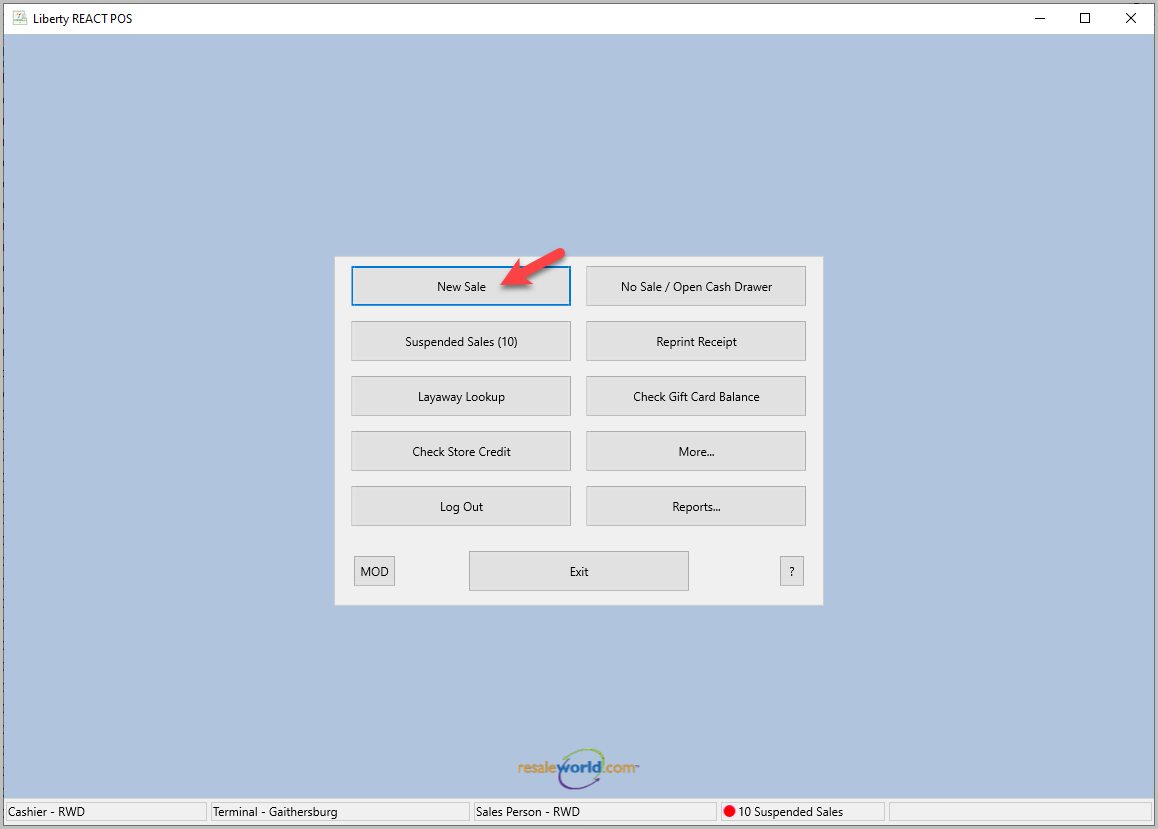
- The Kiosk will automatically show the sale information
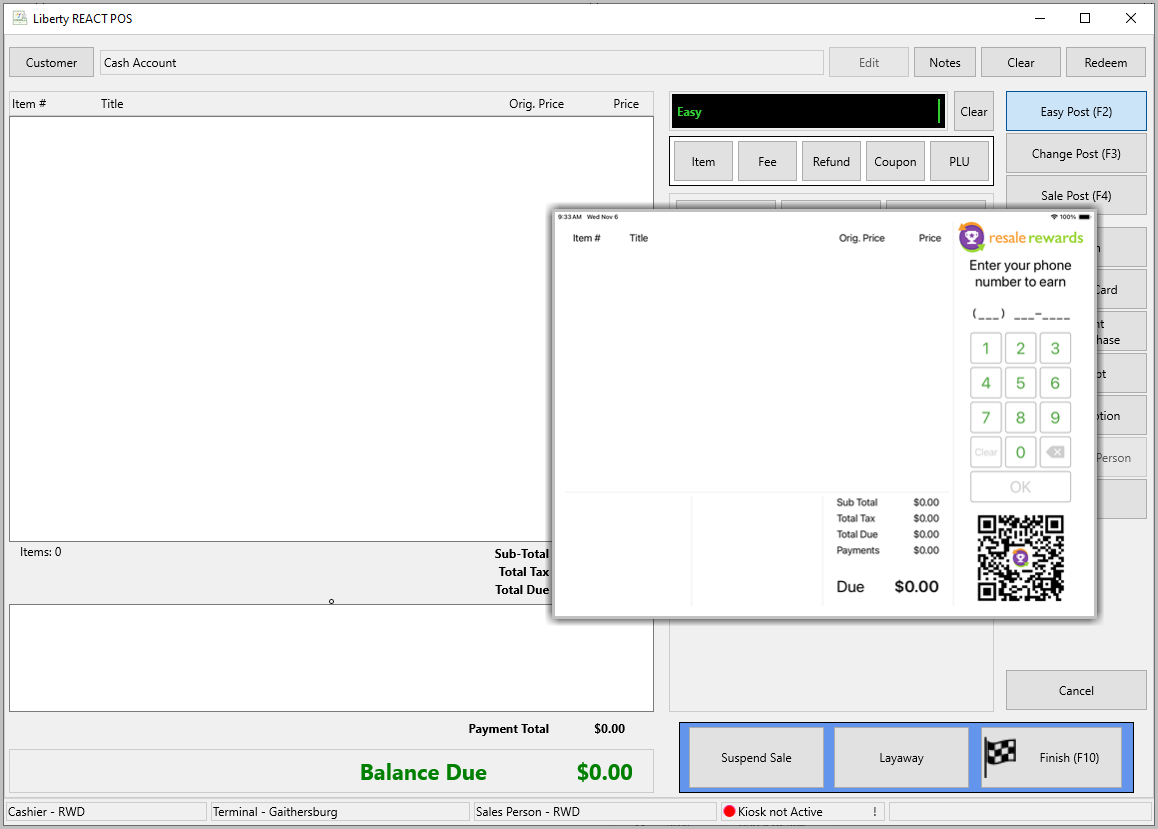
Note: In portrait mode the rewards will be at the bottom of the screen inside of the righthand side. - The customer can input their ResaleRewards phone number on the screen themselves. If they don’t already have the ResaleRewards app they can scan the QR Code to download it
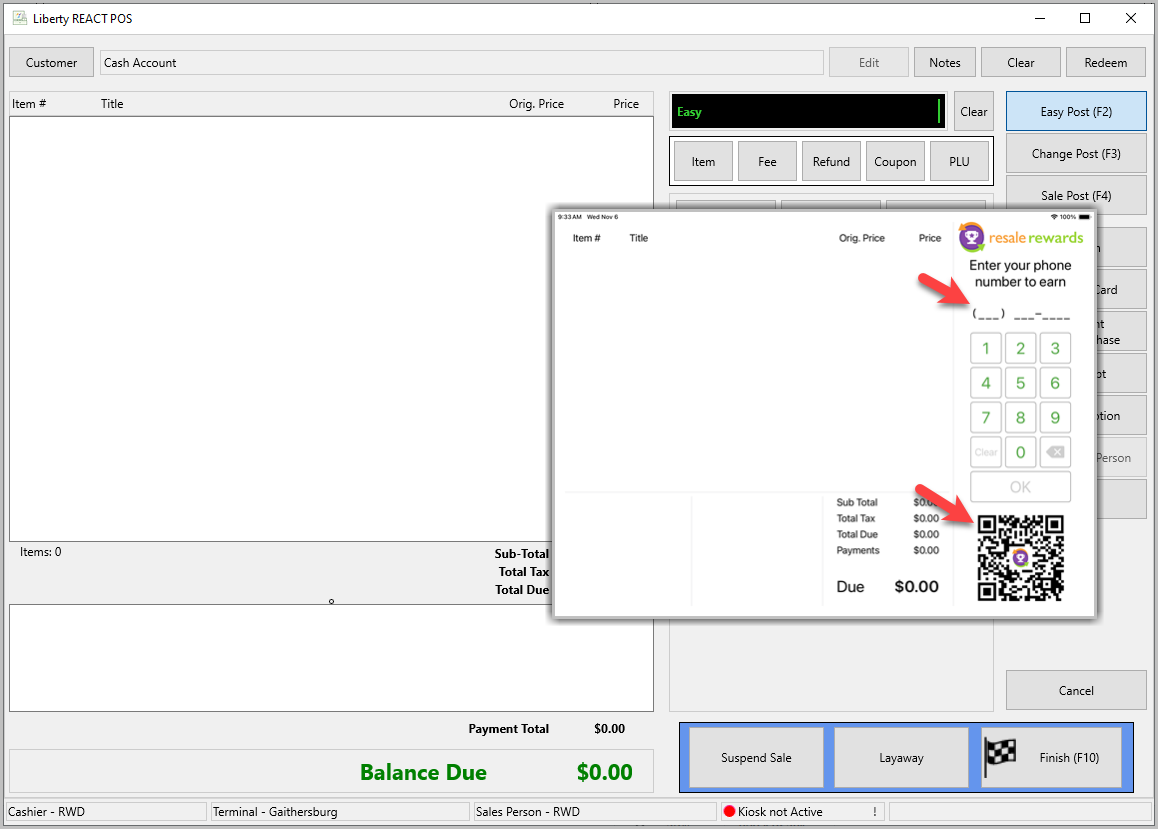
- A phone number can be entered any time before the sale is Finished
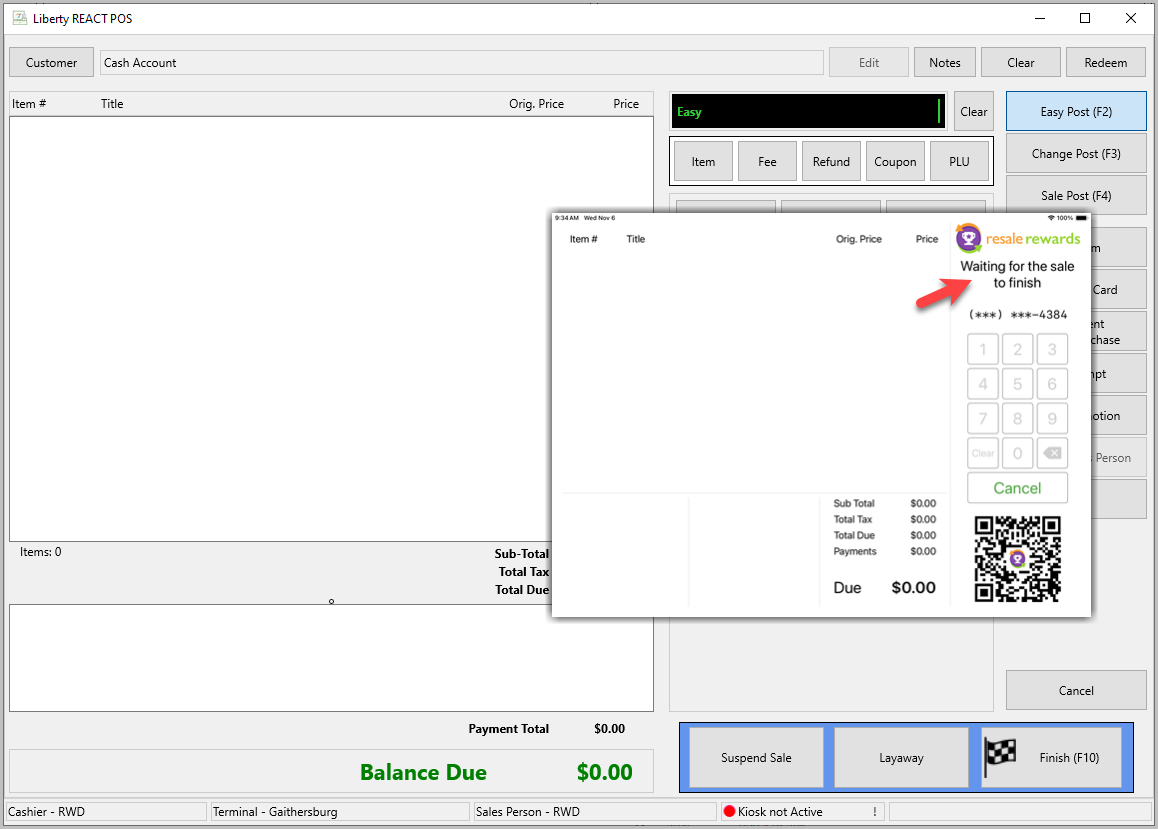
- As items are added to the sale they will appear on the kiosk, along with the price and an image if there is one
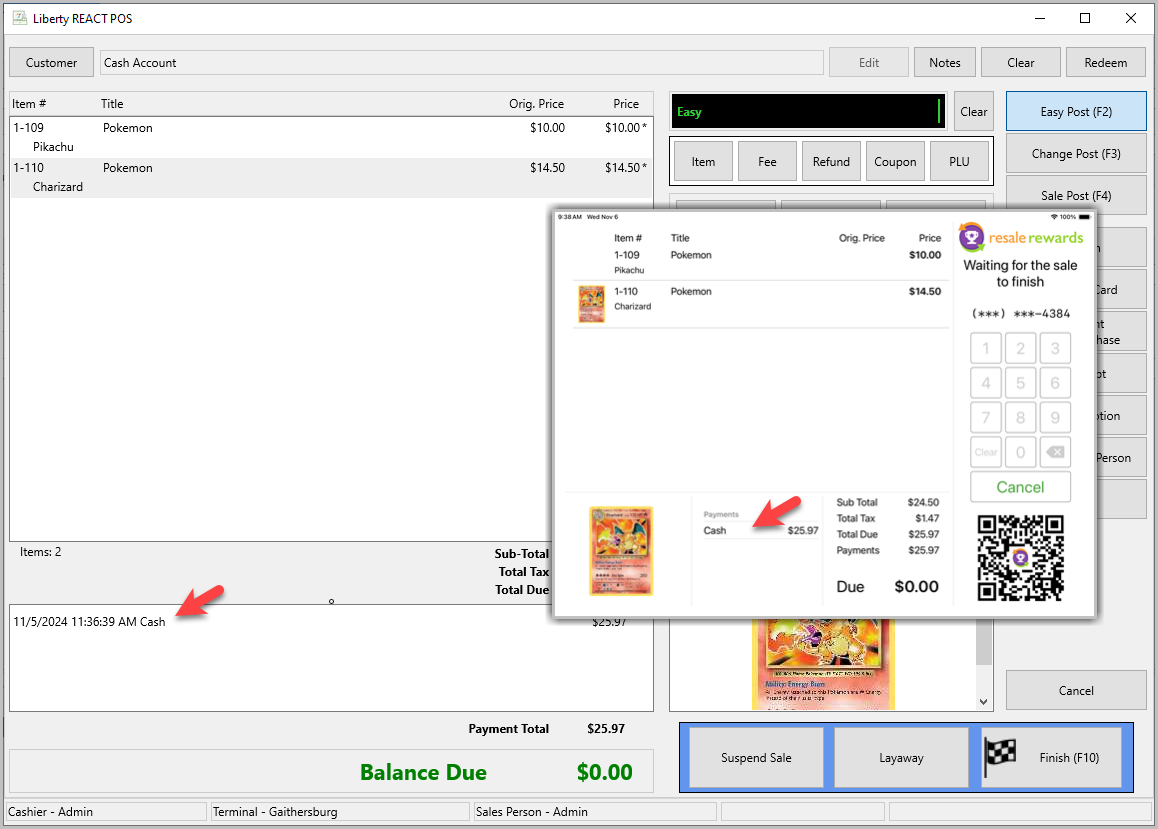
- Once a payment is added, it will also show up on the display
- Once you hit Finish the display will clear and be ready for the next sale


Next Section Navigation Link
Click the following link to see a list of articles for the next section:
Videos