Setting Up The Customer Facing Display Mode
As of the 6.2b update, you can now use the Liberty Kiosk app as a customer facing pole display.
There are three ways to set the Customer Facing Device Configuration on the iPad; enable it under an existing configuration, set it as the default configuration in Liberty or manually select it in the app. After the configuration is done you’ll have to set it up in the POS.
Enabling Customer Facing Device Configuration
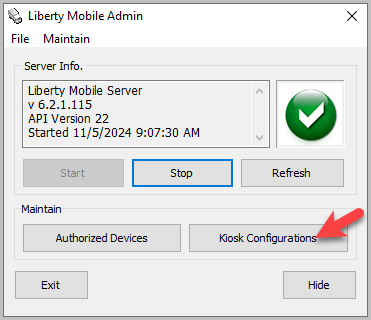
- In the Liberty Mobile Admin, click Kiosk Configurations
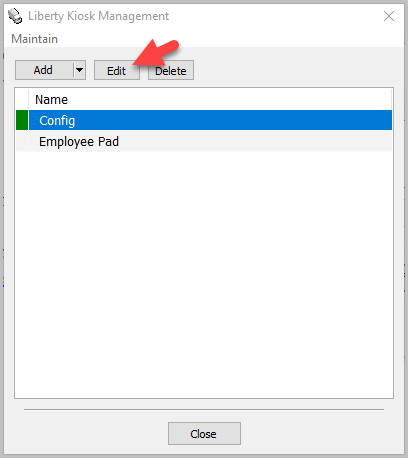
- Select the configuration you wish to use, then press Edit
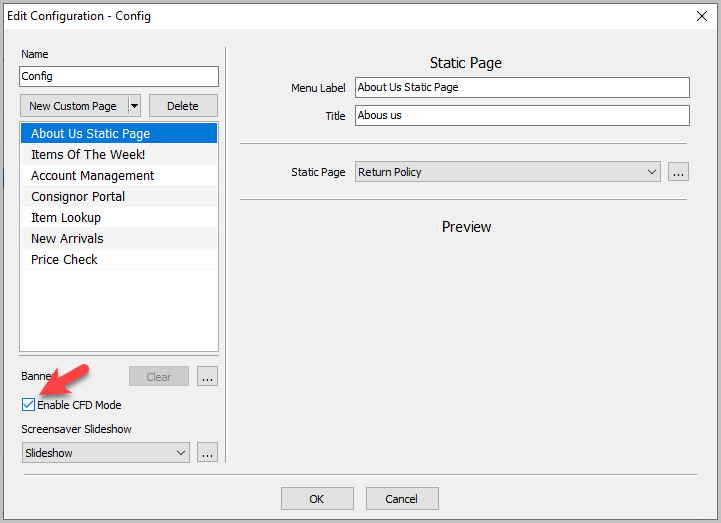
- Check the Enable CFD Mode box


Adding New Customer Facing Device Configuration
If you want to enable the Customer Facing Device configuration separately from another configuration, first you need to add it as a new configuration in Liberty Mobile Admin.
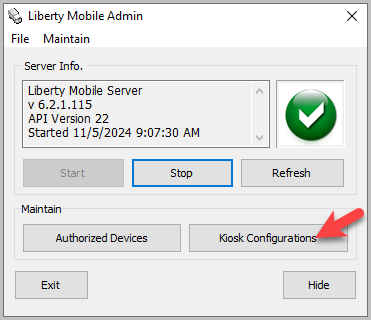
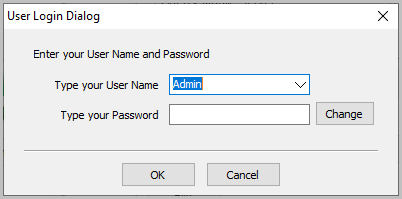
- In the Liberty Mobile Admin, click Kiosk Configurations
- Sign in with any username
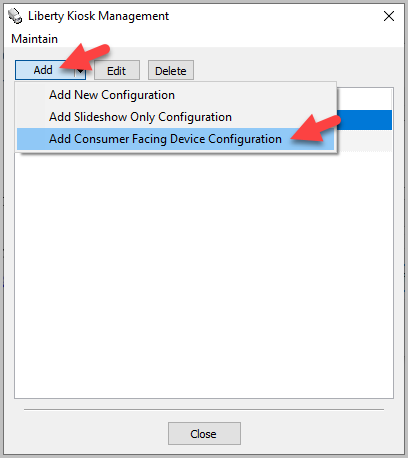
- Click Add, then Add Consumer Facing Device Configuration
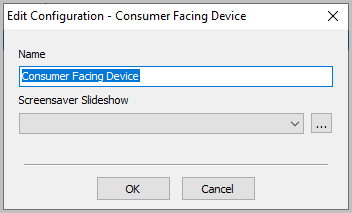
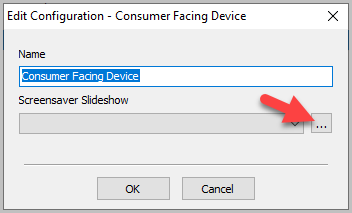
- Enter a name for the configuration
- Select a Slideshow for the configuration
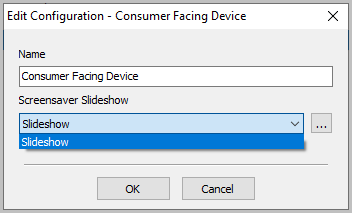
- If there is no slideshow, or if you wish to create a new one, click the … button


Setting the Customer Facing Device Configuration as Default
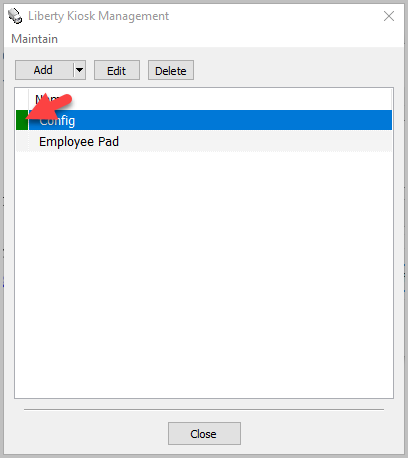
- Whichever Kiosk configuration is the default will be highlighted green
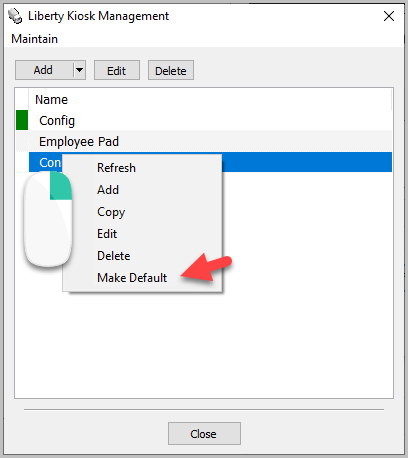
- Right-click on the Consumer Facing configuration and click Make Default
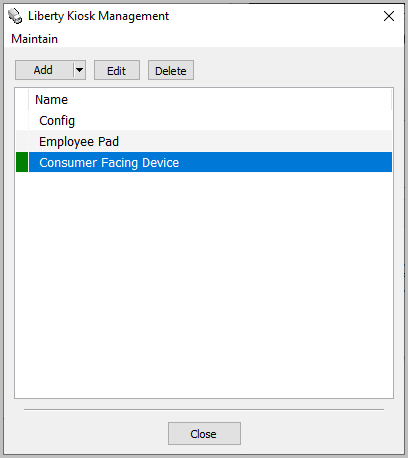
- The Consumer Facing Device should now be marked as the default


Changing the Configuration in the App
To change the configuration the Kiosk App needs to be in Configuration Mode. The first few steps here describe how to put the app back into configuration mode if it has already been set up. If you are setting up the app for the first time, skip ahead to step 4.
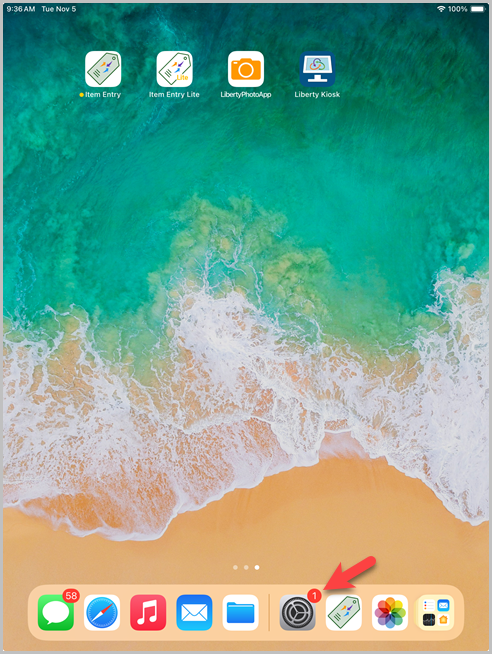
- Open Settings on the iPad
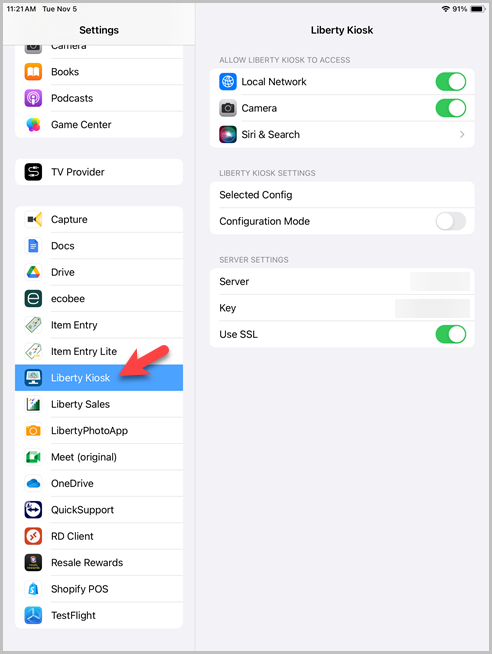
- Scroll down and select Liberty Kiosk on the left hand side
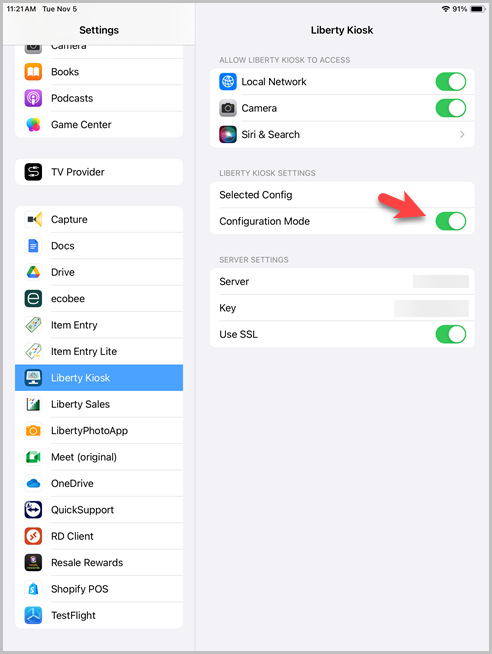
- Toggle Configuration Mode on
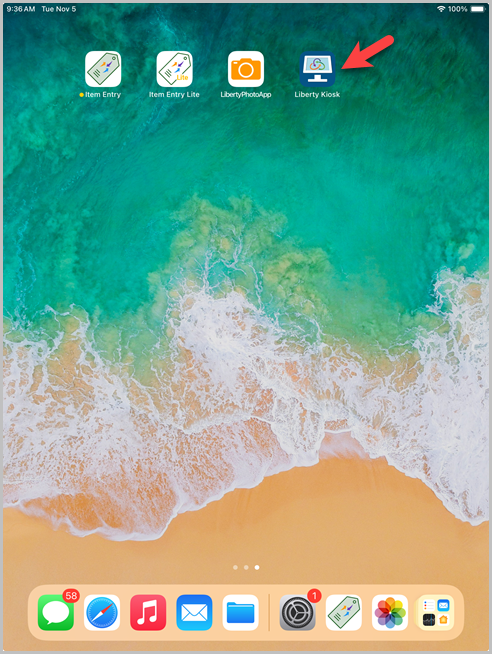
- Reopen the Kiosk app.
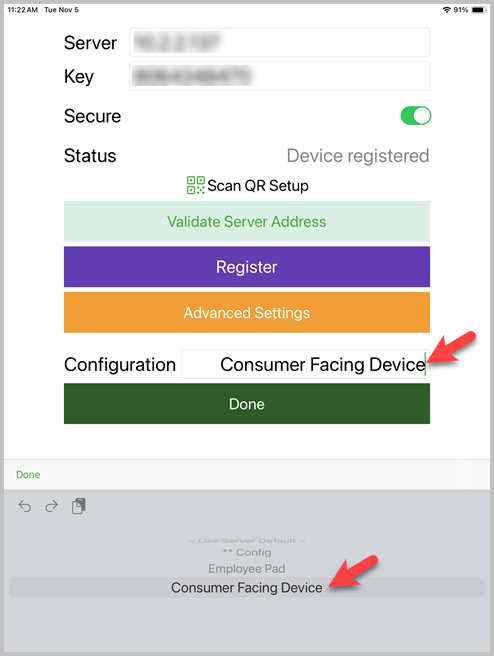
- Click Configuration then choose the Consumer Facing Device from the bottom menu
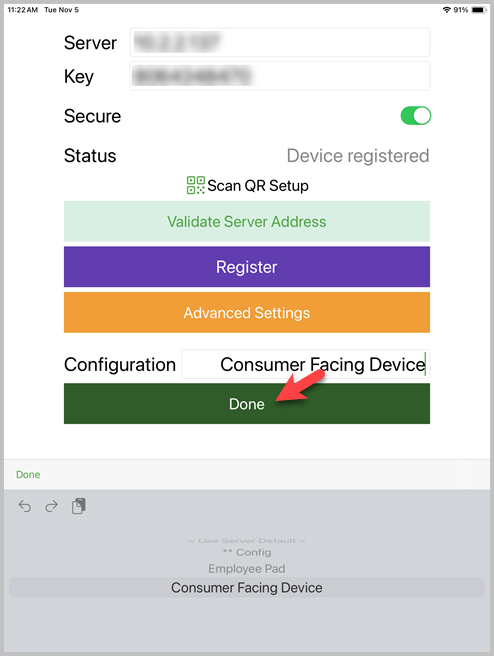
- Click Done to save the settings


Enabling Consumer Facing Device in POS
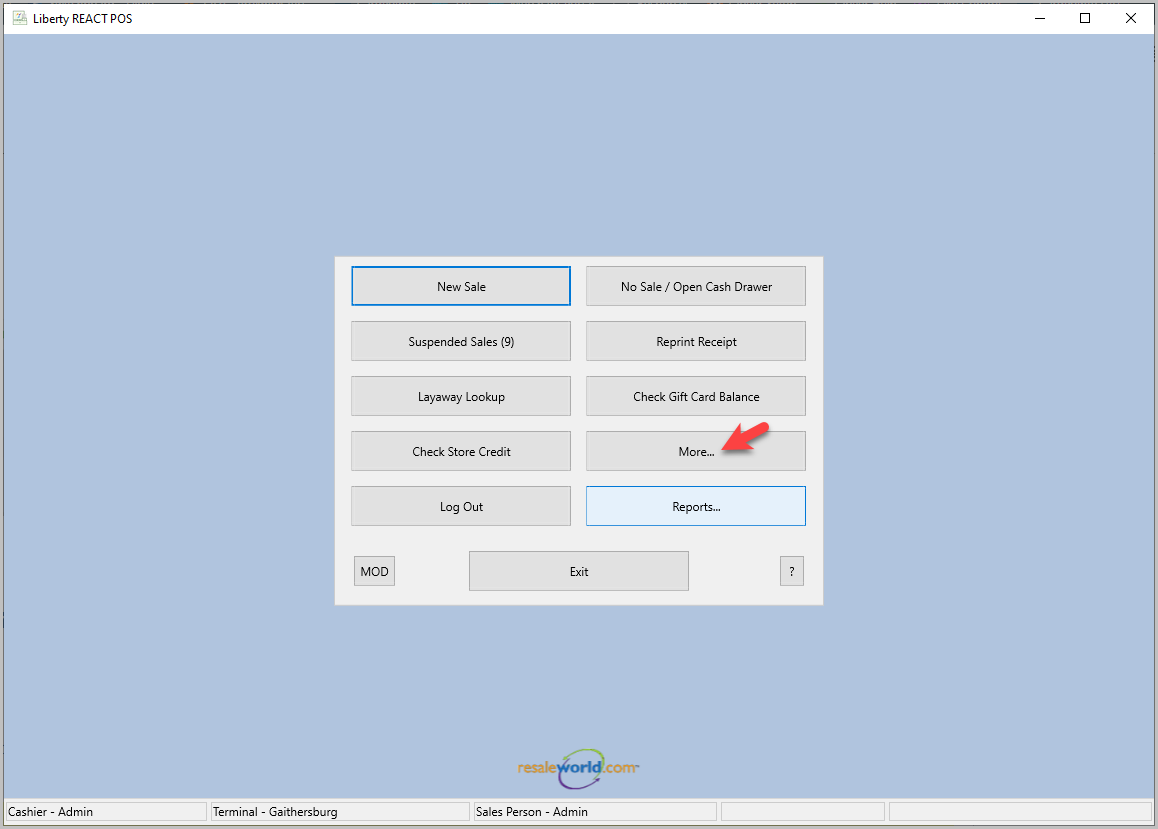
- In POS click More…
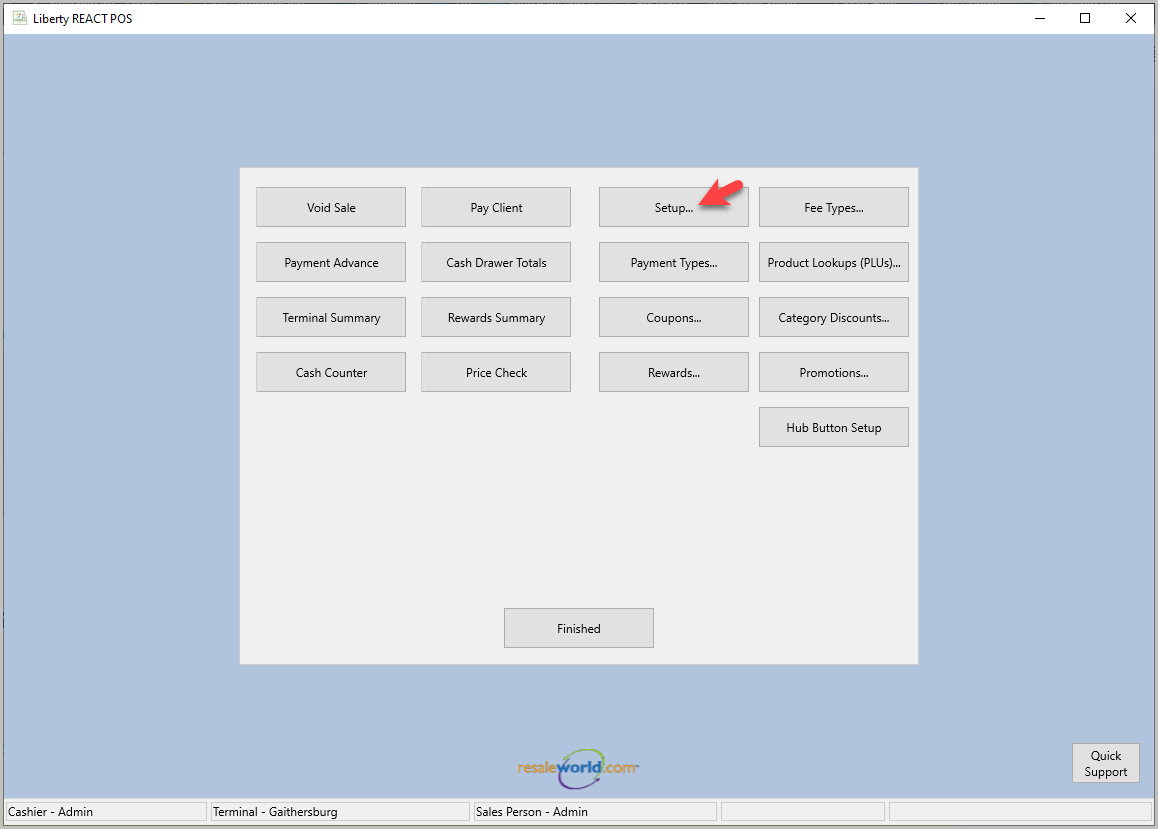
- Then click Setup…
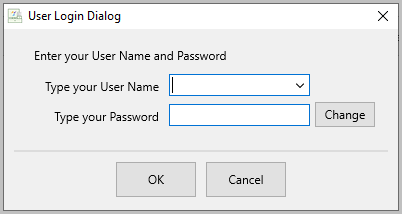
- Sign in with a Liberty username
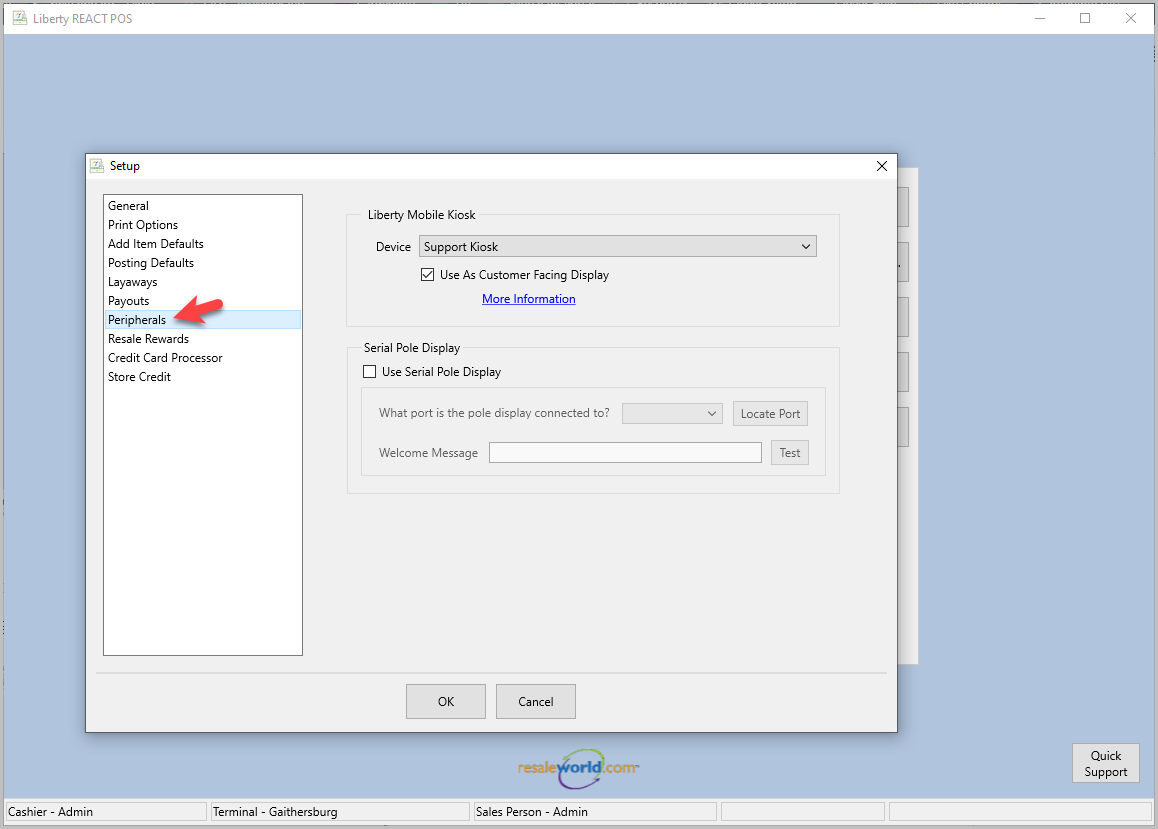
- Select Peripherals on the left hand side
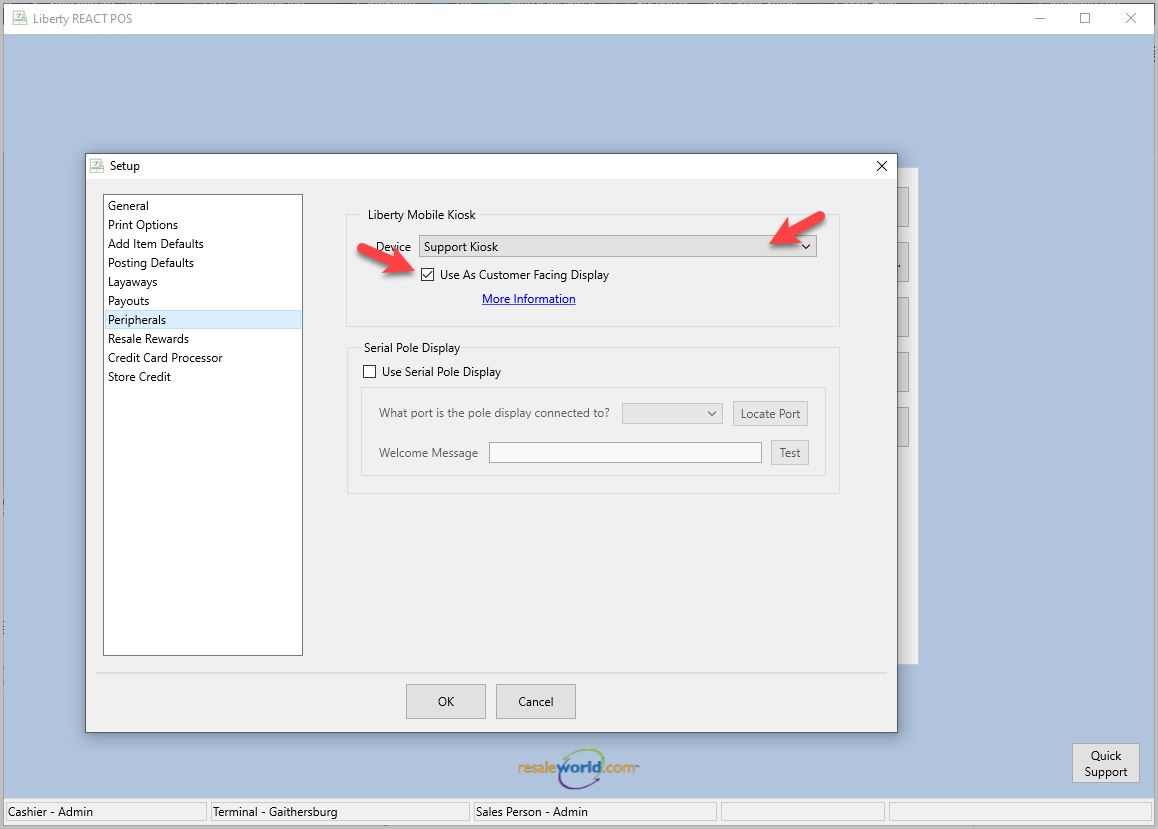
- Select the correct device from the dropdown menu, then check the Use As Customer Facing Display box
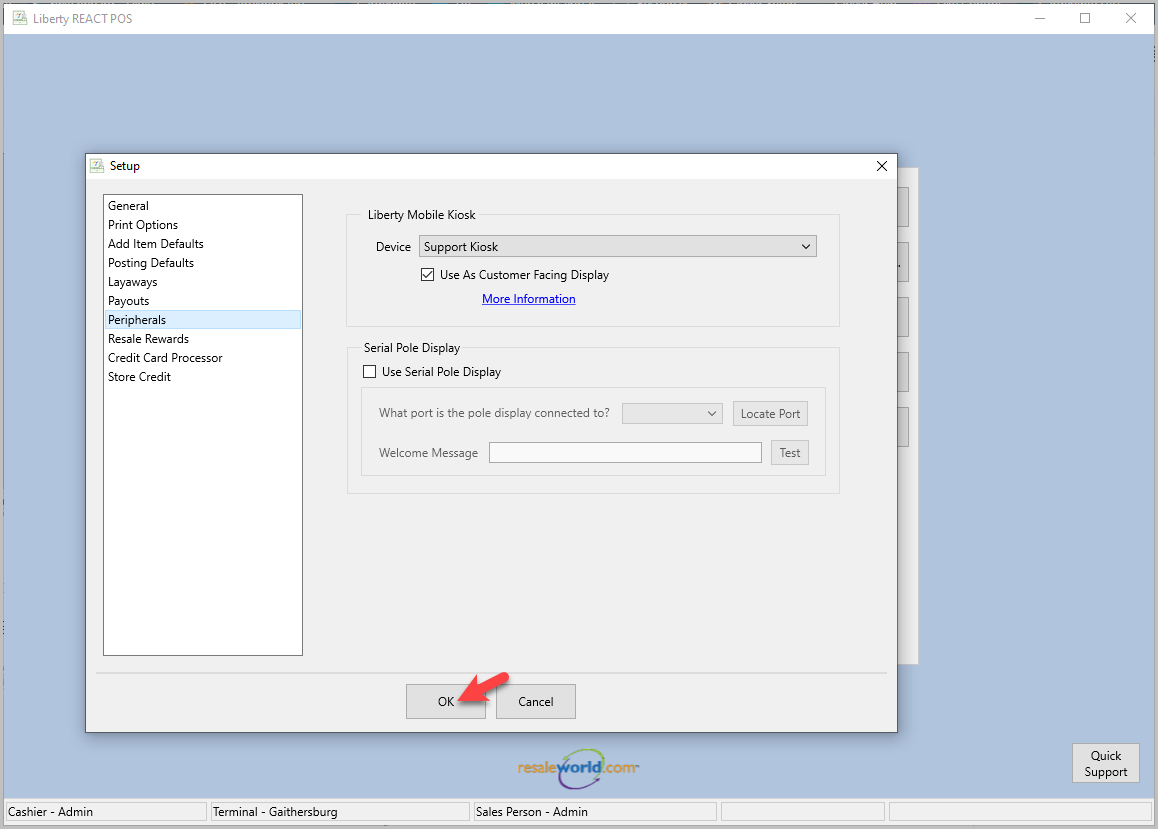
- Click OK


Next Article In Section
Click the following link to move to the next article in this section:
Using the Customer Facing Display