Trade Item Entry Process
If a consignor brings a new item that is not part of their current inventory and they want to trade or take cash for the item, this article explains how to do so.
Prior to creating an Item For Trade, if you are planning to give a bonus when a consignor decides to trade, then you will need to setup the Differential Percentage for Trade Items. You can skip the Setting Up Differential Percentage For Trade Items step if you are not giving any bonus for item trade. See Trade Items Overview for more information about Differential Percentage for Trade Items.
Setting Up Differential Percentage For Trade Items
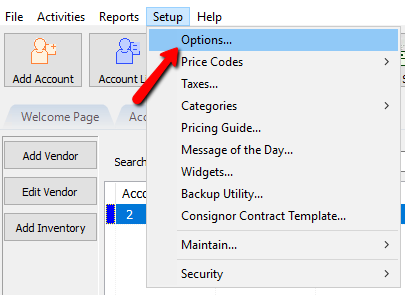
- In Liberty, click on Setup > Options > Item Entry Options.
Login if required.
The Maintain Options dialog box will open.
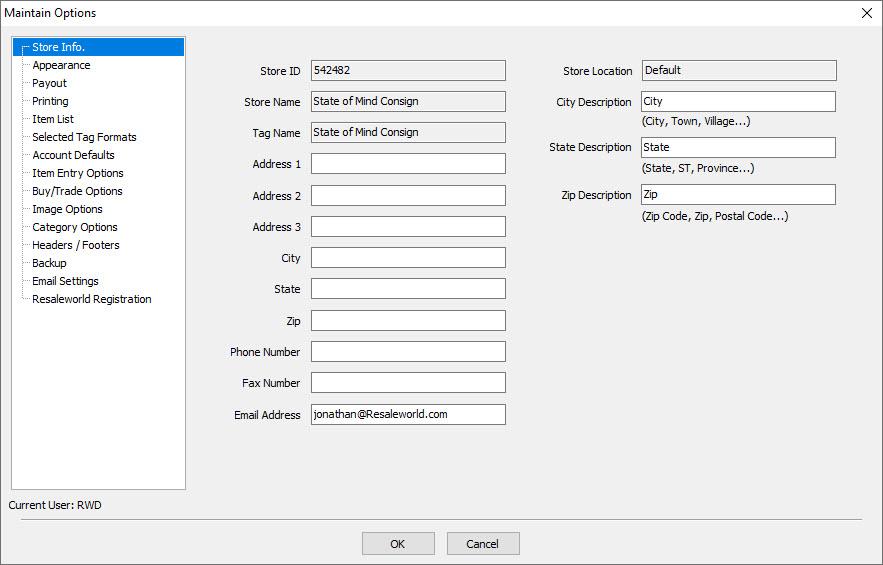
- Select the Item Entry Options.
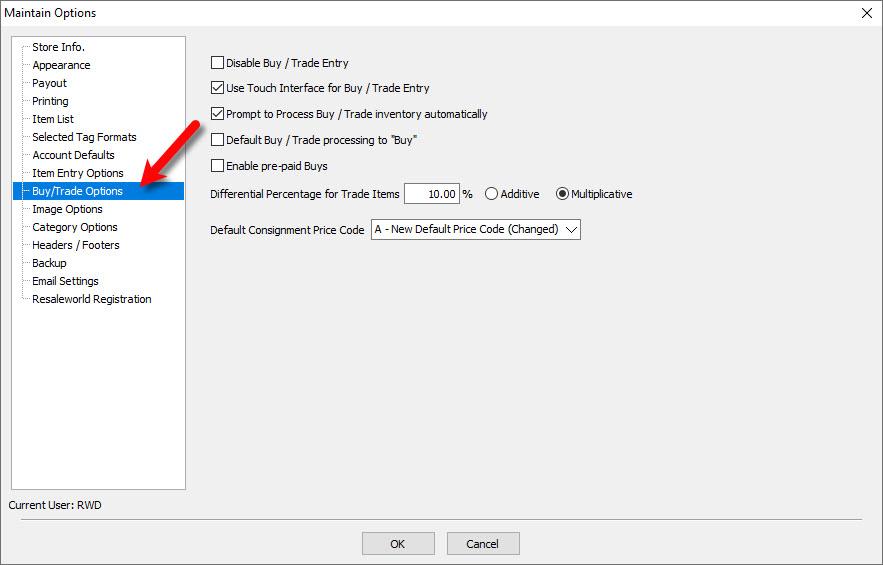
- Under Differential Percentage for Trade Items text box, you can specify the additional percentage a consignor can receive as store credit for accepting a trade.
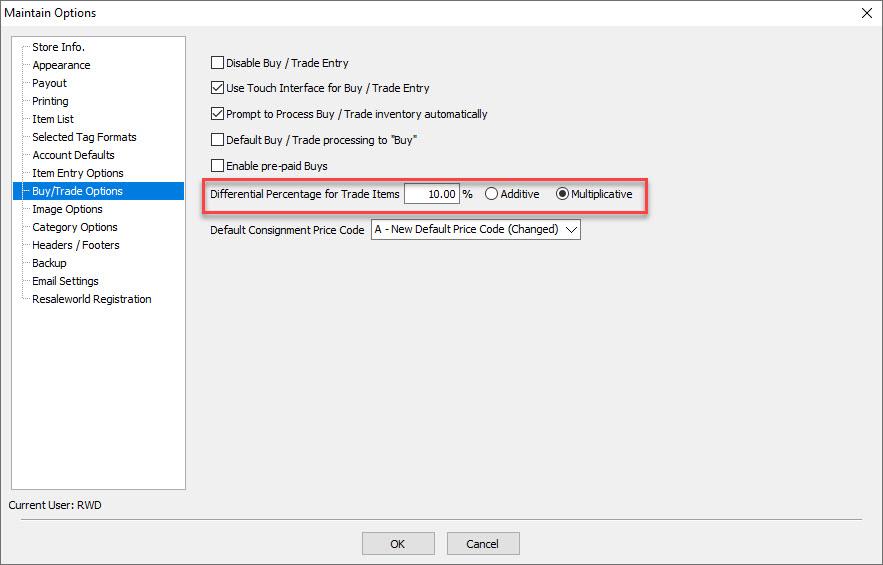
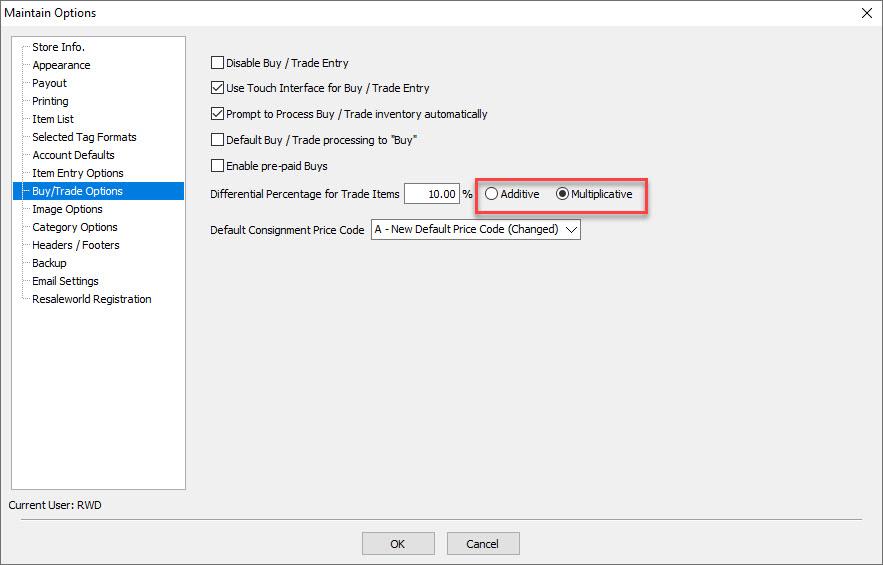
- Select Additive or Multiplicative. They have different calculations. See Trade Items Overview for an explanation of both options.
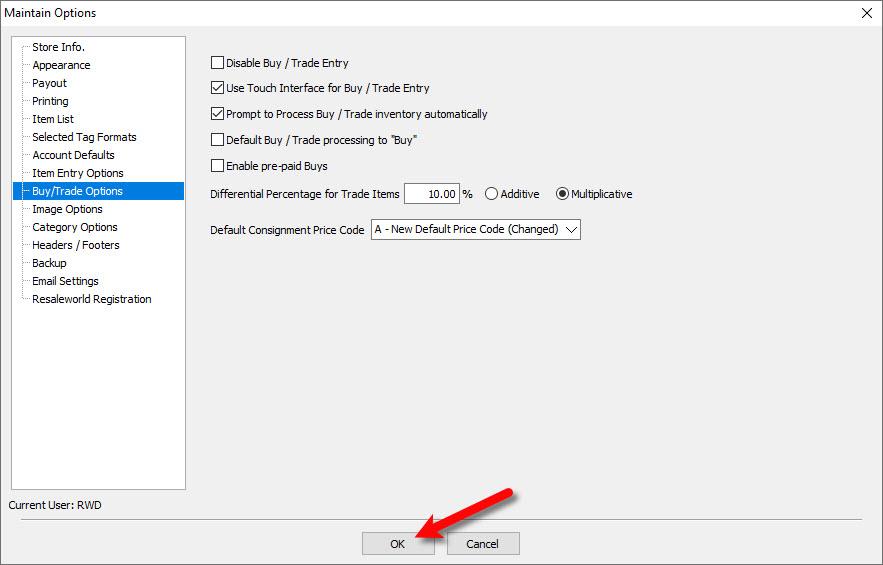
- Select the OK button when done.


Note: The Differential Percentage For Trade Items only applies if a consignor decides to trade their item.
Creating An Item For Trade
- In Liberty, select the Account List button.
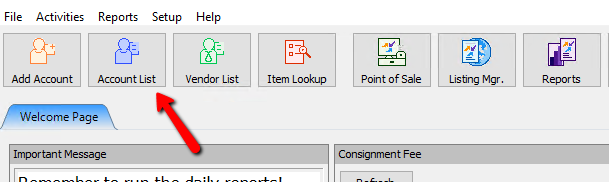
The account list will appear
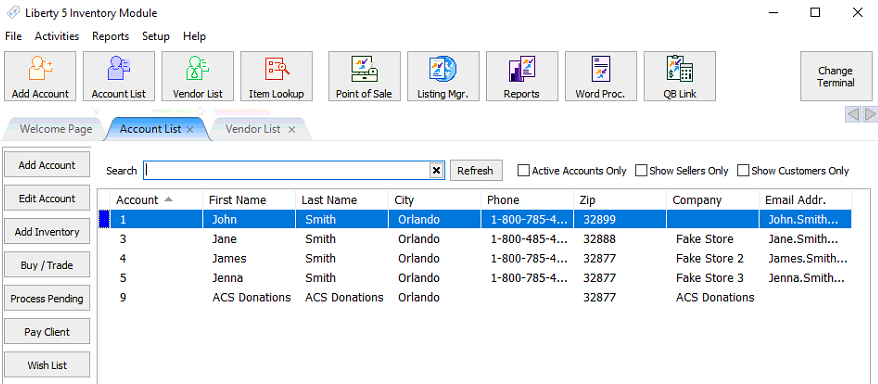
- Highlight or Select the account where the new item will be added, then select the Buy/Trade button. You can also select the Buy/Trade button from within the account.
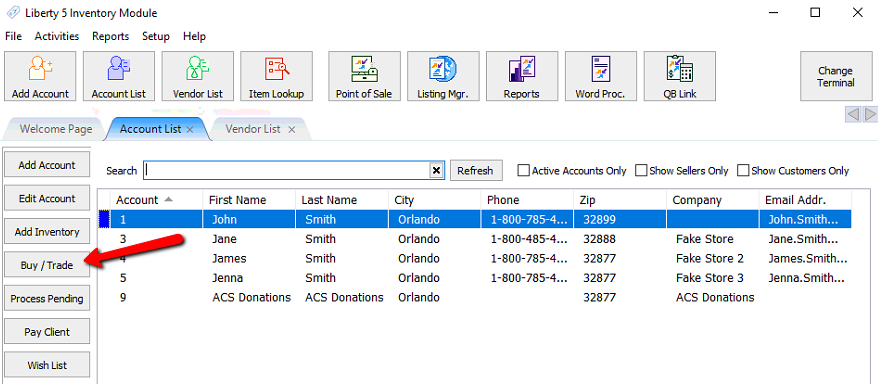
Note: Items that were not added through the Buy/Trade dialog menu, they will not be eligible for Trade.
The Buy/Trade item entry screen dialog appears.
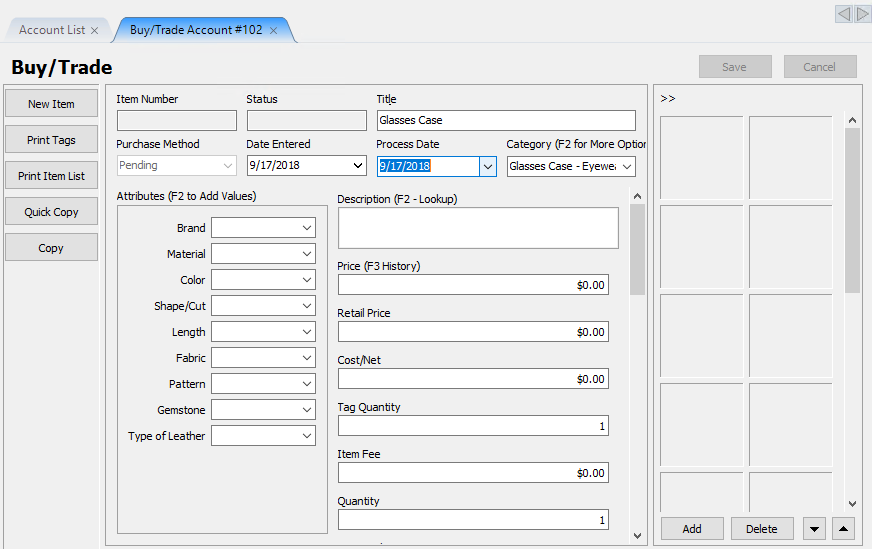
The Buy/Trade item entry screen is identical to the regular item entry screen. For more information on Item Entry and the different fields with this screen, see Consignment Item Entry Window.
If you have the Touch Screen option enabled, the Buy/Trade item entry screen will look like this.
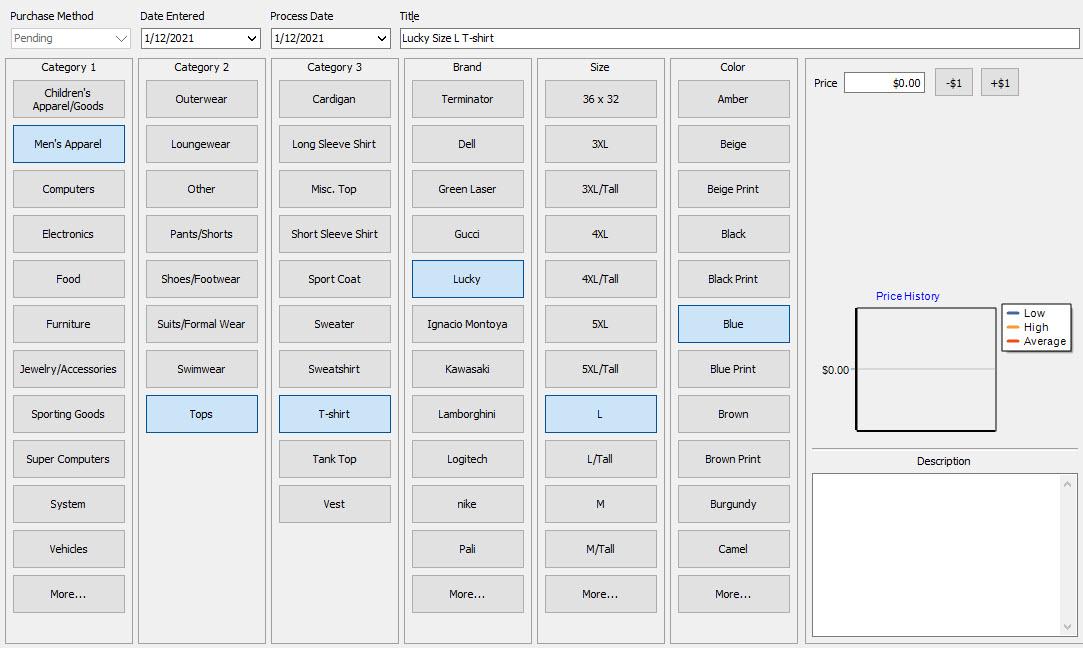
- Under Title, provide a title for this new item.
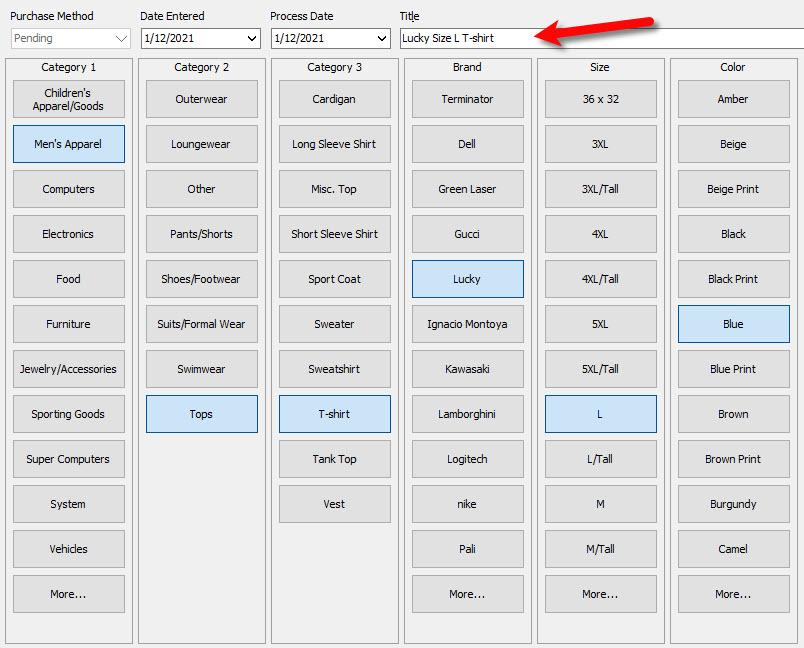
- Select on the appropriate Category 1, Category 2, Category 3, and Brand by selecting the appropriate buttons.
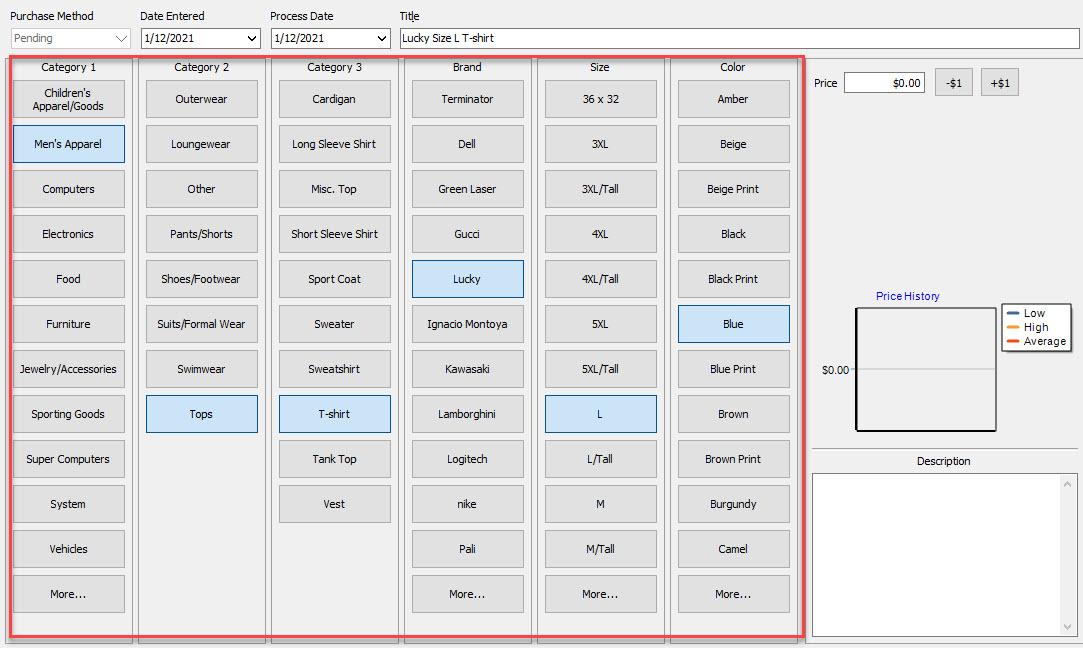
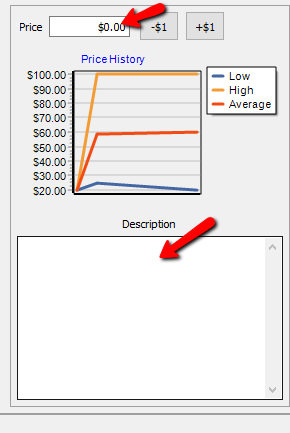
- On the right hand side, you can specify the Price of an item and also the Description of the item.
Note: Once you set the 3 categories, you will have to specify either one attribute or the price of the item to be able to save the item.
- If you want to make additional changes to the item, click on Save & Edit.
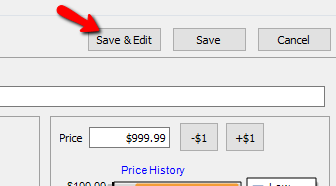
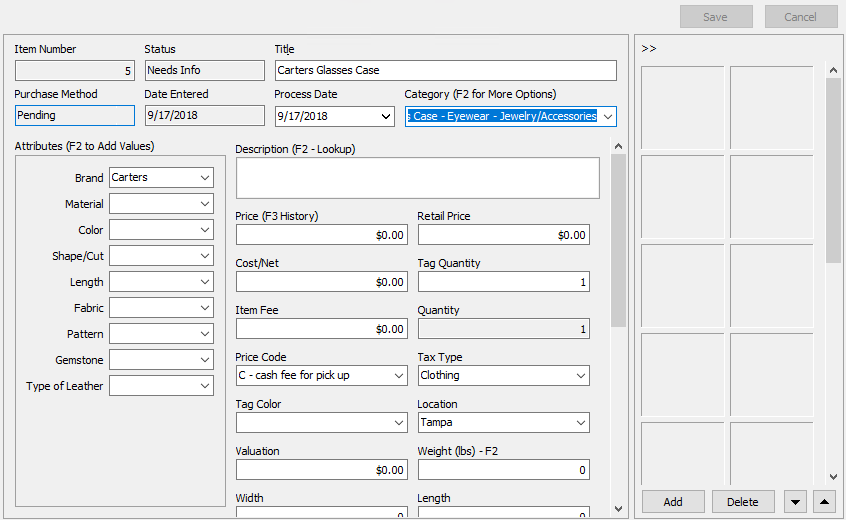
- Once Save & Edit is pressed, Liberty takes you to the Item Entry screen. Make any additional changes to the item and click on Save.
- Close the Item Entry Screen or click on the BuyTrade.
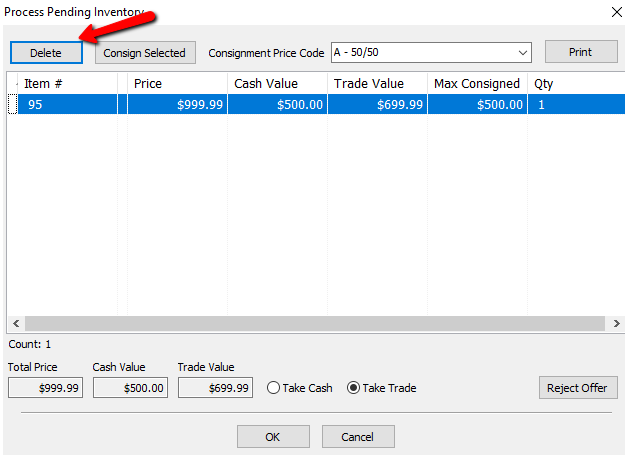
- Pressing Delete will delete the item that you created.
- If you press on Consign Selected, you can specify what Price Code this item should have from the Consignment Price Code drop down, and the item will be added to the consignors account as a consigned item when you press OK.
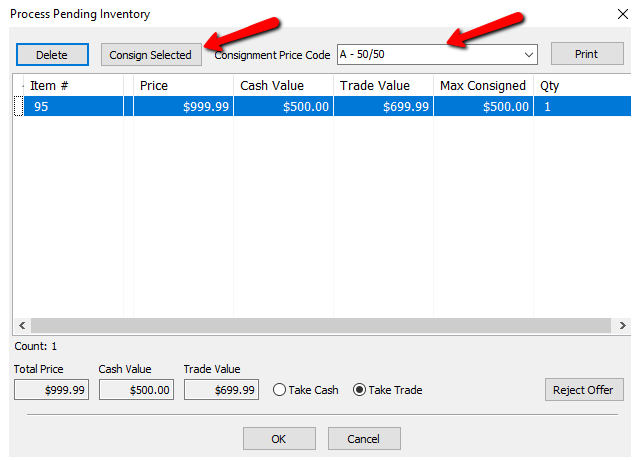
Note: You can use ctrl + click or shift + click to select multiple entries for consignment in one process. This allows you to consign multiple entries in one, quick and easy method.
- In Liberty REACT, there is a Transfer feature that you can use to move unprocessed items to another account that may have been incorrectly placed.
- If the unprocessed items were placed in the wrong account, click the Transfer button.
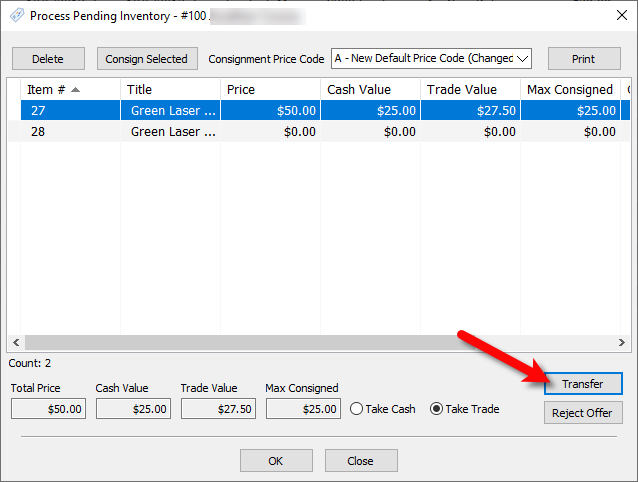
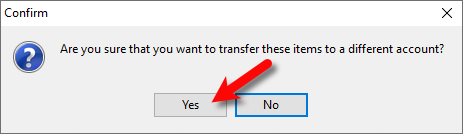
- You will be asked Are you sure that you want to transfer these items to a different account?
Click the Yes button.
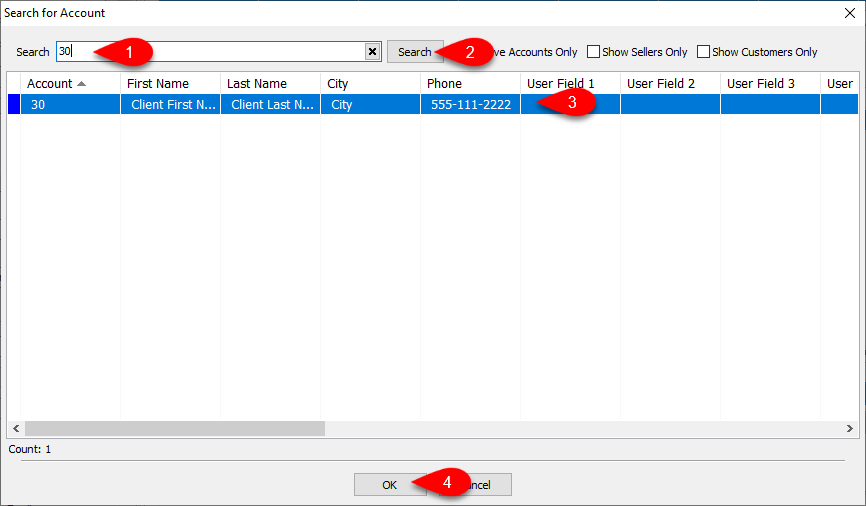
- Now search for and click the account you would to transfer the Unprocessed Items to and click OK.
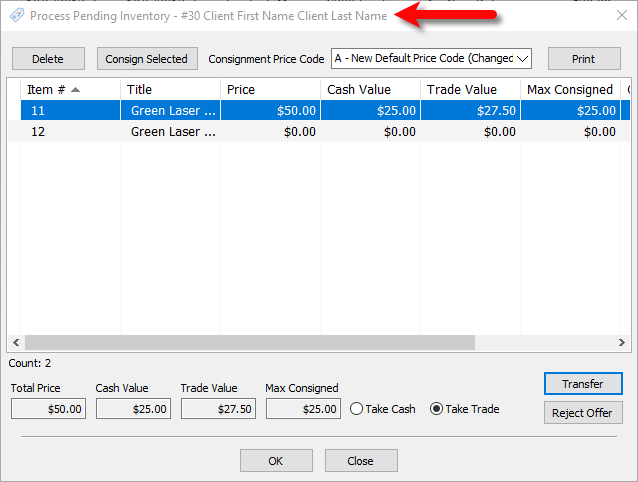
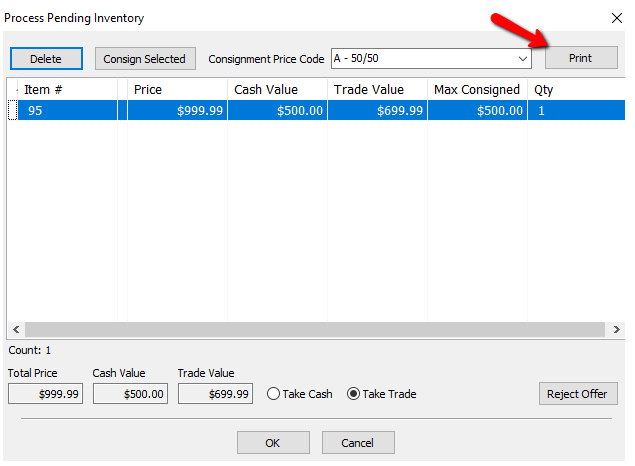
- Note that the Process Pending Inventory dialog screen will now read the new account that these items will be Processed in.
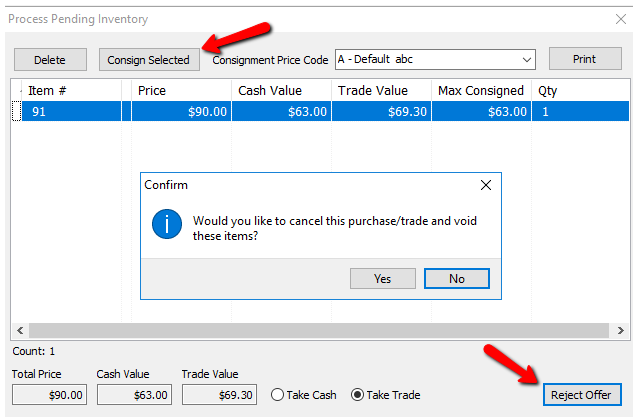
- If you select Reject Offer, you will get a prompt: Would you like to cancel this purchase/trade and void these items? Press Yes to void, or No to cancel and go back to the trade screen..
- If the customer would like a print out of the offers, select the Print button.
- Selecting the Cancel button closes the Processing screen and leaves the item in processing status.
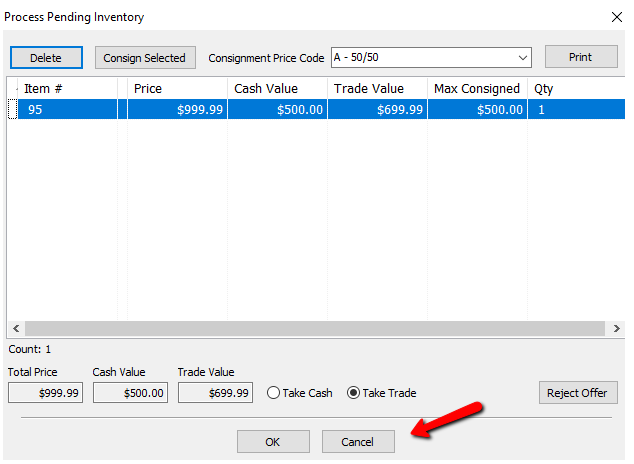
- If the consignor wants to take the Cash Value, select Take Cash and Press OK.
- A dialog box appears: Would you like to create the payout now?
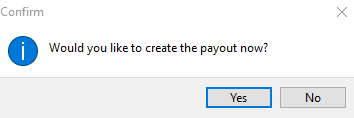
- If you press No, you can pay the consignor later by doing the normal Pay Client routine. There will be a transaction as Outright Purchase on the consignors account for the cash value of the item.

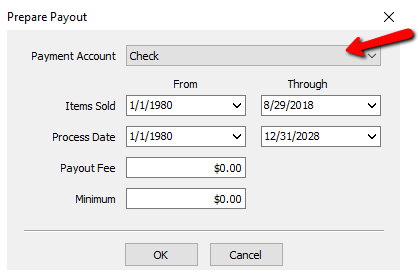
- If you press Yes, the Prepare Payout screen appears.
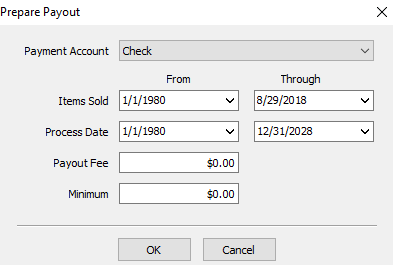
- Select the appropriate Payment Account (Cash, Check, etc).
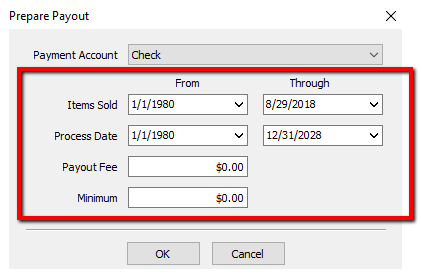
- Specify the criteria for Items Sold, Process Date, Payout Fee, Minimum.
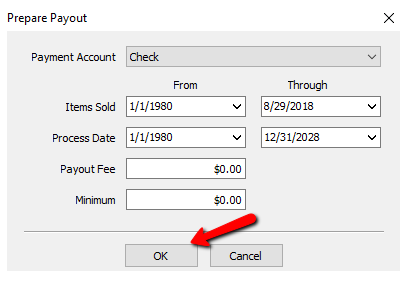
- Select the OK button when done.
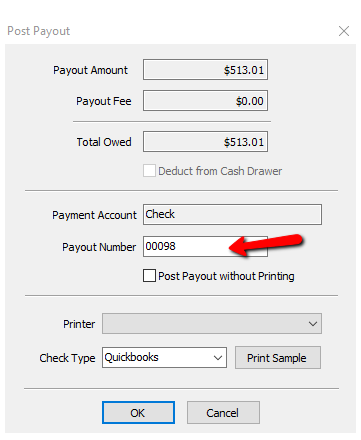
- The Post Payout screen appears.
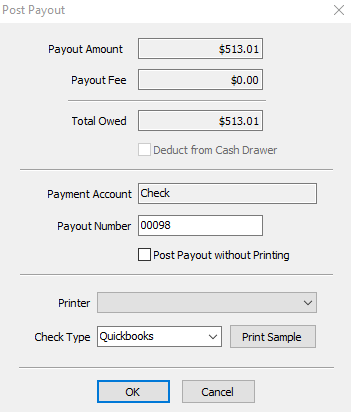
- If the payout amount looks correct, enter the Payout Number if the one shown is incorrect.
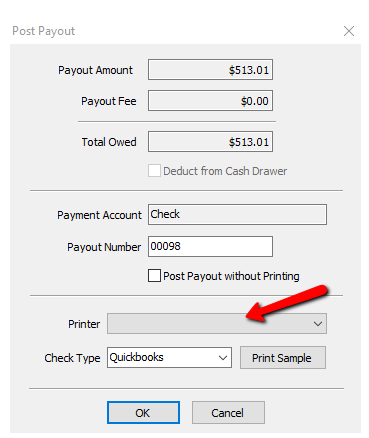
- Select your Printer.
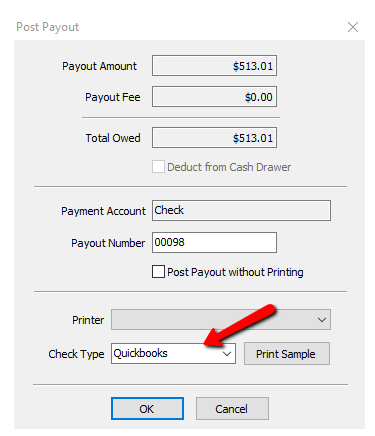
- Select your Check Type.
- Select the OK button when done.
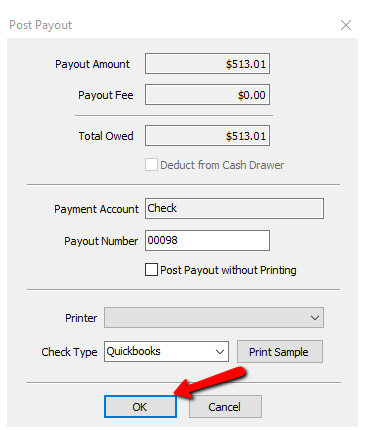
- You will get a confirmation box making sure the print out printed correctly. Press the Ok Button if it did, press Cancel if you need to redo it.
- If the consignor wants to take Trade, select Take Trade and Press OK. This will create a store credit transaction for the amount shown in Trade Value.
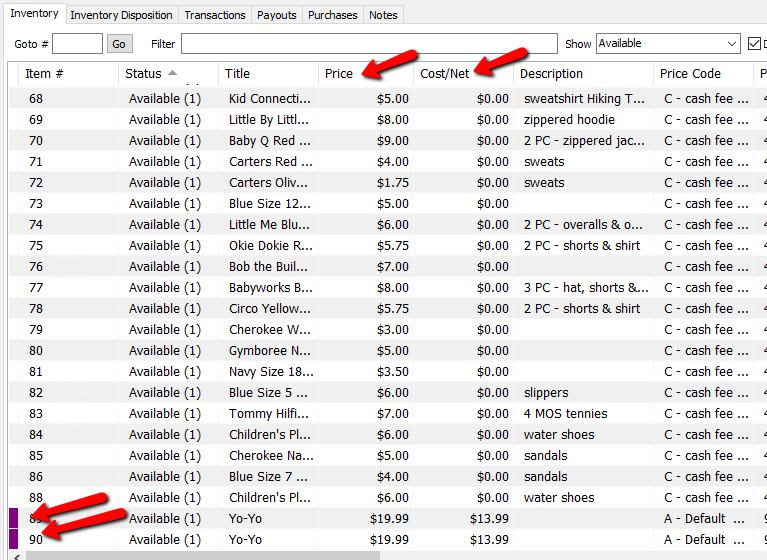
- Once the consignor accepts cash or trade, the item will be placed on the consignors account and it will update accordingly in Liberty with a Purple indicator which indicates the item’s Purchase Method as Purchased.


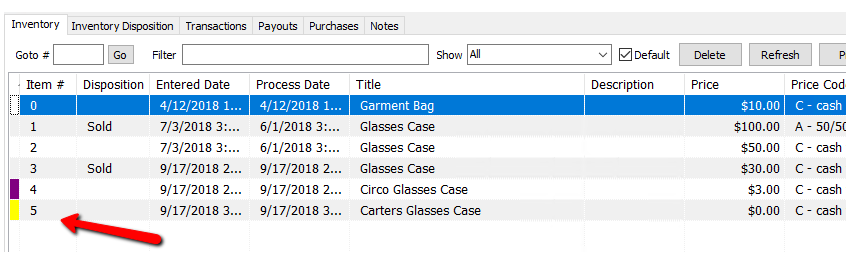
If the items have not been processed, they will appear in the inventory list with a yellow indicator next to them. If you hover over the yellow, it will show “Awaiting Processing.”
When looking at the details of an item, that has not been processed, it will have a Purchase Method of Pending.


Next Article In Section
Click the following link to move to the next article in this section:
Process Trade Items
Related Topics
Trade Item Entry Process Trade Items Overview How Trade Items appear in the Transactions tab Process Trade Items How To Input Same day Trade Line Items Using the Wishlist Wishlist Cross-Reference report Looking for Wishlist Matches While Adding Items Wishlist Overview Find an Item from within an Account Finding Items with a Status of Needs Info