Receive Retail Inventory
When a Retail Item is first added, its Quantity on Hand is zero (0). To increase the quantity to 1 or more, use the Receive Inventory routine.
To Set The Inventory Level Immediately After Adding The Item
- Immediately after saving the item, select the Receive Inv. button on the left.
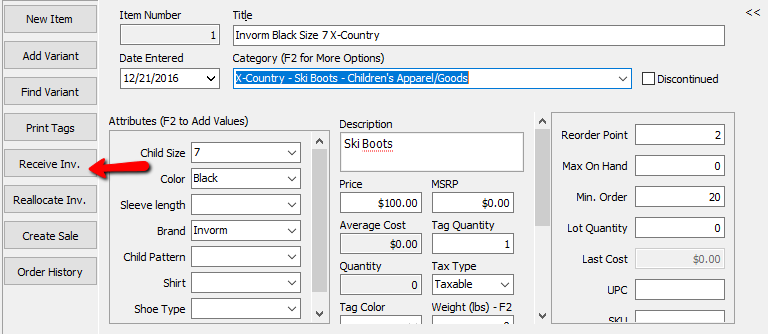
The Receive Order dialog box will open.
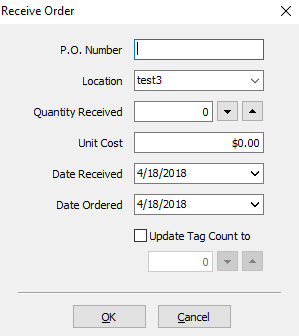
- Fill in the fields of the Receive Order dialog box
- P.O. Number : A P.O. Number uniquely identifies a purchase order and is generally defined by the buyer.
- Location : Enter in the Store Location these items will be located.
- Quantity Received : The number of items received in the order.
- Unit Cost : Unit Cost is what it cost per individual piece.
Note: When entering Unit Cost do not enter in the total for the items. Enter the cost of what it would be to order 1 of that item. Example: If you purchased 10 bottles of water for a total of $10.00, the the Unit Cost would be $1. (10.00/10 = $1.00) - Date Received : Date in which the items were delivered.
- Date ordered : Date in which the original order was placed.
- Update Tag Count To (Checkbox) : If you need to change the amount of tags to be printed, select this box and add the quantity in the Numeric Field.
- Press the OK button when done.


To Receive Subsequent Retail Inventory
- Lookup the Retail Account you wish to add inventory to. Click the Vendor List button at the top of Liberty.
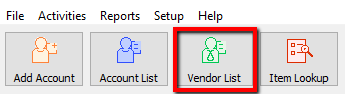
- The Vendor List tab will show. Type the account information in the search field. Double click the account you want to open.
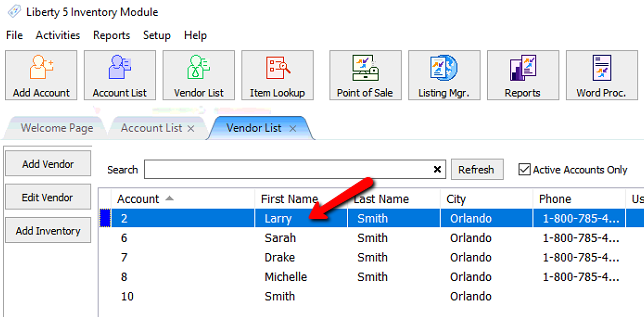
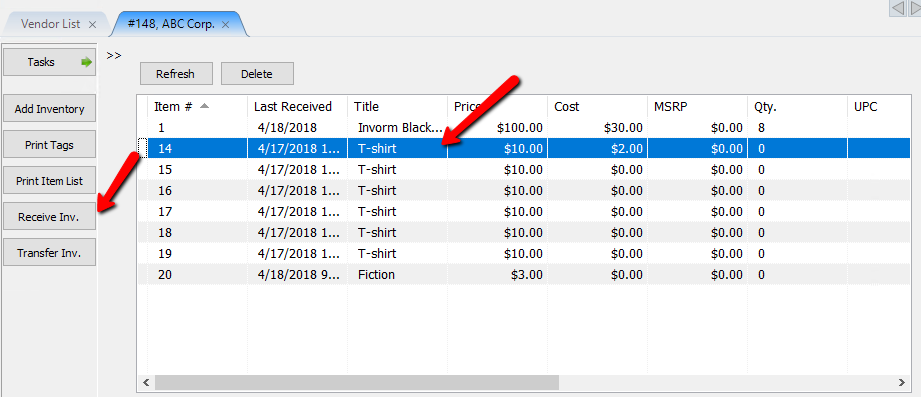
- Once the account is open, there are two ways you can initiate the receiving of inventory process.
- Highlight the item you need to receive inventory for and Select the Receive Inv. button on the left.
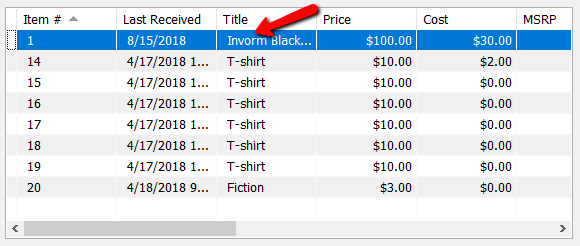
- Find and double click the item you want to edit.
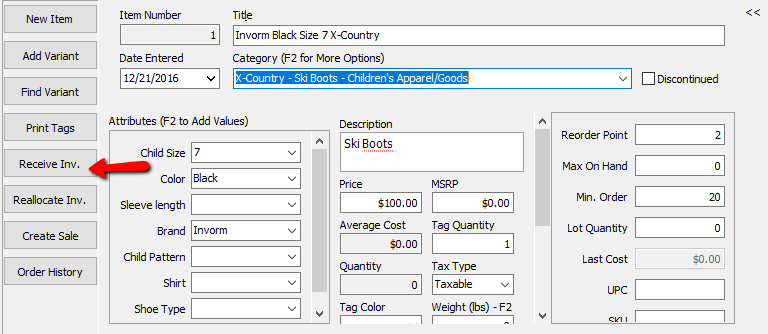
Once the item is opened, select the Receive Inv. button on the left.
The Receive Order dialog box will open.
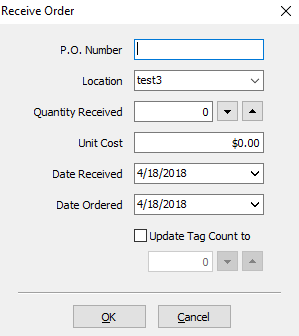
- Fill in the fields of the Receive Order dialog box
- P.O. Number : A P.O. Number uniquely identifies a purchase order and is generally defined by the buyer.
- Location : Enter in the Store Location these items will be located.
- Quantity Received : The number of items received in the order.
- Unit Cost : Unit Cost is what it cost per individual piece.
Note: When entering Unit Cost do not enter in the total for the items. Enter the cost of what it would be to order 1 of that item. Example: If you purchased 10 bottles of water for a total of $10.00, the the Unit Cost would be $1. (10.00/10 = $1.00) - Date Received : Date in which the items were delivered.
- Date ordered : Date in which the original order was placed.
- Update Tag Count To (Checkbox) : If you need to change the amount of tags to be printed, select this box and add the quantity in the Numeric Field.
- Press the OK button when done.


Next Article In Section
Click the following link to move to the next article in this section:
Reduce the quantity of a Retail Item on Hand
Related Topics
Receive Retail Inventory Item Entry Windows - Overview Add Retail Items to Inventory Edit Retail Items How To Add Retail Variants How To Use Find Variant To Add Retail Variant Items Creating a Shopify / ShopRW Listing With One Variant Type Creating a Shopify / ShopRW Listing With Two Variant Types Copy Retail Items Delete Retail Items Enter Sale Dates for Retail Items