Assigning Sub Levels To Your Brand Levels
Once you have divided up your Brand Values based on a structure you want to use (Low to High, High to Low, or something else), you will see the different Sub Levels for that category.

Now we will assign each level a Sub Level, based on something that further defines values for each level such as model, edition, or more commonly, condition.
- For the level we want to assign a Sub Level to, select the Add button.
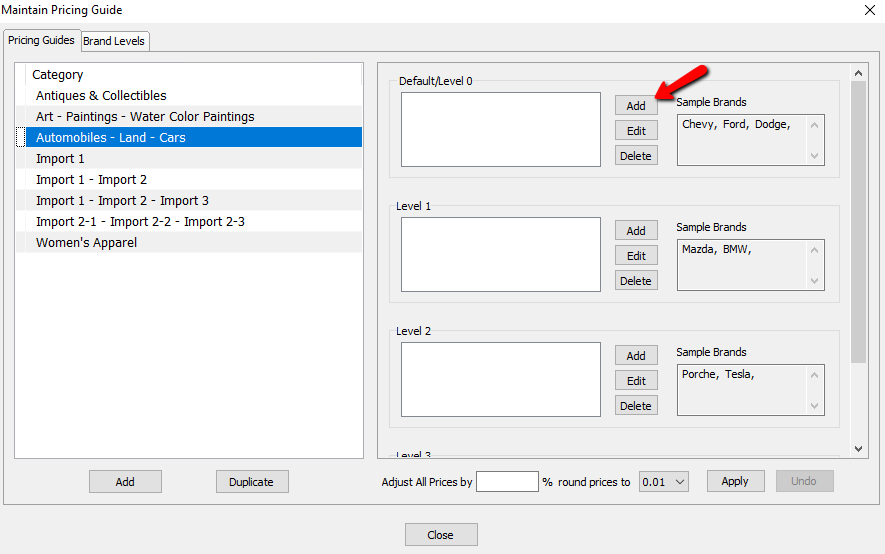
The details of the Sub Level will open.
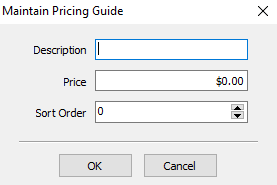
- Description : Enter in a value for the description.
- Price : This will be the suggested value for the item entered for this category, with a brand from this level, for the defined condition.
- Sort Order : This is the order the various Sub Levels will have. the lower the level, the closer to the top of the list it will be.
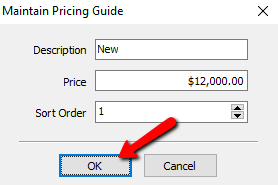
- After filling in the information, select the OK button.
You will see the Sub Level added to the Brand Level.
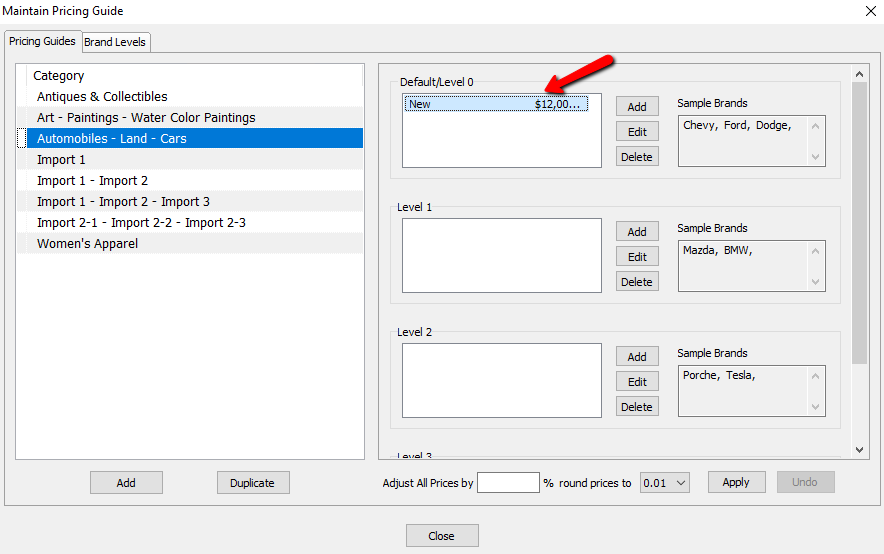
Continue adding Sub Levels for each of the Brand Levels until you are done.
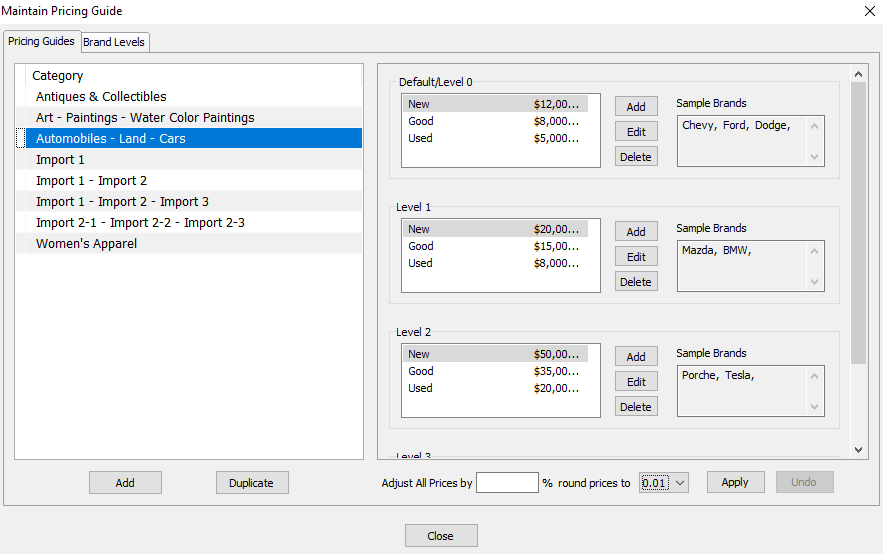
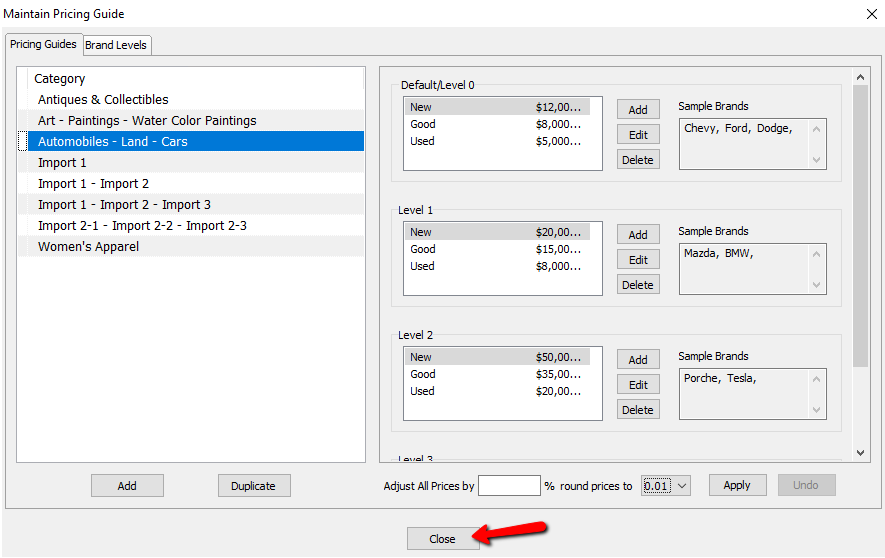
- Select the Close button when done.


Next Article In Section
Click the following link to move to the next article in this section:
Using The Pricing Guide While Entering Inventory
Related Topics
Assigning Sub Levels To Your Brand Levels Pricing Guide Overview Setting Up Product Brands For Use With The Pricing Guide Setting Up Categories In The Pricing Guide Setting Up Brands In The Pricing Guide Using The Pricing Guide While Entering Inventory Adjusting Pricing Based On Market Values Using the Wishlist Wishlist Cross-Reference report Looking for Wishlist Matches While Adding Items Wishlist Overview