Bulk Edit Items
WARNING! This is a powerful routine, so start by performing a backup in case a mistake is made.
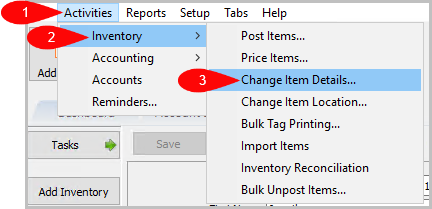
- Select Activities > Inventory > Change Item Details.

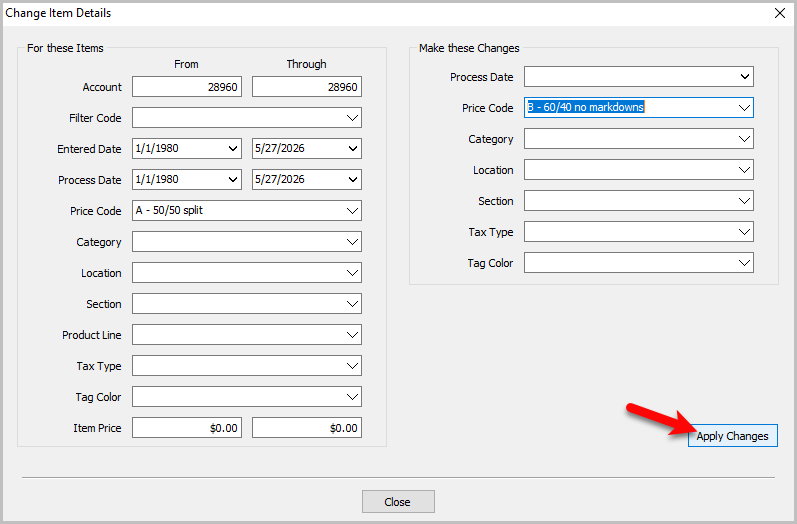
The dialog will display as shown below.

Bulk Update Fields Upper Section (For These Items)
Use this section to define the items you want to update.
- Account : Define the account range here. If you wish to include a single account then add that account number in both fields. If you wish to get all the accounts then enter 1 for the first account, and a number greater than the highwest account number you have. For example 9999999.
- Filter Code : If you are assigning accounts Filter Codes to help Identify them for reports purposes or something else, you can search for accounts with only that filter code applied to it.
- Entered Date : If you need to update accounts with a certain Date Entered, fill in these dates. If you want items only on a specific date, then enter the same date for the From and Through dates.
- Process Date : If you need to update accounts with a certain Process Date, fill in these dates. If you want items only on a specific date, then enter the same date for the From and Through dates.
- Price Code : This filter will select only items in the specified price code.
- Category : This filter will select only the items in the specified category.
- Location: This filter will select items only in a specified location.
- Section : This filter will select items only in a specific Section of the store.
- Product Line : This filter selects items under a specific Product Line.
- Tax Type : This will filter the items that are needed to be changed by Tax Type.
- Tag Color : This filters the items by Tag Color.
- Item Price: This will filter the items that meet the price range or set price.
Bulk Update Fields Lower Section (Make These Changes)
Use this section to apply the required changes to the item that were found using the filters from the upper section.
- Process Date : Enter the new Process Date you wish the filtered items to have.
- Price Code : Enter the new Price Code you wish the filtered items to have.
- Category : Enter the new Category you wish the filtered items to have.
- Location : Enter the new Location you wish the filtered items to have.
- Section : Enter the new Section you wish the filtered items to have.
- Tax Type : Enter the new Tax Type you wish the filtered items to have.
- Tag Color : Enter the new Tag Color you wish the filtered items to have.
- Select the Apply New Changes button.

A pop up will appear that says Do you want to apply this change to # items
2. Click Yes

Another pop up will occur that says Finished updating # Items
3. Press OK

4. The items are now updated and you can now exit by clicking on Close.

Next Article In Section
Click the following link to move to the next article in this section:
Group Category Change