Post an Item as Returned, Donated or Other
Use this procedure when you want to post an item as returned to a client, donated or post it with another status of your choice. The status of the item is displayed in the Inventory window and printed on Item Lists and certain reports.
There are two ways to post items. Through the Activities menu, and from the Inventory Screen.
Posting An Item Through The Activities Menu
- Select the Inventory Tab.
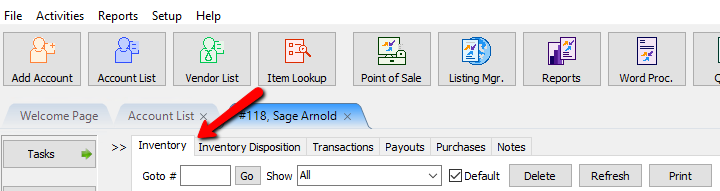
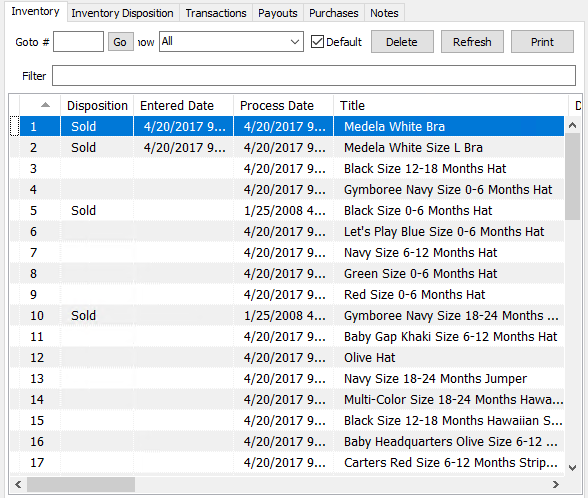
You will see a list of the inventory.
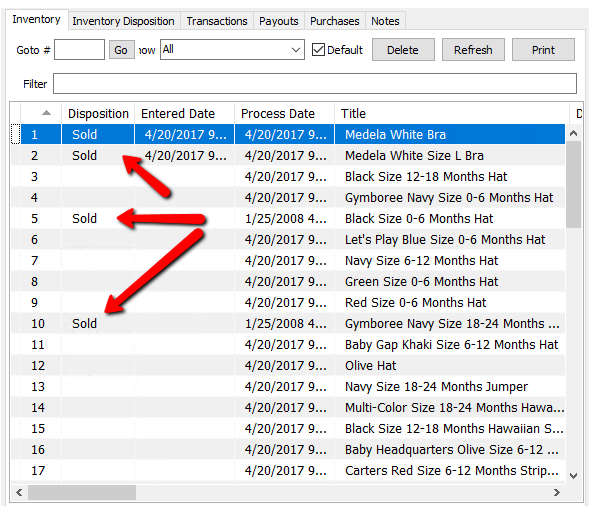
Notice items that have already been posted, either manually or through the Point Of Sale will have a dispositions. If they do not have a disposition, they are available items.
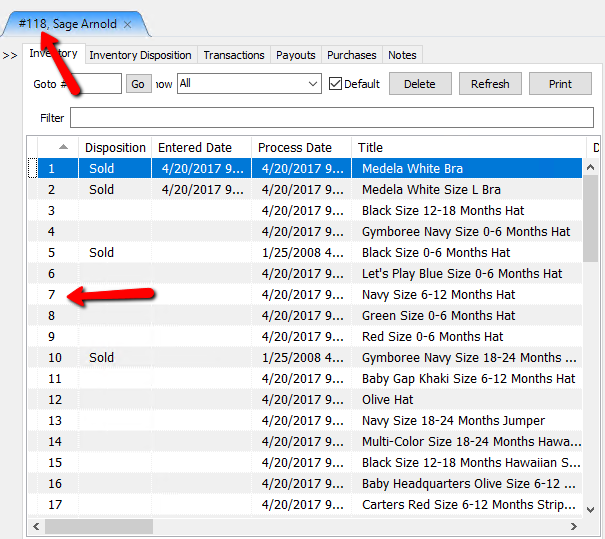
- Make note of the Account-Item number of the item you wish to post out.
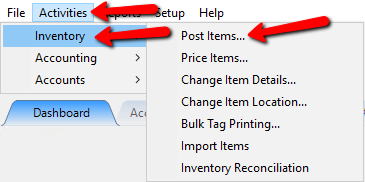
- At the top of the Inventory Module select Activities > Inventory > Post Items.
The Post Items tab will open.
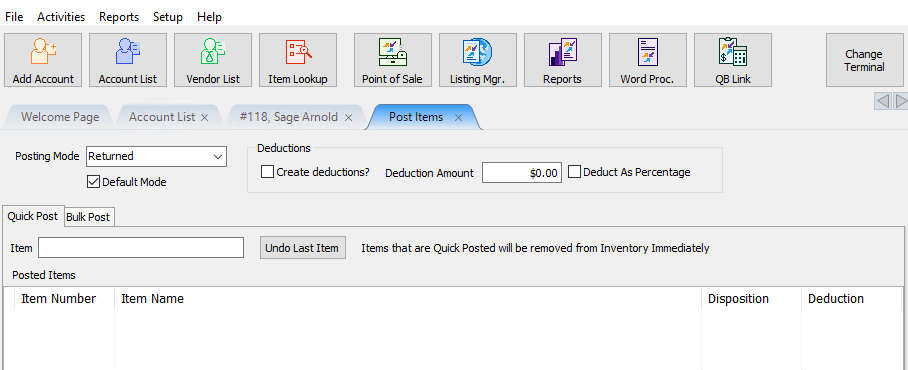
- Posting Mode : Select the Posting Mode Dropdown and select the posting mode for this update.
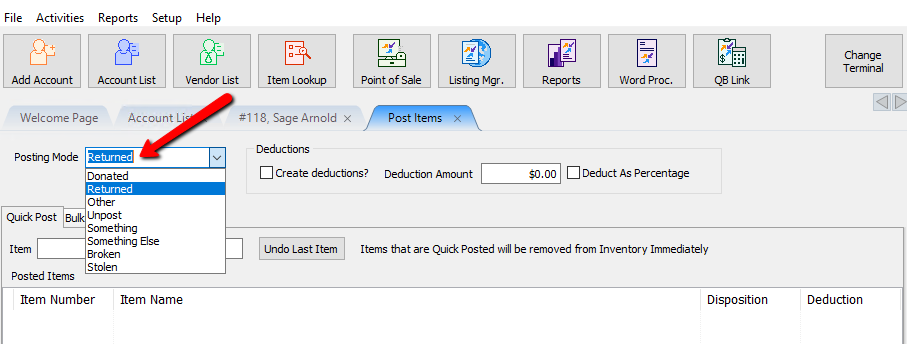
You can use Hotkeys to change between certain commonly used posting modes. - F2 : Will select the Returned posting mode.
- F3 : Will select the Donated posting mode.
- F4 : Will open the Maintain Item Disposition dialog screen. See Maintain Item Dispositions for more details.
- F5 : Will select the Unpost posting mode.
If you do not see the Posting Mode you wish to use, you can create a new one by going to Setup > Maintain > Item Dispositions. See Maintain Item Dispositions for more details. - Default Post (Checkbox) : If this is a posting mode you plan to use a lot, you can set it as the default to make it a little quicker posting items.
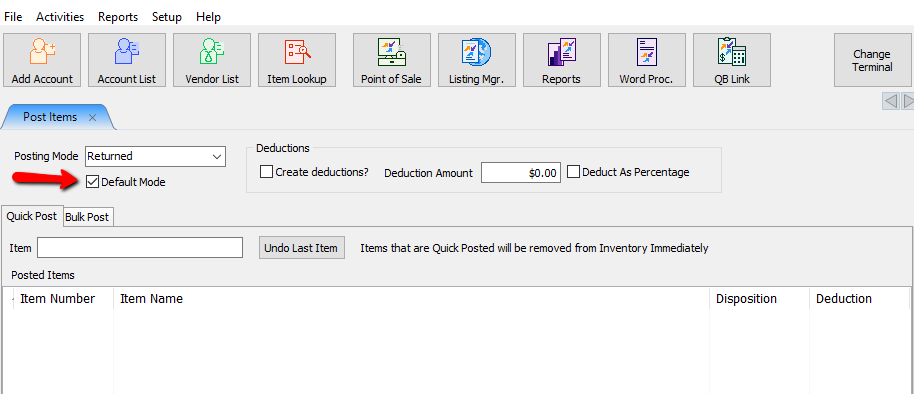
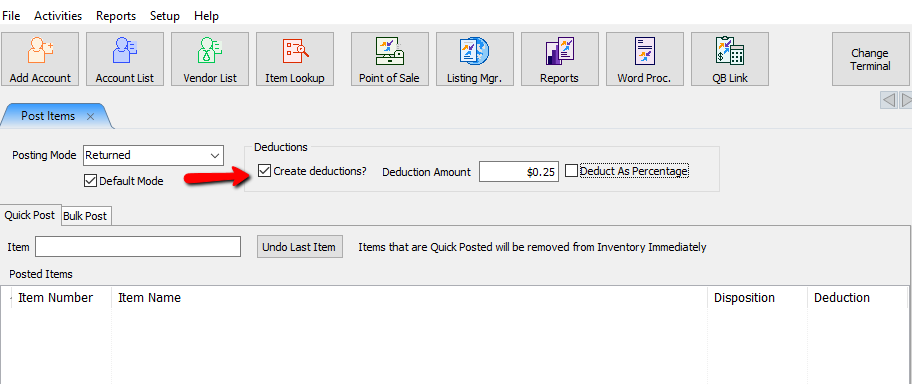
- Create Deductions (Checkbox) : Check off Create Deductions if you wish to charge the consignor for returning the item to them. Create Deductions can only be used when the posting mode of Returned is selected.
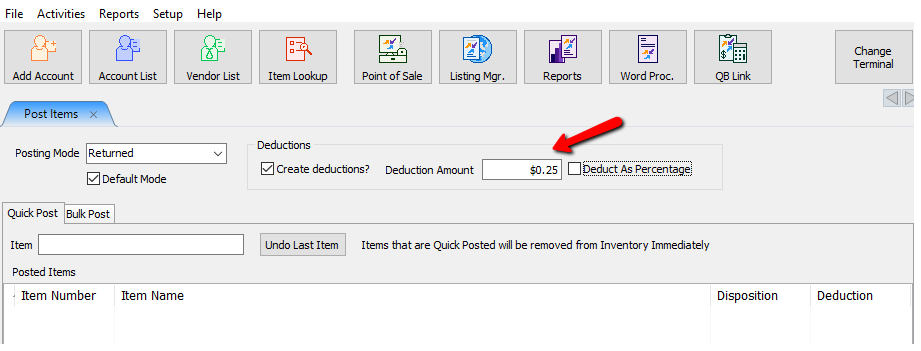
- Deduction Amount : Enter in the amount you wish to deduction when posting.
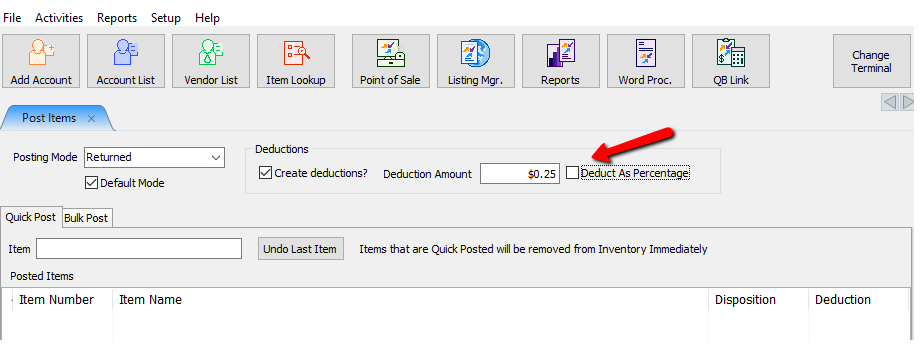
- Deduct As Percentage (Checkbox) : If you wish to deduct a percentage amount instead of a flat dollar amount, select the Deduct As Percentage (Checkbox) and enter the percentage in the Deduction Amount Field.
- Enter in the Account-Item Number of the item you wish to post.
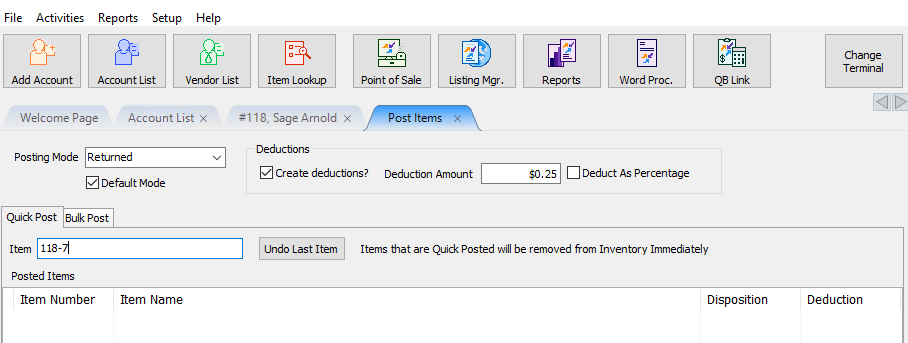
- Select the Enter button on your keyboard to add it to the list.
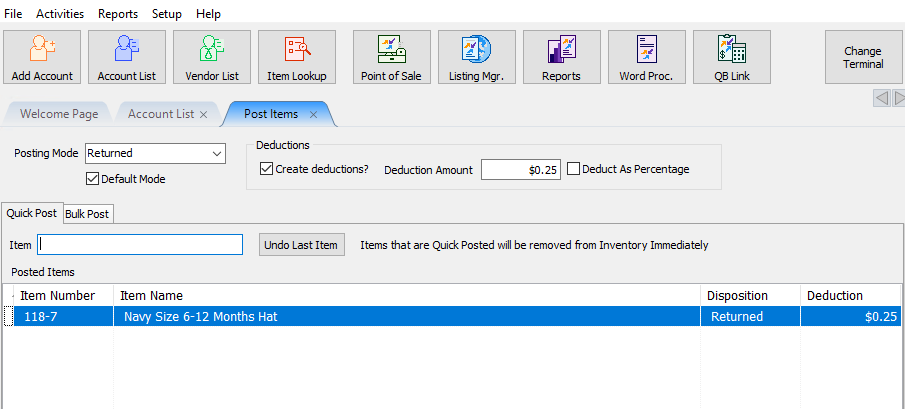
- Continue adding items until all the items you wish to post are listed.
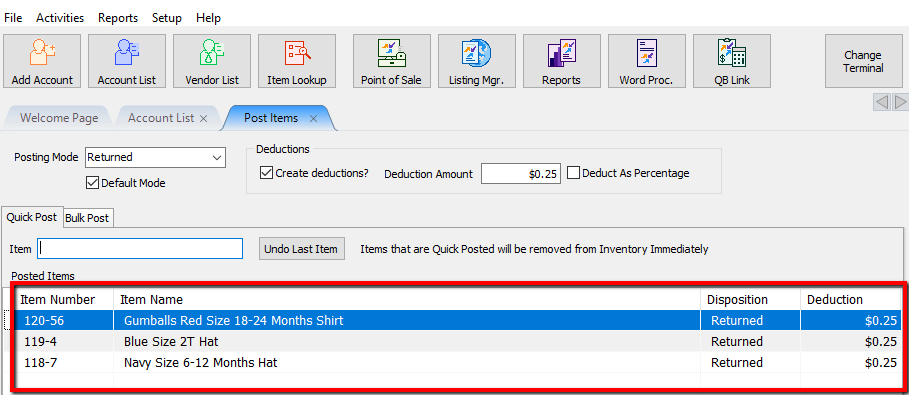
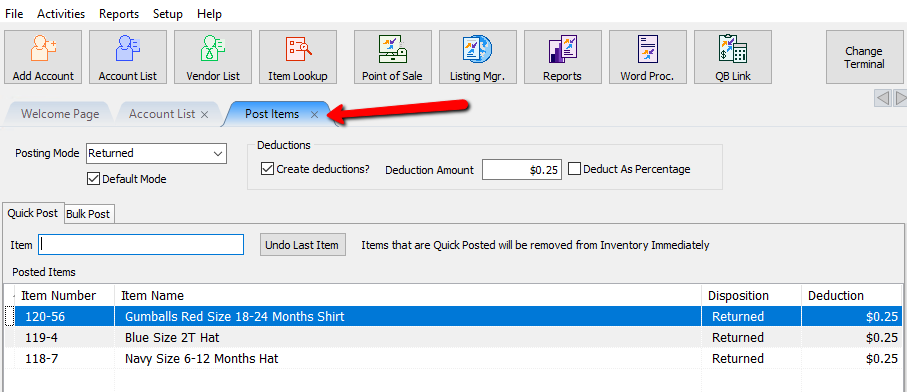
- When done, select close out of the Posting Screen.
- Refresh your inventory list, and you should see your items with a disposition for the posting mode you selected. This item will no longer be available for purchase.
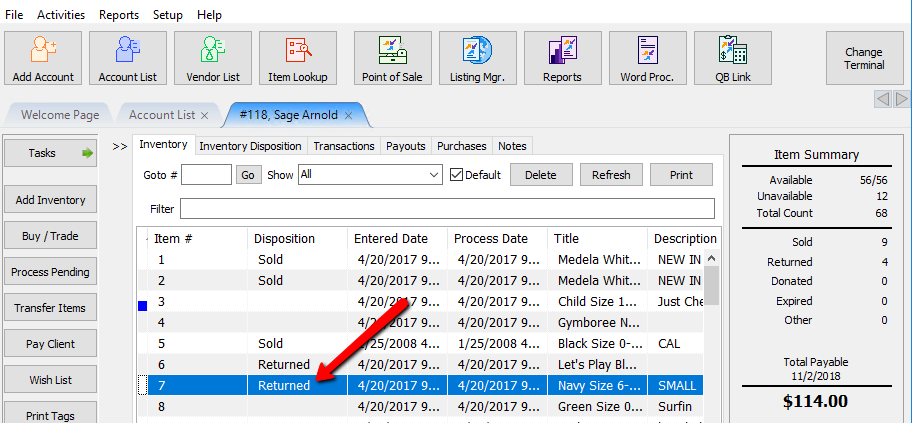
Posting An Item Through The Inventory Screen - From the Inventory Tab, select the item you wish to post, and right click it. Select Post Item and then the posting mode you want to post the item with.
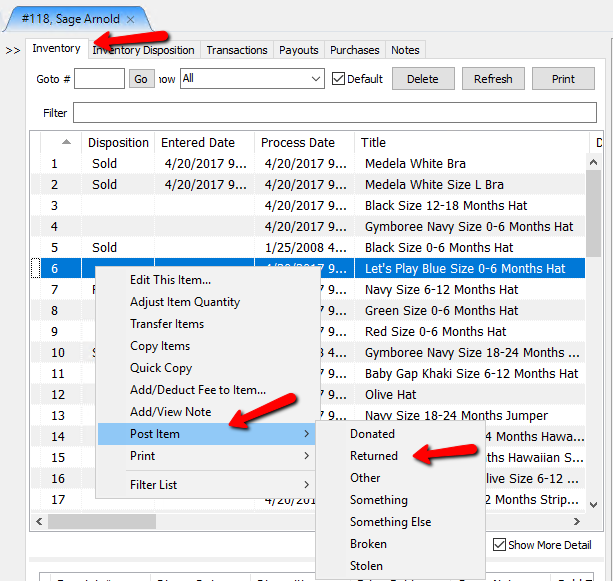


You will see your item with the corresponding disposition.

Unposting An Item
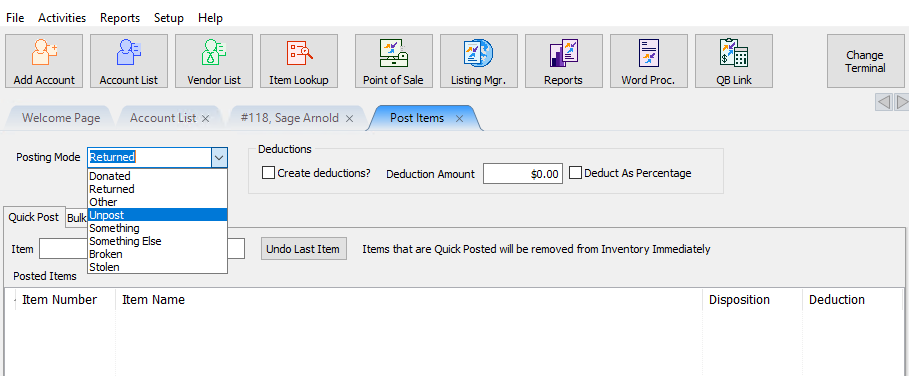
In the event an item accidentally got posted as unavailable for any reason, you can use the Unpost posting mode to make it available again. Items that have a posting mode of Sold can not be unposted. They will need to be Refunded through the Point of Sale. See Refunds for more information. Unposting items can only be done through Activities > Inventory > Post Items.
- At the top of the Inventory Module select Activities > Inventory > Post Items.
The Post Items tab will open.
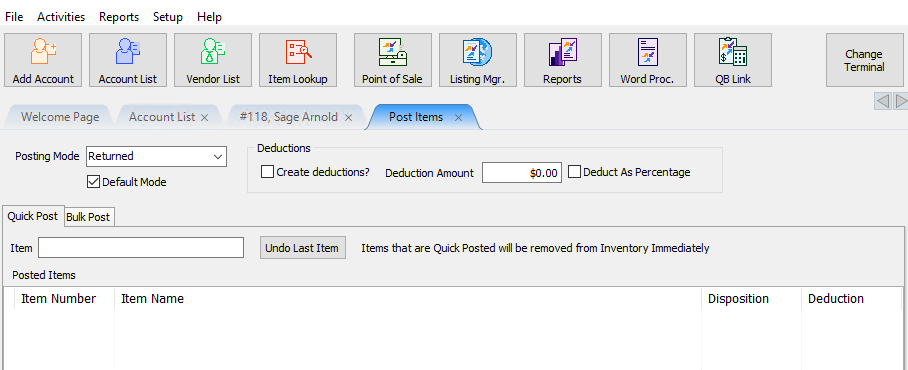
- Select the Posting Mode Unpost to Unpost the item and make it available again.
- Enter in the Account-Item Number of the item you wish to post.
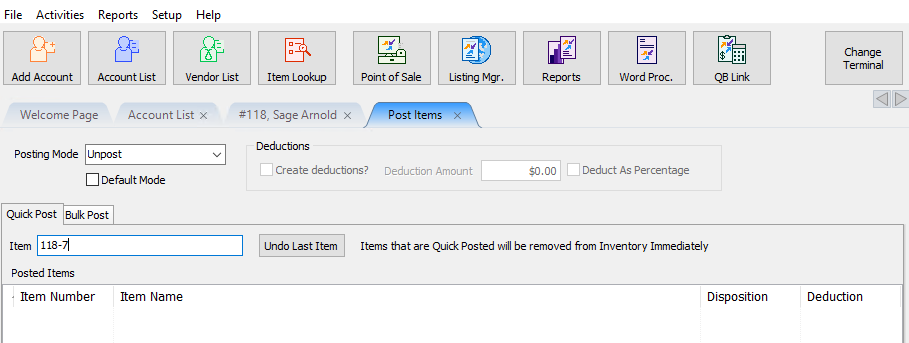
- Select the Enter button on your keyboard to add it to the list.
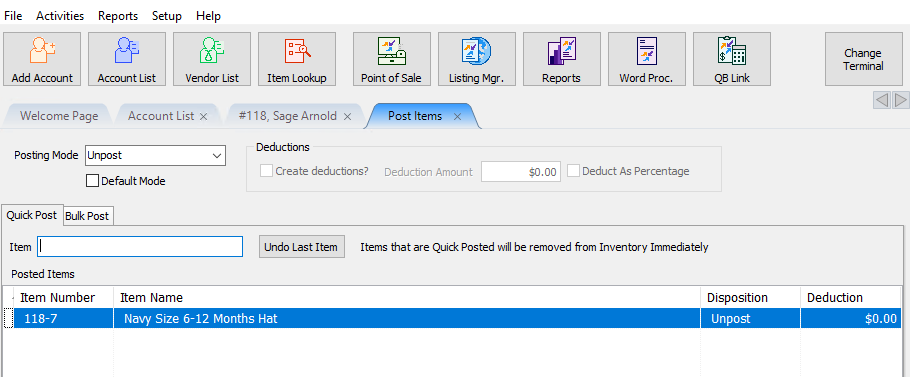
- When done, select close out of the Posting Screen.
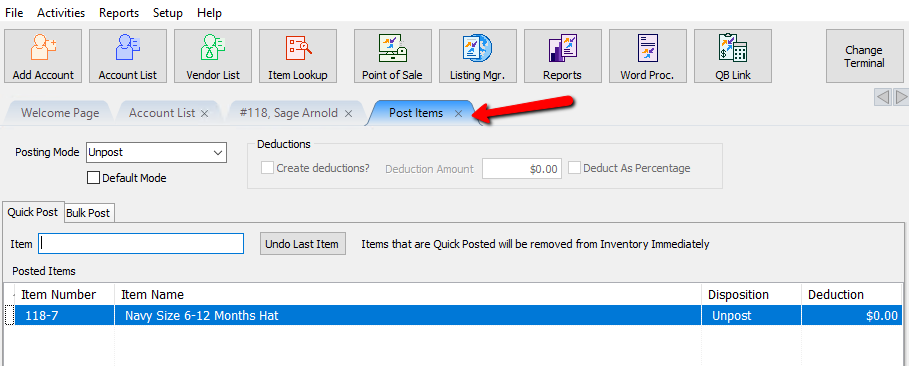
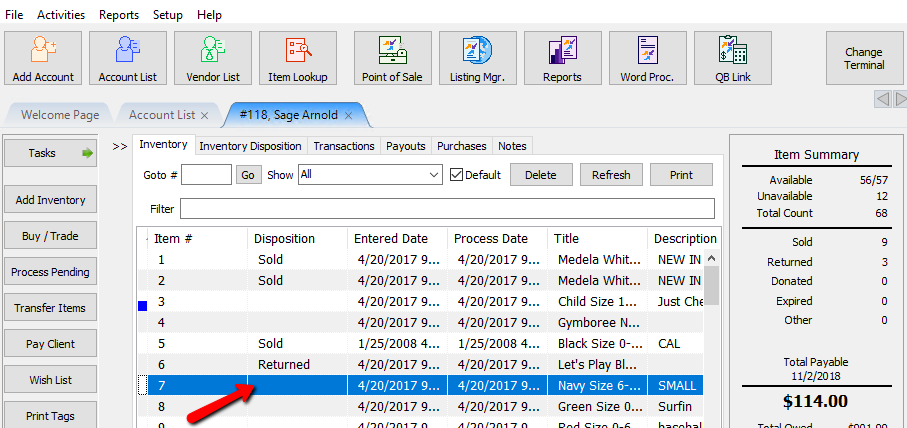
- Refresh your inventory list, and you should see your items Unposted without a Disposition and Available.


Next Article In Section
Click the following link to move to the next article in this section:
Post a Range of Items as Returned, Donated or Other / Bulk Post
Related Topics
Post an Item as Returned, Donated or Other Transfer Unprocessed Trade Items Post a Range of Items as Returned, Donated or Other / Bulk Post Refunds Unpost Items In Bulk Changing an Items Posting Status Using Unpost Using the Wishlist Wishlist Cross-Reference report Looking for Wishlist Matches While Adding Items Wishlist Overview Find an Item from within an Account