Unpost Items In Bulk
This allows you to reverse a bulk post that was performed in error.
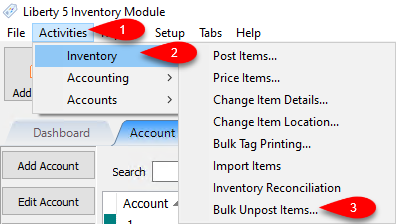
- Click Activities > Inventory > Bulk Unpost Items…
- Here you can filter for the bulk post you want to undo.
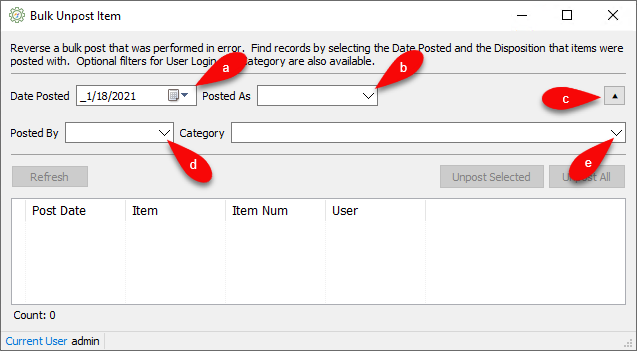
- Select the date you posted the items out in bulk for the Date Posted field.
- Select the posting mode you used with the bulk post for Posted As
- You can click the Expand button to see the additional feature.
- Specify who posted the bulk post for Posted By if you want to be more specific or if more than one person was posting that day. .
- Specify the Category if not all items need to be unposted, just ones specific to a Category.
- You can now use Ctrl + Click or Shift + Click to select exactly what you want to unpost and click Unpost Selected.


You can also just click Unpost All and all the items on the screen will be Unposted.

Next Section Navigation Link
Click the following link to see a list of articles for the next section:
Customer Wish List
Related Topics
Unpost Items In Bulk Transfer Unprocessed Trade Items Post an Item as Returned, Donated or Other Changing an Items Posting Status Using Unpost Refunds Post a Range of Items as Returned, Donated or Other / Bulk Post Using the Wishlist Wishlist Cross-Reference report Looking for Wishlist Matches While Adding Items Wishlist Overview Find an Item from within an Account