Post a Range of Items as Returned, Donated or Other / Bulk Post
Warning ! Make a backup of Liberty before doing this process so if mistakes are made, you can quickly restore the system to the state it was before doing this process.
Use this procedure when you want to post multiple items as returned to a client, donated or post it with another status of your choice. The status of the items is displayed in the Inventory window and printed on Item Lists and certain reports.
Posting Multiple Items
- At the top of the Inventory Module select Activities > Inventory > Post Items.
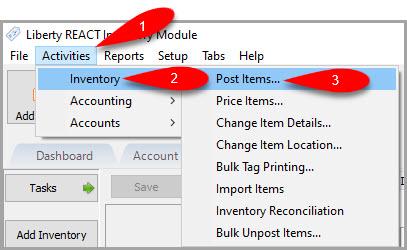
The Post Items tab will open.
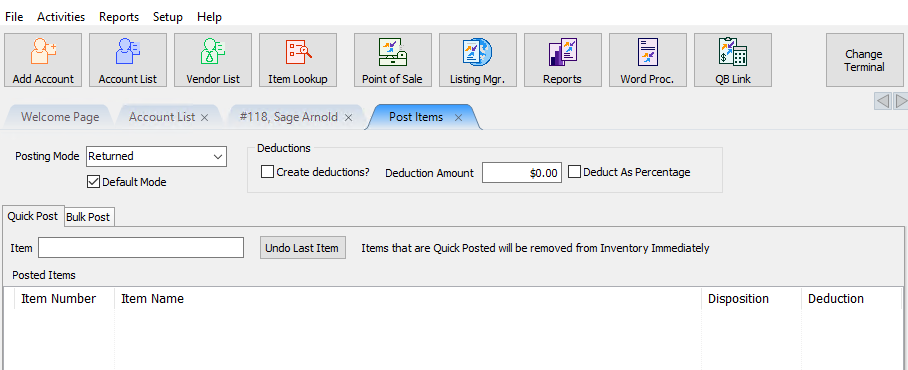
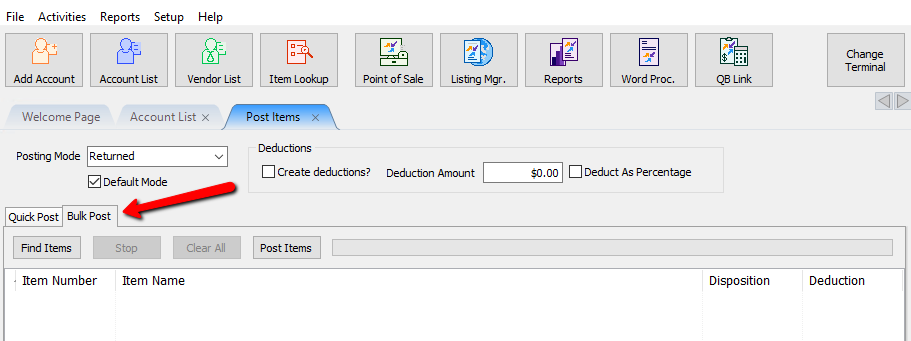
- Select the Bulk Post tab.
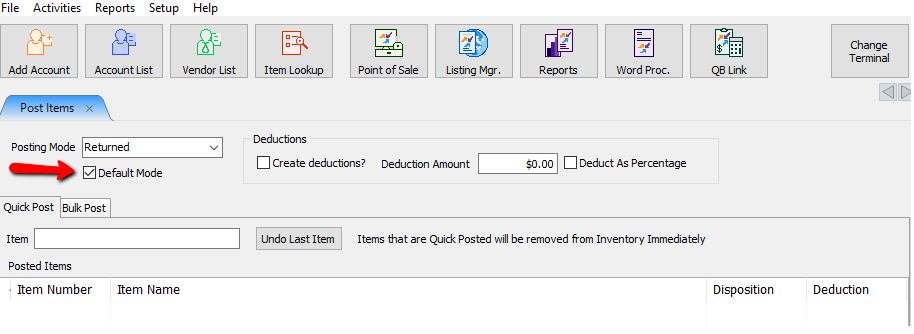
- Posting Mode : Select the Posting Mode Dropdown and select the posting mode for this update.
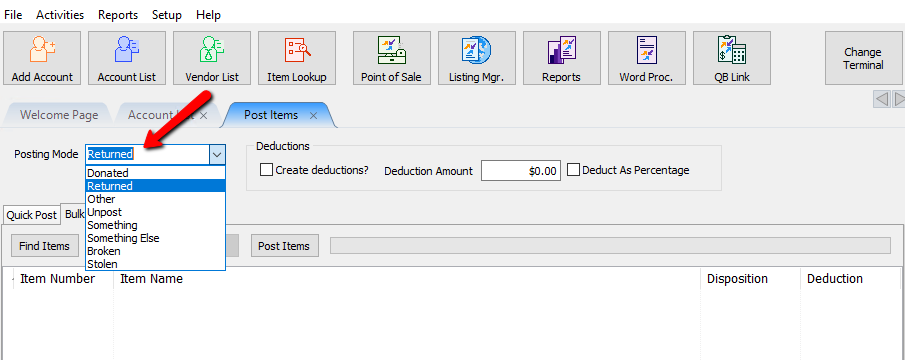
If you do not see the Posting Mode you wish to use, you can create a new one by going to Setup > Maintain > Item Dispositions. See //Maintain Item Dispositions// for more details. - Default Post (Checkbox) : If this is a posting mode you plan to use a lot, you can set it as the default to make it a little quicker posting items.
- Create Deductions (Checkbox) : Check off Create Deductions if you wish to charge the consignor for returning the item to them. Create Deductions can only be used when the posting mode of Returned is selected.
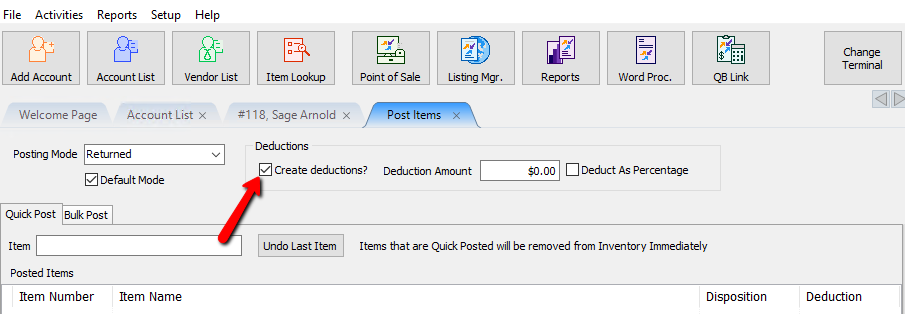
- Deduction Amount : Enter in the amount you wish to deduction when posting.

- Deduct As Percentage (Checkbox) : If you wish to deduct a percentage amount instead of a flat dollar amount, select the Deduct As Percentage (Checkbox) and enter the percentage in the Deduction Amount Field.

- Select the Find Items button.
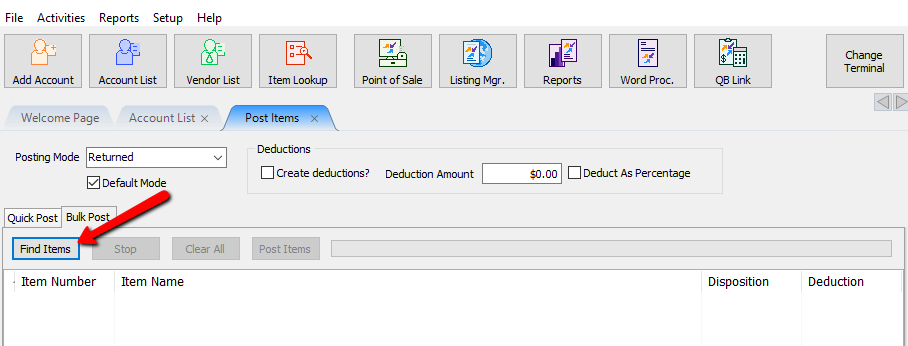
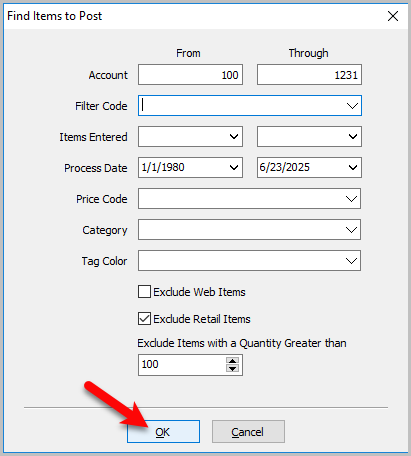
The Find Items To Post dialog box will open.
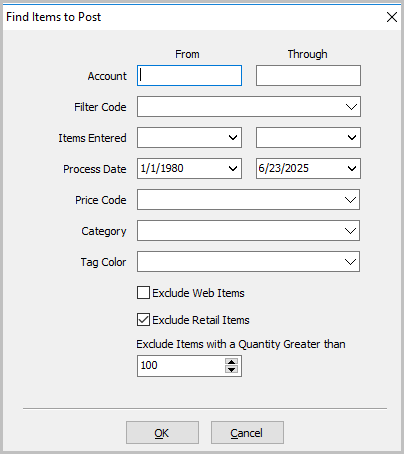
- Account : Enter in the account range of the items you want to post.
Note: If you want to find all the items on one specific account, enter the same account number in the From and Through fields. - Filter Code : Use Filter code to further select certain accounts if there are filter codes associated with those accounts.
- Items Entered : Use the items entered date for when the items were entered into Liberty.
- Process Date : This is the date the items went on the floor for sale.
- Price Code : Use price code to find all the items on a certain price code.
- Category : Use Category to find all the items in a particular category.
- Tag Color : Filter by Tag Color
- Exclude Web Items : Check the box on, if you don’t want web items to be
on the list. - Exclude Retail Items : Checkmark the box, if you don’t want Retail Items
to be included. - Exclude Items with a quantity greater than :
- Once you have entered in all your criteria, Select the OK button at the bottom.
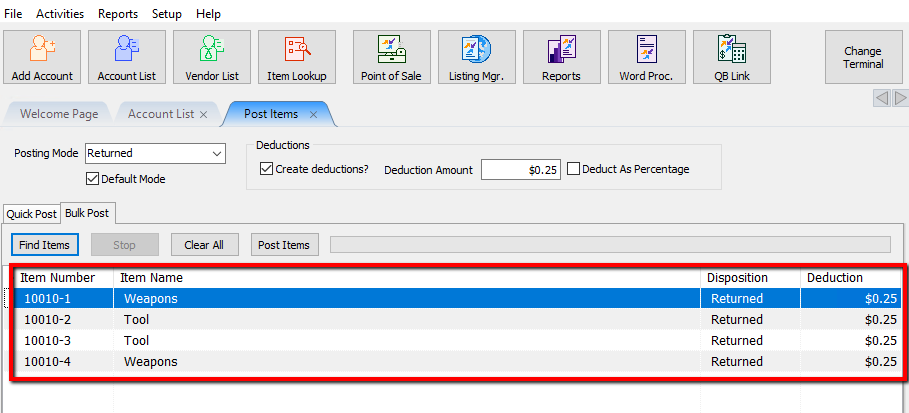
Liberty will search for all the items based on the criteria and display them with the intended disposition. If an account-item number has multiples of that item, it will list each individual piece to be posted.
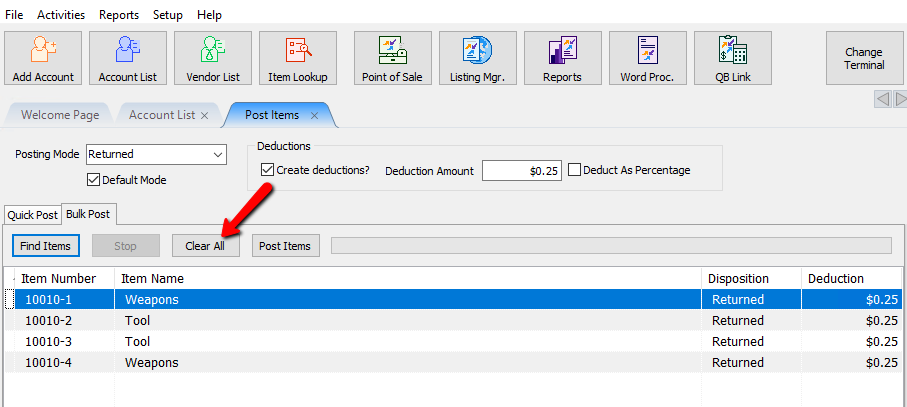
If you feel you made a mistake, you can select the Clear All button and start over.
- Once you are satisfied with you results, select the Post Items button.
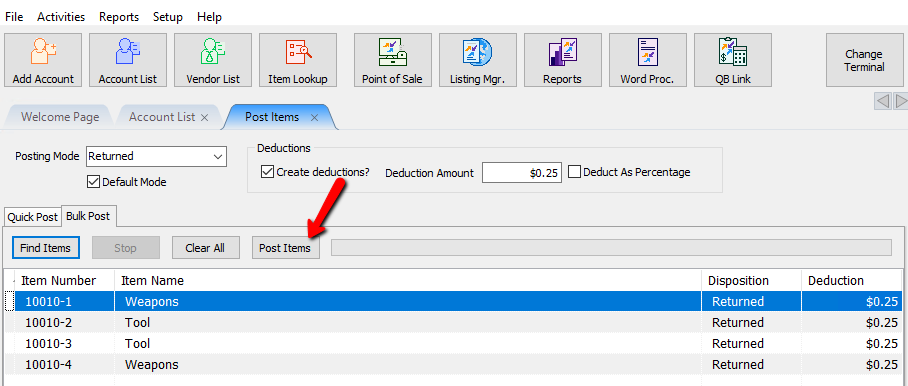
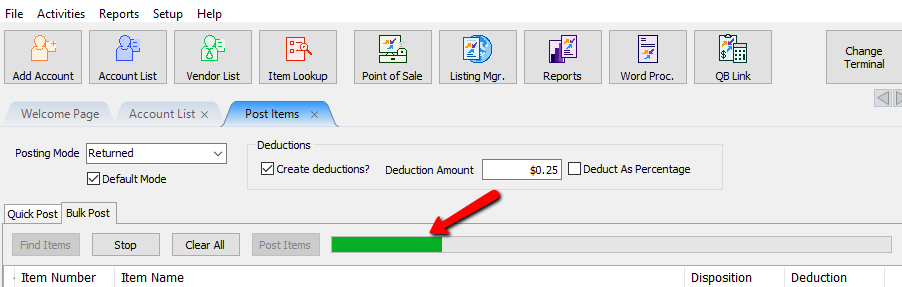
A progress bar will fill up.
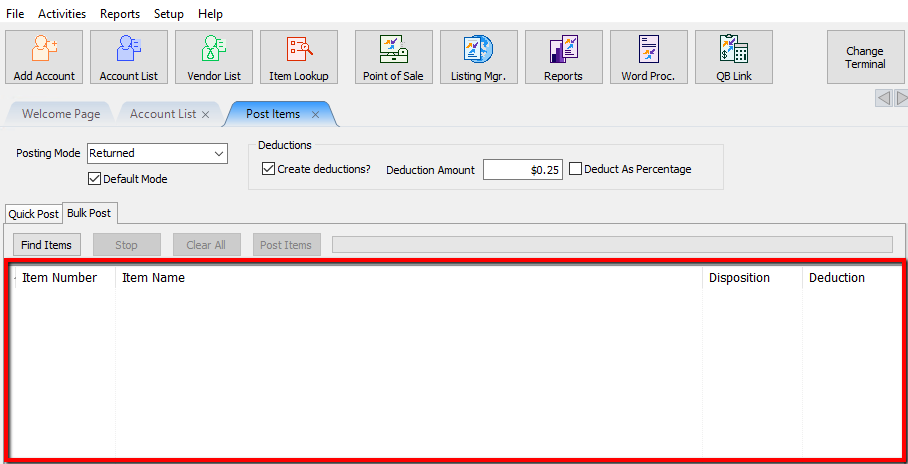
Once completed the list will be empty.
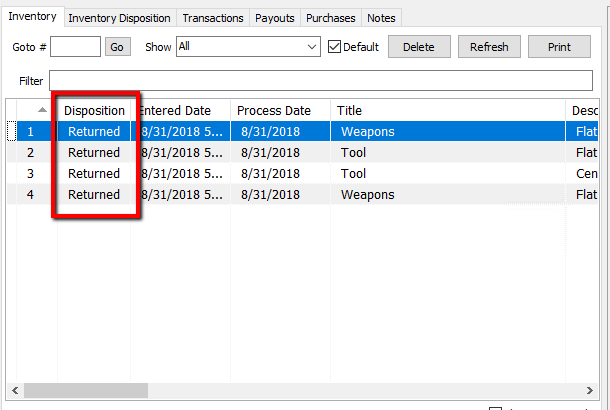
You can go to an item or account to verify the changes were processed.


Note: Color coded indicators now show up in Bulk Post. To learn more about these colored indicators please check out this article:
View Inventory
Next Article In Section
Click the following link to move to the next article in this section:
Changing an Items Posting Status Using Unpost
Related Topics
Post a Range of Items as Returned, Donated or Other / Bulk Post Item Dispositions Post an Item as Returned, Donated or Other Refunds View Inventory Unpost Items In Bulk Changing an Items Posting Status Using Unpost Using the Wishlist Wishlist Cross-Reference report Looking for Wishlist Matches While Adding Items Wishlist Overview