Inventory Overview
As you receive inventory you will add it to Liberty Inventory as items in accounts. The inventory entry process may seem a bit complex at first, but in reality it is very straightforward. To learn how to enter items faster, see How to Enter Items Faster.
To Add Inventory To Liberty
- Follow the instructions to Set Up Liberty for first use.
- Create an account for the inventory to be placed in. The account may be either a Client, Store, or Retail Vendor account depending on the nature of the inventory being added.
- There are three ways to initiate the adding of inventory to an item.
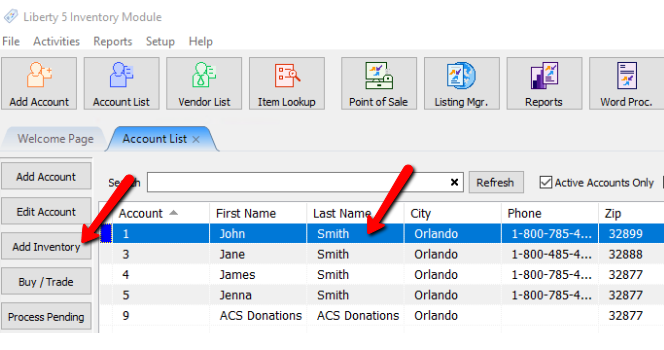
- Highlight the account in the Account List and press the Add Inventory button on the left side of the screen.
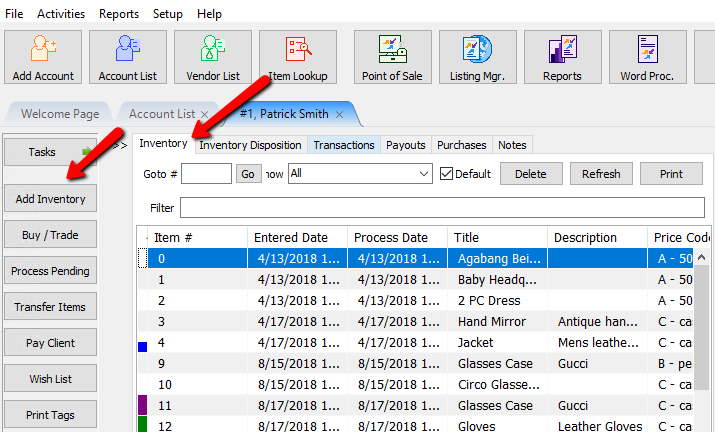
- From within the account press the Add Inventory button on the left hand side of the screen.
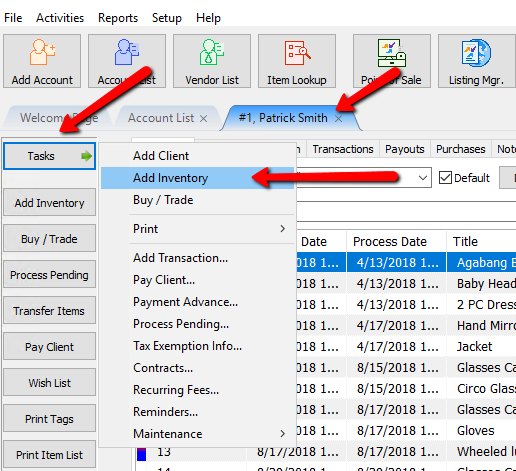
- From within the account press the Task button, then select Add Inventory.
- Print price tags and item lists as needed.
- Use Liberty Point of Sale to post items as sold.
- Post Items within inventory. See Post an Item as Donated, Returned (to the Consignor), or Other and Post a Range of Unsold Items as Returned, Donated, or Other


Next Article In Section
Click the following link to move to the next article in this section:
Item Entry Windows - Overview
Related Topics
Inventory Overview One of a Kind Item Entry Window Retail Item Entry Window Trade Items Overview How to Enter Items Faster Post an Item as Returned, Donated or Other Post a Range of Items as Returned, Donated or Other / Bulk Post Adjust Item Quantity Changing Form Of Acquisition To Consigned On An Existing Item How To Use Change Item Details Changing Form Of Acquisition To Purchased On An Existing Item