Processing a Consignment Drop-Off
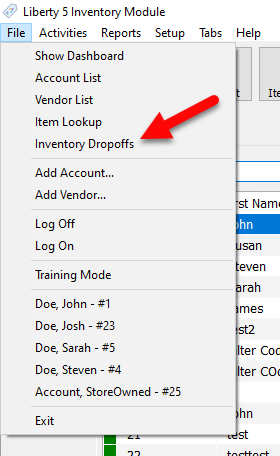
- Go to File > Inventory Drop-Off.
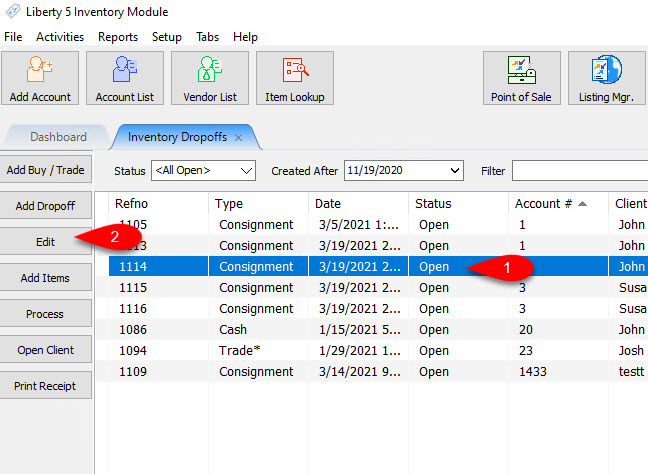
- Click on the Inventory Drop-Off you want to edit, then click the Edit button.
Alternatively, you can add a new Inventory Drop-Off
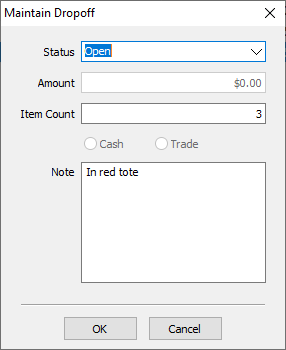
- This will open the Maintain Dropoff dialog for the selected drop-off. When you have completed any changes, click OK.
If a Consignment Drop-off has been Processed, it will not allow you to edit any fields in the Maintain Dropoff dialog.
- You will be prompted if you would like to mark the drop off as processed.
Processing an open or on-hold Consignment Drop-off will prevent further item entry for that drop-off and move it to the Closed status. To do this, highlight the drop-off you wish to close, then on the right-hand side of the Inventory Dropoffs panel click the Process button.
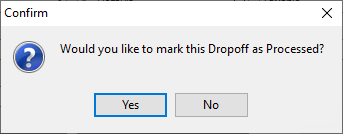
- Yes : This will move the drop-off to Processed, and end item entry. Items will no longer be able to be added to that drop-off after marking is as Processed.
- No : This will keep the drop-off in its current status, and end item entry. This will allow further item entry at a later time for the drop-off.


Next Article In Section
Click the following link to move to the next article in this section:
Printing A Drop-Off Receipt
Related Topics
Processing a Consignment Drop-Off Adding A Consignment Drop-Off Adding Items To A Consignment Drop-Off Dropoff List View Editing A Consignment Drop-Off Filtering inventory dropoff Consignment Inventory Dropoffs Overview Printing A Drop-Off Receipt Using the Wishlist Wishlist Cross-Reference report Looking for Wishlist Matches While Adding Items