Consignment Inventory Dropoffs Overview
The Consignment Drop-Off feature allows for an easy way to track inventory drop-offs from consignors, then process them at a later time or in parts.
Here is the video that covers this content:
Consignment Inventory Dropoffs Screen Overview
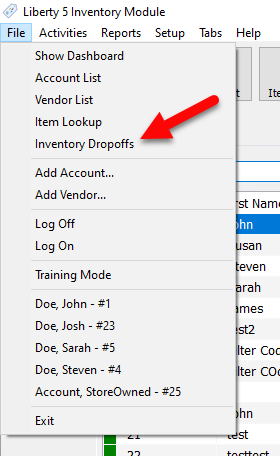
- Go to File > Inventory Dropoffs.
- This section contains various filtering options for the Inventory Dropoffs panel.

- Status : Allows you to see Inventory Drop-Offs of only a certain status, for example Open, Closed, or On-Hold.
- Created After : Shows all drop-offs created after the specified date.
- Filter : Lets you search your displayed drop-offs, using whatever is typed in this field.
- Location : If you have Locations set up, you will be able to filter the drop-off list with a Location filter.
Want to know more about filtering dropoffs?
Click: Filtering Inventory Dropoffs
- The side section contains various functions for the Consignment Drop-offs feature.
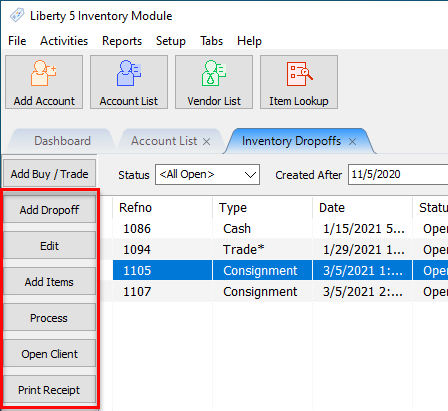
- Add Drop-Off : Allows you to create a new consignment drop-off.
- Edit : Lets you edit the currently selected consignment drop-off.
- Add Items : Beings item entry for the currently selected consignment drop-off.
- Process : Completes the selected Open consignment drop-off and sets it to the Closed status.
- Open Client : Opens the account for consignor the selected drop-off is for.
- Print Receipt : Prints a drop-off receipt for the selected consignor drop-off.


Adding a Consignment Drop-Off From a Consignor Account
- Go to File > Inventory Dropoffs.
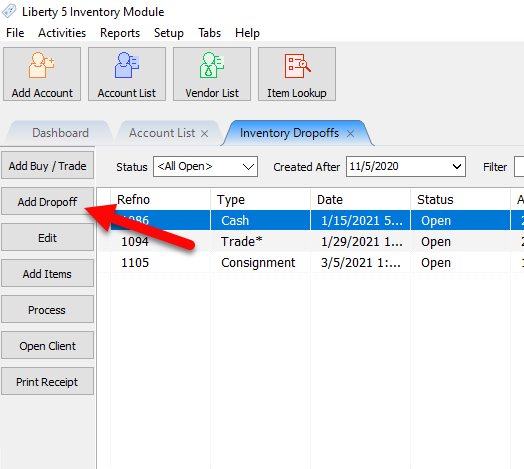
- Then, once the Inventory Dropoffs panel, on the right-hand side, click the Add Dropoff button.
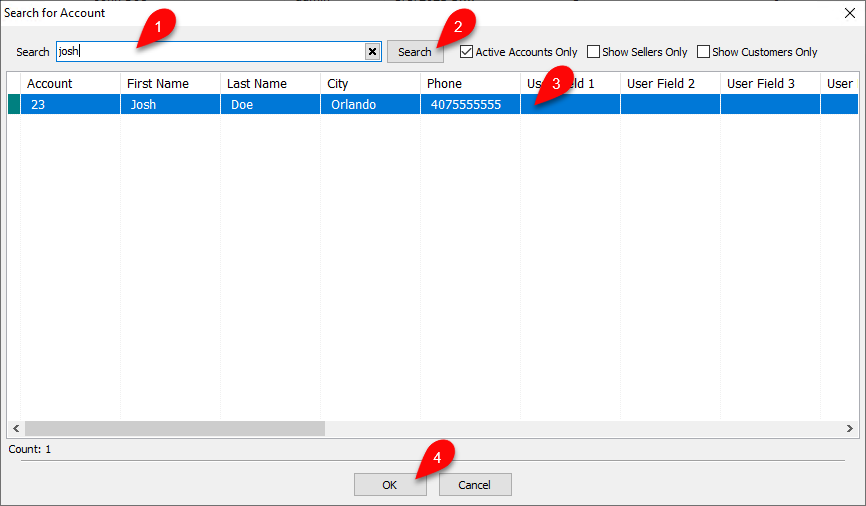
- After you have gone to add a drop-off using either of these two methods, you will see the Search for Account dialog. Use the search bar to lookup the account you are adding the drop-off for, then click Search. Once you found the correct account, highlight it, then click OK.
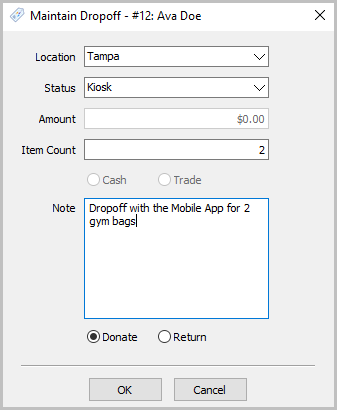
- Then you will be presented with the Maintain Dropoff dialog, where you will create the actual drop-off for the consignor.
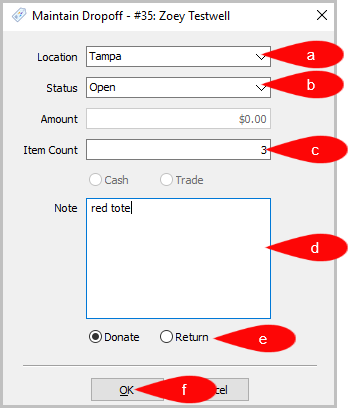
- Location : The Location the dropoff is occurring.
- Status : The current status of the drop-off can be set to either Open or Kiosk. When Dropoff is processed Status = Closed.
- Item Count : The amount of items received in the drop-off.
- Note : Any notes you wish to add about the drop-off.
Note: You can add line breaks by pressing the Enter key in the Notes section.
- Donate or Return : Radio buttons to select to indicate whether this drop off is a return or a donation.
- When finished, click OK to complete the creation of the drop-off.
Note: Amount and Cash/Trade are not used for Consignment Drop-Offs, and will be grayed out as shown.


Adding Items to a Consignment Drop-Off
- Go to File > Inventory Drop-Off.
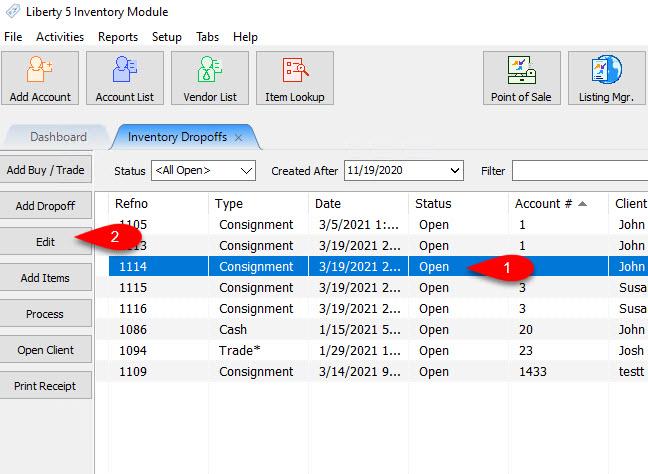
- Adding items to Consignment Drop-Offs is similar to adding consignment items. First, select the drop-off you wish to add items to, then click the Add Items button on the right-hand side of the Inventory Drop-Offs panel.
You can also select an existing Inventory Drop-Off and then click the Edit button.
- From there, the familiar Item Entry window will appear. From here you can enter items from the selected drop-off as you would consignment items. To add a second item, either repeat the previous steps, or you can click the New Item button on the left-hand side of the Item Entry window.
When you are finished entering items to the drop-off, simply close the Item Entry window by clicking Save. Upon doing so you will be prompted if you want to process the drop-off.
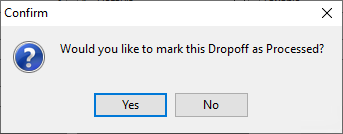


- Yes: This will move the drop-off to Processed, and end item entry. Items will no longer be able to be added to that drop-off after marking is as Processed.
- No : This will keep the drop-off in its current status, and end item entry. This will allow further item entry at a later time for the drop-off.
Editing a Consignment Drop-Off
- Go to File > Inventory Drop-Off.
- Click on the Inventory Drop-Off you want to edit, then click the Edit button.
- This will open the Maintain Dropoff dialog for the selected drop-off. When you have completed any changes, click OK.
note: If a Consignment Drop-off has been Processed, it will not allow you to edit any fields in the Maintain Dropoff dialog.
Processing a Consignment Drop-Off
- Go to File > Inventory Drop-Off.
- Click on the Inventory Drop-Off you want to edit, then click the Edit button.
Alternatively, you can add a new Inventory Drop-Off
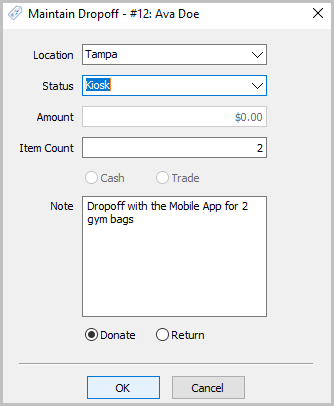
Note: This will open the Maintain Dropoff dialog for the selected drop-off. When you have completed any changes, click OK. If a Consignment Drop-off has been Processed, you can still edit the Location, Status, Item Count, Note, and Donate/Return selections.
- You will be prompted if you would like to mark the drop off as processed.Processing an open or on-hold Consignment Drop-off will prevent further item entry for that drop-off and move it to the Closed status. To do this, highlight the drop-off you wish to close, then on the right-hand side of the Inventory Dropoffs panel click the Process button.
- Yes: This will move the drop-off to Processed, and end item entry. Items will no longer be able to be added to that drop-off after marking is as Processed.
- No : This will keep the drop-off in its current status, and end item entry. This will allow further item entry at a later time for the drop-off.
Printing a Drop-Off Receipt
You have the ability to print Drop-Off Receipts for your consignors when they provide items for a Consignor Drop-Off.
- Go to File > Inventory Dropoffs.
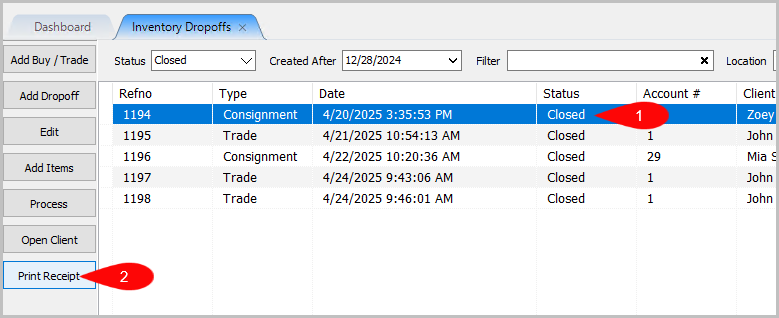
- To do this, first select the drop-off you wish to print a receipt for in the Inventory Dropoffs panel, then on the right hand side, then click the Print Receipt.
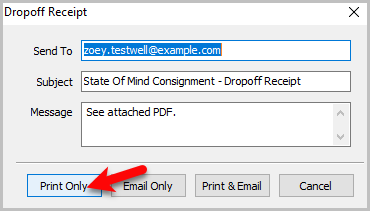
- You can then print the drop off receipt from the top left by clicking on the Print Only button.
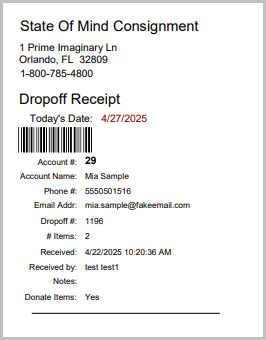
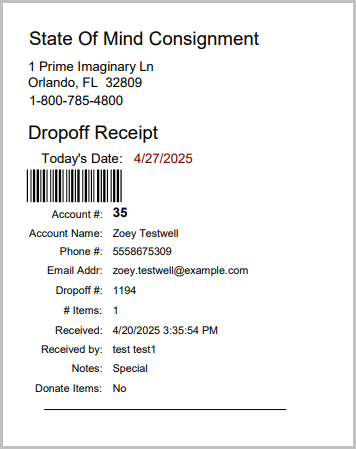
- Here is an example Dropoff receipt:


New Feature on Inventory Dropoff Receipts:
Donate Items: Yes/No Shows on Dropoff Receipts now
- Yes = Donate on Maintain Dropoff Window
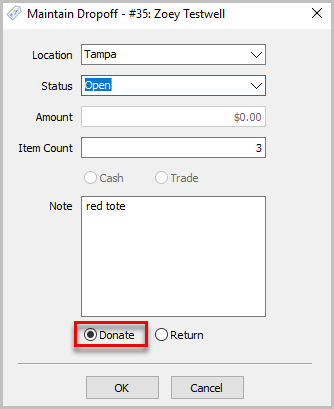
Receipt Example of Donate: Yes
- Donate Items: No - means you selected Return on Maintain Dropoff Window
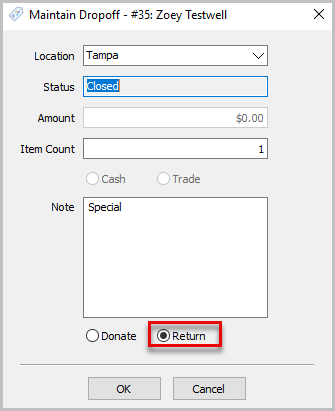
Receipt Example of Donate: No


Checking How Many Dropoffs Are On The List
If you look at the bottom left corner of your Inventory Dropoffs tab, it will now show the count of Inventory Dropoffs.

Note: If you filter the list, the count will update to match the amount on the filtered list.
Next Article In Section
Click the following link to move to the next article in this section:
Adding A Consignment Drop-Off
Related Topics
Consignment Inventory Dropoffs Overview Adding A Consignment Drop-Off Filtering inventory dropoff Adding Items To A Consignment Drop-Off Dropoff List View Editing A Consignment Drop-Off Printing A Drop-Off Receipt Processing a Consignment Drop-Off Using the Wishlist Wishlist Cross-Reference report Looking for Wishlist Matches While Adding Items