Editing A Consignment Drop-Off
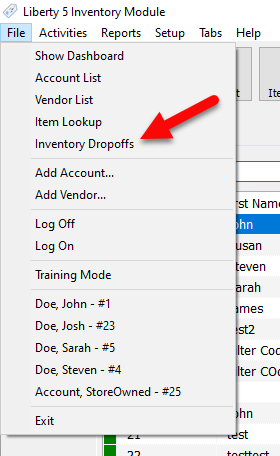
- Go to File > Inventory Drop-Off.
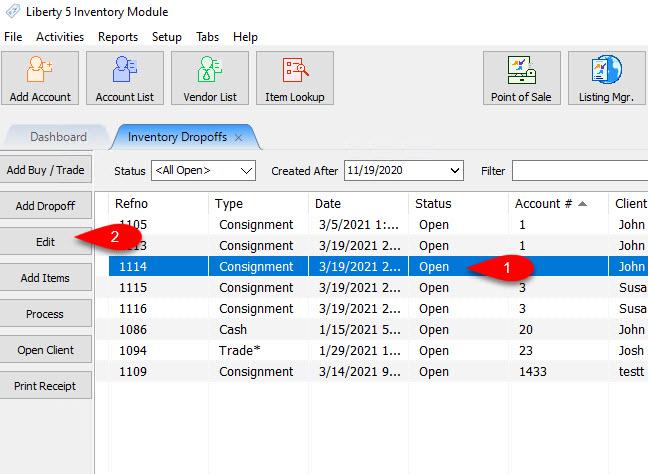
- Click on the Inventory Drop-Off you want to edit, then click the Edit button.
- This will open the Maintain Dropoff dialog for the selected drop-off. When you have completed any changes, click OK.


If a Consignment Drop-off has been Processed, it will not allow you to edit any fields in the Maintain Dropoff dialog.

How To Add And Edit Dropoff Statuses.
Liberty allows for adding custom drop off Statuses to better customize the terms given to different statuses.
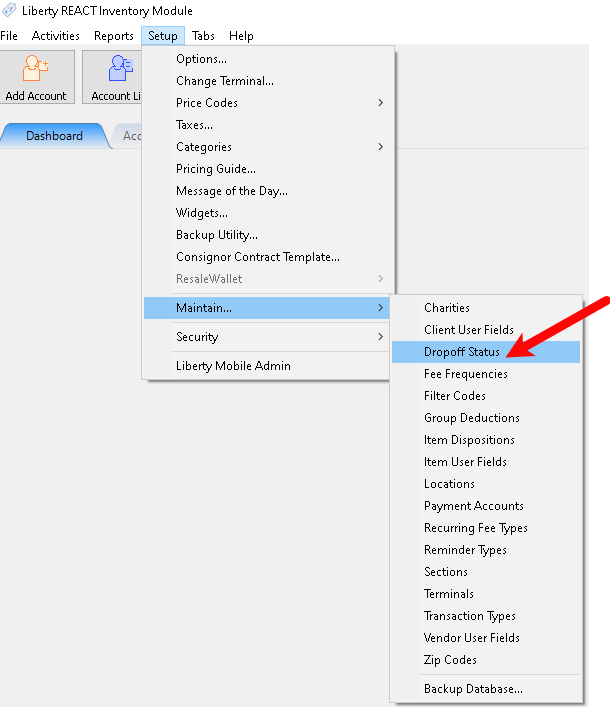
- To access the Dropoff Status edit section first click the Setup button, then click the Maintain button, then finally the Dropoff Status button.
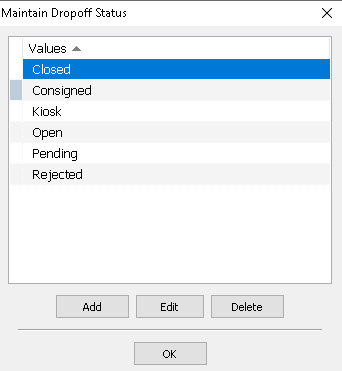
- The maintain Status dropoff page will open, here you are able to add new statuses with the Add button or edit already existing ones with the Edit button.
- When editing a status you can select the Indicator Color, this allows you to associate dropoff statuses with colors for quicker comprehension within the dropoff page.
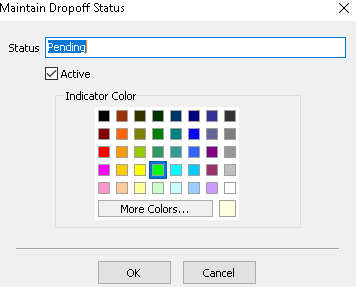
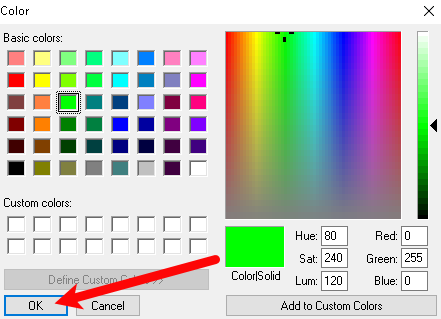
- You can also select the More colors button for a full range of colors. Once you are finished you can click the OK button.
- Now once you give a dropoff a status the rectangle to the left of the dropoff will have the color associated with its current status.


Next Article In Section
Click the following link to move to the next article in this section:
Processing a Consignment Drop-Off
Related Topics
Editing A Consignment Drop-Off Adding A Consignment Drop-Off Adding Items To A Consignment Drop-Off Dropoff List View Filtering inventory dropoff Consignment Inventory Dropoffs Overview Printing A Drop-Off Receipt Processing a Consignment Drop-Off Using the Wishlist Wishlist Cross-Reference report Looking for Wishlist Matches While Adding Items