Dropoff List View
The Drop-Off List within a client’s account gives a detailed view of all items brought in
by the client for consignment, trade, or dropoffs. It organizes them into categories that
make it easier to manage and track the status of each item.
How To Enable This Feature
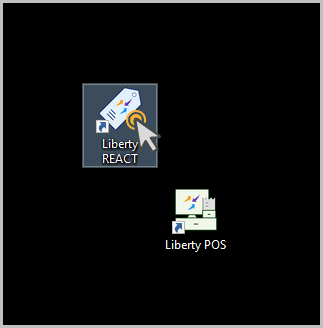
- Open up Liberty REACT/Liberty Inventory Module.
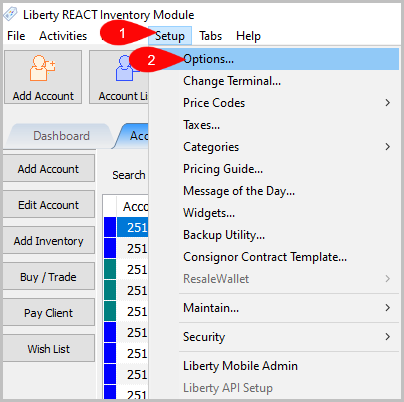
- Log in, then go to Setup > Options
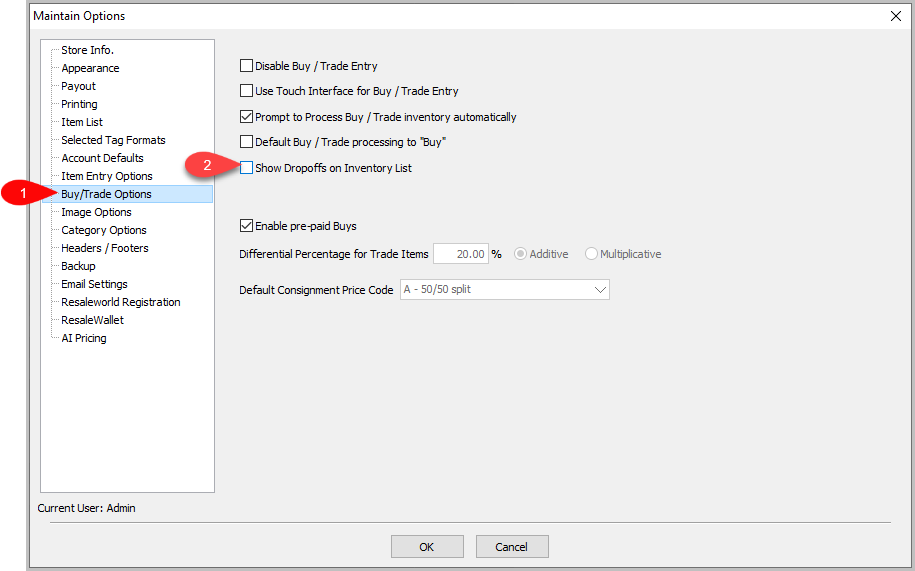
- Left Click on Buy/Trade Options, then turn on ‘Show Dropoffs on Inventory List.’
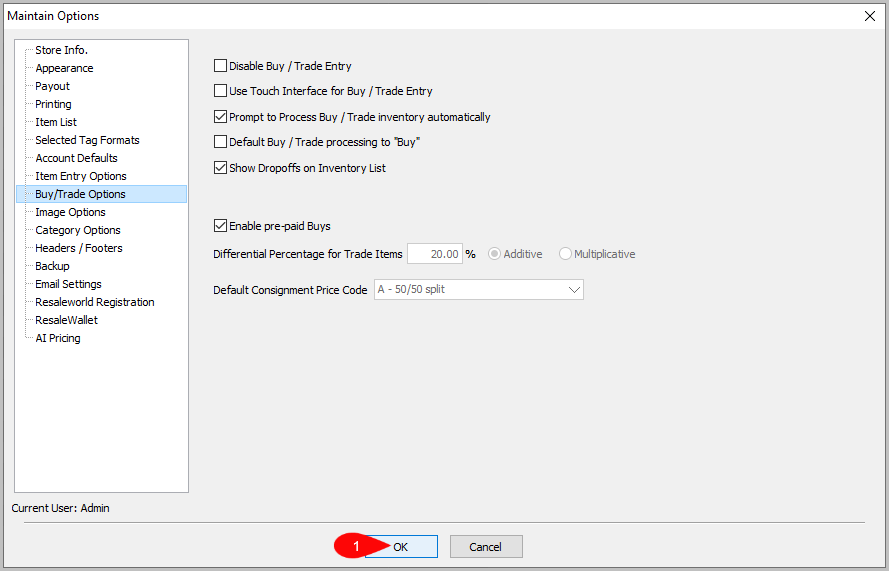
- Press ‘OK’ to save any changes.


Categories & Filters
The left panel of the drop-off list allows you to expand and collapse item categories to organize the item list by:
- Dropoff: Items that have been recently brought in. These are typically grouped by status:
- Open: Currently being processed.
- Closed: Fully processed items.
- Trade: Items submitted for trade rather than consignment.
- PrePaid: Items that were prepaid (if applicable).
- Consigned: Items taken in under a consignment agreement.
What does 1/5 or 0/5 mean?

a) ‘1’ stands for the items added in the Inventory Module for the item category:
dropoff, trade, prepaid, consigned.
b) ‘5’ stands for the items expected from “Item Count” when adding the amount of items in drop off.


Show More Detail
You can show more detail by right clicking the date of the dropoff and then left clicking “Show Detail…”

It will show the dropoff window.

Next Section Navigation Link
Click the following link to see a list of articles for the next section:
Pre-Paid Buys
Related Topics
Dropoff List View Adding A Consignment Drop-Off Adding Items To A Consignment Drop-Off Editing A Consignment Drop-Off Filtering inventory dropoff Consignment Inventory Dropoffs Overview Printing A Drop-Off Receipt Processing a Consignment Drop-Off Using the Wishlist Wishlist Cross-Reference report Looking for Wishlist Matches While Adding Items