Adding A Consignment Drop-Off
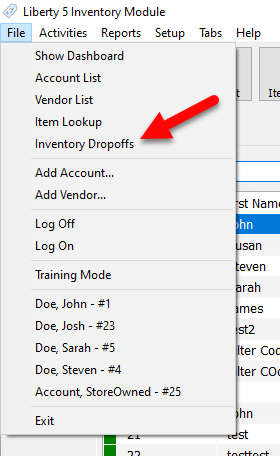
- Go to File > Inventory Dropoffs.
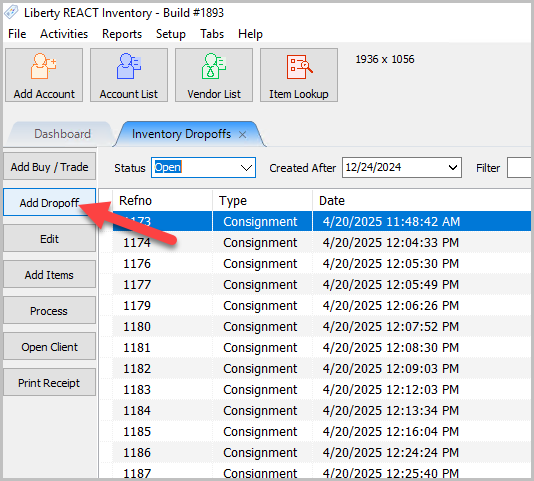
- Then, once the Inventory Dropoffs panel, on the right-hand side, click the Add Dropoff button.
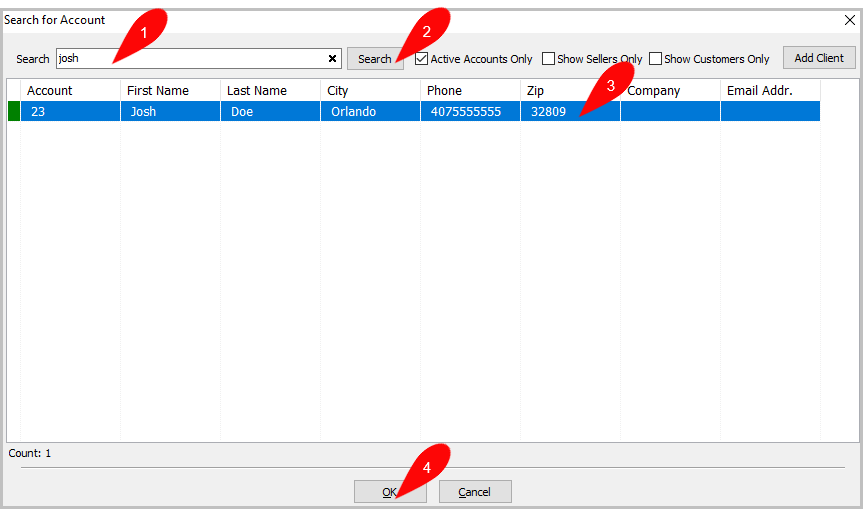
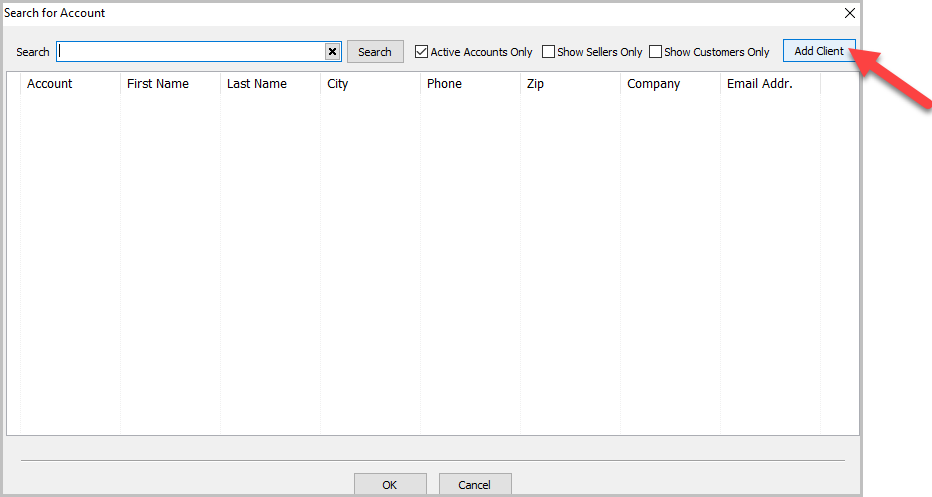
- After you have gone to add a drop-off using either of these two methods, you will see the Search for Account dialog. Use the search bar to lookup the account you are adding the drop-off for, then click Search. Once you found the correct account, highlight it, then click OK.
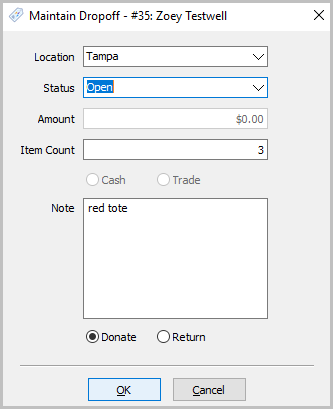
- Then you will be presented with the Maintain Dropoff dialog, where you will create the actual drop-off for the consignor.
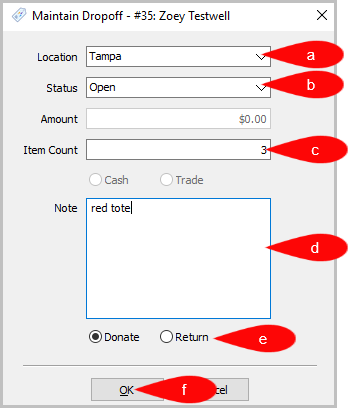 - Location : The Location the dropoff is occurring.
- Status : The current status of the drop-off, can be set to either Open or Kiosk.
- Item Count : The amount of items received in the drop-off.
- Note : Any notes you wish to add about the drop-off.
- Donate or Return : Radio buttons to select to indicate whether this drop off is a return or a donation.
- When finished, click OK to complete the creation of the drop-off.


Note: Amount and Cash/Trade are not used for Consignment Drop-Offs, and will be grayed out as shown.
Adding A New Client In Consignment Dropoff
- Click on Add Dropoff.
- Next click on Add Client.
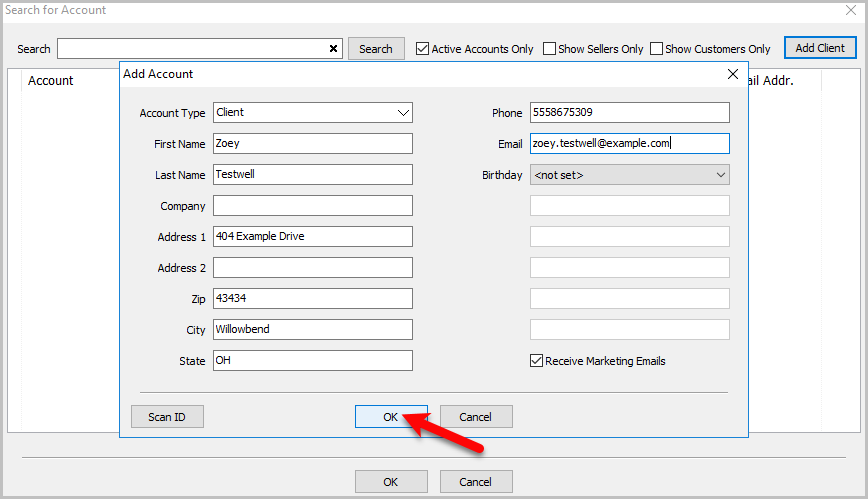
- The Add Account window will pop up. Fill out the details of the client,
and click on OK.
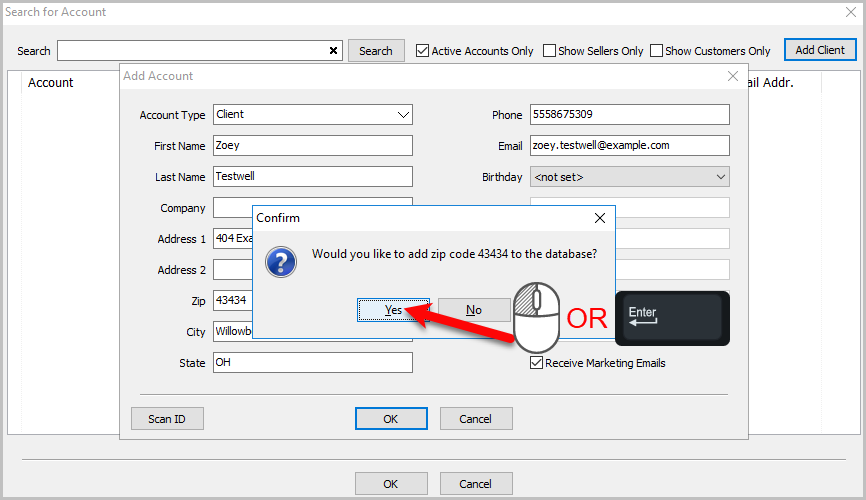
- Next, a Confirm window will pop up asking if you want to add the Zip Code to
the database. This can help with auto populating the City and the State when
you start typing in the Zip Code on the next Add Account entry.
Left Click on Yes or press the Enter key to save the Zip Code.
- Then, the Maintain Dropoff window will pop up. Click on OK when done.
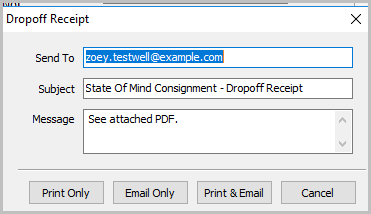
- Then the Dropoff Receipt window will appear. You can print a receipt only with
Print Only, you can also send a receipt through Email Only, or Print & Email.
You can also Cancel if you don’t want to print or email any receipt.


Next Article In Section
Click the following link to move to the next article in this section:
Adding Items To A Consignment Drop-Off
Related Topics
Adding A Consignment Drop-Off Adding Items To A Consignment Drop-Off Dropoff List View Editing A Consignment Drop-Off Filtering inventory dropoff Consignment Inventory Dropoffs Overview Printing A Drop-Off Receipt Processing a Consignment Drop-Off Using the Wishlist Wishlist Cross-Reference report Looking for Wishlist Matches While Adding Items