Consignor Center Website Overview
Consignor Center First Time Login Instructions
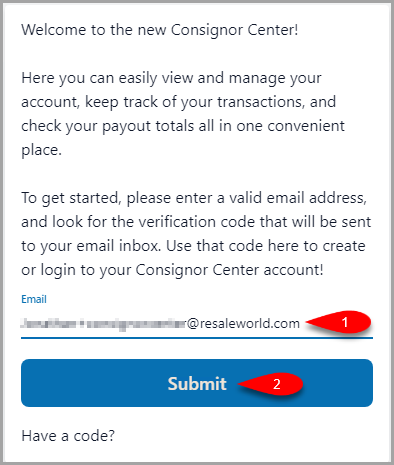
- Type in the email address you want to use into the Email field and then click the Submit button.
Note: This does not have to be an email you use with any of the stores. You can link other email addresses that you have used before adding the stores to your account and Consignor Center will attempt to match one of your linked emails (including the one used here) to an account at the store.
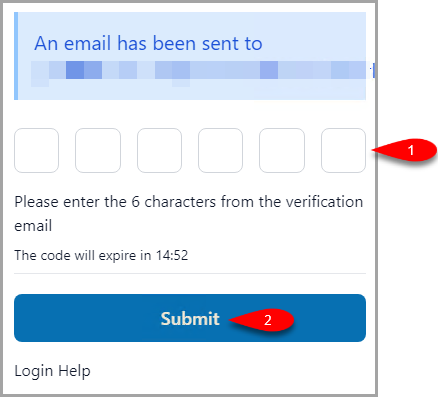
- You will get an email with a 6 character verification code.
Paste this into the first empty box and then click the Submit button.
Note: Consignor Login will keep you logged in per device for 90 days from your last login. As long as you visit at least once in that time, you will not be required to log back in.
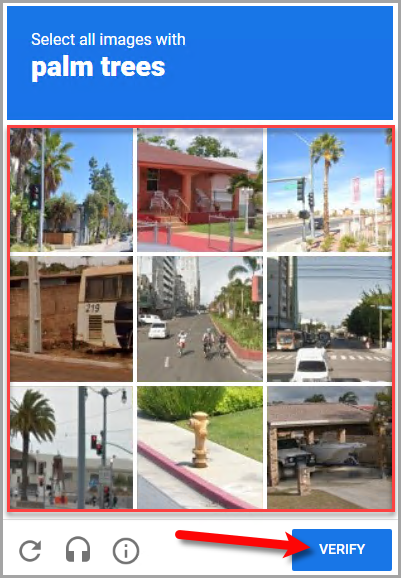
- If you receive a CAPTCHA prompt, follow the instructions and then click the Verify button.
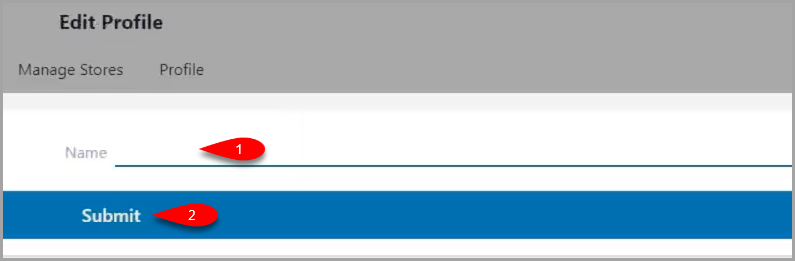
- Type in your name that you wish to associate with your Profile and then click the Submit button.
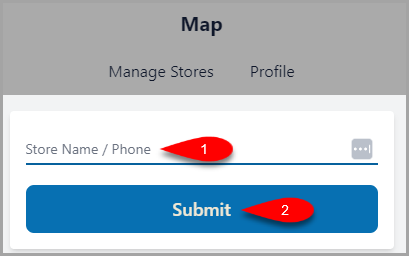
- In the Store Name / Phone field, type in either the store name or phone number associated with the store you are consigning at and then click the Submit button.
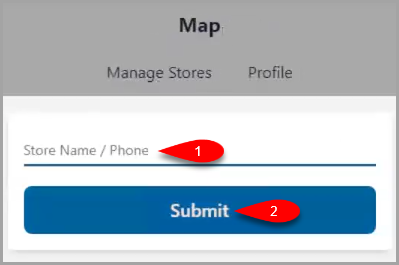
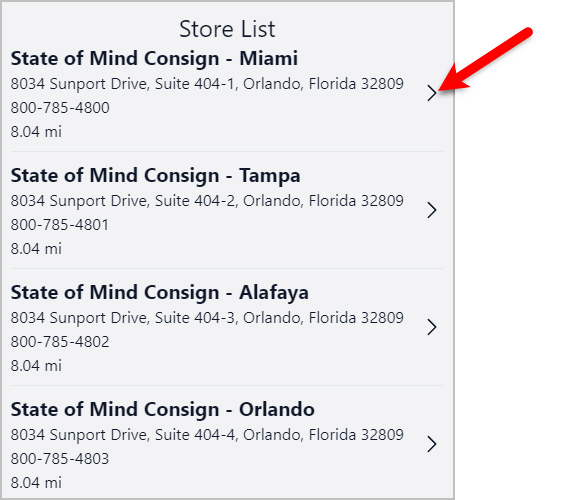
- You have two ways that you can select a store to link with the Consignor Center.
- First, you can select the Store you wish to associate your email with.
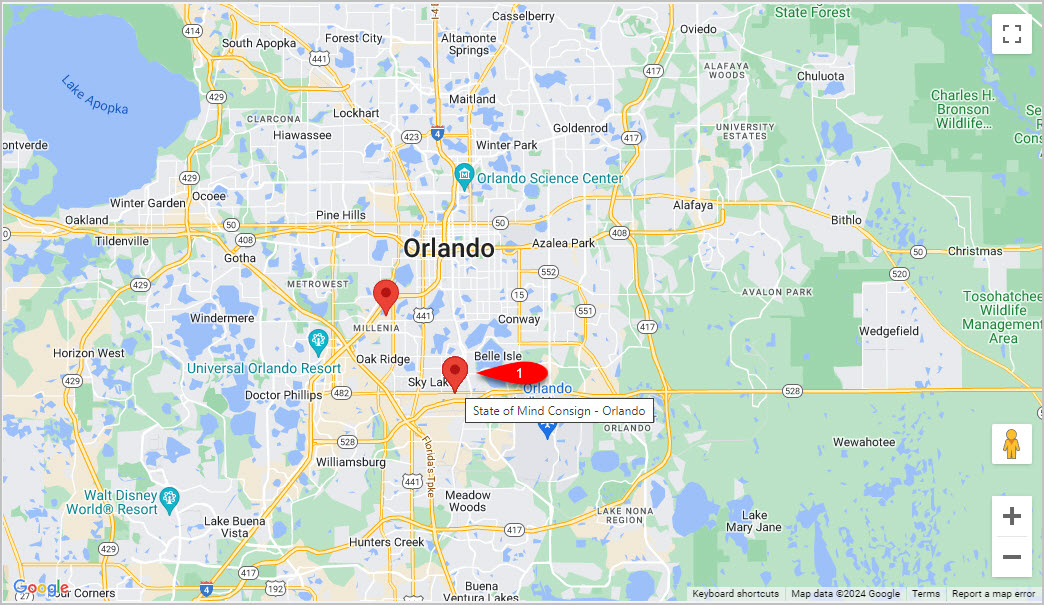
- Or you can use the map on the right hand side to see other stores in the area and select a store from the map.
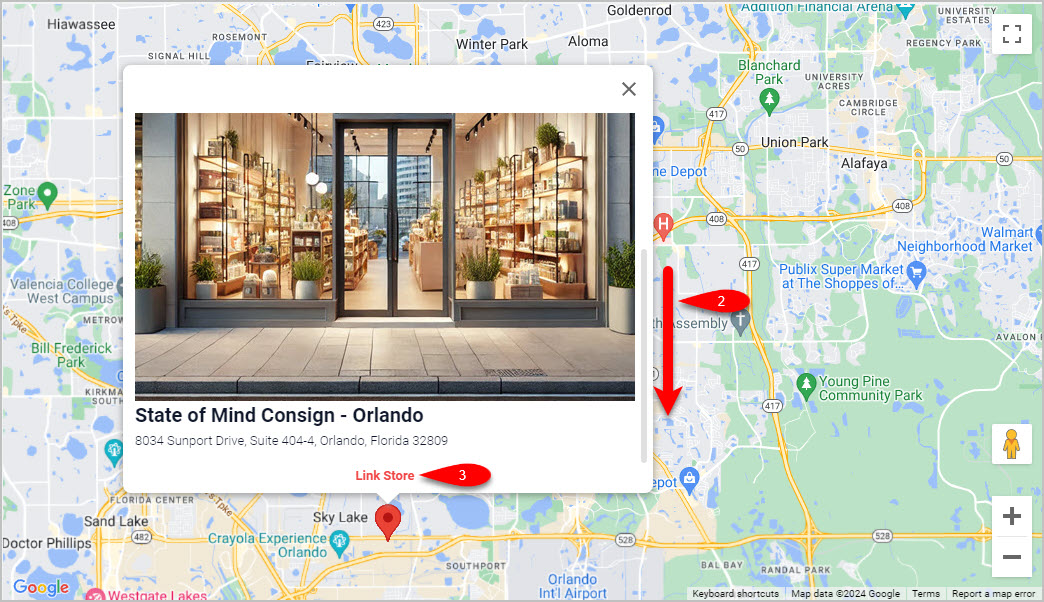
If you choose to select a store from the map, the store’s logo will appear along with the option to Link Store.
Note: You may need to scroll down on the store logo in order to see the Link Store button.
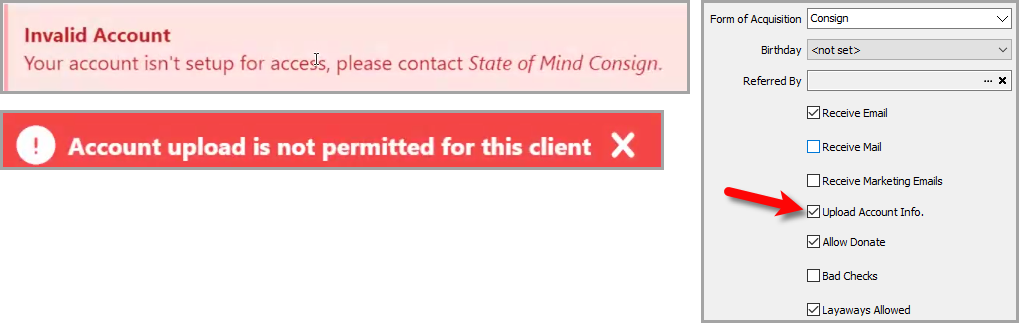
- If you receive an Invalid Account error, this means that the consignor account does not have Upload Account Info. checkmarked.
If you are the store, go ahead and open the Inventory Module, open the Account of the person attempting to login, checkmark Upload Account Info edit account pane and finally click the Save button.
They should be able to refresh the page and login.
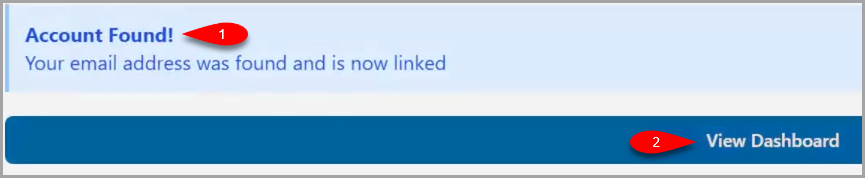
- You will get an Account Found! prompt if everything was successful, click the View Dashboard button when finished.
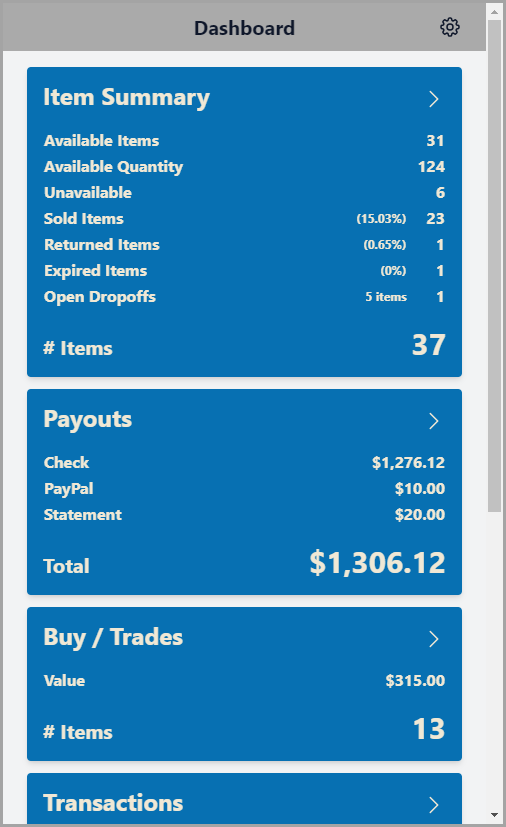
- You are now signed into your Consignor Center dashboard!


Add A Store
It is possible to add more stores to your personal Consignor Center account. This process will attempt to match your linked emails along with your primary email to an account at an additional store you would like to add.
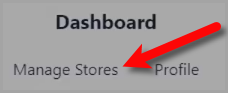
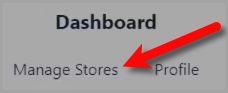
- Click on Manage Stores at the top of your Dashboard.
- Scroll down all the way down and click the Add Store button.
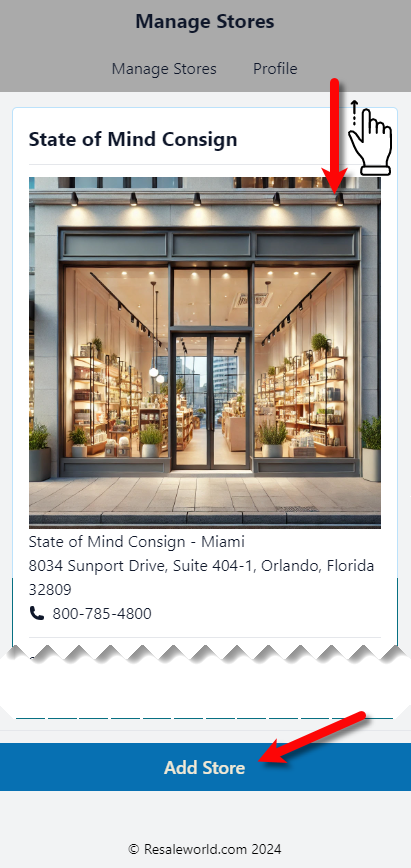
- You can now repeat the process you did at the beginning when you added your first store and select it to add it to your list of Managed Stores.


Manage / Swap Stores
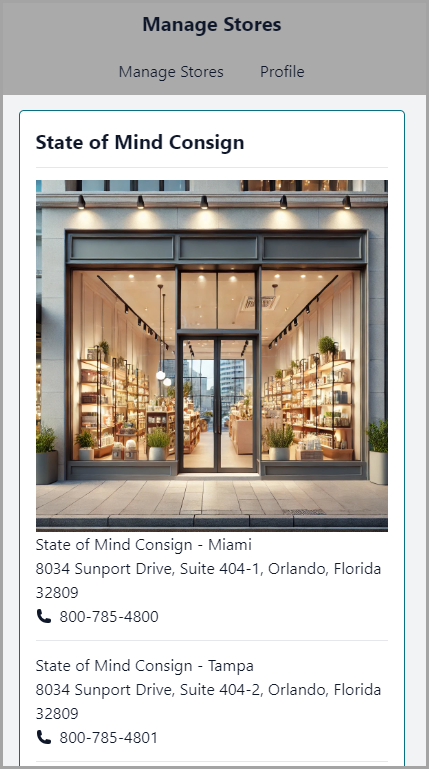
Once you have added more than one store on Consignor Center you can go to Manage Stores to view another store.
- Click on Manage Stores at the top of your Dashboard.
- Scroll down through the list of stores your email is associated with on Consignor Center and click the store you want to view.
Linking Another Email To Consignor Center
You may be using more than one email across different consignment stores.
Consignor Center provides the ability to add more than one email so that when you Add A Store, it will look through your linked emails and match one with the store.
Note: Each store can only support one email address per consignor. It is possible to use different email addresses across multiple stores, but you can only have one email address linked to a consignment account per store. - Click the Profile button.
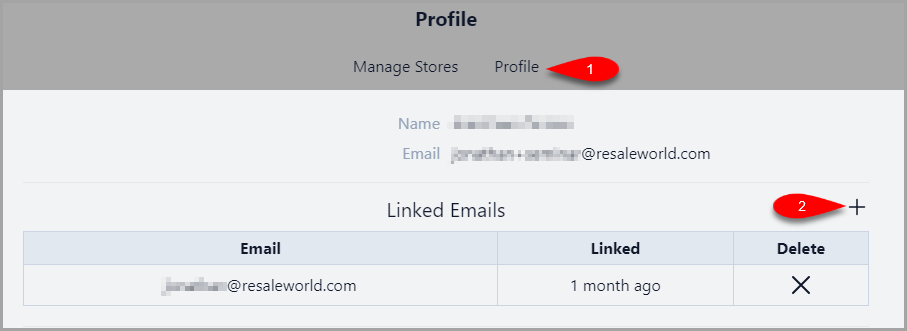
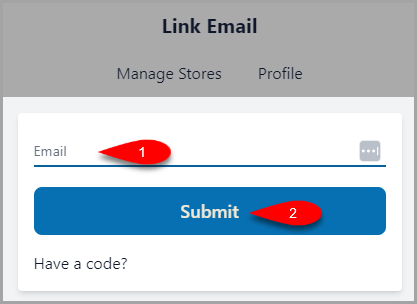
- Type another Email you would like to link to your Consignor Center account and then click the Submit button.


Deleting A Linked Email From Consignor Center
If there is a linked email you no longer wish to use with Consignor Center, you can delete it.
Note: The primary email address you used to sign up with Consignor Center cannot be deleted. Any stores linked to this deleted email will also be unlinked from your Consignor Center account
- Click the Profile button
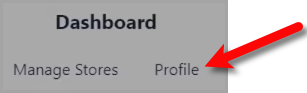
- Find the Linked Email you wish to delete off of Consignor Center and then click the Delete button.

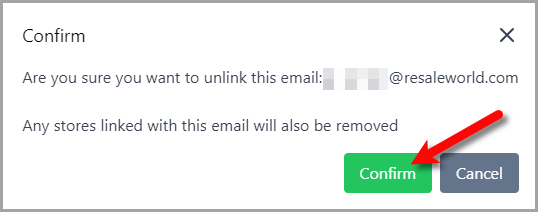
- You can now click the Confirm button and the linked email will be deleted from Consignor Center.


Logging Out Of Connected Devices
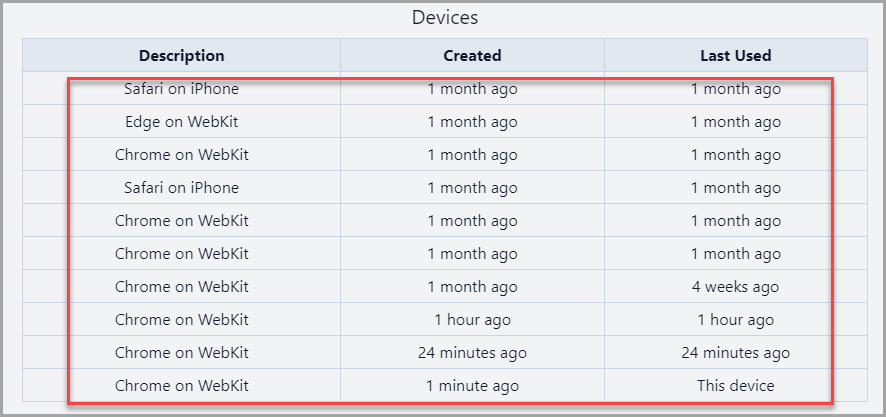
You can log out of all devices that went through the verification process on Consignor Center if you notice a device you do not recognize in the list.
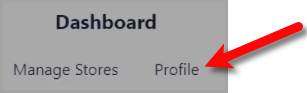
- Click the Profile button
- Look through the list of devices that were used with your account on Consignor Center.
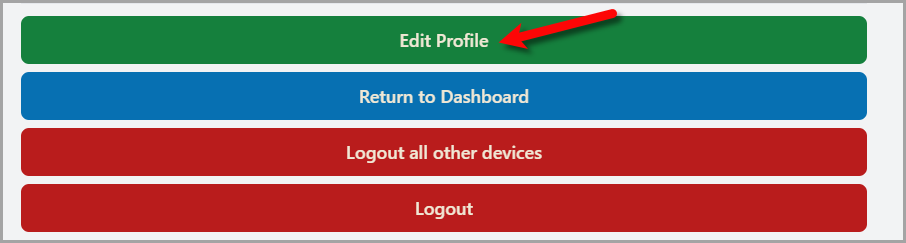
- Scroll down and click the Logout all other devices button.


This will require any devices that were logged in to go through the Verification Process again.

Changing Your Profile Name
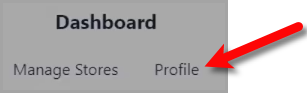
- Click the Profile button.
- Click the Edit Profile button.
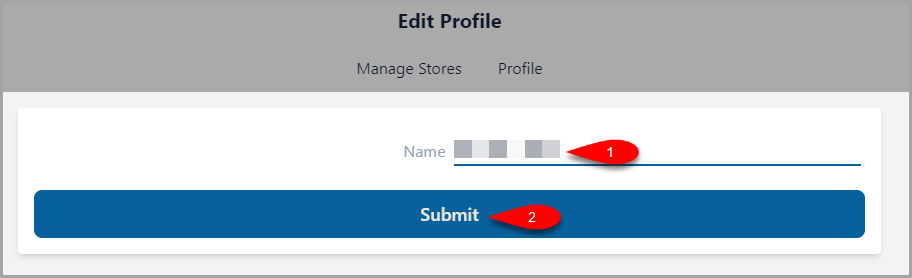
- Type in the Name you wish to associate with your profile and then click the Submit button.


Next Article In Section
Click the following link to move to the next article in this section:
Consignor Center Dashboard View
Related Topics
Consignor Center Website Overview Adding Your Consignment Store Deleting A Linked Email From Consignor Center Consignor Center First Time Login Instructions Linking Another Email To Consignor Center Logging Out Of Connected Devices Managing / Swapping More Than One Consignment Store Changing Your Profile Name Consignor Center Dashboard View Configuring The Consignor Center Dashboard Area Configuring The Consignor Center Details Area