Configuring The Consignor Center Dashboard Area
- Open the Liberty REACT
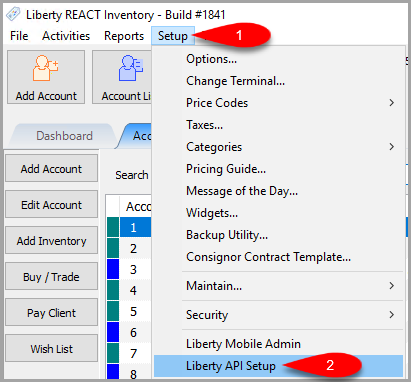
- Click on Setup then Liberty API Setup
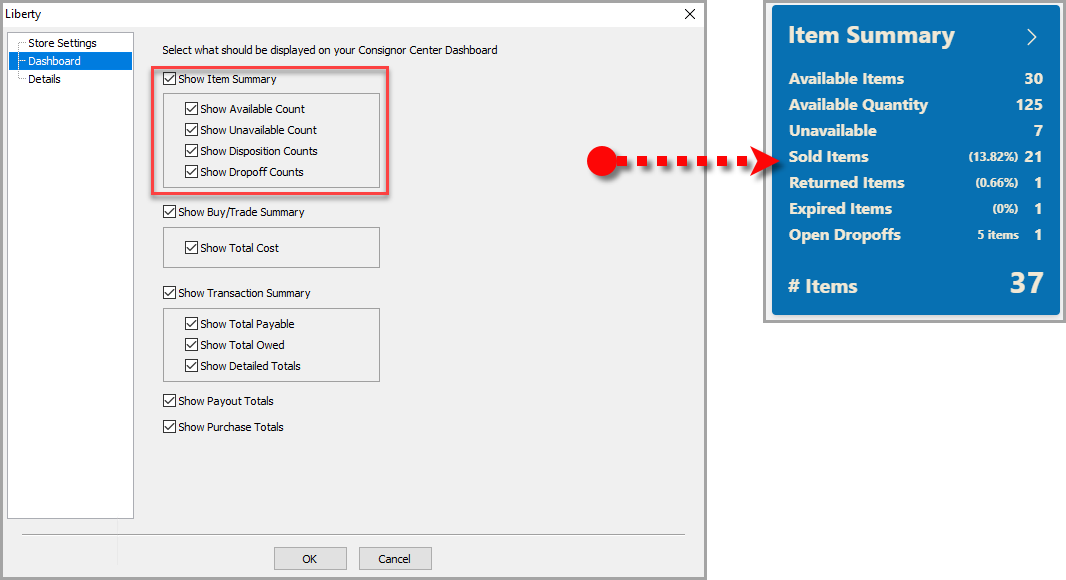
- Click on the Dashboard menu option on the left.
We can change whether we want to Show Item Summary along with any of this area’s additional options.
Note: Purchased outright items and trade items do not appear in these totals. Store owned items do not appear in the Consignor Center.
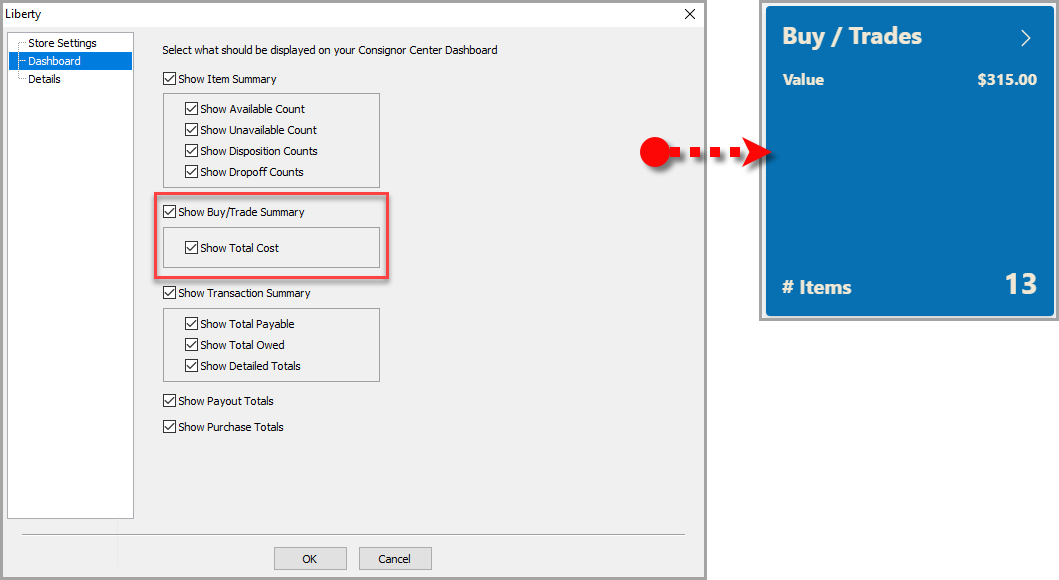
- We can change whether we want to Show Buy/Trade Summary along with checkmarking the option to Show Total Cost.
- We can change whether we want to Show Transaction Summary along with any of this area’s additional options.
Note: The pay delay setting in Liberty is used to determine the total payable.
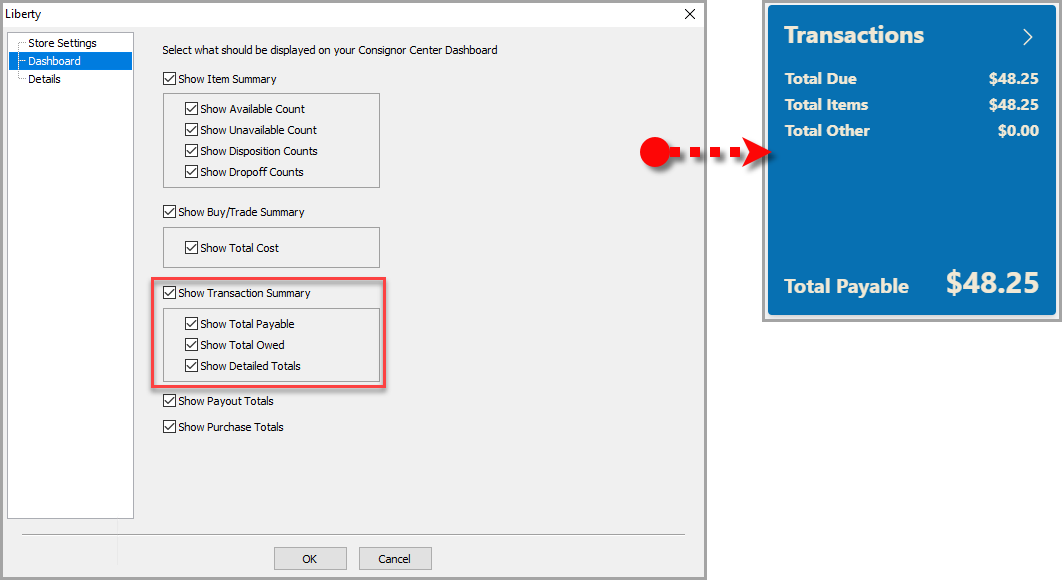
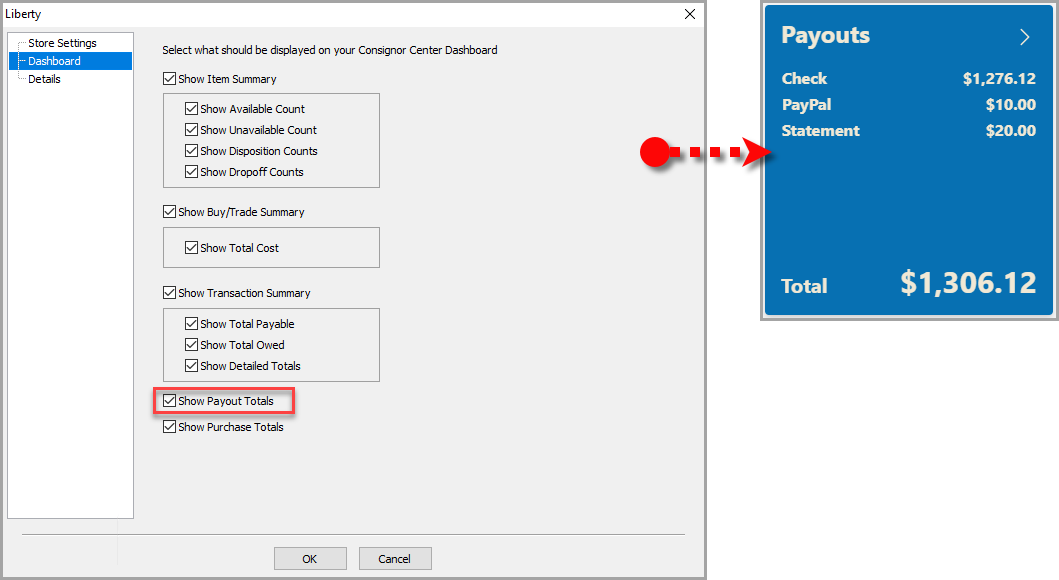
- We can change whether we want to Show Payout Totals
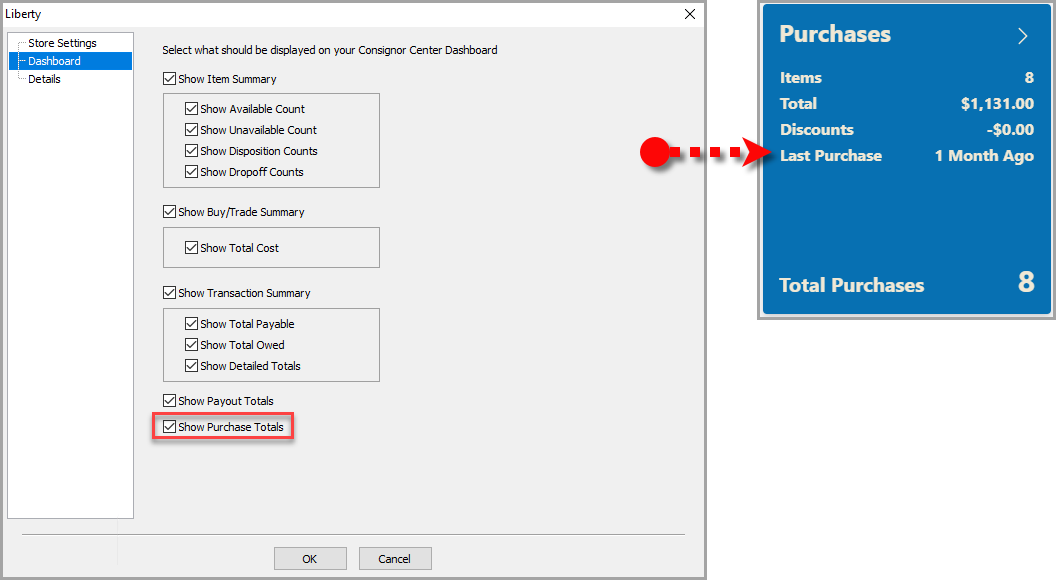
- We can change whether we want to Show Purchase Totals.
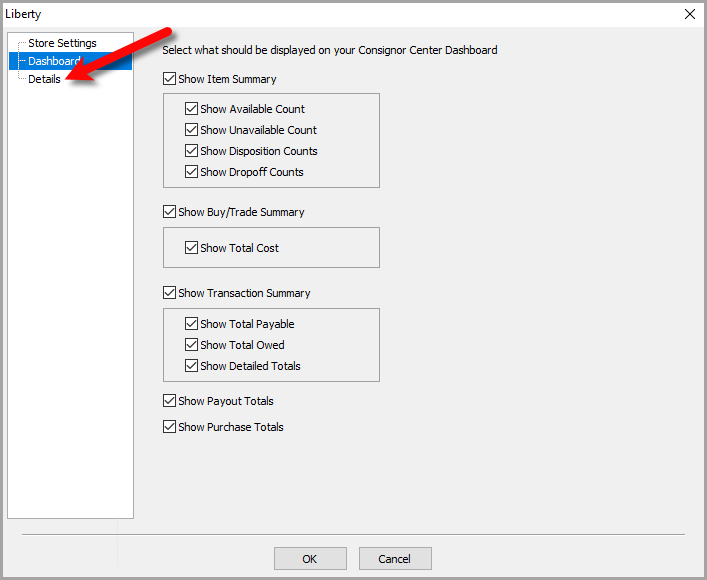
- Once we are finished with the Dashboard area, we can move on to the Details menu option.


Finally, we can setup the Consignor Center Details Area: Configuring The Consignor Center Details Area
Next Article In Section
Click the following link to move to the next article in this section:
Configuring The Consignor Center Details Area
Related Topics
Configuring The Consignor Center Dashboard Area Configuring The Consignor Center Details Area Consignor Center Dashboard View Liberty API Setup Consignor Center Store Setup Overview Adding Your Consignment Store Deleting A Linked Email From Consignor Center Consignor Center First Time Login Instructions Linking Another Email To Consignor Center Logging Out Of Connected Devices Managing / Swapping More Than One Consignment Store