AI Pricing Settings
- Open the Inventory Module, and then go to Setup, then Options.
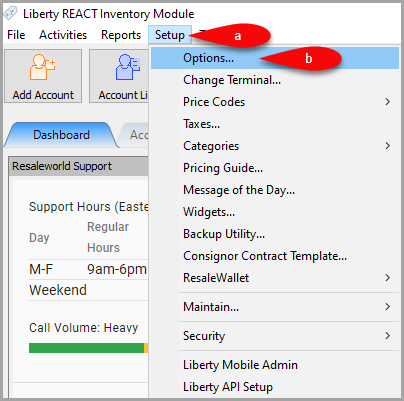
- This will allow you to configure AI Pricing pricing settings.
Note: Please contact sales at 1-800-785-4800 to start using the AI Pricing feature.
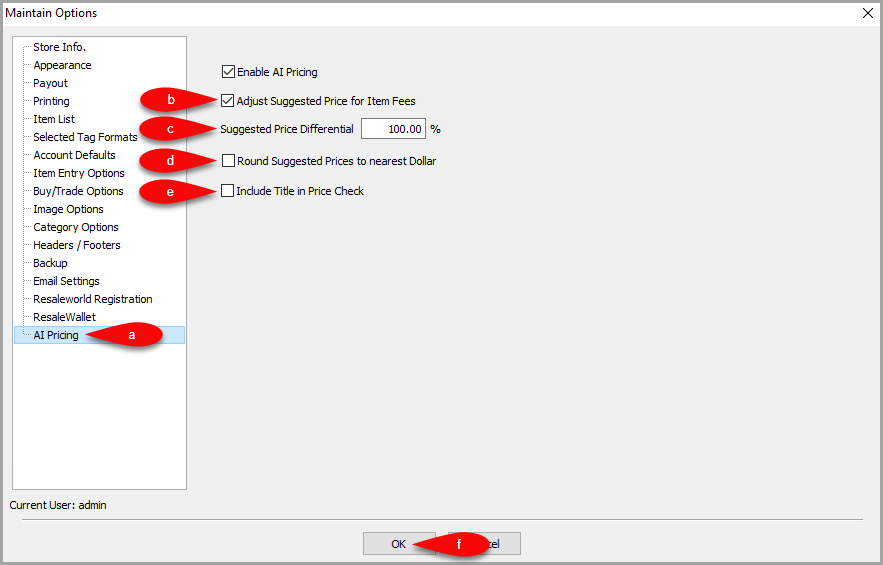
- Click on the AI Pricing menu option to the left.
- Adjust Suggested Price for Item Fees - Adjusts the price assigned to the item to take item fees into account. For example, if an item has a $5 item fee and you select an AI suggested price of $25, Liberty will price the item at $20 so that it will sell for $25 after including the item fee.
- Suggested Price Differential - The AI Pricing tool does not take location into account. Stores in high cost areas may want to increase the differential, while stores in low cost areas can reduce it. A differential of 100% uses the exact price suggested by the AI.
- Round Suggested Prices to nearest Dollar - Rounds prices to an even dollar amount.
- Include Title in Price Check - Add title to the search parameters, in addition to category and attributes.
- Click the OK button when finished.


Next Article In Section
Click the following link to move to the next article in this section:
Using The AI Pricing Tool
Related Topics
AI Pricing Settings AI Pricing Overview Using The AI Pricing Tool Accessing Liberty Help From Anywhere In Liberty Add Notes to an Account Add Multiple Addresses and Phone numbers Apply Group Deductions Bulk Change Default Price Code Using the Client Import and Export Utility Creating New and Maintaining Existing Accounts