View Items in an Account
To display or view items after they have been added into an account, it is necessary to navigate to the Inventory Screen.
How To View All Items In An Account
- Click on the Inventory tab. Below is a sample inventory screen.
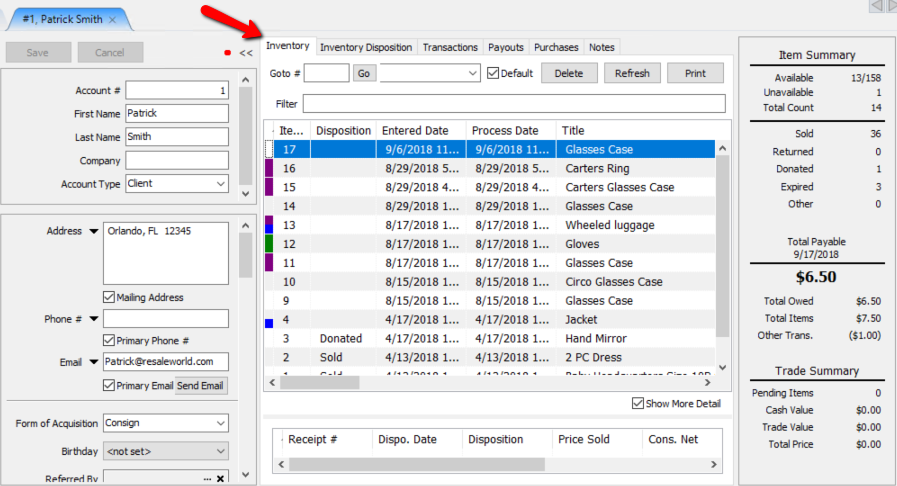


In addition to the fields showing in the figure above, additional fields may be viewed by moving the scroll bar at the bottom of the screen to the right.

Highlight an item and select the Show More Detail check box (located in the lower right of the Inventory screen) displays additional information about the highlighted item.

This information includes the number of the receipt which the item was a part of the sale of, the disposition date (date the item’s disposition last changed), the item’s disposition, price sold, net payable to the consignor, who the item was sold to, who the item was shipped to (when the item is a web sale) and the item’s order status.
Filtering the list allow you to view items based on their status. In the Inventory Tab, items can be filtered by their availability status (All, Available, Available & Past Expiration, Unavailable, Needs Info, Past Expiration).

How To View Just Items With A Particular Status
- Right-click on any item listed in the Inventory screen. Select Filter and then the Filter you wish to use.
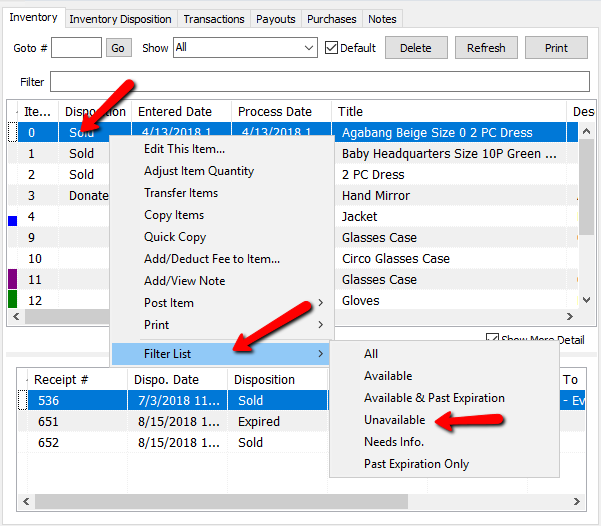

Now you will only see the filtered items.

Next Article In Section
Click the following link to move to the next article in this section:
Add Notes to an Account
Related Topics
View Items in an Account Add Notes to an Account Add Multiple Addresses and Phone numbers Apply Group Deductions Bulk Change Default Price Code Using the Client Import and Export Utility Creating New and Maintaining Existing Accounts Customize the Account Detail Window Deactivating an Account Delete a Client's Data From Consignor Login Edit Account Information