Look Up A Retail Account
To Access The Account List
- To access the Vendor (Retail) accounts:
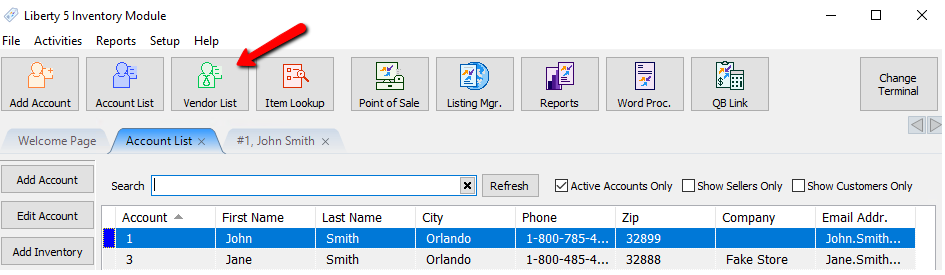
- Within Liberty, select the Vendor List button.
- Select File > Vendor List from the Main Menu.
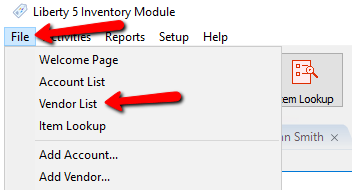


The Vendor (Retail) account list will open.

Searching For An Account
Liberty5 supports a smart search feature.
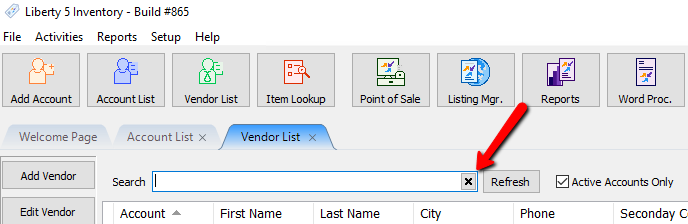
- Type in the Search Bar to find an account you are looking for.
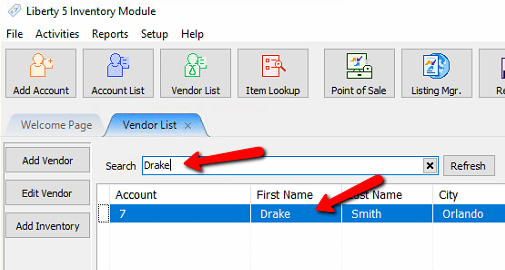
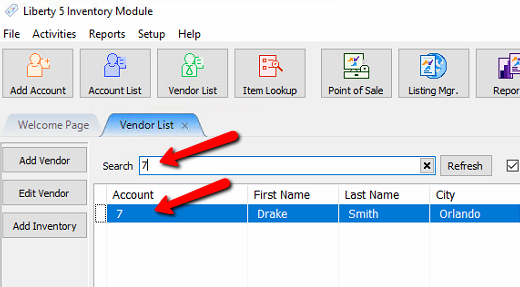
- To clear out the search field you can delete the text, or click the X button.


Sorting and Viewing Accounts
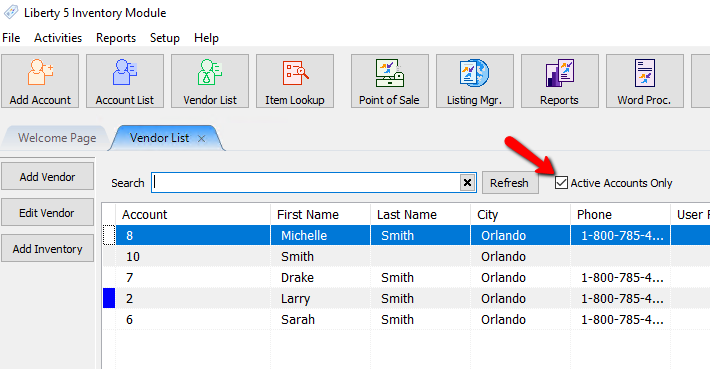
To view all accounts, make sure the Active Accounts Only check box does not have a check mark. For more information on deactivating accounts, please see the section entitled Deactivating an Account.
- Sorting accounts can be accomplished by:
- Click on the column header of the field you wish to sort on. For instance, clicking on the Last Name header (at the top of the list) will sort all accounts by Last Name.
- To pinpoint the account, type in part or all of a word that would be found in the selected Search field.

Use the mouse, Up and Down arrow keys, and/or the <Page Up> and <Page Down> keys to navigate through the list of accounts. When the account you wish to view is highlighted, either press the <Enter> key or double-click on the account.
Add an Account Training Mode
Next Article In Section
Click the following link to move to the next article in this section:
Edit Account Information
Related Topics
Look Up A Retail Account Deactivating an Account Add Notes to an Account Add Multiple Addresses and Phone numbers Apply Group Deductions Bulk Change Default Price Code Using the Client Import and Export Utility Creating New and Maintaining Existing Accounts Customize the Account Detail Window Delete a Client's Data From Consignor Login Edit Account Information