Deactivating an Account
Deactivating an account prevents the account from being displayed in the Account Lookup window. This is a useful feature due to the fact that some accounts cannot be deleted from the database. Many times accounts cannot be deleted due to inventory information and other important items in the account. It is also an advantage to deactivate an account instead of deleting as they may be someone who has not come into the store in a long time but if they do come back, it is easier to re-activate their account instead of creating a new one.
To Deactivate an Account
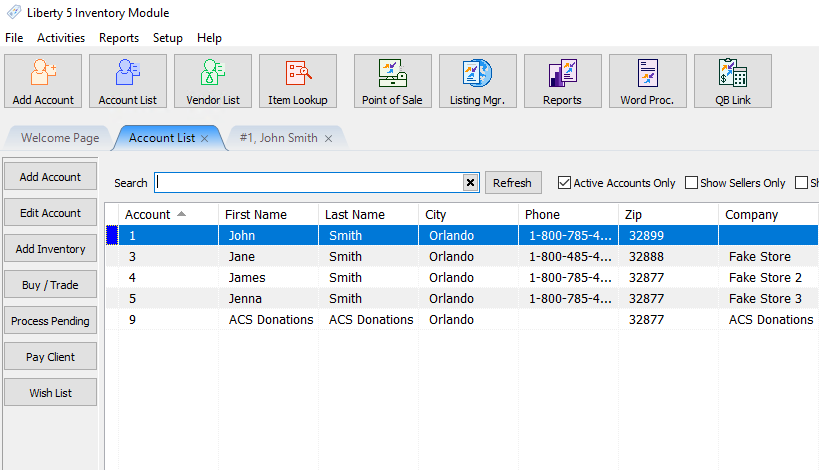
- In Liberty Inventory, Lookup the account.
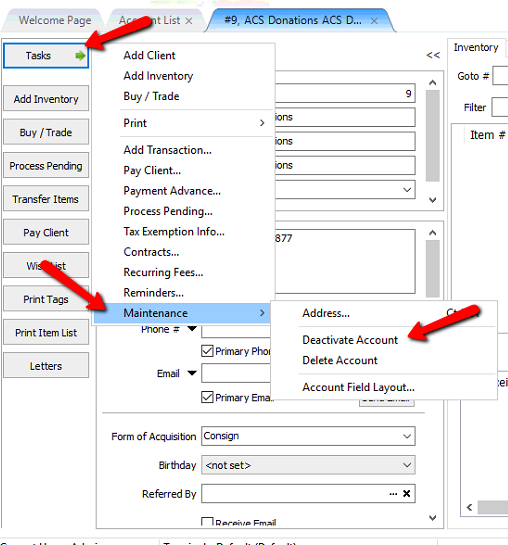
- From within the account, click on Task > Maintenance > Deactivate Account.
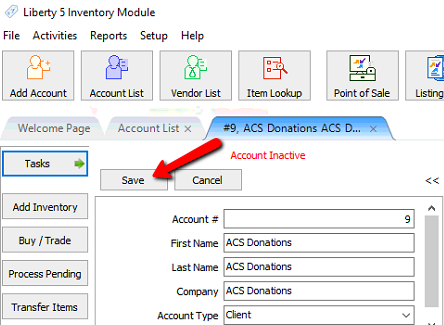
- Click the Save button to save the account as deactivated.


How To Tell If An Account Is Deactivated
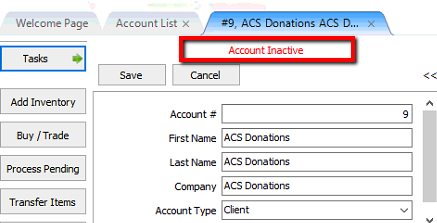
- While in the account, it will say Account Inactive in red letters.
- Accounts in the account list, that are inactive, will have a gray indicator next to it.

Note: Active Accounts Only will have to be Unchecked to be able to see inactive accounts.

How To Deactivate Multiple Accounts.
Warning ! Make a backup of Liberty before doing this process so if mistakes are made, you can quickly restore the system to the state it was before doing this process.
- Select Activities > Accounts >Deactivate Accounts.
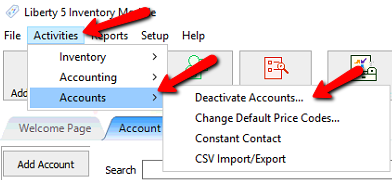
The Deactivate Accounts dialog box will appear..
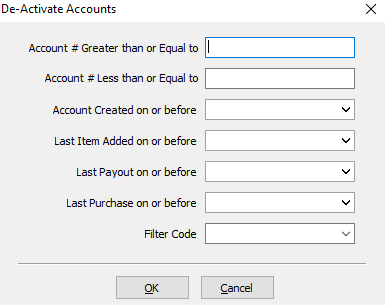
- Account # Greater Than or Equal To : Entering an account number here will select that account number and all accounts with a number greater than the specified number.
- Account # Less Than or Equal to : Entering an account number here will select that account number and all accounts with a number lesser than the specified number.
- Account Created On Or Before : By selecting a date for this field, it will deactivate all accounts created on or before that specified date.
- Last item Added On Or Before : By selecting a date for this field, it will deactivate all accounts with items added on or before that specified date.
- Lay Payout On Or before : By selecting a date for this field, it will deactivate all accounts with payouts on or before that specified date.
- Last Purchase On Or Before : By selecting a date for this field, it will deactivate all accounts with purchases or before that specified date.
- Filter Code : By selecting a filter code, it will deactivate all accounts with that Filter Code associated with it.
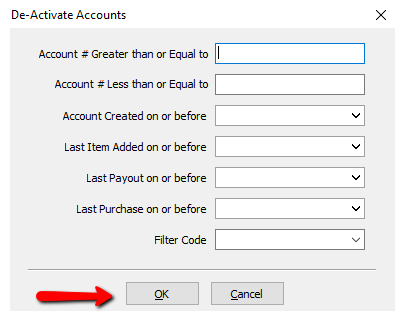
- Once you have entered your criteria, press the OK button.
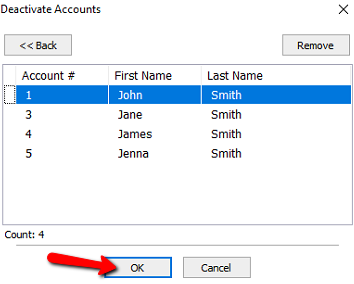
- You will get a list of accounts to be deactivated. You can highlight an account and select the Remove button to take that account off the list.
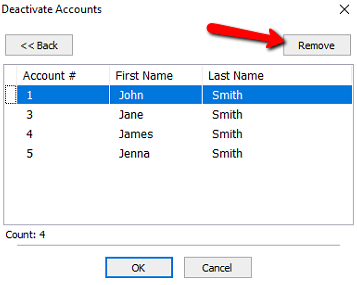
- Press the OK button when done.


Next Article In Section
Click the following link to move to the next article in this section:
Reactivating an Account
Related Topics
Deactivating an Account Reactivating an Account Look Up An Account Add Notes to an Account Add Multiple Addresses and Phone numbers Apply Group Deductions Bulk Change Default Price Code Using the Client Import and Export Utility Creating New and Maintaining Existing Accounts Customize the Account Detail Window Delete a Client's Data From Consignor Login