Apply Group Deductions
The Apply Group Deductions tool is a great way to apply a deduction to multiple accounts at one time.
Example: A store has an annual fee that will be charged every month.
Example: A store charges monthly rent to artist.
Warning! It is recommended that a backup is done BEFORE the Group Deduction is applied in case any mistakes are made.
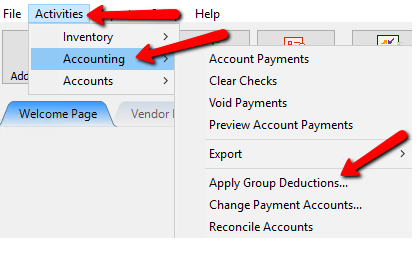
- To access the Apply Group Deductions tool, go to Activities > Accounting > Apply Group Deduction.
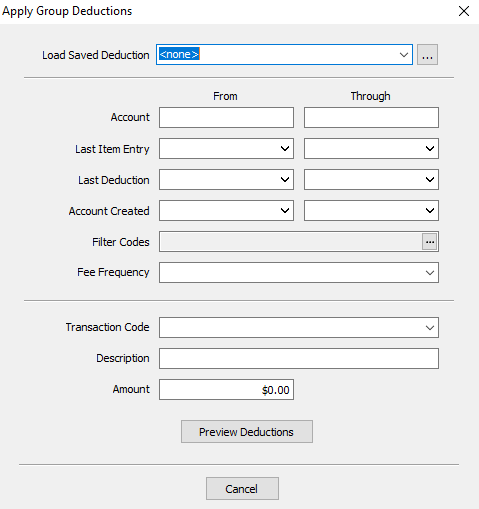
- The Apply Group Deductions dialog box will open.


Applying a Predefined Group deduction
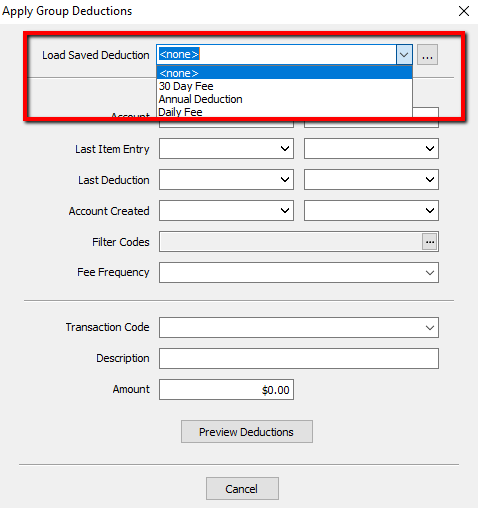
- To load a saved deduction click on the Dropdown.
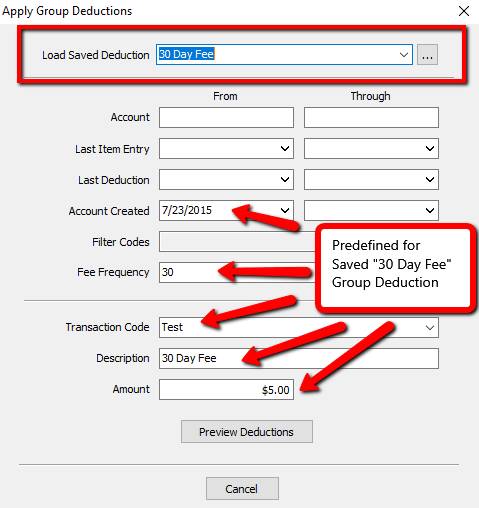
- If you load a predefined Saved Deduction, the details of that deduction will fill in any of the criteria already predefined.
- If you wish to create a new Saved Deduction from this field, select the Browse button to the right of the Saved Deduction field.
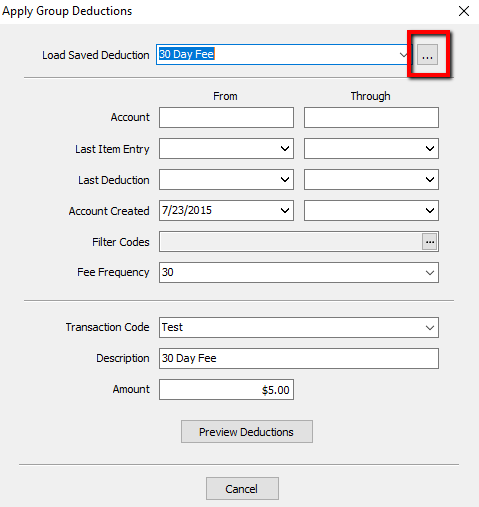
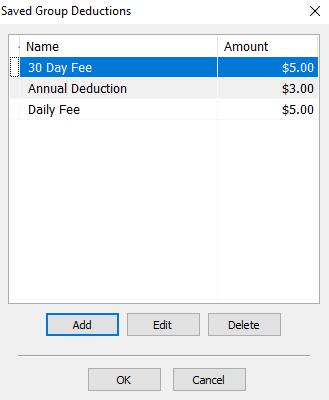
- This will access the Saved Group Deductions dialog box. For more information on how to create a Saved Group Deduction see Maintain Group Deductions.


Manually Enter The Criteria For A Group Deduction

- Account : There are two options for this.
- From : This is the starting Account Number.
- Through : This is the ending Account Number.
- Last Item Entry : There are two options for this.
- From : This is the starting Date for when the Last Item was added to an account.
- Through : This is the ending Date for when the Last Item was added to an account.
- Last Deduction Date : There are two options for this.
- From : This is the first date used to see when the Last Deduction was applied.
- Through : This is the Last date used to see when the Last Deduction was applied.
- Account Created : There are two options for this.
- From : This is the starting Date for when the account was created.
- Through : This is the ending Date for when the account was created.
- Filter Codes : Select the Browse button in the filter code field to get the Filter Code selection box.

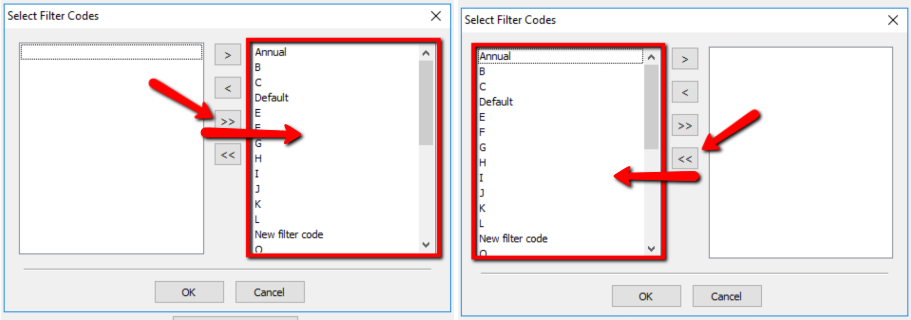
The Filter Code Selection screen will open
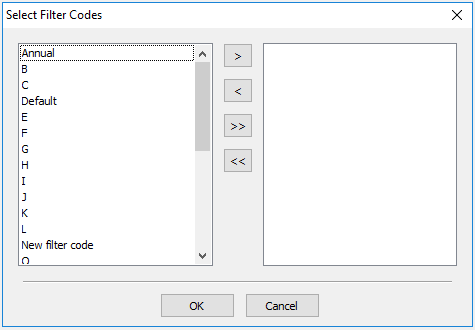
Highlight a Filter Code and press the Single Arrow button. This will move the selected code to the right hand panel.
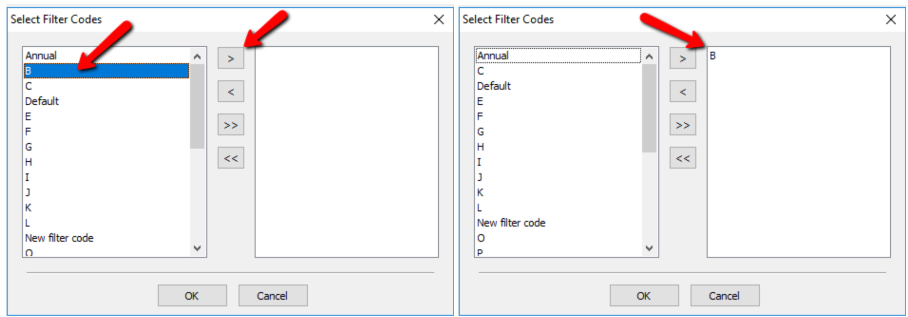
Pressing the Double Arrow buttons will either move all the Filter Codes left or right.
Press the OK button when done.
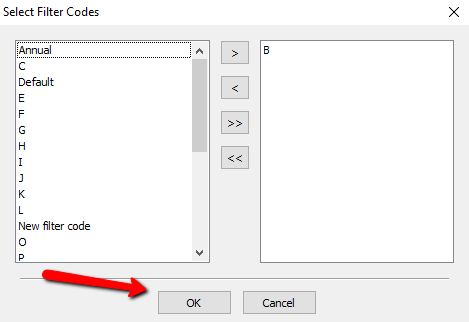
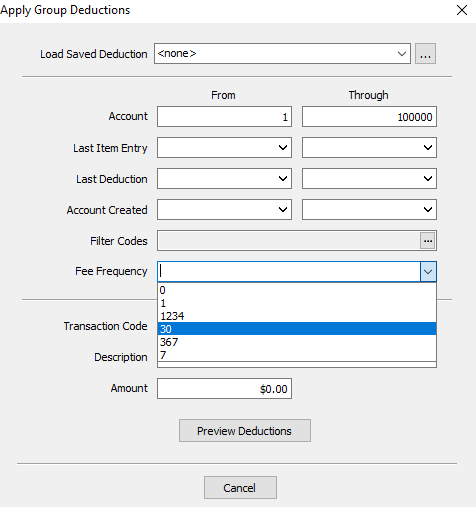
The deduction will be applied to all accounts that have the selected Filter Code(s). - Fee Frequency : Select the Drop down and highlight and click the Fee Frequency you wish to use. This deduction will apply to all accounts with the selected Fee Frequency.
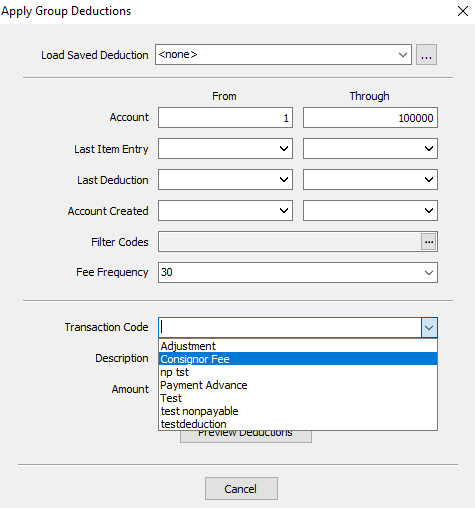
- Transaction Code : This is the transaction that will be associated with the deduction This transaction will appear on all accounts along with the amount deducted and a brief description.
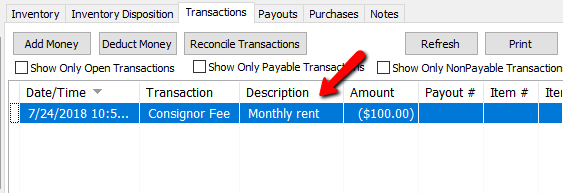
- Description : This is a brief description that will appear on the transactions tab of an account along with the amount deducted and the transaction code.
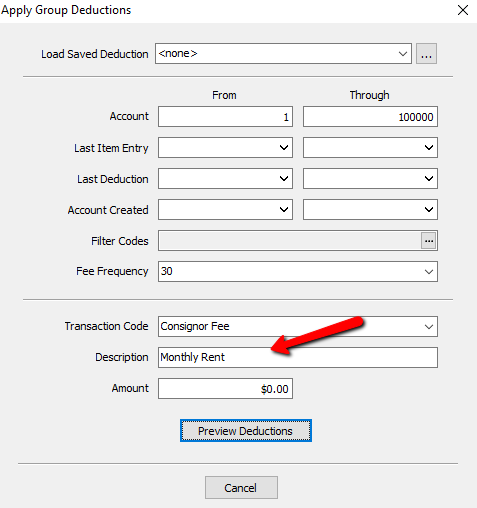
- Amount : Enter in the amount to be deducted off of each account.
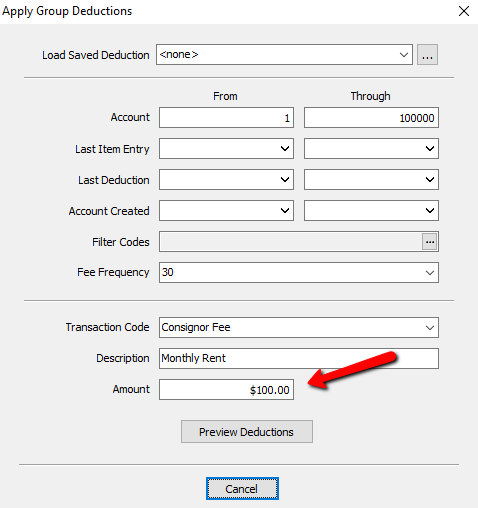
- Select the Preview Deductions button to move to the next screen. If you made a mistake and want to start over, select the Cancel button.
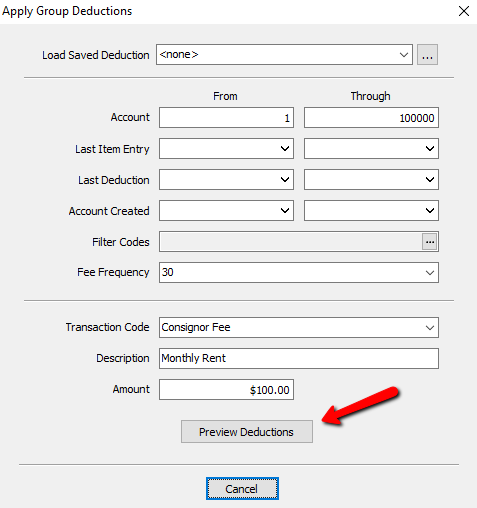


Preview Deduction Screen
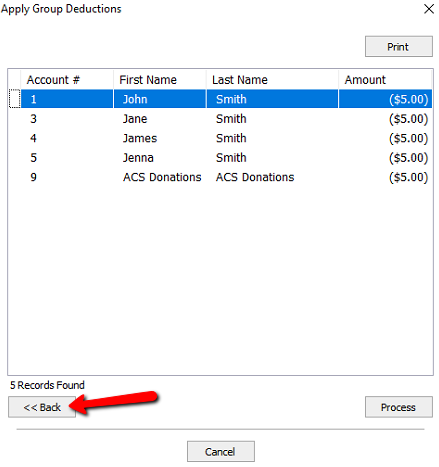
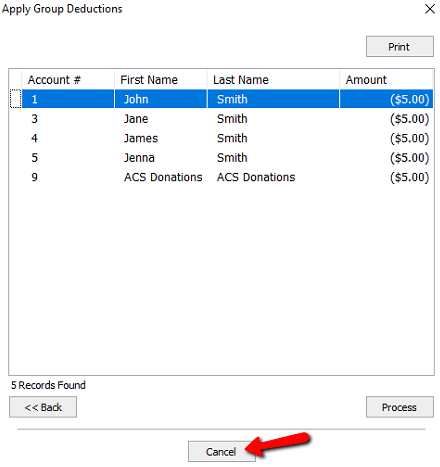
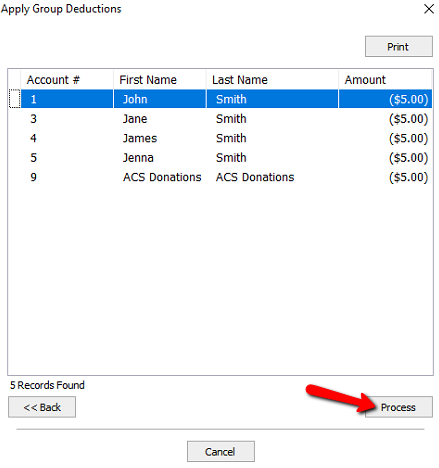
- From the Preview Screen screen you will see a lit of accounts that will be affected by the Group deduction.
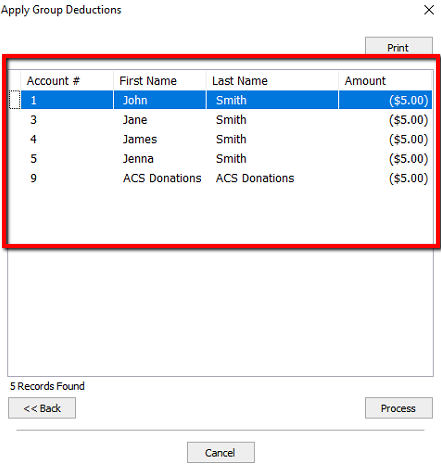
- Selecting the Print button will print this list.
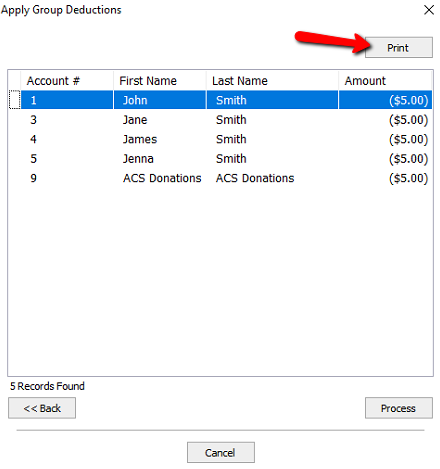
- Select the Back button if you need to make changes to the criteria for applying the deduction.
- Select the Cancel button if you wish to start over.
- Select the Process button when you are ready to apply the Group Deduction.
- You can validate the Group Deduction was applied by going to an account and making sure the account has the deduction.


Next Article In Section
Click the following link to move to the next article in this section:
Using the Client Import and Export Utility
Related Topics
Apply Group Deductions Group Deductions Add Notes to an Account Add Multiple Addresses and Phone numbers Bulk Change Default Price Code Using the Client Import and Export Utility Creating New and Maintaining Existing Accounts Customize the Account Detail Window Deactivating an Account Delete a Client's Data From Consignor Login Edit Account Information