Add Notes to an Account
Use the account notes field to notate the account with any kind of special note that is required for the account.
Adding Account Notes From Inventory Module
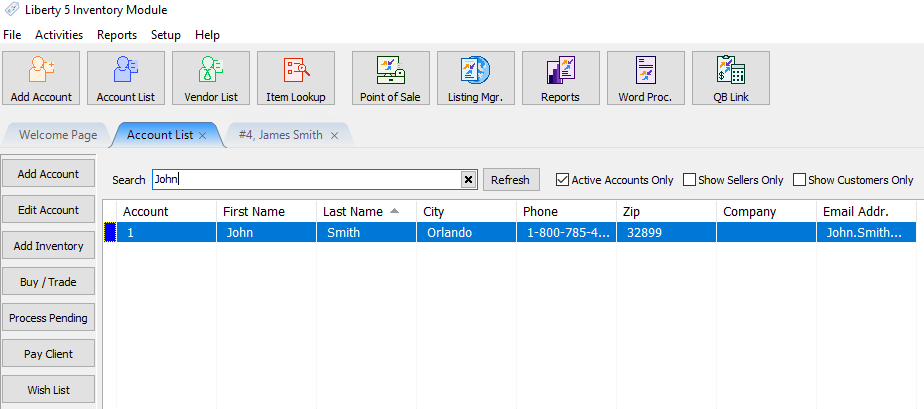
- In Liberty Inventory, Lookup the account.
- Once in the account, Select the Notes Tab.
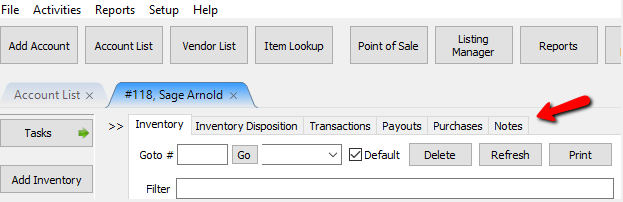
The Notes Tab will open.
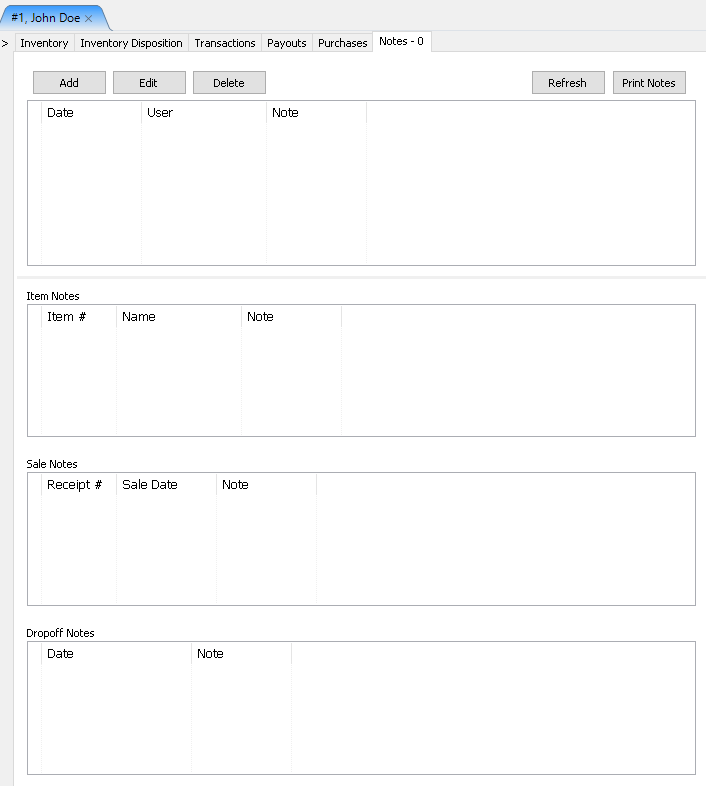
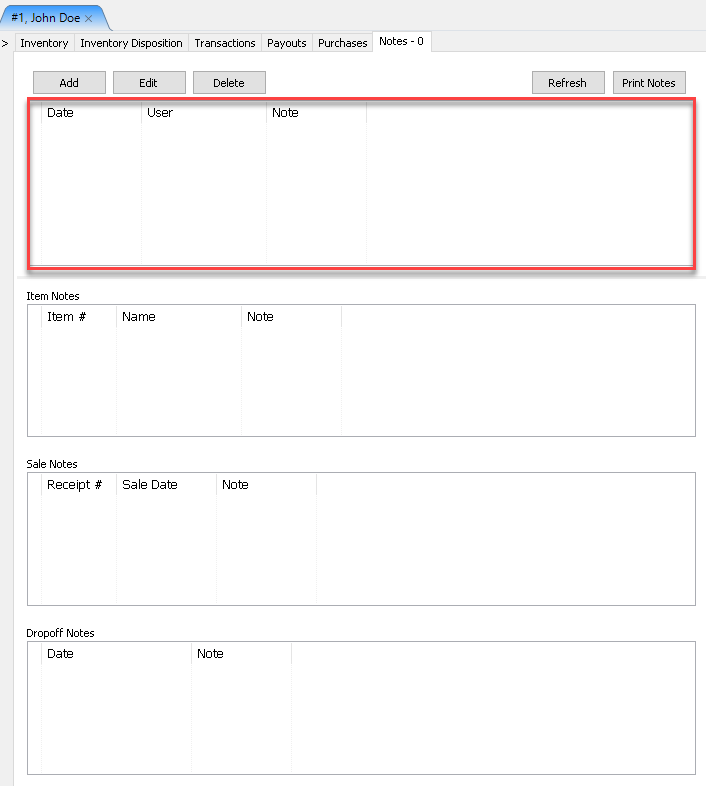
The first section is for General Notes.
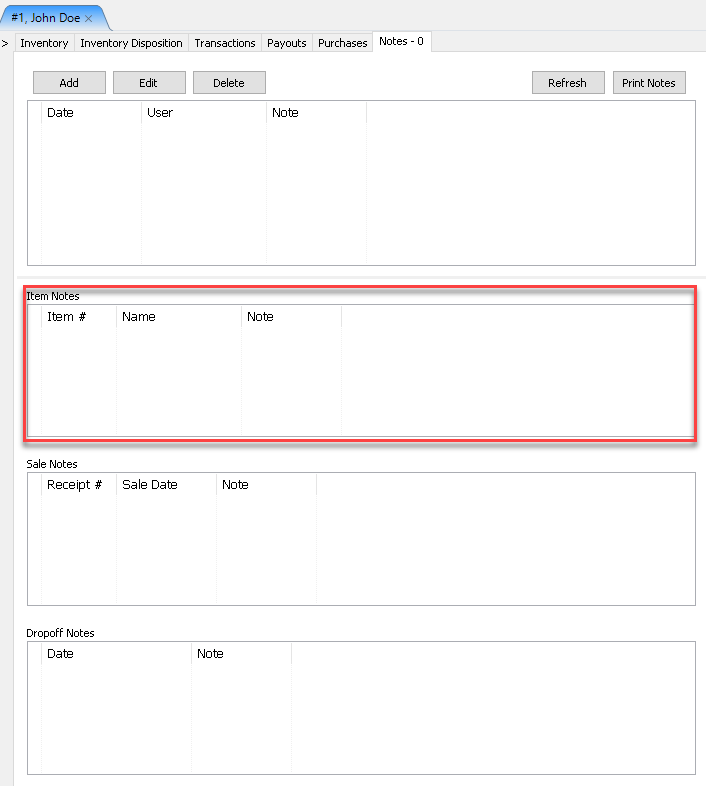
The second note section will pertain to notes associated with items on the account.
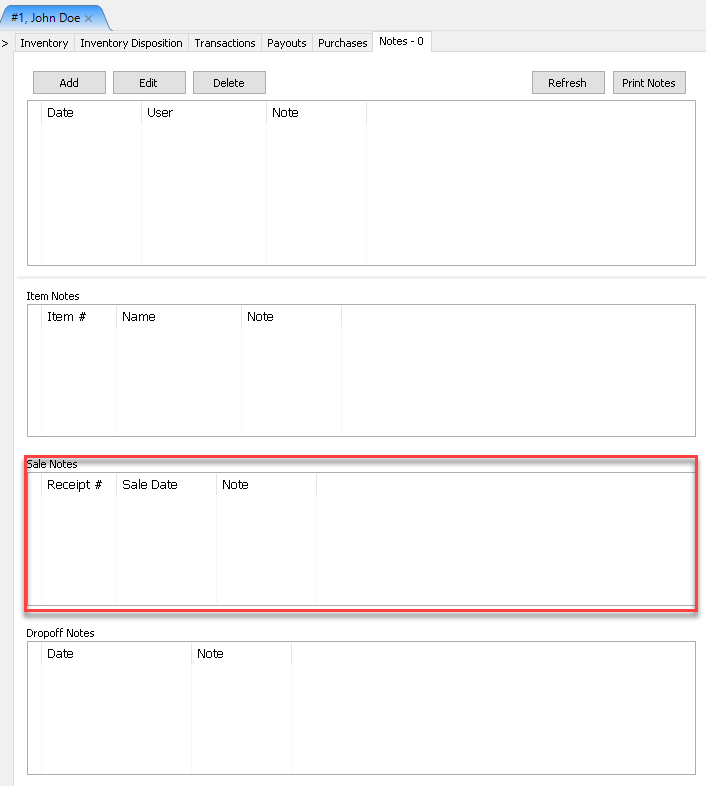
The third note section pertains to notes associated with Sales for this account.


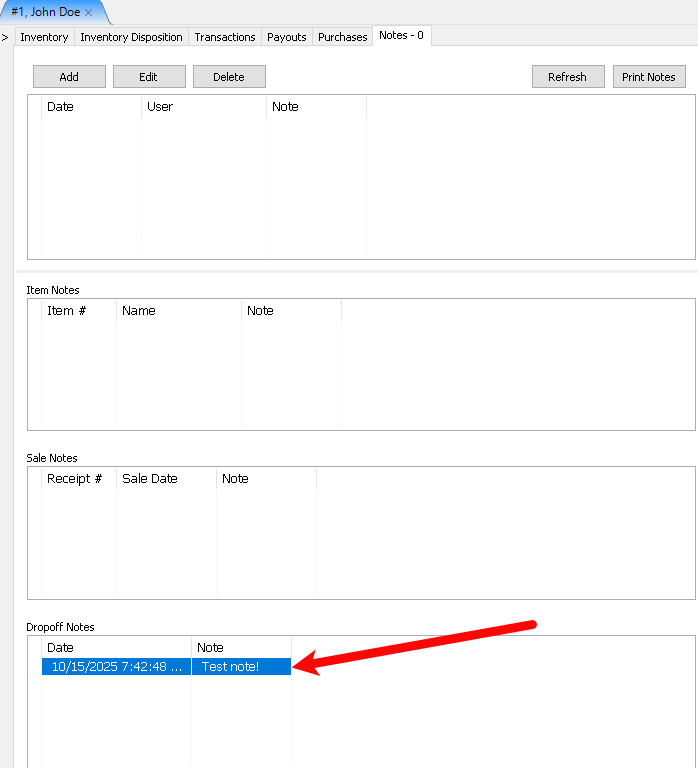
The fourth section pertains to notes associated with Dropoffs for this account.  Highlighting a note then selecting the Edit Button, or selecting the Add Button will open the details of a note. Highlighting a note and selecting the Delete Button will delete the note.
The Note Dialogue Box will open.

The top section will show the date and time the note was entered.

You can also see the User who entered the note.

The Priority Check Box will mark the Note as a priority from the main Notes Screen.

Priority Notes Pop Up In Inventory Module
In 6.4a, priority notes now pop up when you open an account.
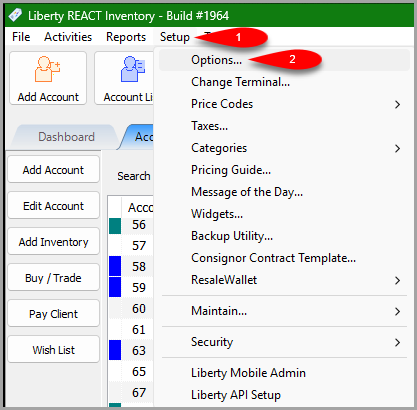
- We first have to enable this feature in Setup > Options
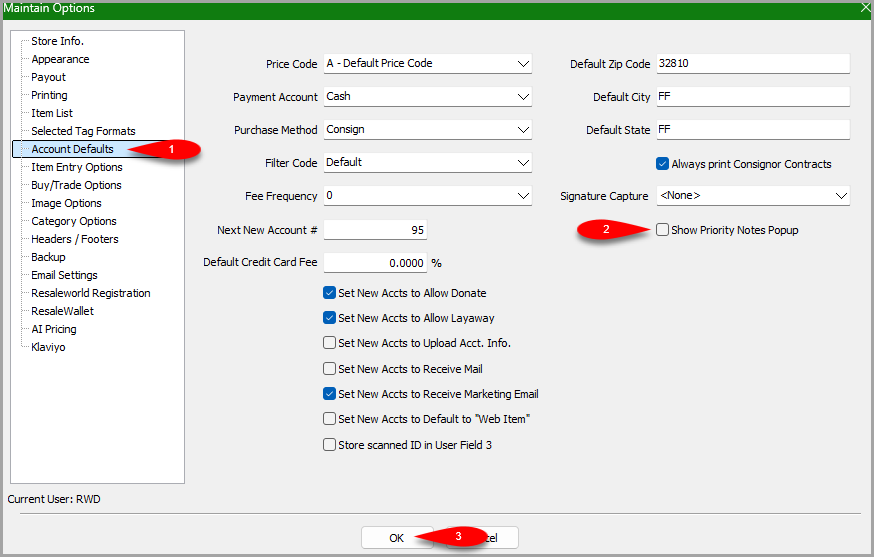
- Click on Account Defaults then click the checkmark box next to Show Priority Notes Popup.
- Click on Account List and then double-click on any account.
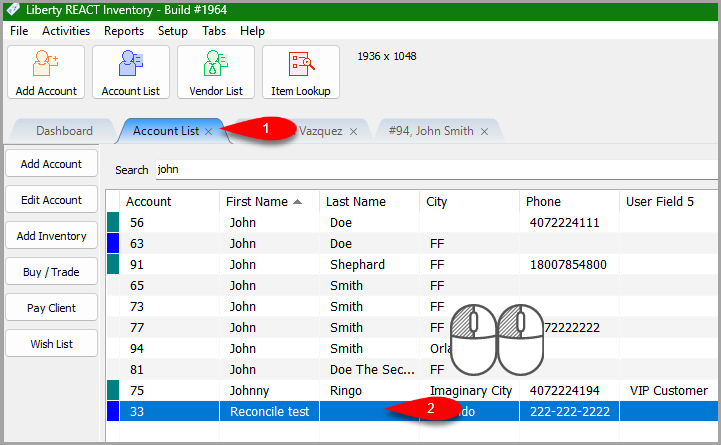
- Once the account is open, the Priority Pop up will appear.
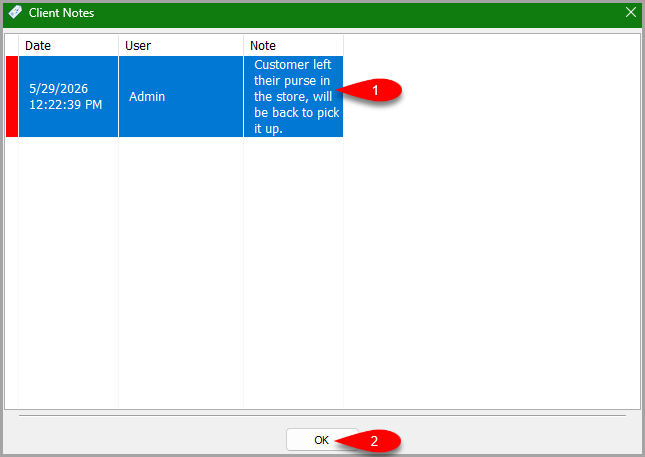
Note: All notes will appear in the popup.


Enter in the notes in the body and mark it whether or not it is going to be a priority or not. Press the OK Button when done.

Your note will display in the Notes Screen. If the note is a priority, you will see a red indicator to the left of the note.

If you need to print the note, highlight the note and select the Print Note Button.

Note: When emailing an account, the email is also logged on the account as a note.
Viewing And Adding Notes From The POS
- From the Point Of Sale select the Customer Button.

- Search for the Account and Double Click on it.

- When the account is open, select the Notes Button in the POS.

The notes for the account will be displayed.
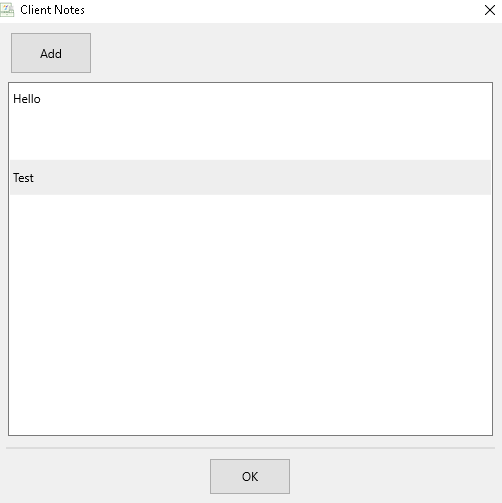
- To add a note to an account click the Add Button.
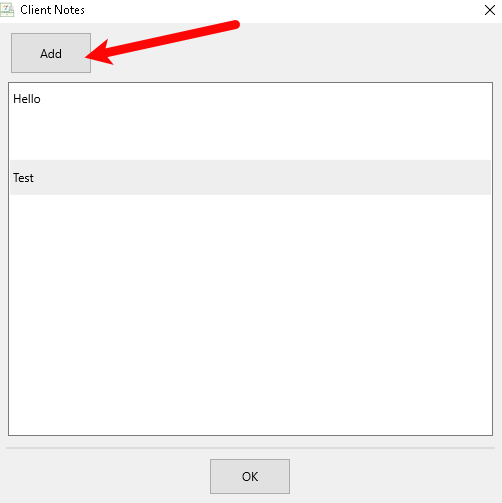
- The note can be entered in the text field and the note can be set to priority by marking the check box. Once finished typing the note select the OK Button.
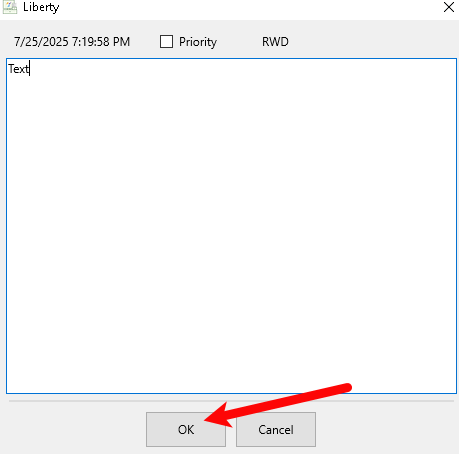
- Press the OK Button when done.
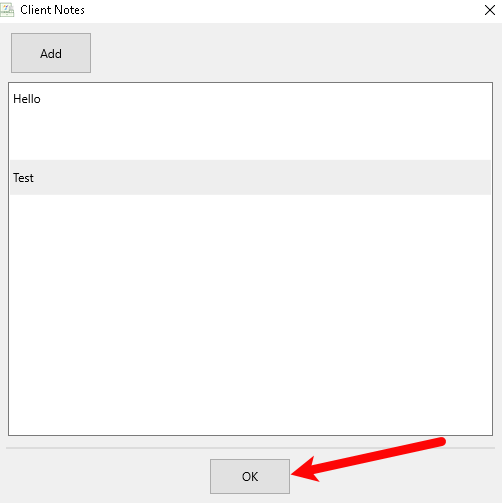


Show Priority Notes When An Account Is Selected In The POS
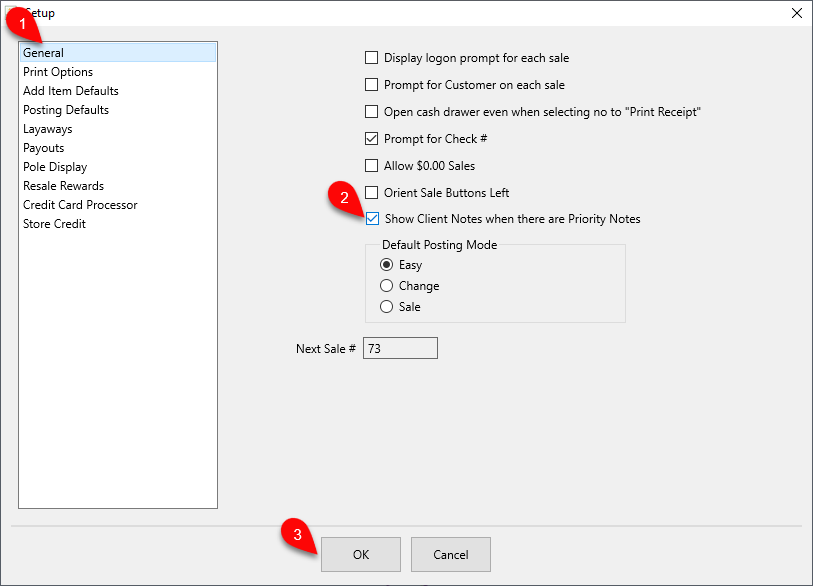
This feature will make accounts that have Account Notes set as Priority Notes to automatically show when the account is selected when ringing out a sale in the Point Of Sale.
- In the Point Of Sale on the main Hub Screen, go to More > Setup
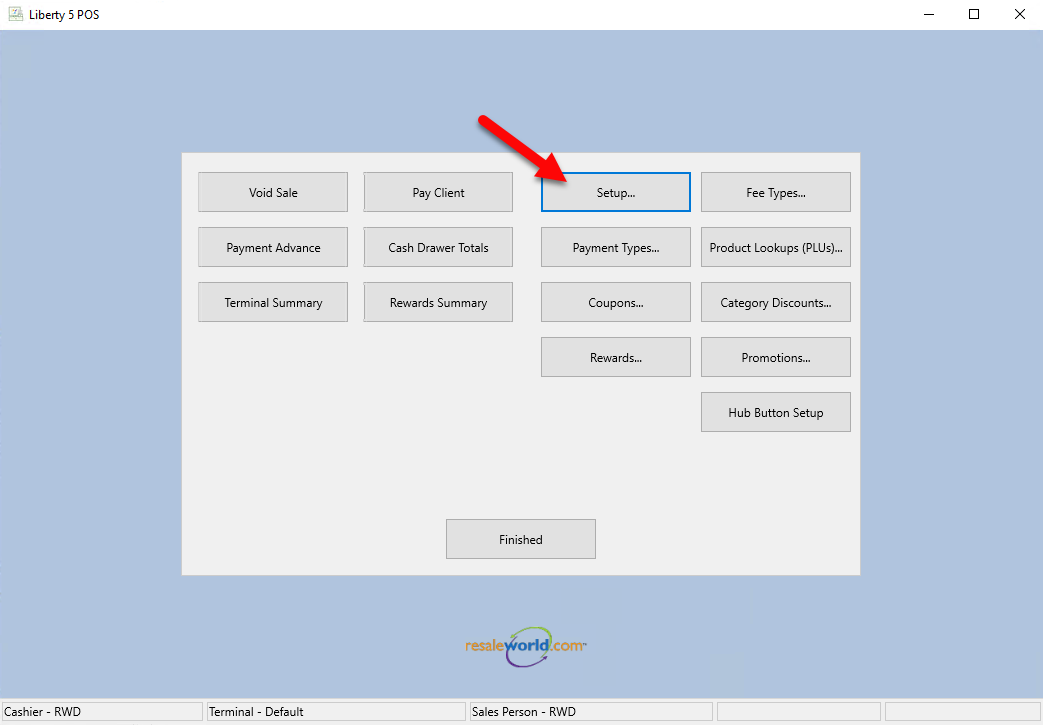
- In the Point of Sale setup, go to General and check the Show Client Notes when there are Priority Notes, then click OK.


Adding Dropoff Notes
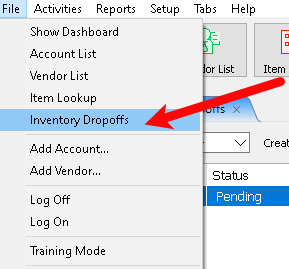
- From the Inventory module select the File Button and then the Inventory Dropoffs Button..
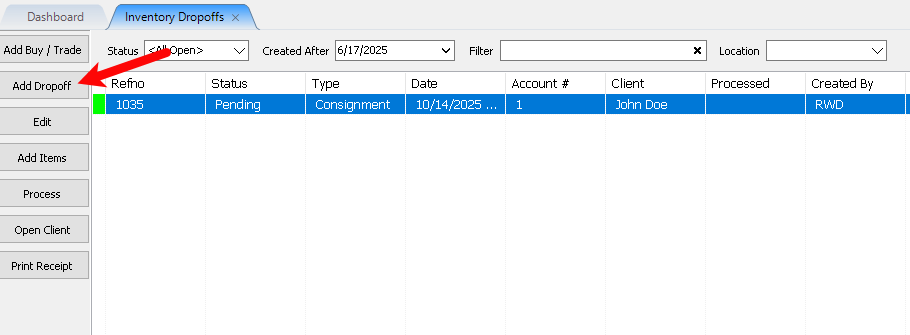
- Click the Add Dropoff Button to add a new dropoff.
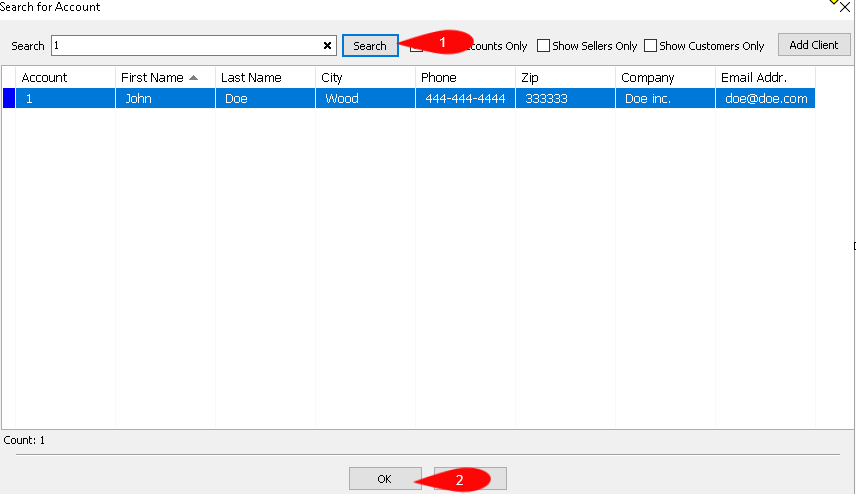
- Search for the consignor the dropoff is to be made for, then once selected press the OK Button.
- Here you can add the dropoff note to the dropoff, once finished select the OK Button.
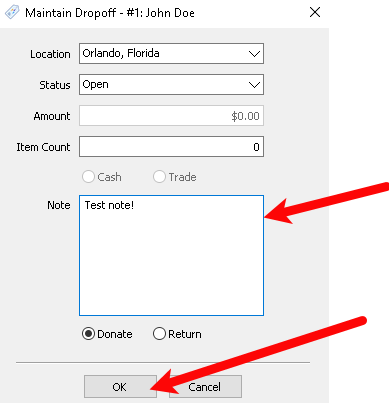
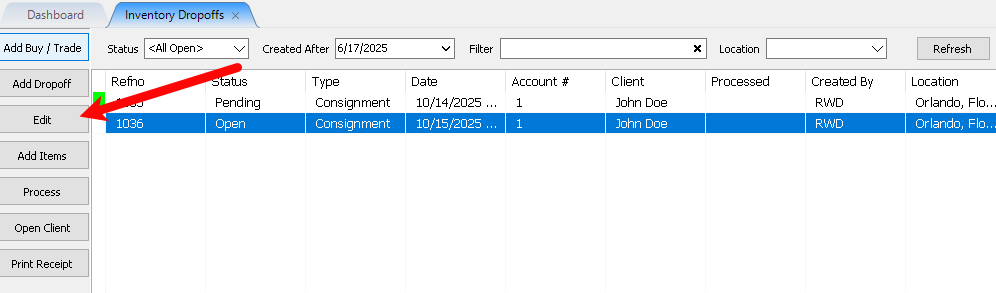
- Once a dropoff is created you can edit the note attached to it by first selecting the dropoff to be edited and then clicking the Edit Button.
- The dropoff note will appear under the notes section of the account the dropoff is attached to.


Next Article In Section
Click the following link to move to the next article in this section:
Editing Reminders on an Account
Related Topics
Add Notes to an Account Add Multiple Addresses and Phone numbers Apply Group Deductions Bulk Change Default Price Code Using the Client Import and Export Utility Creating New and Maintaining Existing Accounts Customize the Account Detail Window Deactivating an Account Delete a Client's Data From Consignor Login Edit Account Information