Table of Contents
Track Sales by Customer
Customer Look Up is a useful and profitable tool. Use this feature for tasks such as:
- To track sales by customer. See Liberty Reports Overview for more information.
- Ringing a sale for a client that is using Store Credit to make the purchase.
- Verifying that a consumer has not written a bad check to your store in the past.
To Look Up An Account
- From the Point Of Sale select the Customer button.

- Search for the Account and double click on it.
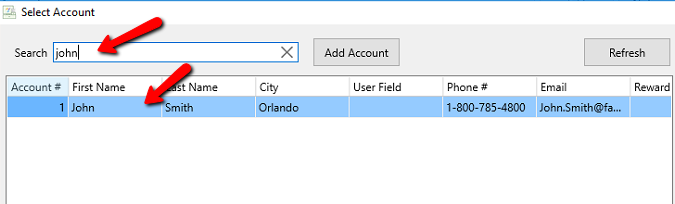


Tip: To reorder the fields in the Customer Lookup dialog, right-click on the column header of the field to be moved, then drag the field to its new location.
This will add the customer to the Point Of Sale.

From this we can determine the following:
- Account Number

- Name of the Customer

- Amount the customer has to spend and the most current date that was obtained.



How many rewards points the customer has to use.

Hovering over the customer bar, you can also see the amount of purchases and amount total they have purchased with your store:

Next Article In Section
Click the following link to move to the next article in this section:
Track Sales by Employee