Table of Contents
Sell a Gift Card
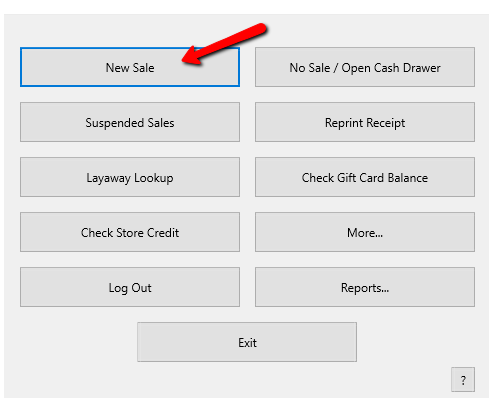
- From the POS Hub select the New Sale button.
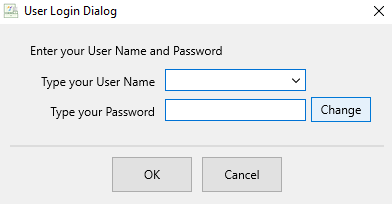
- Login if prompted.
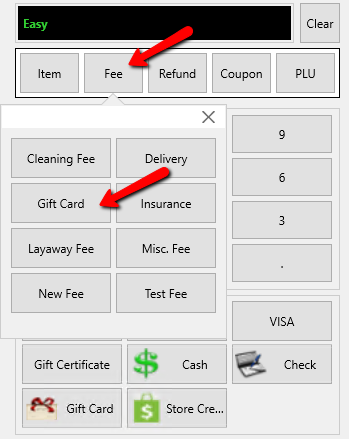
- Select the Fee button then select the Gift Card button.
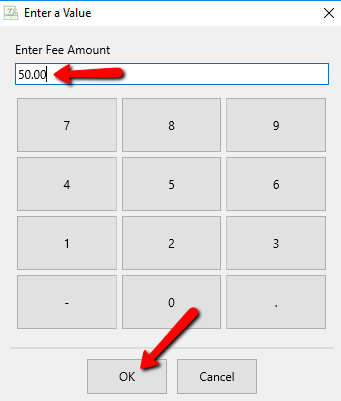
- The Enter A Value dialog window displays.
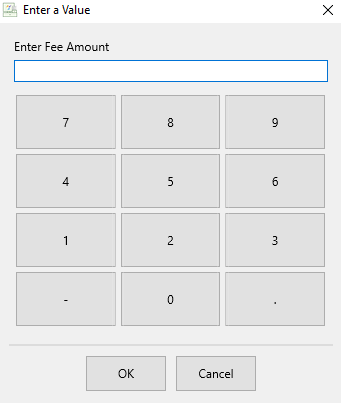
- Enter the dollar amount for the gift card being issued then select the OK button.
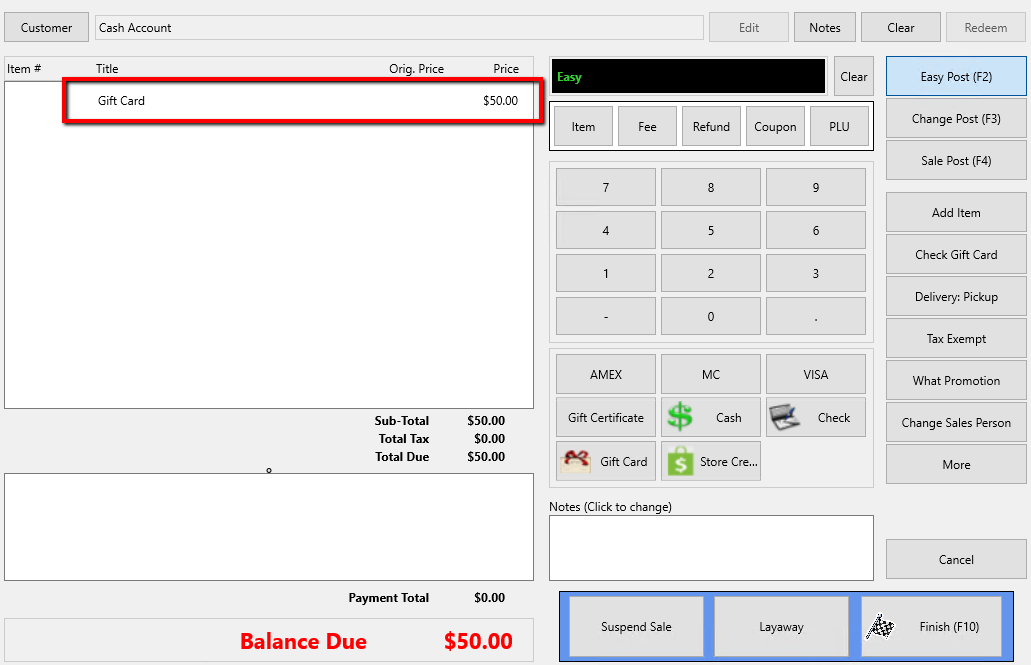
The Gift Card Fee will be added to the POS.
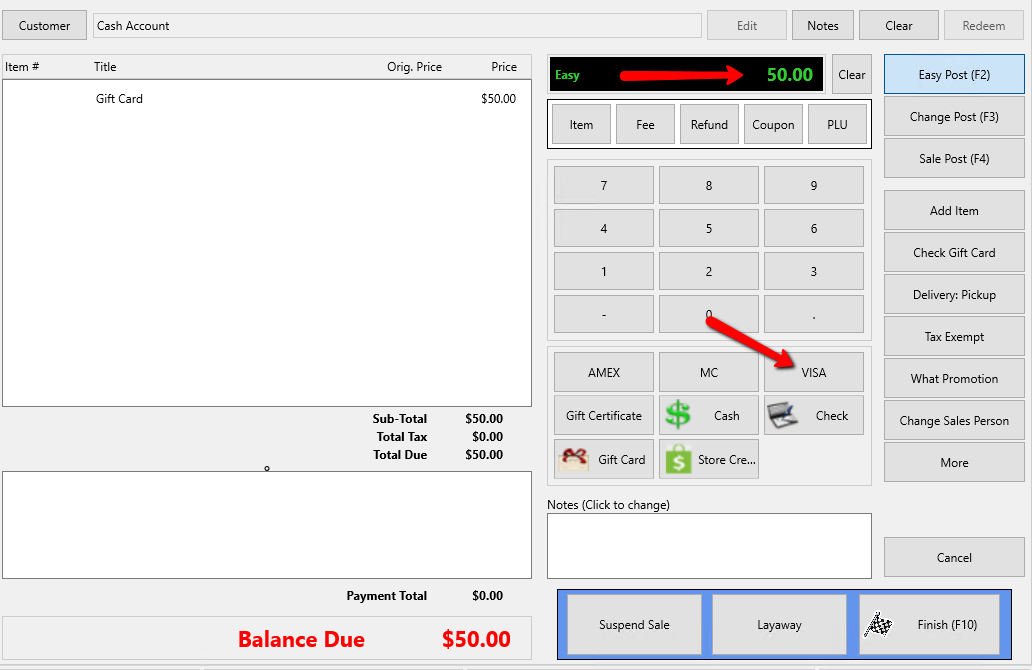
- Select the form of payment your customer is using to purchase this gift card and enter the payment amount.
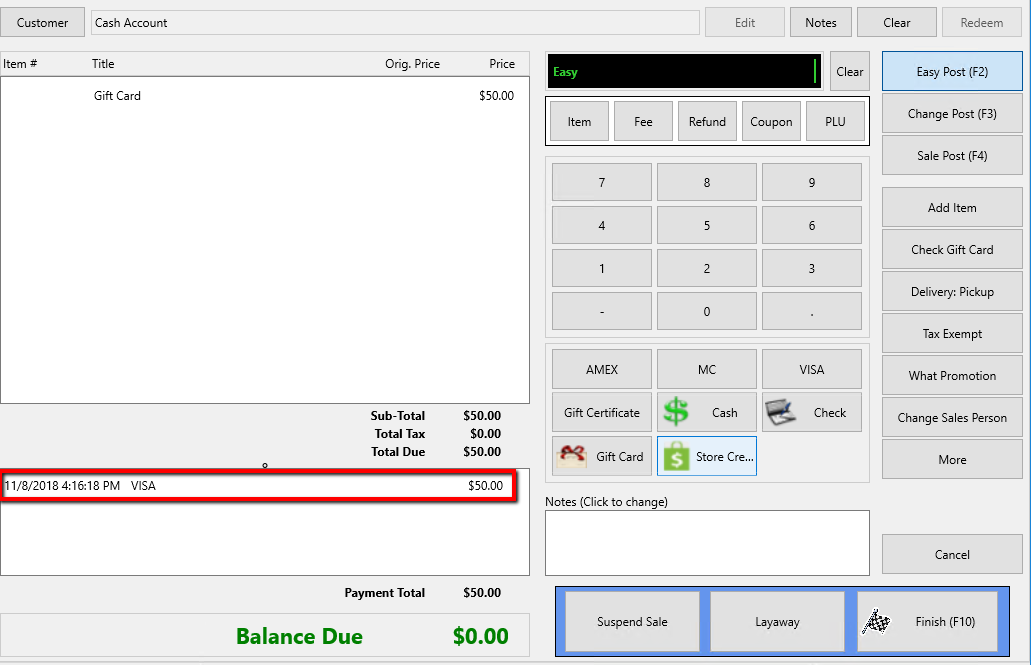
The payment will be applied to the sale.
- Select the Finish button.
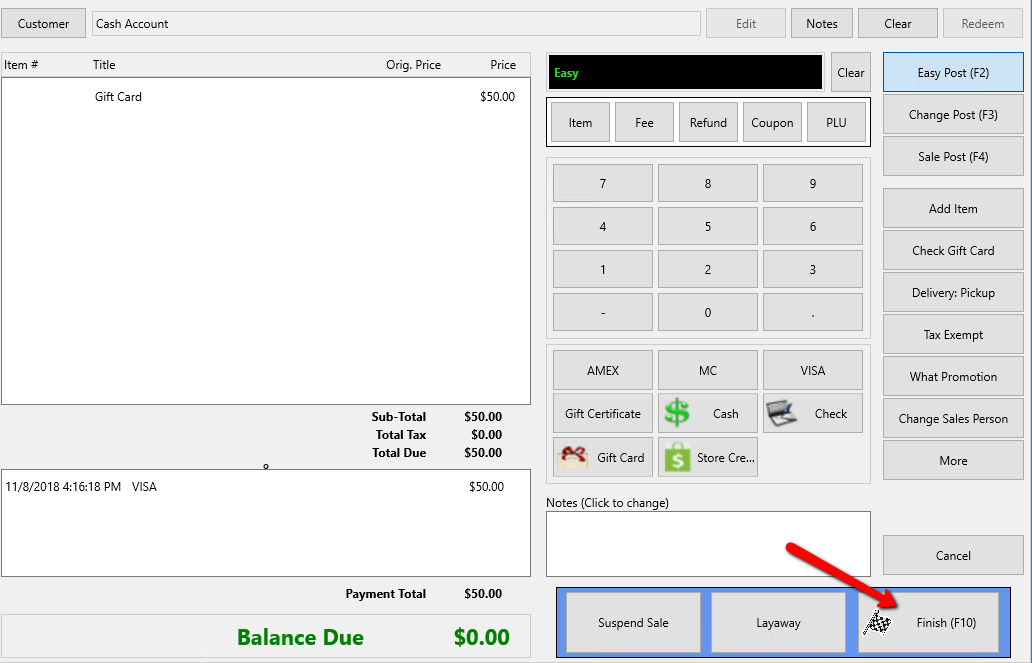
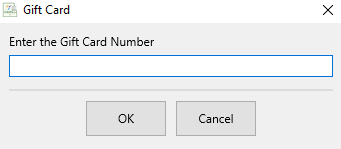
The Gift Card dialog box will open.
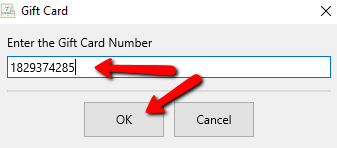
- In the Gift Card window swipe, scan or enter the Card Number you are issuing to your customer., then select the OK button.
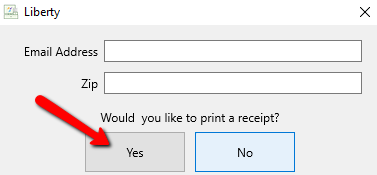
- Press the Print Receipt button to print a receipt.


Next Article In Section
Click the following link to move to the next article in this section:
Accept Gift Card Payments