Table of Contents
Loading a Gift Card with WorldPay
Warning: This article is considered legacy information and is no longer supported or provided by Resaleworld.
To issue a gift card to a customer, the card will first need to be loaded with the correct amount of money.
Loading A Gift Card
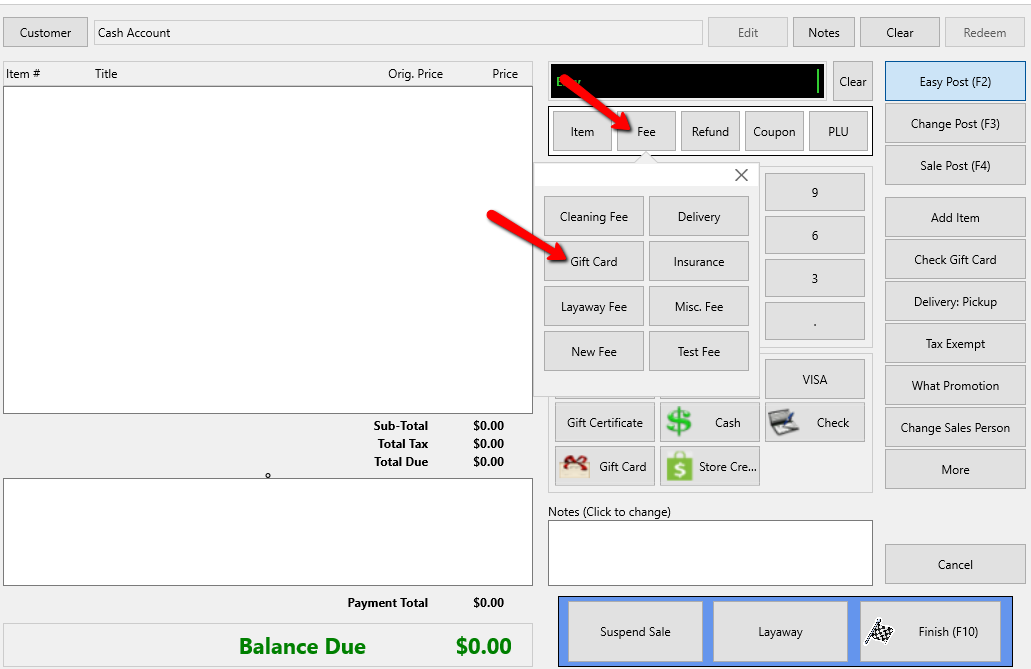
- Within the Point Of Sale, select the Fee button, then Gift Card button.
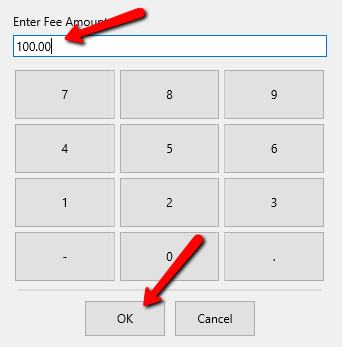
The Enter A Value screen will open to enter in the amount you wish to add to the Gift Card.

- Enter in the desired amount and press the OK button.
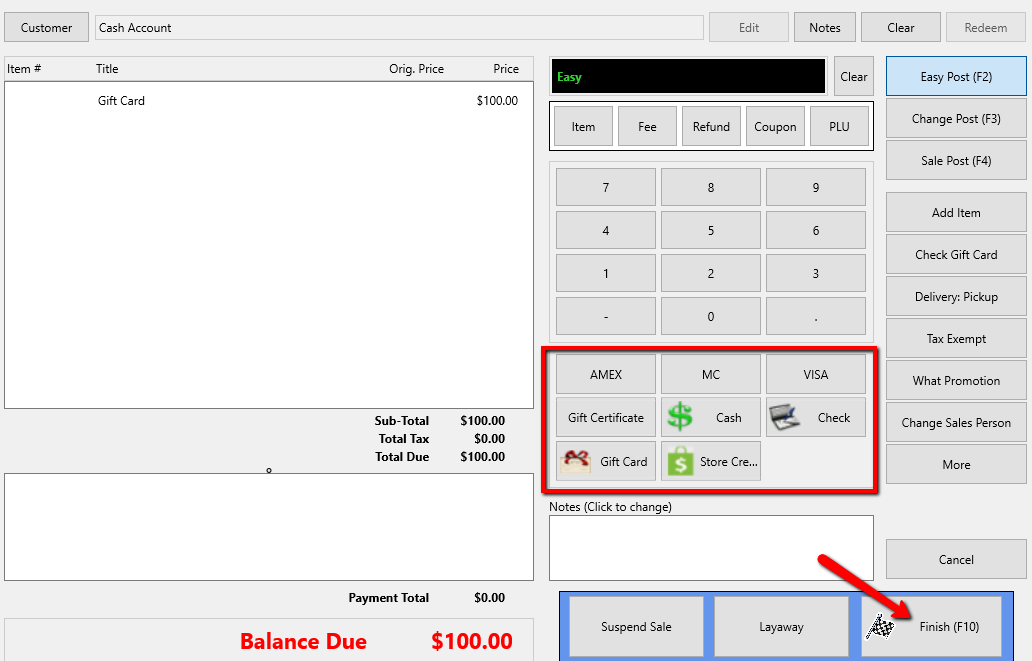
- Select the payment type you wish to use to pay for the Gift Card then press the Finish button.
- Follow the on screen directions and the directions on the Credit Card device to complete the sale.


Note: “Use Vantiv for Gift Card Processing” must be selected in the Credit Card Processor section, along with the name of the gift card server.
It is possible to reuse existing gift cards by adding value to the existing balance at any point. For both new cards and to add value to an existing card, you will be prompted to enter the number of the gift card.
Click OK and you will be prompted to swipe or enter the gift card number. The gift card will be processed immediately, making the card live and the balance available for use.
Next Article In Section
Click the following link to move to the next article in this section:
Processing Gift Card Payments in WorldPay