Table of Contents
Accept Gift Card Payments
- Ring up the items for the sale.
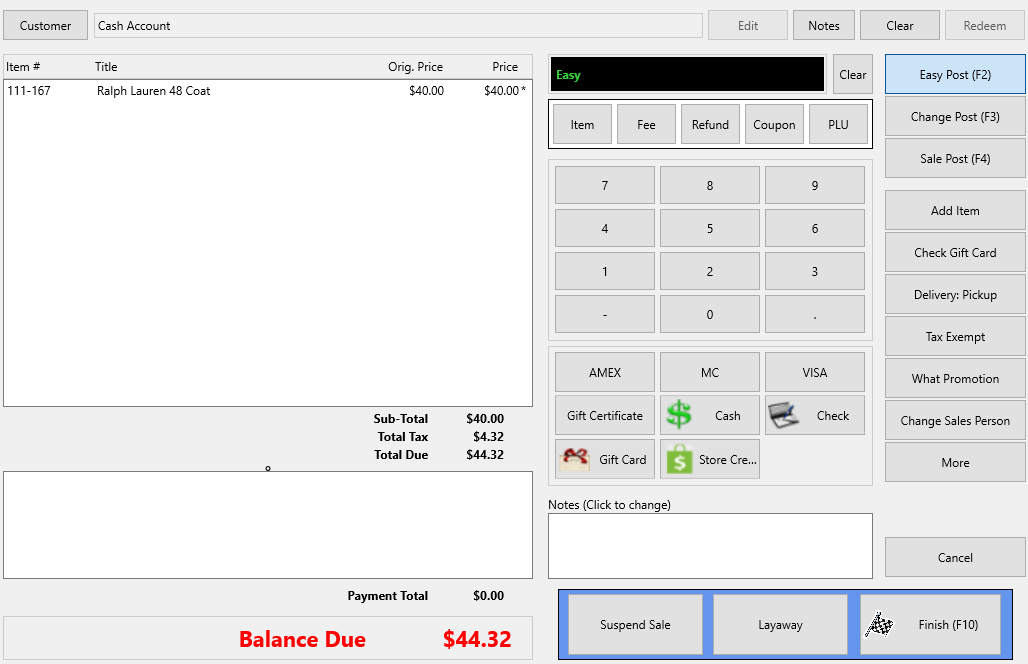
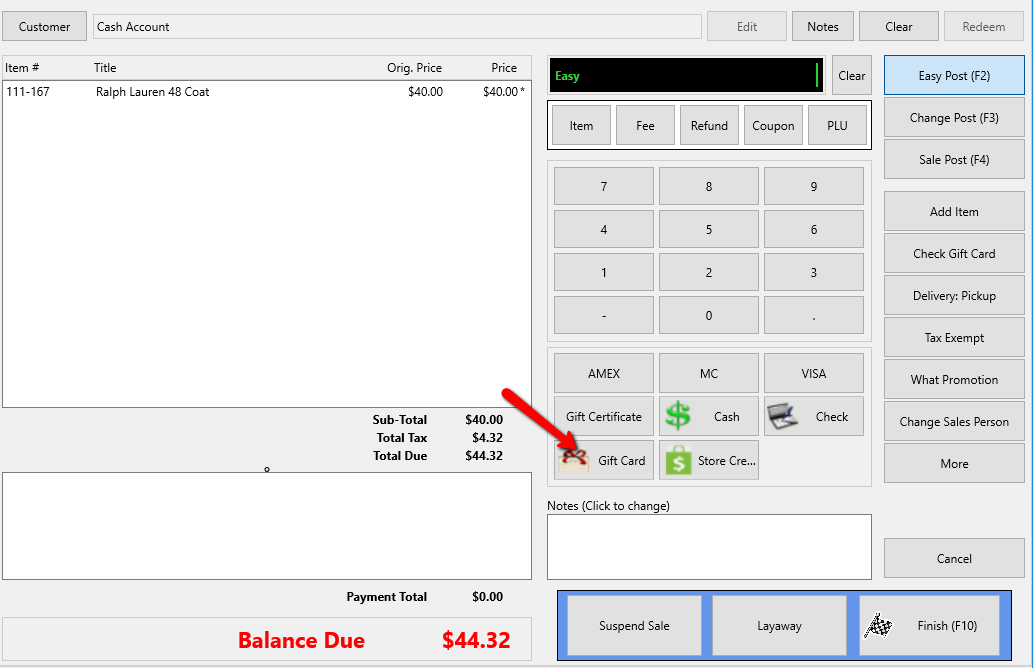
- To pay with a Gift Card, select the Gift Card payment type.
The Gift Card dialog box will open.
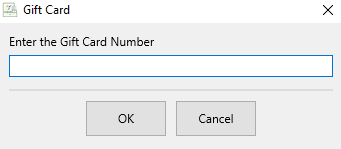
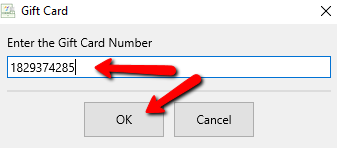
- Enter in the Gift Card Number manually, or if using Gift Cards with barcodes, scan the barcode, then press the OK button.
If you have a magnetic USB swipe, you can also swipe the gift card.
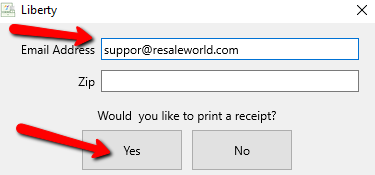
- You will be prompted to enter and Email Address and Zip Code if you wish to send a receipt. If so, enter this information and press the Yes button. If Not, just select the No button.


Next Article In Section
Click the following link to move to the next article in this section:
Additional Gift Card Information