Table of Contents
Capturing a Payout Signature in POS
- Open the Liberty Point Of Sale and click the More button.
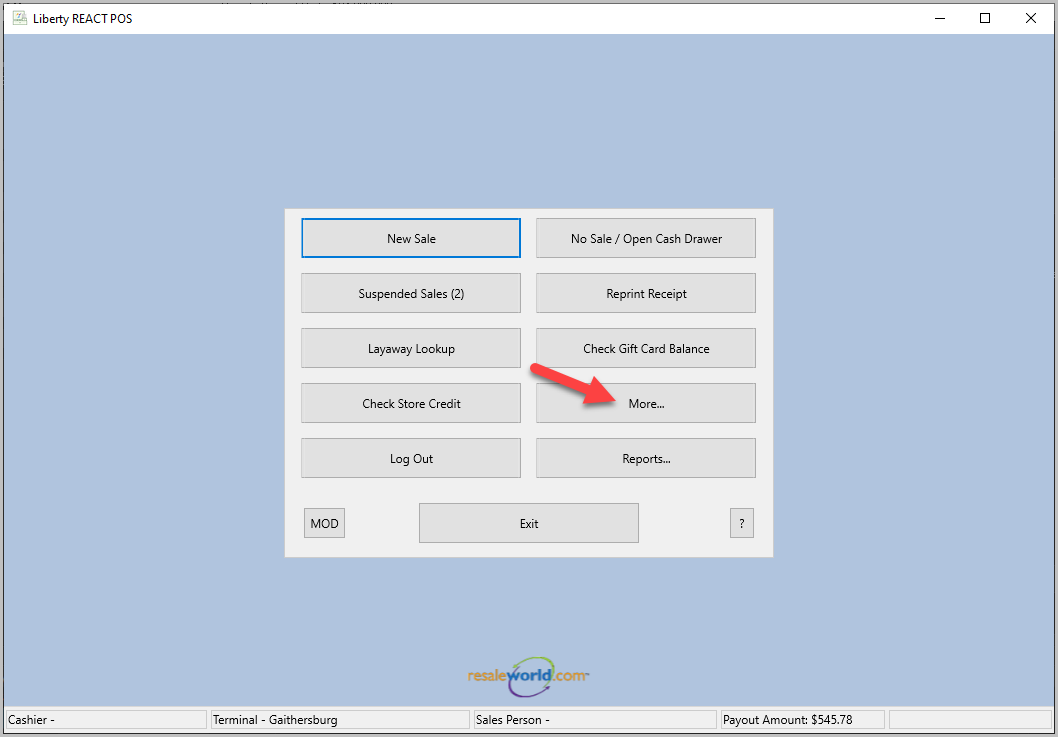
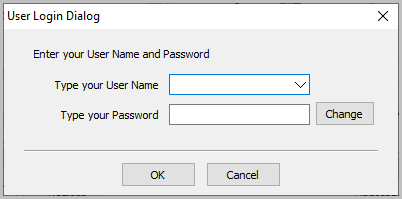
- Login with your username and password.
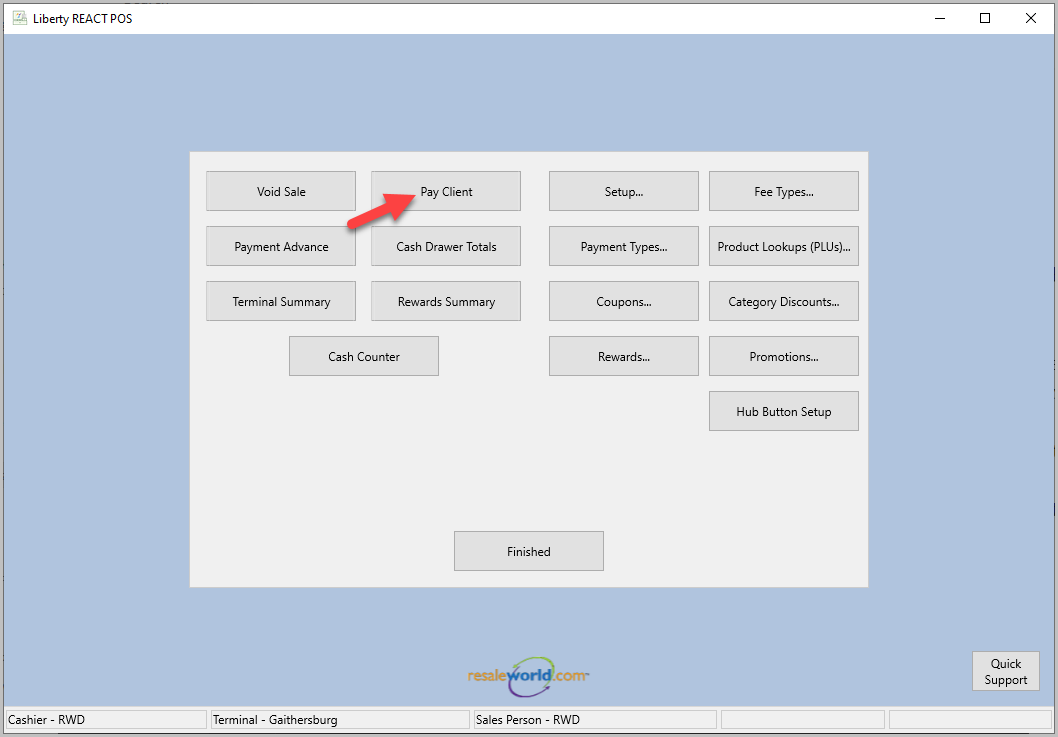
- Click Pay Client, then choose which client to payout.
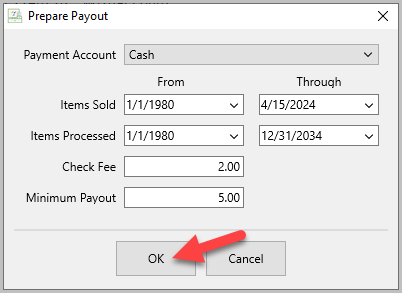
- The Prepare Payout dialog will popup. Make any changes necessary, then click OK.
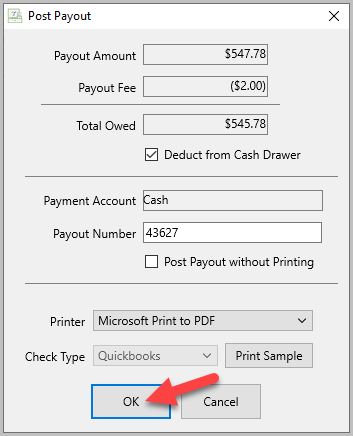
- The Post Payout dialog will popup. Make any changes necessary, then click OK.
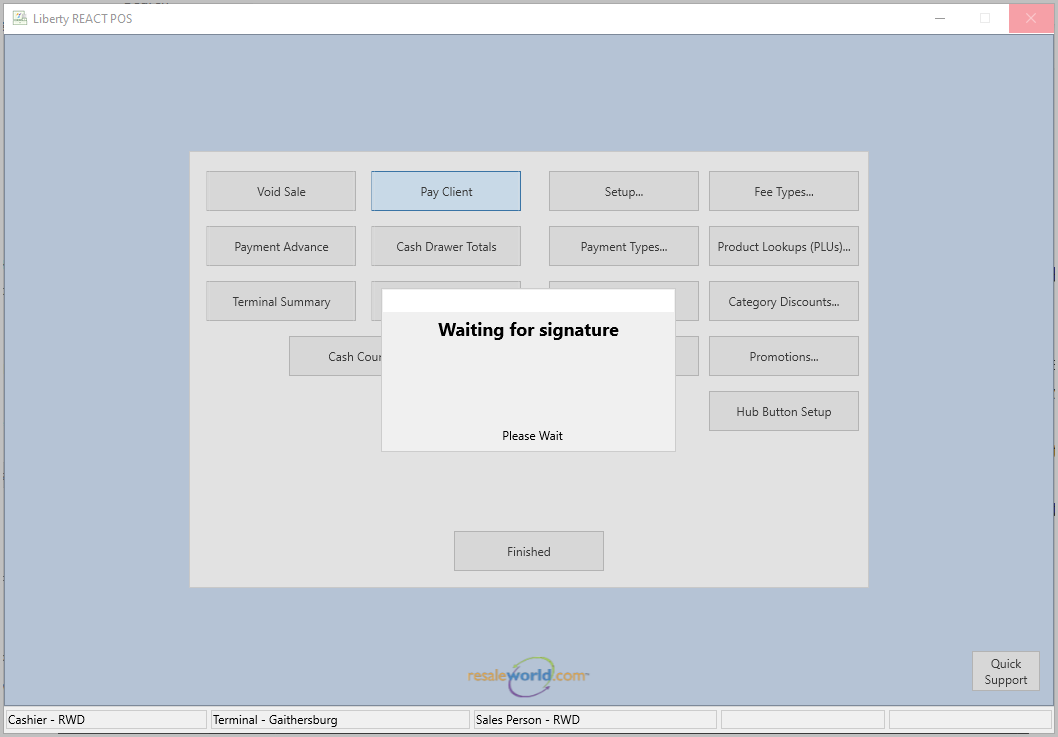
- POS will show Waiting for Signature.
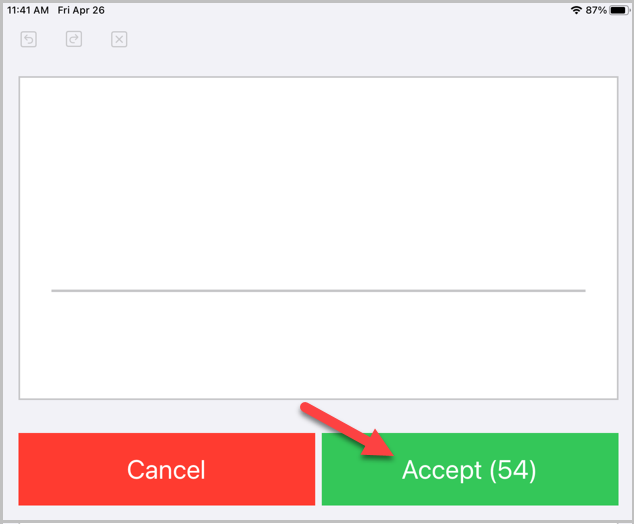
- On the kiosk app it will automatically switch to the signature box. The consignor has 60 seconds to sign for the payout, then click Accept.
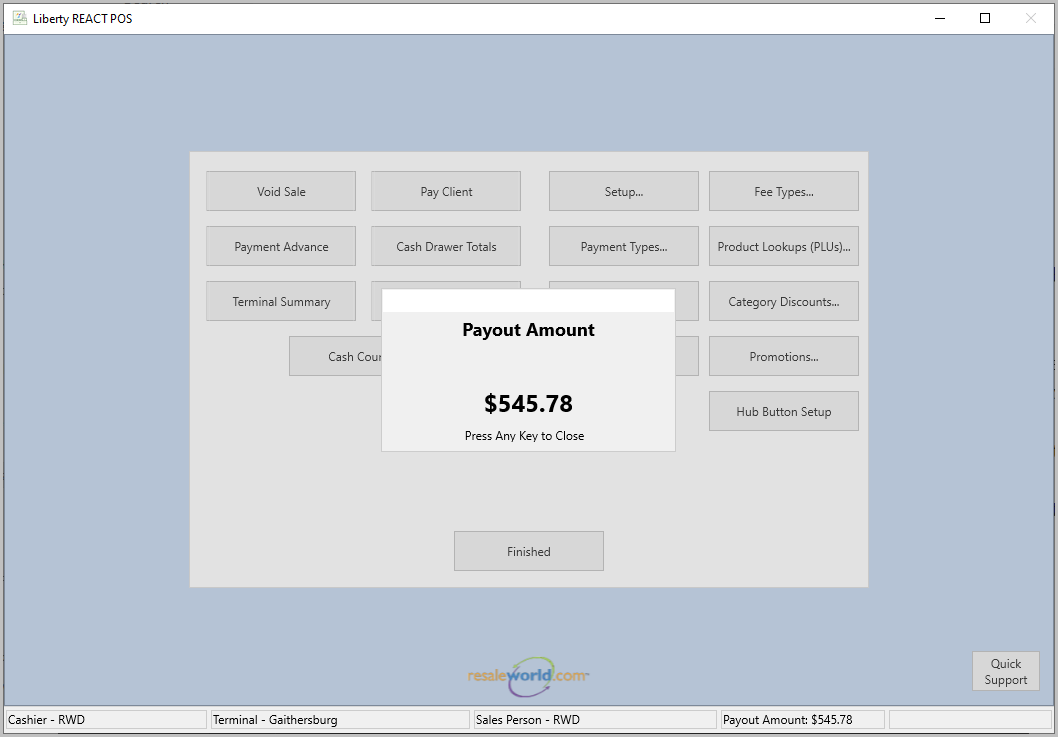
- POS will display a confirmation with the Payout Amount.


Next Section Navigation Link
Click the following link to see a list of articles for the next section:
Customer Facing Display
Related Topics
Capturing a Payout Signature in POS Kiosk Signature Capture Overview Setting Up Contract Signature Capture In Liberty Signing A Contract In The Liberty Kiosk App Cash, Check and Store Credit Signature Capture Setup In The Point Of Sale Pay a Client In The POS Consignor Contract Creation Setting Up The Customer Facing Display Mode Using the Customer Facing Display Account Management Feature Consignor Portal Feature