Table of Contents
Signing A Contract In The Liberty Kiosk App
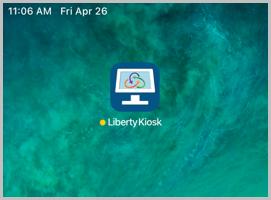
- Open the Kiosk App on the iPad.
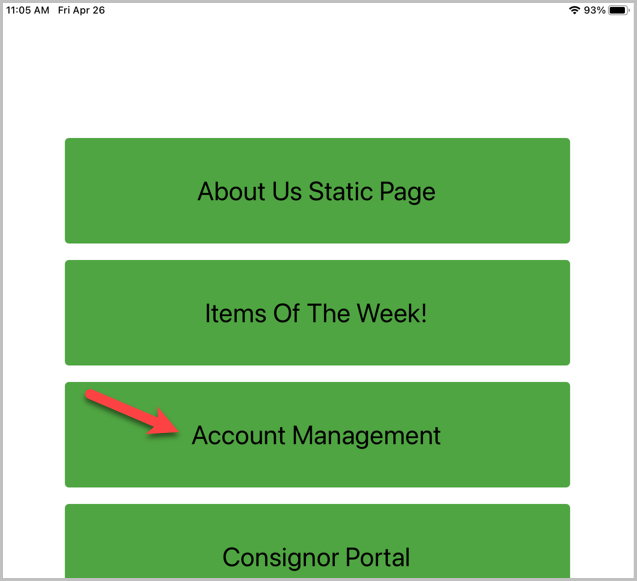
- Click Account Management. If that feature is not set up yet, see Account Management Feature for help setting it up.
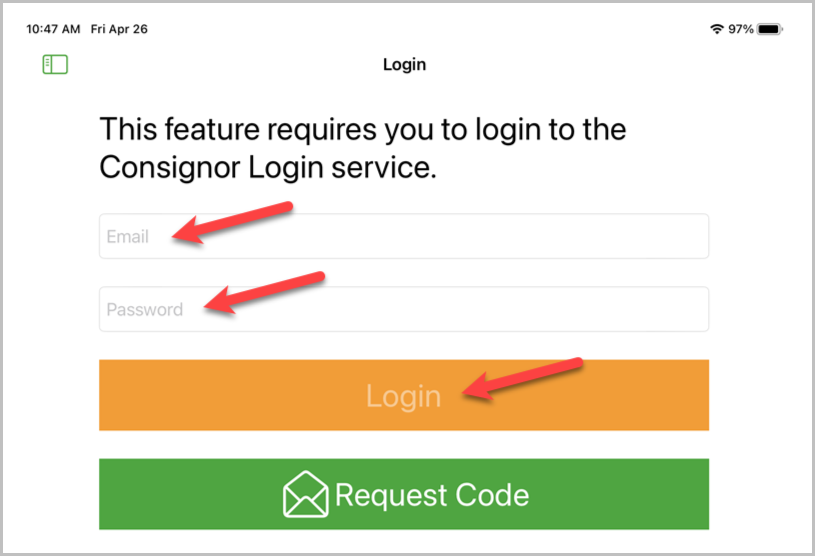
- Have the consignor enter their email address and password. Then click Login.
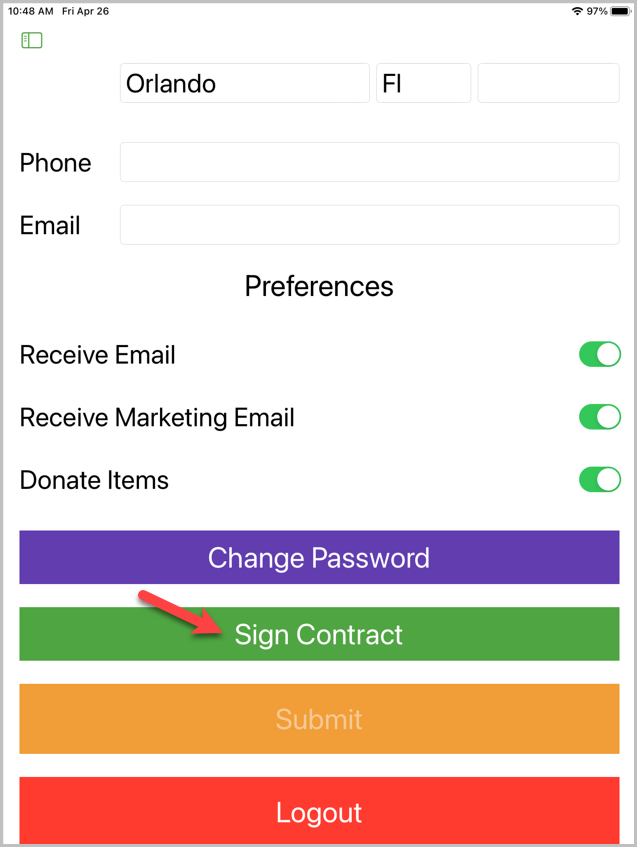
- Click Sign Contract.
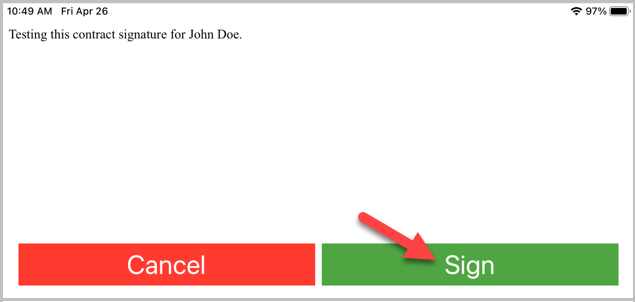
- The current consignor contract will pull up. Let the consignor review it, then click Sign.
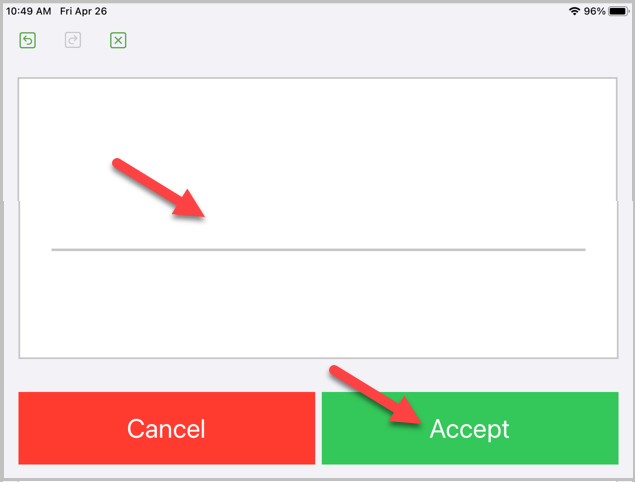
- The consignor can sign on the signature line, then click Accept.
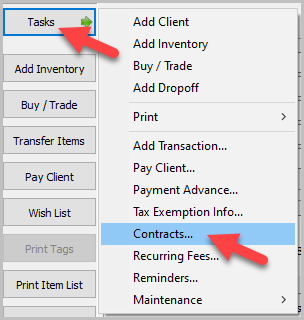
- To view the contract, open the account in Inventory Module. Click Tasks, then Contracts.
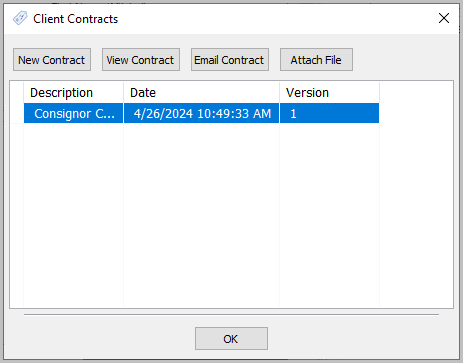
- The contract will be listed with the datetime of signing. You can view the contract or email it to the consignor.


Next Article In Section
Click the following link to move to the next article in this section:
Cash, Check and Store Credit Signature Capture Setup In The Point Of Sale
Related Topics
Signing A Contract In The Liberty Kiosk App Kiosk Signature Capture Overview Setting Up Contract Signature Capture In Liberty Cash, Check and Store Credit Signature Capture Setup In The Point Of Sale Capturing a Payout Signature in POS Pay a Client In The POS Consignor Contract Creation Account Management Feature Setting Up The Customer Facing Display Mode Using the Customer Facing Display Consignor Portal Feature