Table of Contents
Setting Up Promotions
A specific promotion, such as a radio ad or a newsletter, can be tied to a sale. Creating this connection can be useful for determining how effective a particular type of marketing has been.
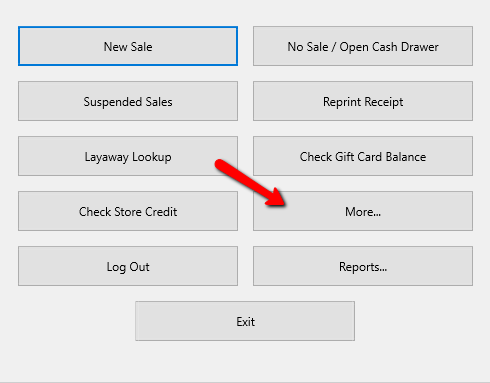
- From the main menu screen of the Point Of Sale select the More button.
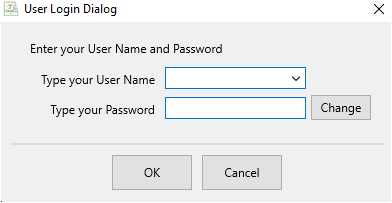
- Login if Prompted.
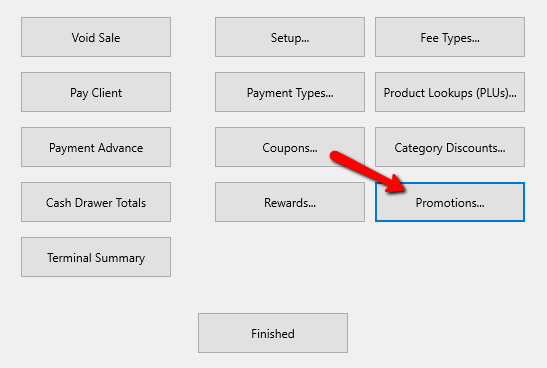
- Select the Promotions button.
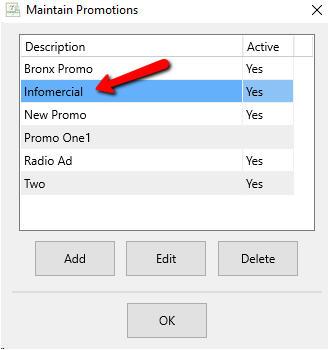
The Maintain Promotions dialog box will open.
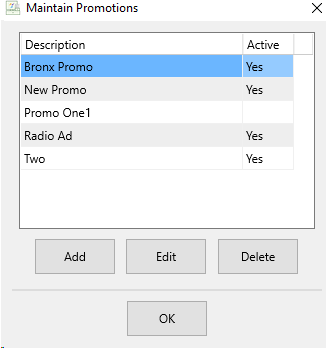
- Selecting the Add button or the Edit button will open the details of the Promotion. Selecting the Delete button will delete the Promotion.
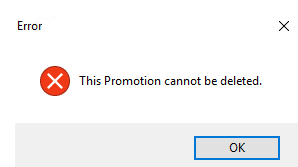
Note: Once a Promotion has been used, it cannot be deleted. You will get the following error.
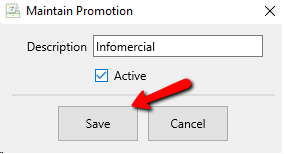
The Details Screen of the Promotion will open.
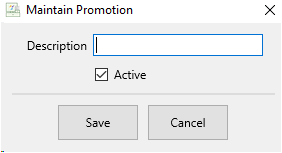
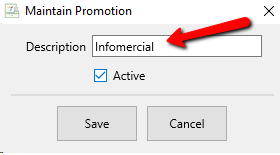
- Description : Enter in the Description of the Promotion.
- Active (Check Box) : Use the Active Checkbox to indicate whether or not the Promotion will be used.
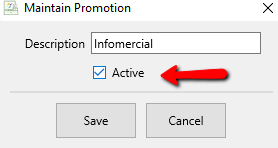
- Select the Save button when done.
The new Promotion should show in the Maintain Promotions dialog box.
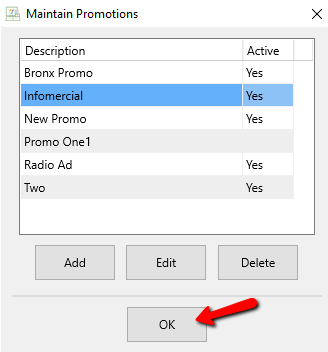
- Select the OK button when done.


Next Section Navigation Link
Click the following link to see a list of articles for the next section:
Optional Setup Steps
Related Topics
Setting Up Promotions Automatic Credit Card Fee To Consignor's Account Setting Up Fee Types Setting Up Payment Types Add, Change and Delete Attribute Types Add, Edit and Delete Attribute Values Assign Attributes Types to Categories Make an Attribute Inactive Change Order of Attributes on Item Entry Screen Overview of Attributes Printing the Size Attribute on Price tags