Table of Contents
Saving a ShopRW / Shopify Listing
When changes are made to a pre-existing or new listing, it is necessary to save the listing.
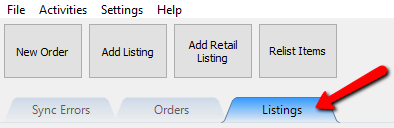
- Open the Listing Manager and then select the Listings tab.
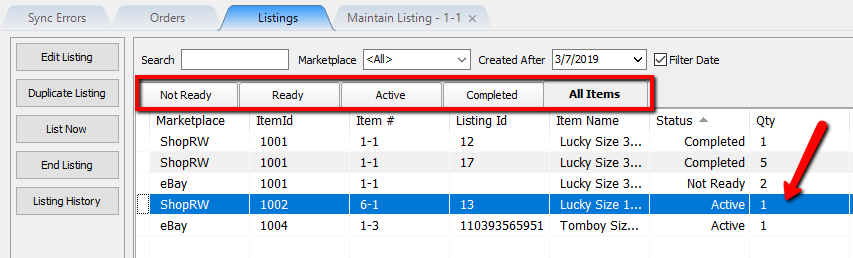
- Select the applicable status tab and then double-click on a listing that has not been completed to edit it.
- Make a change to the listing.


Once a change has been made, the Save button will no longer be greyed out, allowing you to click it.

Once saved, changes made to ShopRW/Shopify listings will be synced automatically to their appropriate active web listing.
Next Section Navigation Link
Click the following link to see a list of articles for the next section:
Retail Listings with Variants
Related Topics
Saving a ShopRW / Shopify Listing Creating a ShopRW / Shopify Listing Overview Adding ShopRW / Shopify Package Information Adding A Web Description Editing A Web Description in HTML Previewing a ShopRW / Shopify Web Description Adding Images to Web Listings Deleting Images From A Web Listing Setting a ShopRW / Shopify Item to Ready To List How to Use Auto Create Listings Definitions of Web Description Processor Buttons