Table of Contents
Printing A Receipt for a Processed Pre-Paid Buy
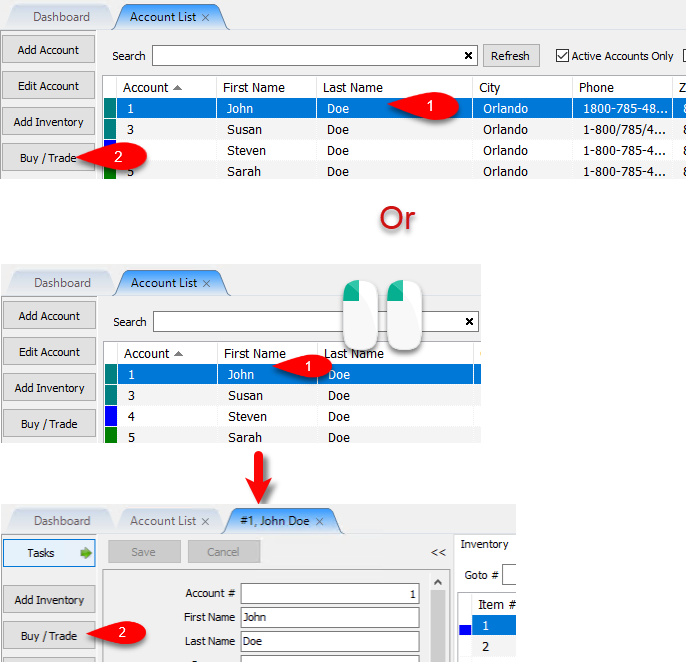
- From the Account List, select the account, then click on Buy / Trade.
Or
Open the Account first and then click on Buy / Trade.
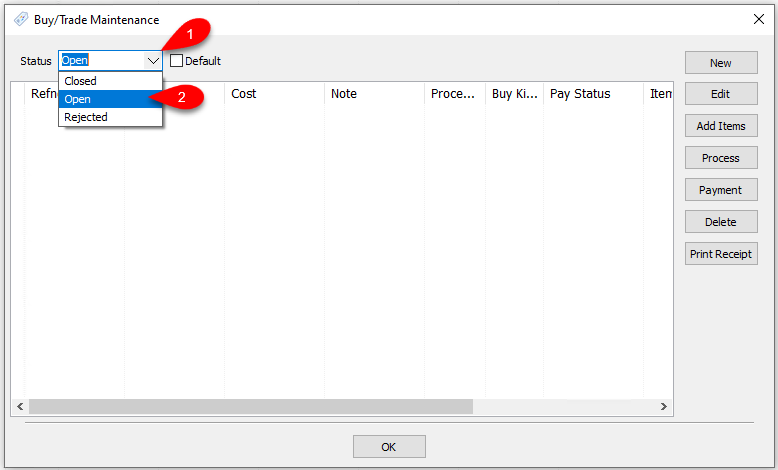
- Drop the Status field down and select Closed.
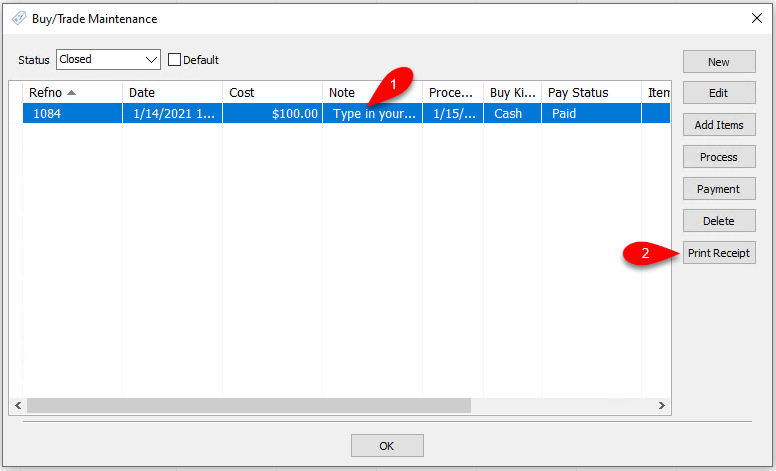
- Click the closed Pre-Paid Buy that you want to print a receipt for, then click Print Receipt.
- You will now be shown a preview that you can print out for your customer.


This is meant to be printed on a receipt printer but can be printed out on a document printer, if needed.

Next Article In Section
Click the following link to move to the next article in this section:
How To Edit A Pre-Paid Buy
Related Topics
Printing A Receipt for a Processed Pre-Paid Buy Pre-Paid Buys Overview Turning on Pre-Paid Buys Creating A New Pre-Paid Buy Creating A Payment For Pre-Paid Buy Adding Items For A Pre-Paid Buy How To Process Inventory For A Pre-Paid Buy How To Edit A Pre-Paid Buy How To Delete a Pre-Paid Buy That Has No Cash or Trade Transaction Added How To Add Your Own Pre-Paid Statuses Using the Wishlist