Table of Contents
Previewing a Letter
There are two ways to preview a letter. One way is through the Word Processor Main Screen, the other is to Publish a letter and select the preview option. For more information on previewing a letter through the Publish option, see Printing Or Emailing A Letter Using The Publishing Wizard.
- From within Inventory Module select the Word Processor button.

The Word Processor dialog box will open.
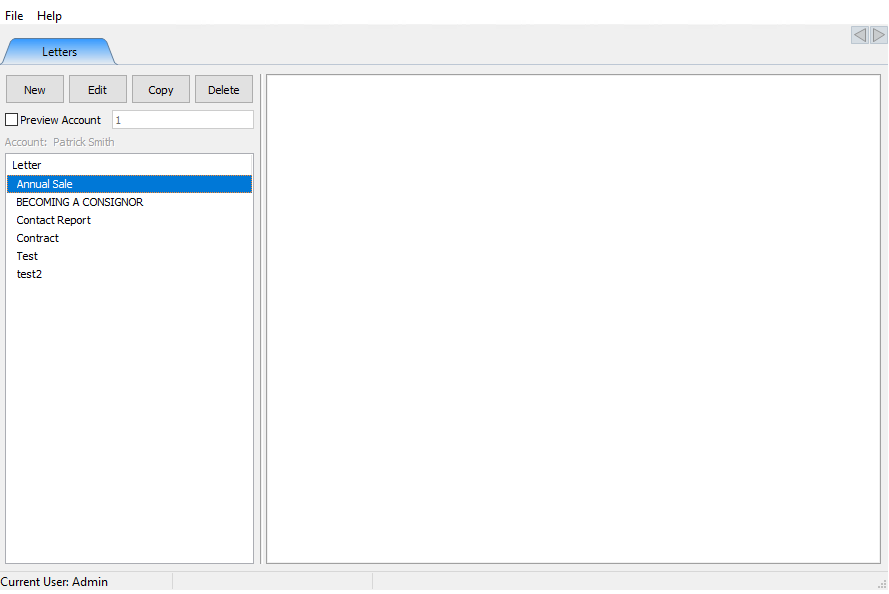
- Select the letter you want to Preview.
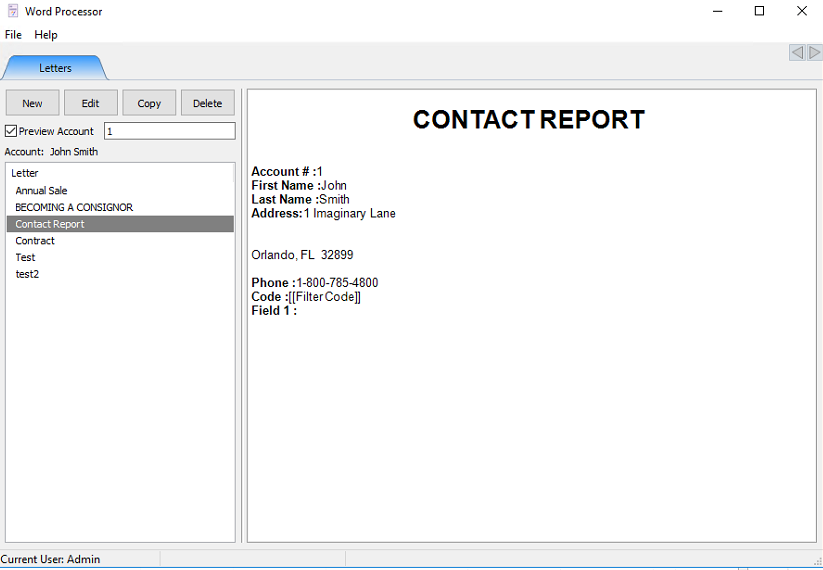
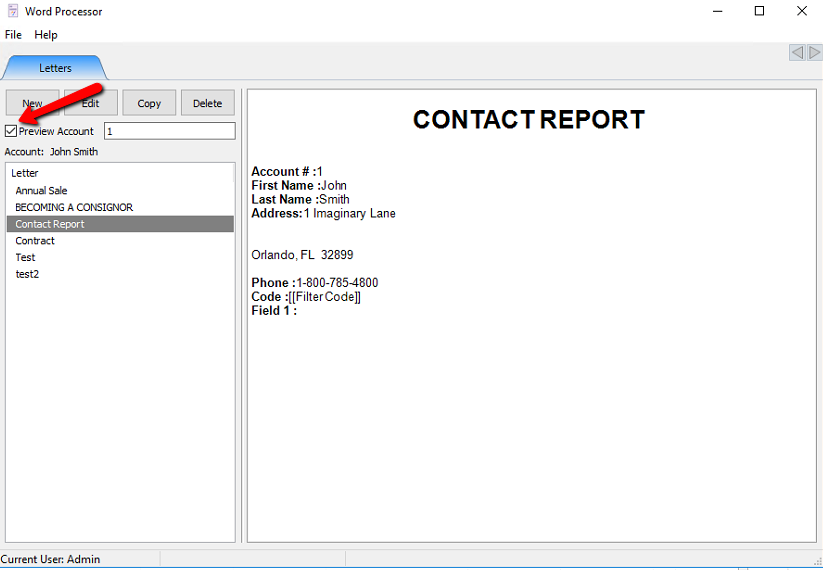
- Check off the Preview Account Checkbox.
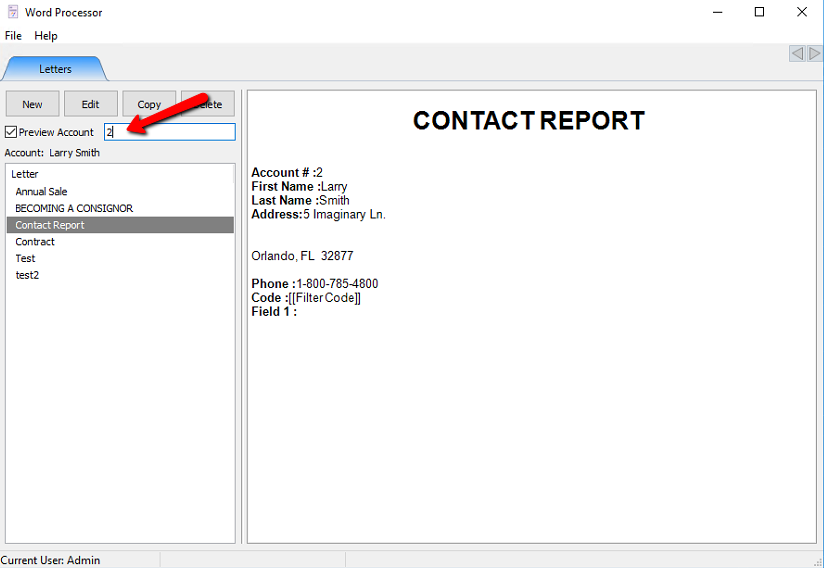
- Add in the account number in the Preview Account field. As soon as you enter that information, you will be able to see a preview of the letter, with the information for merge fields filled in.


Next Article In Section
Click the following link to move to the next article in this section:
Printing or Emailing A Letter Using The Publishing Wizard
Related Topics
Previewing a Letter Merging Information into Documents Printing or Emailing A Letter Using The Publishing Wizard Print Merged Letters from Client Accounts Converting Older Letters Creating A New Word Processor Letter Editing Documents Word Processor Overview Accessing Liberty Help From Anywhere In Liberty Add Notes to an Account