Table of Contents
Training Mode
To assist you as you learn how to use Liberty there is a practice area for you to, so to speak, play in. We refer to this capability as Training Mode.
Information entered into Liberty while you are in Training Mode is stored in a totally separate database. Since this Training database is totally separate from your real database information entered while in Training Mode has no effect on your real information.
You will also know you are in Training Mode when the phrase Training Mode is on a yellow background at the very bottom of the screen.

Note: A maximum of 50 auctions may be uploaded under Training Mode.
Warning! It is highly recommended that when switching between Training Mode and the real database, be sure you are indeed in the correct version!
To Switch From Real to Training Mode
If they are currently running, shut down the Order Manager, Point of Sale, Reports, and/or the Category Editor.
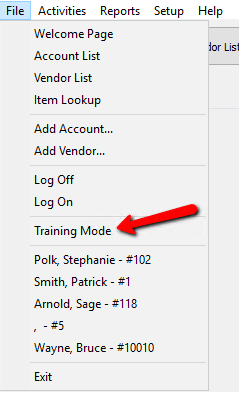
- Select File > Training Mode.
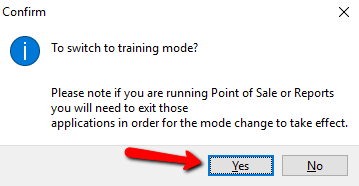
- The following dialog will display. Select the Yes button. The Inventory Module will shut down.
- Start Liberty again. Liberty will open into training mode without any prompt to log in.


To Switch From Training Mode To Real Mode
If they are currently running, shut down the Order Manager, Point of Sale, Reports, and/or the Category Editor.
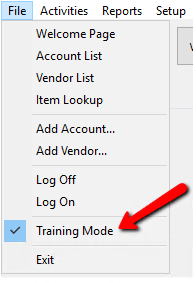
- Select File > Training Mode.
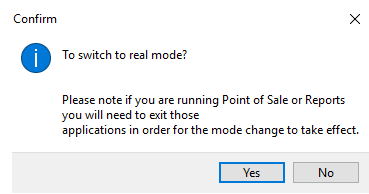
- The following dialog will display. Select the Yes button. The Inventory Module will shut down.


Start Liberty again. Liberty will open into Real mode and prompt to log in.

Next Article In Section
Click the following link to move to the next article in this section:
An Important Term to know: Default