Table of Contents
Sell Items at a Discounted price
Use this procedure to ring a sale for an item that you want to discount by a specific percentage. This is useful when you have items on sale and wish to take a percentage off the item. If items in your store are reduced by 25% for a holiday sale for example, this procedure is ideal.
To Post Sales At A Discount
- Press the F4 key or click on the Sale Post (F4) button.
The Discount Percent dialog will display.
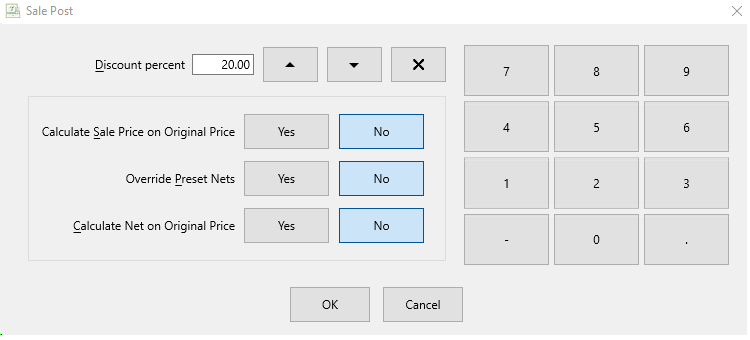


- Discount Percentage : This is the amount that will be discounted off the item(s). Using the Up and Down arrows will increase or decrease the amount by 1%. For touch screen users, typing the numbers with the provided on screen pin pad will also provide the desired result. Putting the cursor at the front of the numbers and pressing the Minus Button will allow touch screen users to erase the numbers in the Discount Percentage field.
- Calculate Sale Price on Original Price : Choose No to to discount the current price of the item, or the Marked Down price of the item. Choose Yes if you want to ignore any automatic markdowns and calculate the sale price on the Originally Entered Price.
Note: The Term “Original Price” for this example means the Original Price the item had when it was added to Inventory Module. This is different than “Original Price” for Calculate New On Original Price. - Override Preset Nets : Choose Yes if you want to change Net to the consignor based on sale price. Choose No if you want your consignor paid on original Net
Example: If an item is priced at $500.00 with a preset net of $350.00 and the item sells at a 20% discount, the new selling price is $400.00. If Yes is selected the new net to consignor is $280.00. Select No and the new selling price is still $400.00 and the net to consignor remains $350.00.
Note: For more information on Cost/Net, see Consignment Item Entry Window. - Calculate Net on Original Price : Selecting Yes will calculate the net on the price the item Entered the Point of Sale with. Selecting No will calculate the Net on the newly discounted price.
Example: An Item was originally entered into the Inventory Module at $100. It has a Markdown in Effect for 20% reducing the item to $80. I choose to use Sale Post to mark the item down another 50%, bringing it to $40. If I set the Sale Post to Calculate The Net on Original Price, and I choose Yes, with the split of 50/50, the Consignor will be paid $40. 50% of the Original price it would of been without the new Sale Post discount. If I choose No, The item will be Marked Down another 50% to $40. It will sell for $40, and based on the the 50/50 Split, the consignor will get $20.
Note: The Term “Original Price” for this example means the Original Price the item had when it was added to the Point of Sale. This is different than “Original Price” for Calculate Sale Price on Original Price.
Note: Calculate Sale Price on Original Price, Override Preset Nets, and Calculate Net on Original Price can all be pre configured by going to More > Setup > Posting Defaults. See Setting up POS Defaults for more details.
Press the OK Button once Sale Post is set up.
Any items entered with Sale Post selected will get the discount applied.
Next Section Navigation Link
Click the following link to see a list of articles for the next section:
Account Payouts
Related Topics
Sell Items at a Discounted price Training - Making Sales Overview Sell Items for Regular Price Training - Accounts Overview Adding a Consignor Contract to an Account Add a New Client Account Add Notes to an Account Attaching a Consignor Contract to an Account Creating New and Maintaining Existing Accounts Deleting a Client Account Edit Account Information