Table of Contents
Training - Inventory Overview
As you receive inventory you will add it to Liberty Inventory as items in accounts. The inventory entry process may seem a bit complex at first, but in reality it is very straightforward. To learn how to enter items faster, see How to Enter Items Faster.
To Add Inventory To Liberty
- Follow the instructions to Set Up Liberty for first use.
- Create an account for the inventory to be placed in. The account may be either a Client, Store, or Retail Vendor account depending on the nature of the inventory being added.
- There are three ways to initiate the adding of inventory to an item.
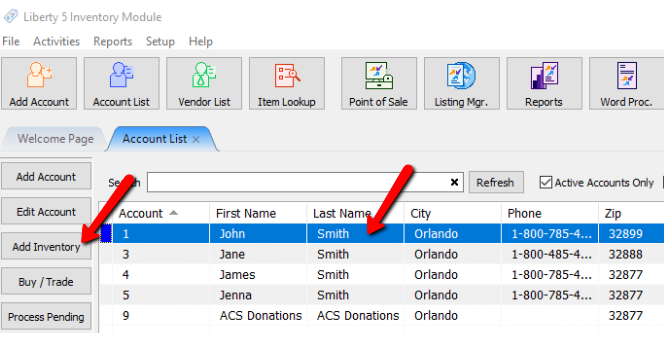
- Highlight the account in the Account List and press the Add Inventory button on the left side of the screen.
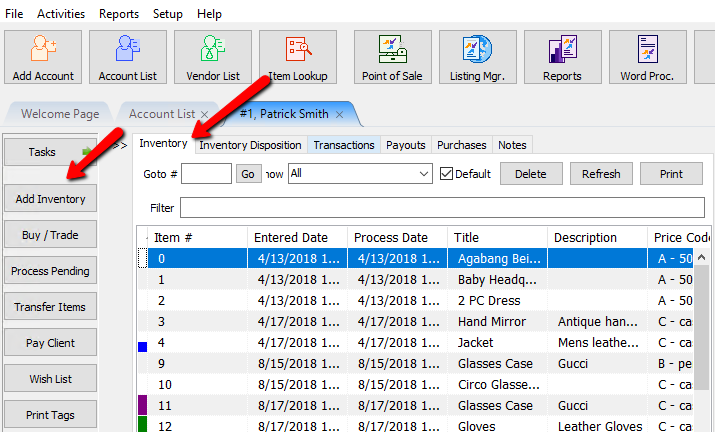
- From within the account press the Add Inventory button on the left hand side of the screen.
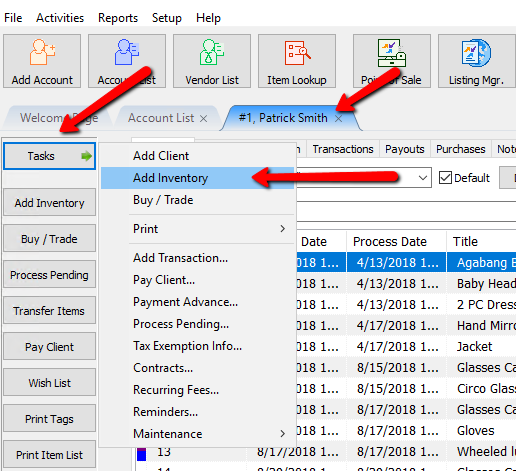
- From within the account press the Task button, then select Add Inventory.
- Print price tags and item lists as needed.
- Use Liberty Point of Sale to post items as sold.
- Post Items within inventory. See Post an Item as Donated, Returned (to the Consignor), or Other and Post a Range of Unsold Items as Returned, Donated, or Other


Next Article In Section
Click the following link to move to the next article in this section:
Add A Consigned Item