Table of Contents
Attaching a Consignor Contract to an Account
If you have a contract created outside of Liberty that is saved as a PDF or JPG, you can attach it to a consignor’s account.
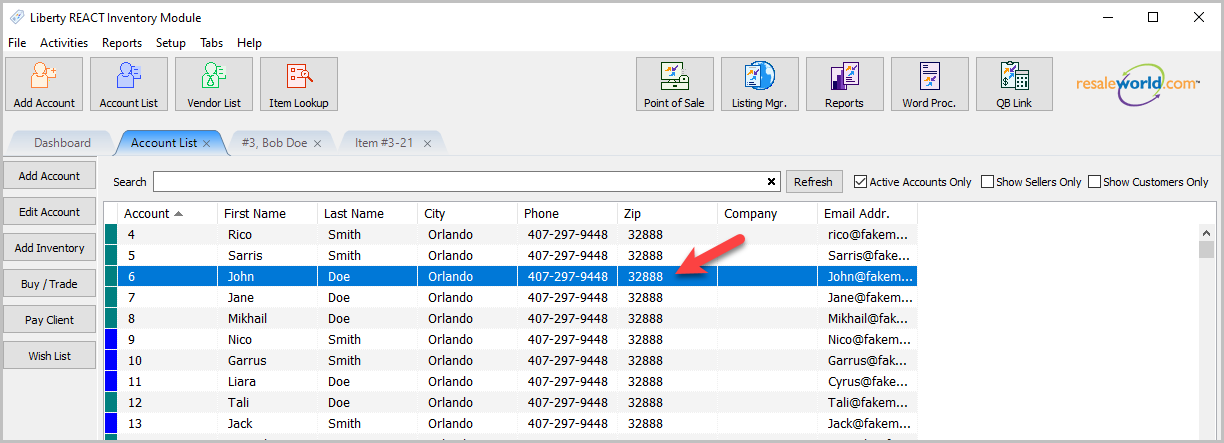
- Open any account you wish to attach a consignor contract to:
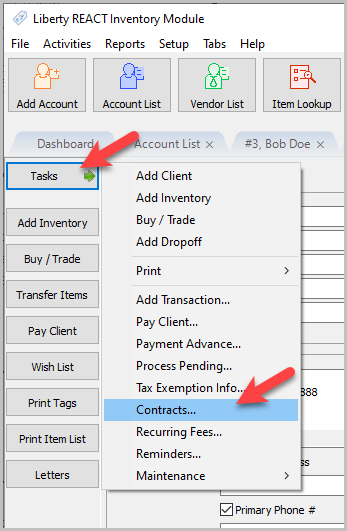
- Click on Tasks > Contracts…
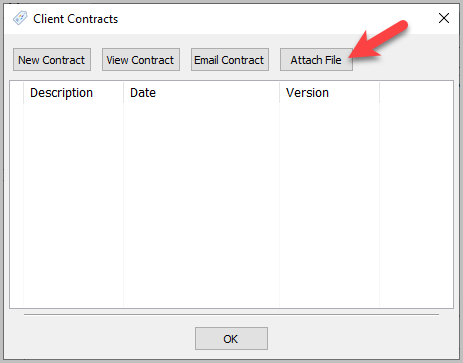
- Click the Attach File button.
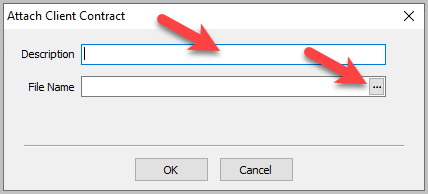
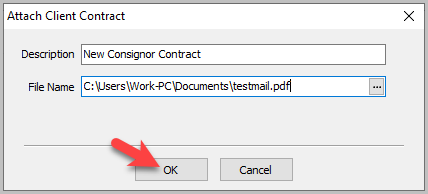
- The Attach Client Contract dialog will appear. Fill in a description, then click the … button to search the file system for the contract.
- Select the file, then click Open.
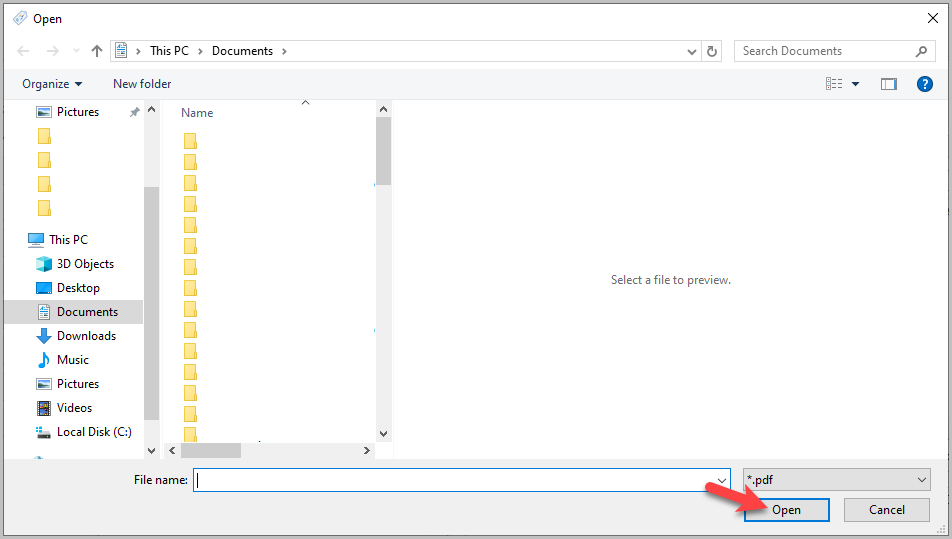
Note: By default it will only look for PDFs. You can click *.pdf to choose a different filetype. - Once the description and file name are filled in, click OK.
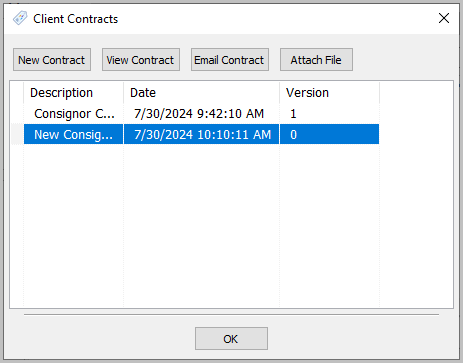
- An entry will be added under the Client Contracts dialog box so that you may view the Consignor Contract at any time.


Next Article In Section
Click the following link to move to the next article in this section:
Viewing a Consignor Contract From an Account
Related Topics
Attaching a Consignor Contract to an Account Adding a Consignor Contract to an Account Viewing a Consignor Contract From an Account Training - Accounts Overview Add a New Client Account Add Notes to an Account Creating New and Maintaining Existing Accounts Deleting a Client Account Edit Account Information Email A Consignor Contract From An Account Entering Additional (Client) Information