Table of Contents
Adding a Consignor Contract to an Account
Please read the following article on how to create a Consignor Contract before continuing: Consignor Contract Creation
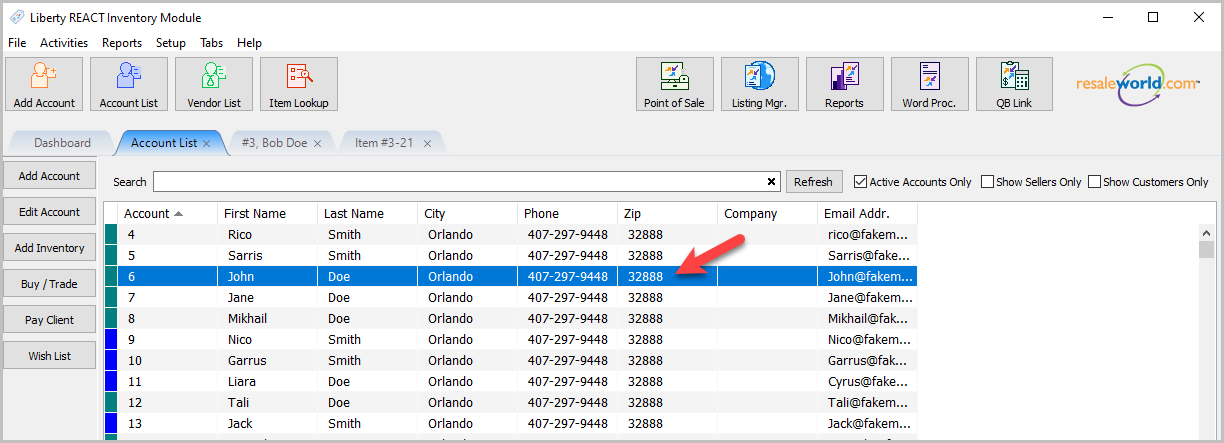
- Open any account you wish to create a consignor contract for:
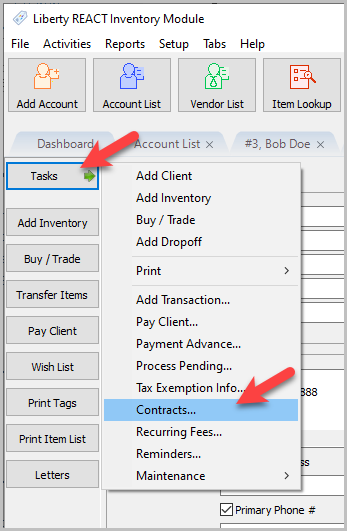
- Click on Tasks > Contracts…
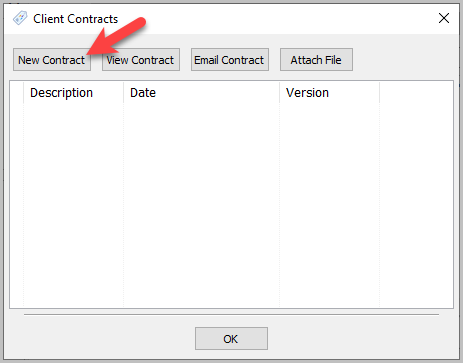
- Click the New Contract button.
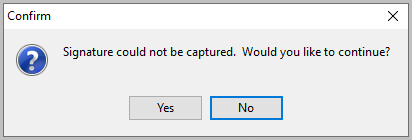
Note: A prompt for signature will show up on your signature capture device as long as you added the Signature merge field to the Consignor Contract template. You must have a Payment Logistics or ResalePay signature capture device or the Liberty Kiosk to use this feature. If Liberty can’t find the signature capture device, a prompt will pop up asking if you want to continue without it.
- You will then be taken to a PDF copy of their contract.
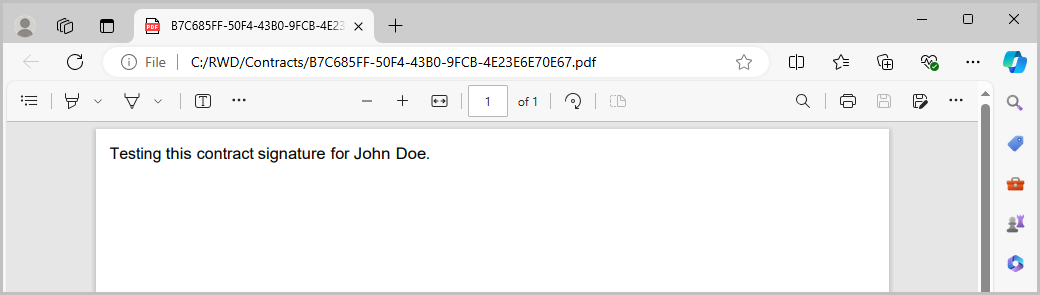
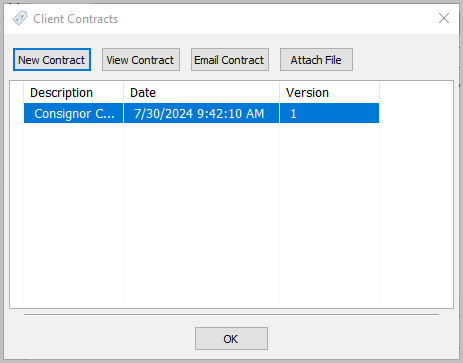
- An entry will be added under the Client Contracts dialog box so that you may view the Consignor Contract at any time.


Next Article In Section
Click the following link to move to the next article in this section:
Attaching a Consignor Contract to an Account
Related Topics
Adding a Consignor Contract to an Account Consignor Contract Creation Viewing a Consignor Contract From an Account Training - Accounts Overview Add a New Client Account Add Notes to an Account Attaching a Consignor Contract to an Account Creating New and Maintaining Existing Accounts Deleting a Client Account Edit Account Information Email A Consignor Contract From An Account