Table of Contents
Setting up Terminal IDs (Networks Only)
Terminals are a great way to differentiate sales between different locations, as well as different Points Of Sale within a location.
How To Maintain Terminals
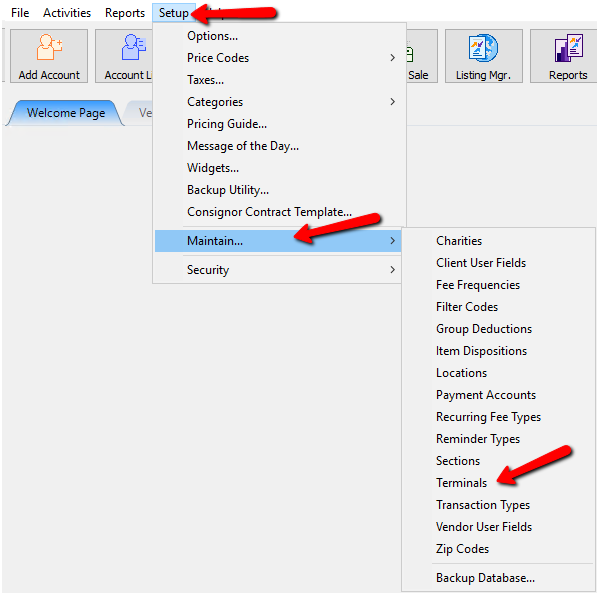
- From Inventory Module select Setup > Maintain > Terminals.
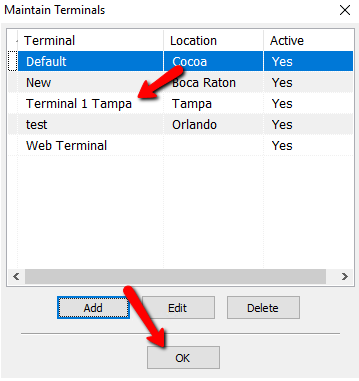
The Maintain terminals Dialogue screen will open.
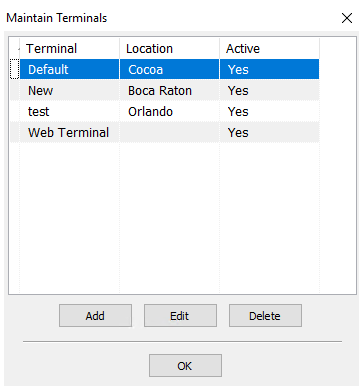
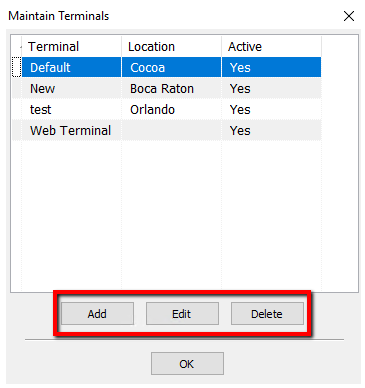
- Select the Add Button to add a new Terminal. Highlight a terminal and select the Edit Button to modify an existing terminal. Select the Delete Button to remove an existing terminal.
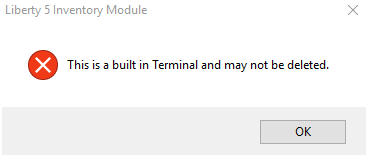
Note: You can not delete a terminal that has been used. You will get the following error.
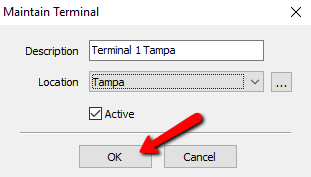
Selecting the Add Button or the Edit Button will show the Details of the Terminal.
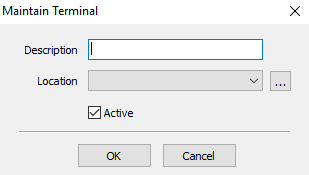
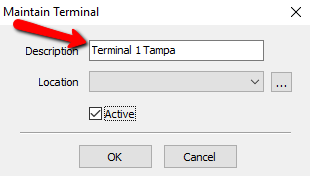
- Description : Enter in the name or description to identify this terminal.
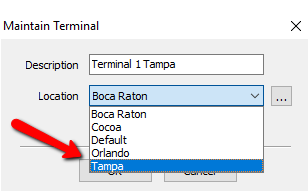
- Location : There are two ways to select the location.
- Select the dropdown menu and select the location this terminal is to be associated with.
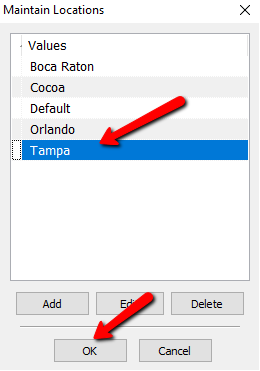
- Select the Search button to the right. This will display a list of locations to select. Highlight the location you need and click the OK Button. For more information on locations see Setup Locations.
- Active (Check Box) : Check off the box if you want this terminal to be used.
Press the OK Button when done.
- You should see your newly created terminal. Press the OK Button when done.


Next Article In Section
Click the following link to move to the next article in this section:
Assign Terminal IDs (Networks Only)