Table of Contents
Setting Up POS Equipment
Liberty Point of Sale is designed to operate in conjunction with a POS Receipt Printer for printing receipts, an Electronic Cash Drawer that connects to the Receipt Printer so that the drawer opens when receipts print, Scanners to easily enter your items at the Point Of Sale, and a Pole display to show transactions to the customer.
Printer And Cash Drawer Options
To access the Printer and Cash Drawer options, do the following:
- From the POS Main Menu, Select the More button.
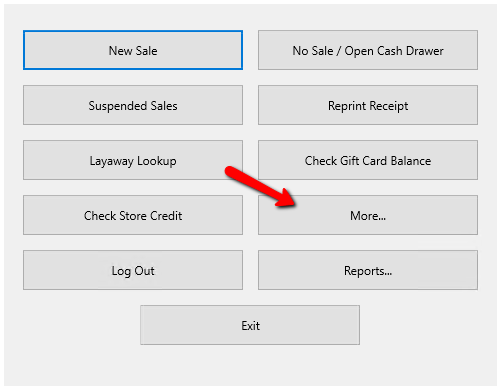
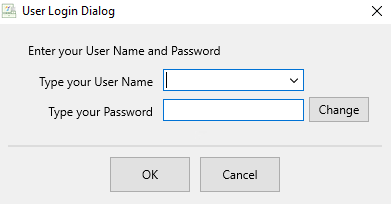
- If you are prompted, Login. Enter your credentials and press the OK button at the bottom.
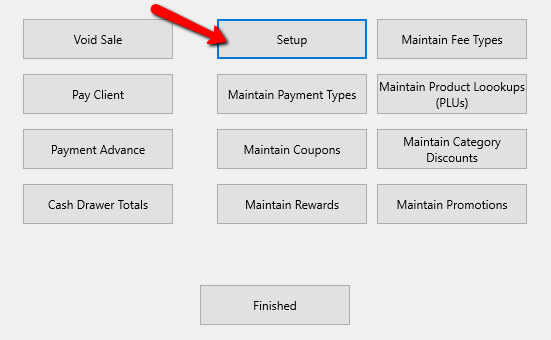
- Select the Setup button once logged in.
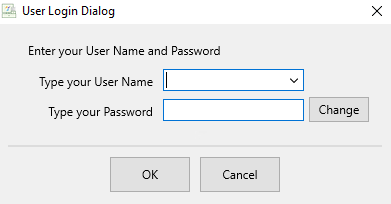
- If you are prompted again to Login, enter your credentials and press the OK button at the bottom.


Print Options
- Print Receipt After Sale : Choose whether or not users are to be prompted to print a receipt, always print a receipt or never print a receipt.
- Receipt Printer : Select the correct printer for printing PoS Receipts. See Recommended Peripherals for more details.
- Cash Drawer Code : Select the correct Cash Drawer Code from the drop-down list. Be default this is set to No Cash Drawer and this will be sufficient for most users. For older printers, please consult your printer’s documentation.
Note: If you Cash Drawer requires a numerical code, that will be placed in the box to the right of the Code Type you select.

- Receipt Font : Enter the font you wish to use when printing receipts. By default, printers purchased from Resaleworld work best with 16 CPI.
- Size : Here you can designate the size of the font on the receipt.
- Print Item Title On Receipt : When checked, the Item Title will be printed on the receipt.
- Print Description On Receipt : When checked, the Item's Description will appear on the receipt.
- Print Original Selling Price On Receipt : When checked prints the item's Original Selling Price on the receipt.
- Print Store Credit Balance On Receipt : This will print the remaining balance on the receipt when the account is added to the sale.
- Print Barcode On Receipt : Select this option to print a barcode on the receipt. This will allow you to scan the barcode and find a sale based on the sale number.
- Enable Receipt Emails (Requires Resaleworld Email Service) : This provides the ability to email receipts to customers.
Note: You will need to sign up for emailed receipts through My.Resaleworld.com which is free for those on the Resaleworld Support and Tag Plan. - Receipt Copies : He you can designate the number of receipt copies you would like printed for each sale.
Note: This does not affect signature receipts if you have integrated Credit Card Processing. Those are controlled through your Credit Card processor. - Credit Card Disclaimer : This will appear at the bottom of the Signature Receipt for credit card transactions.
- Hide Store Info On Receipts : Check box used to indicate that your store information will not be printed on the receipt.
- Set Receipt Logo: This option will allow you to view the current logo, clear the logo, or change to a different one. See Add a Logo to Your Receipt for more information on adding a logo.

Pole Display Options

- Use Pole Display (Check Box) : Checking this off will allow the use of a Pole Display so customers can see the transactions as they are rang up.
- What Port Is The Pole Display Connected To? : This is the COM Port associated with the Pole display.
- Locate Port (button) : Use this to help locate the COM port the pole display is using.
- Welcome Message (W/Test button) : Type in a test message in the blank field and press the Test Button. If the Pole Display was successfully installed, the message entered in the test section will appear on the display.
Scanners
Scanners are Plug and Play devices, meaning there is not configuration needed within Liberty. For configuration of the scanner specifically to operate in a special way, see the manufacturer's documentation.
Next Article In Section
Click the following link to move to the next article in this section:
Setting Up POS Defaults