Table of Contents
Tax Types and Location/Tax Group Association
Note: This is the second part of the tax code set up process. Setting Up Tax Codes, Tax Groups, and Tax Rates will need to be done first.
Liberty’s Tax Code system is complex and powerful. Once it’s set up, it will make applying taxes to items very easy and scalable should the time come when a business is adding multiple locations.
Getting To The Tax Types Area
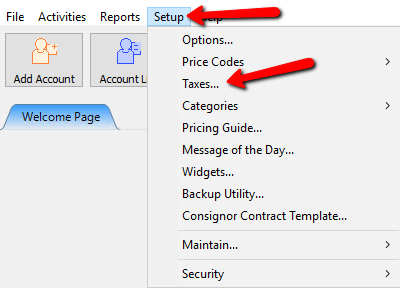
- To get to the Maintain Taxes dialog box, select Setup > Taxes.
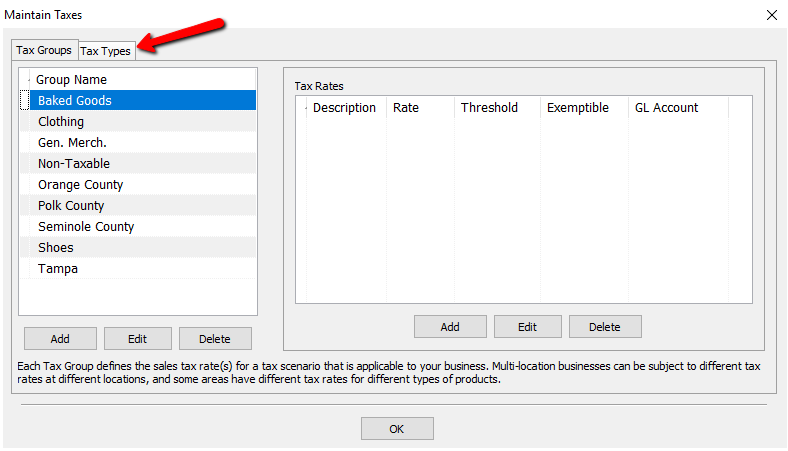
- Select Tax Types.
- You should now see the Tax Types and Location/Tax Group Associations dialog boxes.
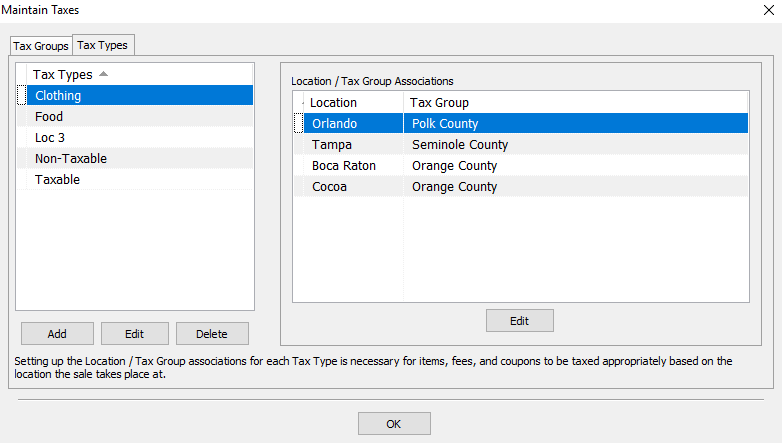


Tax Types And Location/Tax Group Associations
Using Tax Types and associating Groups or Locations to the Tax Types is a very manageable way to deal with taxes. This allows us to charge different tax rates based on location or type of item being sold. Instead of having to adjust every item individually, we simply just adjust the Tax Rate associated with the Group , that is associated with a Tax Type.
- Example: Jimmy’s Rugged Resale specializes in consigned sporting equipment and clothing. Jimmy has different products which will need to be taxed accordingly. The normal state tax rate is 2.9%. His clothing will be taxed at lower rate of 1.9%. All of his merchandise is stored in one database. When Jimmy sells his stuff, Liberty is able to tax items based on the type of item using the appropriate tax rate. At the beginning of the year the rates for Clothing are changing to 2.5%. When this happens all Jimmy will need to do is go into the Taxes area and change the Rate for that Group, which is applied to the Tax Type. So instead of having to change the tax rate for each individual item, he just has to make one change that trickles down to all the Clothing items automatically.
Now that the Tax Groups are set up, we will need to create the Tax Types.
A Tax Type is like a package. Inside it holds the Tax Groups. Associated with the Tax Groups are the Tax Rates.
Creating A New Tax Type
- To Create a Tax Type, click on the Add button under the Tax Type detail list.
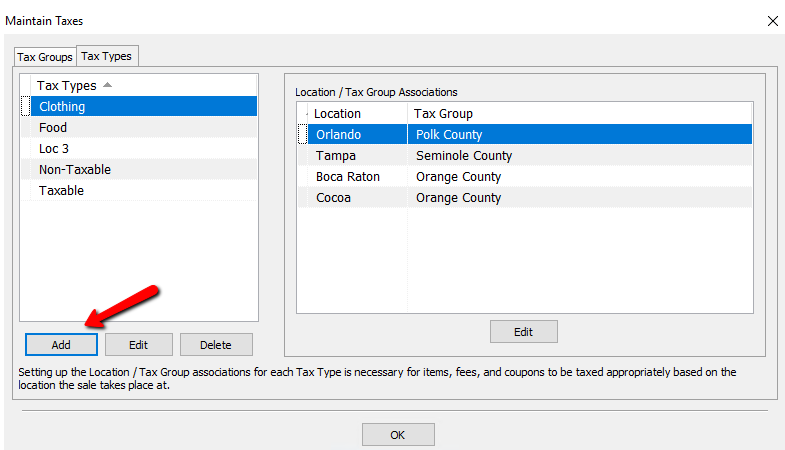
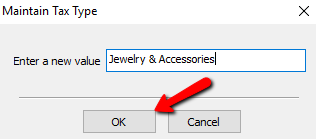
- Enter a name of the new Tax Type. Press the OK button when done.
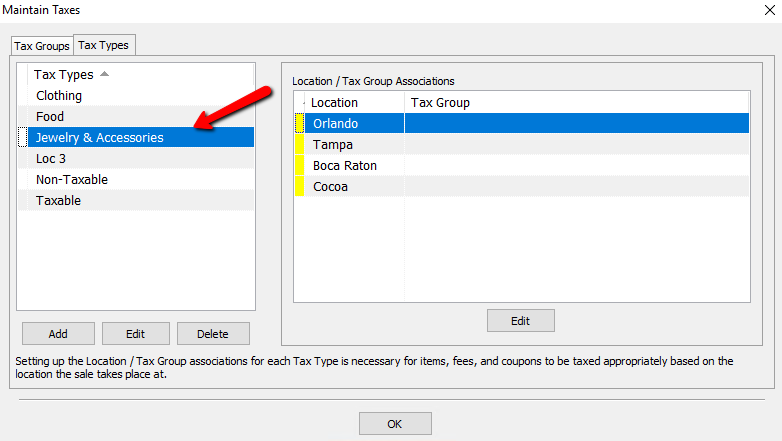
- You should now see your new Tax Type in the list.


How To Edit A Tax Type
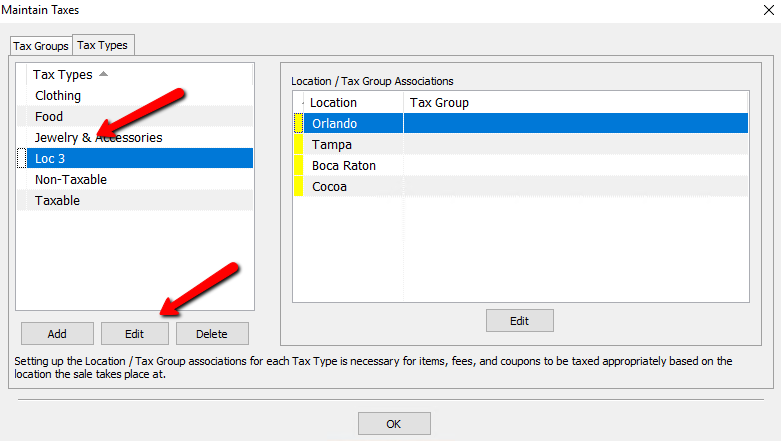
- Double click the Tax Type you want to edit or highlight it and click the Edit button.
- The Maintain Tax Type dialog box will open. Make the necessary changes, and click the OK button at the bottom.
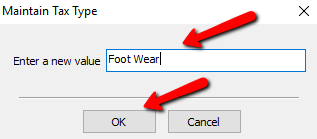
- You should see your changes in the Tax Type List.
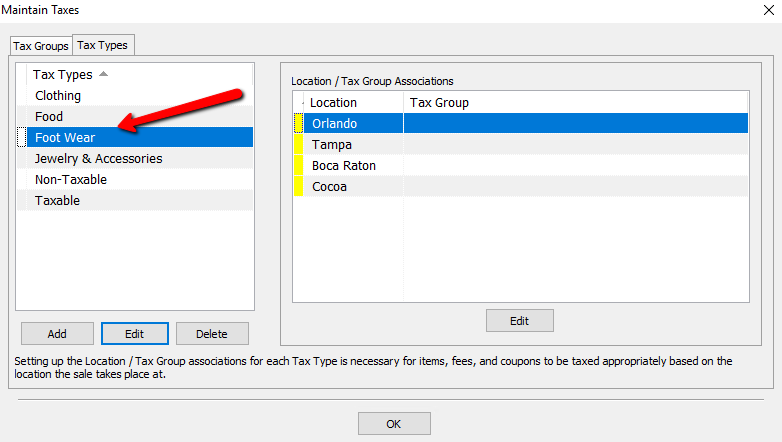


Setting Up And Maintaining Location/Tax Group Associations For The Tax Types
Once you create a new Tax Type, the first thing you will notice in the Location/Tax Group Association list, is all the locations associated with your store. Each tax Type will have the locations listed. For each location, a Tax Group will need to be selected, so that tax is applied to that Tax Type.
Note: By default all Tax Types will have at least One Location. If you have more locations, then they will be listed. For setting up locations with multiple locations, see Setup Of Multiple Locations And Single Rate For Each Location, Setup of Multiple Locations With Same Rate For Items, Different Rates Based On Location, and Setup of Multiple Locations With Different Rates for Different Types of Items, Different Rates Based On Location.
- To setup the Location/Tax Group Association, highlight the the Tax Type you need to configure. You will see the Location/Tax Group Association only for that Tax Type.
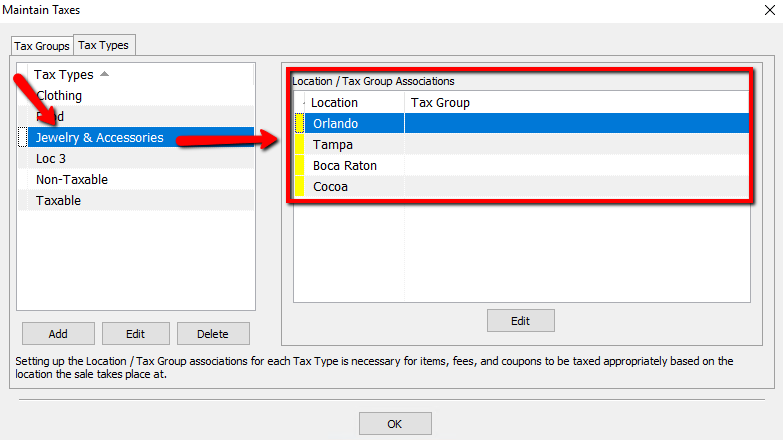
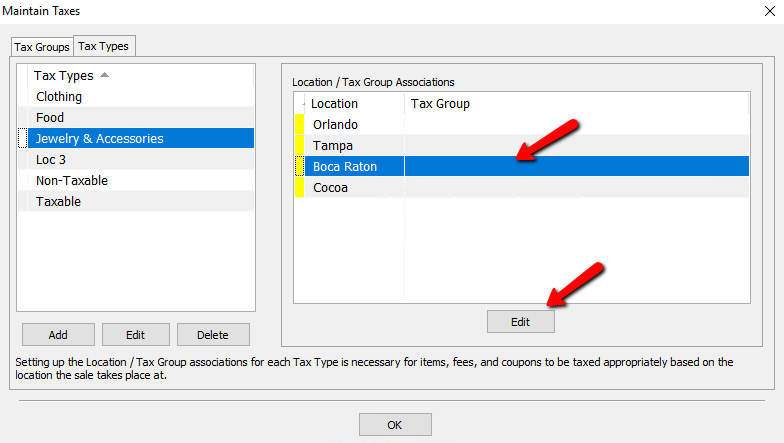
- To edit the Location/Tax Group Association, double click on the Location, or select the Location, and press the Edit button.
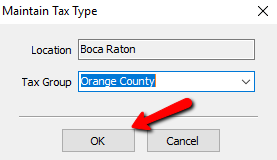
- A Maintain Tax type dialog box will open. Click the drop down and select the Tax Group you want associated with this Location.
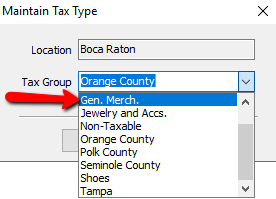
- Select the OK button after making your choice.
- Your Tax Group association should be noticeable in the list.
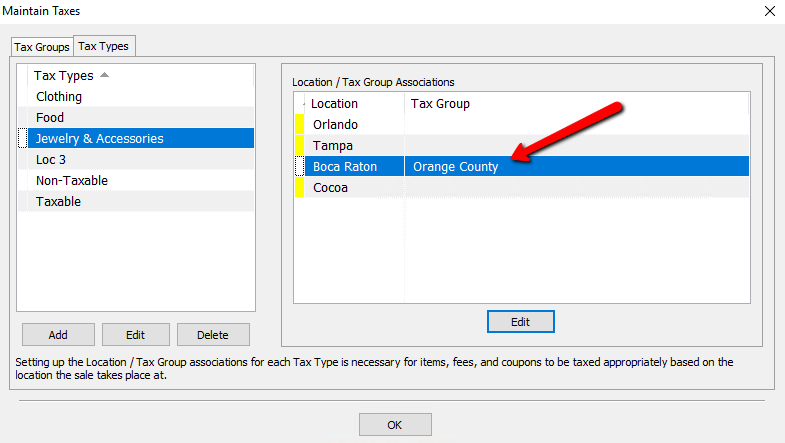


Note: Locations without a Tax Group assigned to them will simply not charge Tax. Also Locations without Tax Groups associated with them, will have a yellow indicator next to them.

Next Article In Section
Click the following link to move to the next article in this section:
Setup of a Single Location with a Single Tax Rate on all Items
Related Topics
Tax Types and Location/Tax Group Association Setting Up Tax Codes, Tax Groups, and Tax Rates Setting Up Product Lines Category Editor Tax Codes Overview Setup of a Single Location with a Single Tax Rate on all Items Setup of a Single Location with Different Tax Rates Setup Of Multiple Locations And A Single Tax Rate For Each Location Setup Of Multiple Locations and Multiple Tax Rates For Each Location Setup of Multiple Locations and the same set of Multiple Tax Rates for Each Location Add, Change and Delete Categories