Table of Contents
Select Printers & Printing Defaults
Use the Maintain Options window to set printers to print tags, receipts and checks. There are printing preferences for how the tags will print. See the table below for a description of the purpose of each field.
Printers must first be set-up to work in Windows before Liberty can use them. To add new printers to your system, please consult your Windows operating system’s Help file or contact a qualified computer technician.
Note: There is no field for setting which printer to print reports and item lists. This is because Liberty automatically prints all report and item list on the printer that is set as the Default printer in Windows. It is necessary to set your system so the Default printer is the printer you wish to print reports and item lists on (one that prints regular 8 ½ x 11 paper).
How To Determine Which Printer Is The Default Printer
For Windows 7:
- Start > Devices & Printers or Start > Control Panel > Devices & Printers.
- Look for the printer icon with a small white check mark on a round, green background located by the printer icon. This is the default printer.
For Windows 8 & 10:
- Start > Control Panel > Devices & Printers.
- Look for the printer icon with a small white check mark on a round, green background located by the printer icon. This is the default printer.
For Windows 11:
- Start > Settings > Bluetooth and Devices > Printers and Scanners
- The default printer will have the word “Default” underneath it.
- Note: If the “Let Windows manage my default printer” setting on this page is enabled, you will not see this text, and you will not be able to select the default printer yourself.
How To Change The Default Printer
Follow the directions above for your version of Windows to find your printers.
For Windows 7, 8, and 10:
- Right-click on the desired printer and choose Set as Default Printer from the menu that displays.
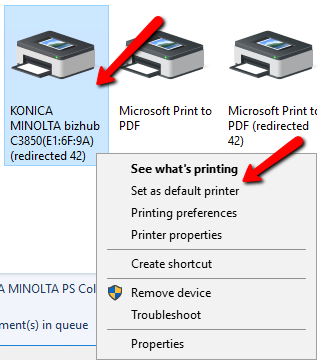

For Windows 11:
- Select the printer you want to make the default.

- Press “Set as Default” at the top.



How To Set Printing Defaults in Liberty
- From the Main Menu, select Setup > Options
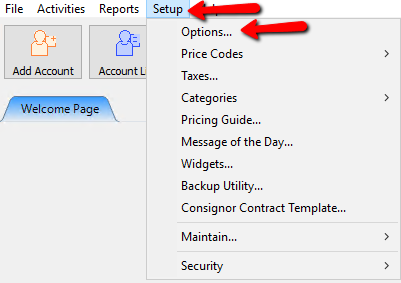
- Click on the Printing tab. The Printing dialog will display.
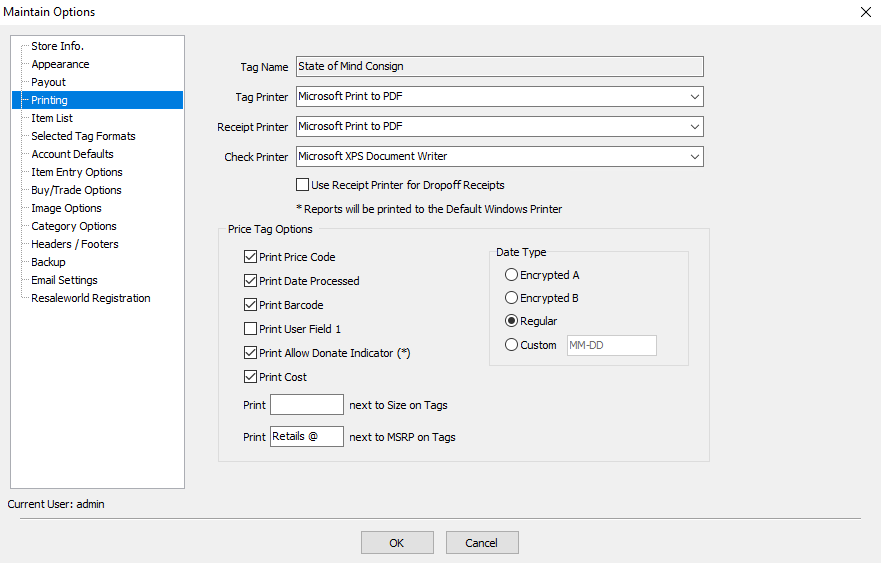


Printing Tab Fields and Definitions
- Tag Name : This is the Store Name as it appears on your price tags. This information is entered when the serial number is entered and cannot be changed except by calling Resaleworld. There is generally no charge for assistance changing this field when first setting up the software, however, subsequent changes may incur a fee.
- Selected Tag Styles : Liberty prints a wide variety of price tags and labels. These tags and labels come in a variety of sizes and print in various formats. Remove the checks from any selections you will not be using: doing so will reduce the number of options that appear when you select the Tag Format drop-down in the Print Price Tags dialog when printing price tags.
Note: Mini and Jewelry tags require the use of a thermal printer. Not all Thermal printers work! Be sure to only purchase printers that are specifically recommended by Resaleworld. - Tag Printer : Select the printer you will use to print tags.
Note: Do not purchase just any printer to print price tags. Some printers require special proprietary firmware and calibration that only the manufacturer would know how to set up depending on the tag style. - Price tags require special printers : Only a few specific printers are guaranteed and supported by Resaleworld to work. The Resaleworld Sales Department will be pleased to provide more information.
- Receipt Printer : Select the printer you will use to print receipts.
- Check Printer : Select the printer you will use to print checks and reports.
Checks, price tags and other supplies are available from Resaleworld at very low prices and are guaranteed to work with Liberty.
Note: Some printers require paper to feed face down. Inkjet printers such as the HP 840 are an example. When ordering checks for such printers, be sure to instruct the manufacturer to deliver the checks in reverse chronological order (there is no extra charge for this when ordering checks from Resaleworld.). This way the checks will feed in the proper order. Changing the printer’s properties in the print driver to Start Printing from Last Page is NOT recommended. Doing so will interfere with your ability to Restart a check run if a problem is encountered.
Price Tag Options
- Print Price Code : Select to include the price code on price tags.
- Print Date Processed : Select to include the date the item was put on the floor for sale on price tags.
- Print Barcode : Select to include a barcode for use with a Bar Code Reader on price tags.
- Print User Field 1 : Select to include User Field 1. This is set up in the User Defined Fields in the Account.
- Allow Donate Indicator (*) : Select to indicate an item should be donated by printing an asterisk (*) next to the Price Code on price tags.
- Print Cost : Select to show the Cost of the item on price tags. For consigned items, the Cost is only printed if a Preset Net is entered.
- Price tags for items with a Preset Net contain a series of numbers instead of the letter(s) denoting the Price Code. This series of numbers is the Preset Net to the consignor in coded form. $450.00 will appear as 100450001. Drop the 1's and leading 0's, place a decimal two places in from the right, imagine a dollar sign dancing in front of your (consignor's eyes in this case) and you have $450.00.
- Print _____ Next To Size On Tags : When the size prints on the price tag or label, it normally stands alone without label. To print a label, such as the word Size or Sz, enter Size or Sz (or whatever) in this field.
- Print ____ Next To MSRP On Tags : When the MSRP print on the tag or label, it normally stands alone without a label. To print a label, such as Retails @, enter Retails @ (or whatever) in this field.
Date Type Price Printing Tags - Encrypted A : Select to use a six-digit date code. This option starts with the Regular date format, removes the forward slash marks and the first number in the year, and then adds a 1 to the beginning and end of the remaining numbers.
Example: 07/31/00 becomes 173101. - Encrypted B : Select to use a letter number combination for the date. This option substitutes the month for a letter, where A=January, B=February, etc. The letter is followed by the day of the month and year is dropped.
Example: July 31, 2000 becomes G31. - Regular : Select to print a date in the MM/DD/YY format.
Next Article In Section
Click the following link to move to the next article in this section:
Headers and Footers