Table of Contents
Price Codes and Consignment Splits
Each Price Code is represented by one or more letter (i.e A, B, C, AA). Each Price Code has its own set of unique parameters. For instance, Price Code A might be setup to have a 50/50 split with a consignor, an automatic markdown of 20% after 30 days and 50% after 60 days, and a $1.00 Item Fee. Price code B might be set up to have a 60/40 split with a consignor with no markdowns and no item fee, etc.
To Add a Price Code
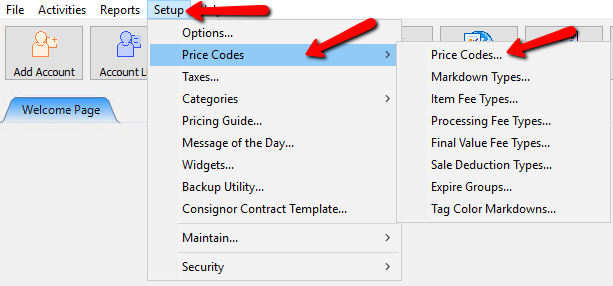
- Select Setup > Price Codes > Price Codes from Inventory Module.
The Price Code dialog will display with Price Code A automatically populated.
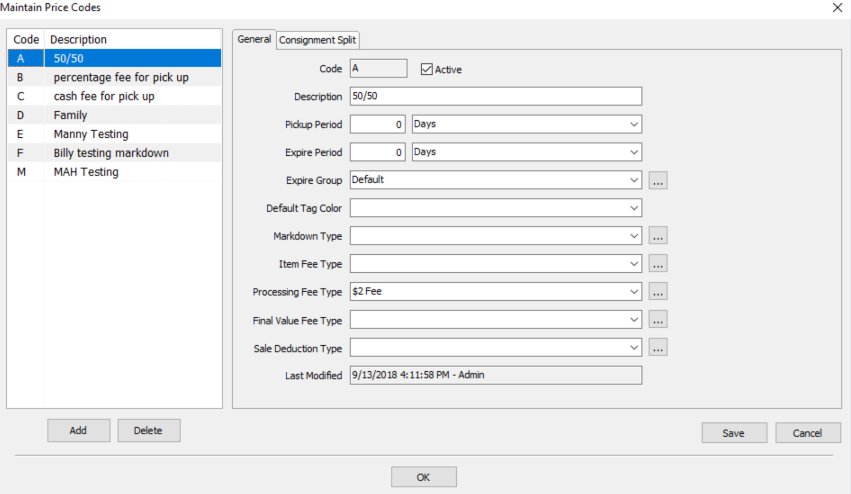
- Select the Add button.
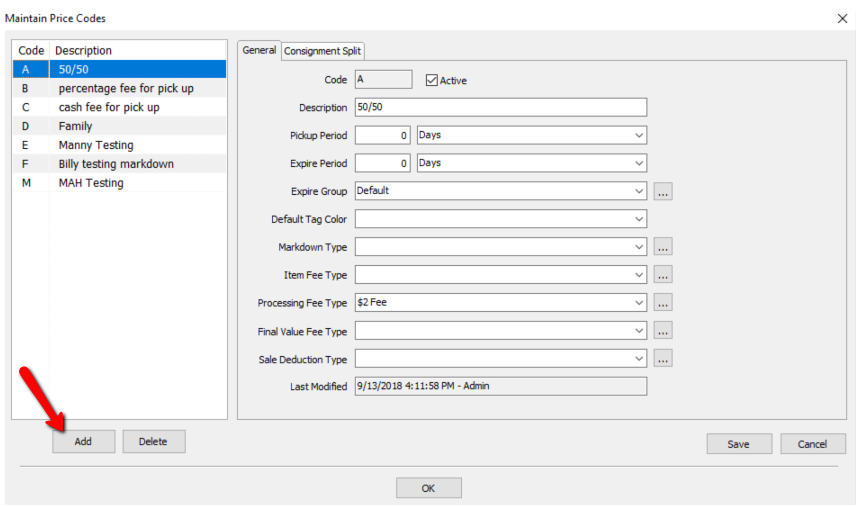
The Price Code dialog screen will update with a new blank price code assigning the next available letter.
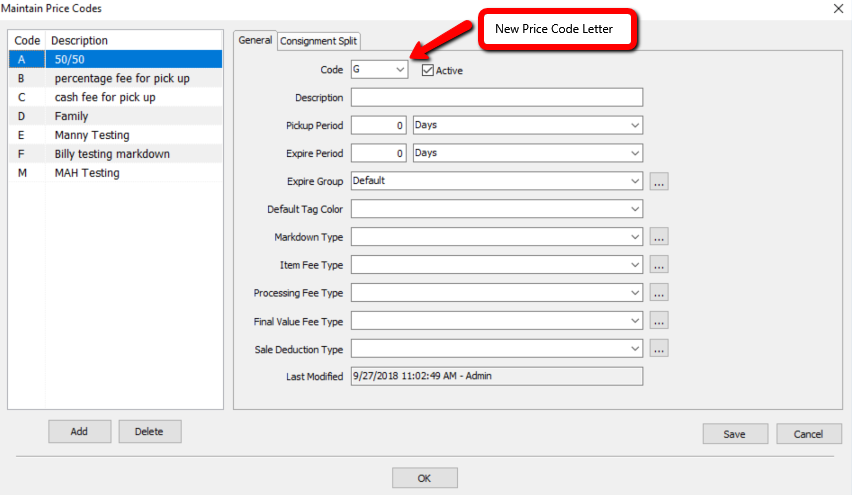
- Once all the info has been added, select the Save button and then the OK button.
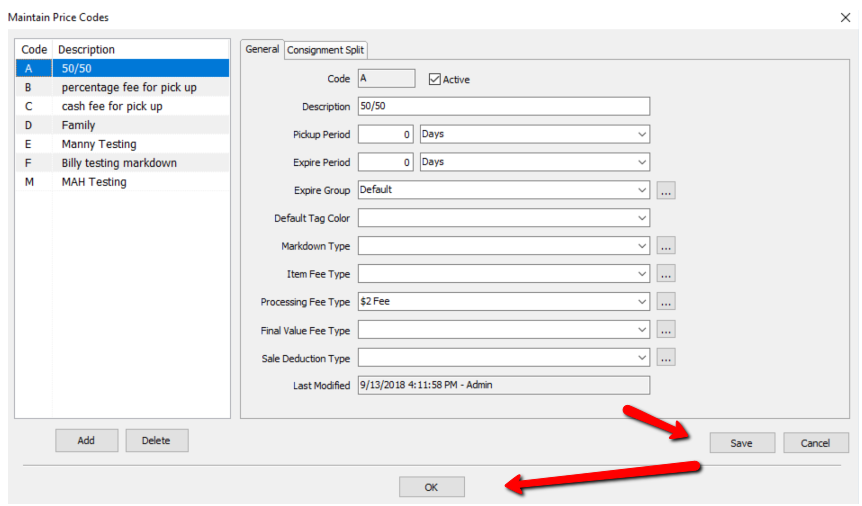


General Tab

- Code : This is the Identification of the price code.
- Active (Check Box) : By Default the Active Check Box is selected. Deselect this check box if you wish to stop using the price code.
- Description : Use the Description field to enter in an easy to remember name. Recommended to use something that identifies how the price code works.
Example: If the price code is a 50/50 split and has 30, 60 and 90 days markdowns, then the Description of the price code might be 50/50 - 30,60,90. - Pickup Period : When a Pickup Period is established, the date on or after which an item may be picked up if it does not sell is printed on the Consignor's Item List. The Pickup Date thus informs the client when the consignment period is over for particular items.
- Expire Period : When a consigned item is posted as Expired, the proceeds of the sale are not split between the store and the consignor. The entire purchase price instead goes to the store. In other words, the cost of the item becomes zero (0) for the consignor, which makes the entire selling price profit.
- Expire Group : Use the Expire Group field to create a description for the Expired Items. Doing so allows reports to be generated on the basis of Expire Groups.
- Default Tag Color : If items are marked down based on Tag Color, then the default tag color will be defined here. Anytime and item is added using this price code, it will get the default tag color.
- Markdown Type : Select the Markdown Type dropdown and select the Markdown schedule you want to apply to this price code. For more information on Markdowns, see Set Up Automatic Markdowns By Time Period.
- Item Fee Types : Select the Item Fee Type dropdown and select the Item Fee schedule you want to apply to this price code. For more information on Item Fees, see Setting Up Item Fees.
- Processing Fee Type : Select the Processing Fee Type dropdown and select the Processing Fee schedule you want to apply to this price code. For more information on Processing Fees, see Item Processing Fee.
- Final Value Fee : Select the Final Value Fee Type dropdown and select the Final Value Fee schedule you want to apply to this price code. For more information on Final Value Fees, see Final Value Fee Types.
- Sale Deduction Type : Select the Sale Deduction Type dropdown and select the Sale Deduction schedule you want to apply to this price code. For more information on Sale Deductions, see Sale Deductions Types.
- Last Modified : The Last Modified field shows the last date, time, and who modified the price code.
Consignment Split Tab

- Split Type : Select the split type to define how the split will be calculated. There are 7 Split types:
- Fixed : A fixed split type will split the profits the same no matter how much the item sells for.
- VariablePrice : Allows you to configure multiple splits for a price code based on the selling price of an item.
Example: You could configure the VariablePrice to split items sold from a price of $0.00 to $99.99 to have a split of 50/50. Anything sold at $100.00 and over to be split at a 40/60 rate. - VariableTime (Days) : Allows you to configure multiple splits for a price code based on how many days it’s in the store.
Example: You could configure the VariableTime (based on days) to provide a split of 40/60 for the first 30 days, and then a split of 50/50 for the next 30 days, and them 60/40 for the final 30 days before an item expires. - VariableTime (Weeks) : Allows you to configure multiple splits for a price code based on how many weeks it’s in the store.
Example: You could configure the VariableTime (based on weeks) to provide a split of 40/60 for the first week, and then a split of 50/50 for the next week, and them 60/40 for the final week before an item expires.
Note: The week will always start on the first day of the whole week, not the day it was taken in. Example if an item was received on a wednesday of the week, the first week will start the following Sunday.
- VariableTime (Months) : Allows you to configure multiple splits for a price code based on how many months it’s in the store.
Example: You could configure the VariableTime (based on months) to provide a split of 40/60 for the first month, and then a split of 50/50 for the next month, and them 60/40 for the final month before an item expires.
Note: The month will always start on the first day of the whole month, not the day it was taken in. Example if an item was received on the 13th of the month, the first month will start the 1st of the following month.
- VariableTime (1st & 16th) : Allows you to configure multiple splits for a price code based on when the 1st or the 16th comes each month, and how long it’s been in the store.
Example: You could configure the VariableTime (based on the 1st and the 16th) to provide a split of 40/60 until the 1st or 16th comes, and then a split of 50/50 for the next 1st or 16th, and them 60/40 for the final 1st or 16th before an item expires.
Note: The 1st and 16th time period will always start when the either the 1st or the 16th passes, not the day it was taken in. Example if an item was received on the 24th of the week, the beginning of the time period will start on the 1st of the following month
- Graduated Rate : A graduated rate is similar to a varied rate except the pricing uses a cumulative formula rather then a set threshold.
Example: A price code is created with 3 graduated rates. $0.00 - $50.00 is a rate of 60/40. $50.01 to $100.00 is 50/50, and $100.01 - an up is 40/60. An item is sold at $200.00. The amount the consignor will get is $105.00 and not $120.00.
40% of the first $50.00 = $20.00
50% of the second $50.00 = $25.00
60% of the last $100.00 = $60.00
Total = $20.00 + $25.00 + $60.00 = $105.00 - Add button : Use the Add button to add the details of a split.
- Edit button : Highlight the details of a split and select the Edit button to change the details.
- Delete button : Highlight the details of a split and select the Delete button to delete those details.
To Modify A Price Code:
- From the left side in Maintain Price Codes, select the Price Code to be change.
- Change the Price Code information as necessary.
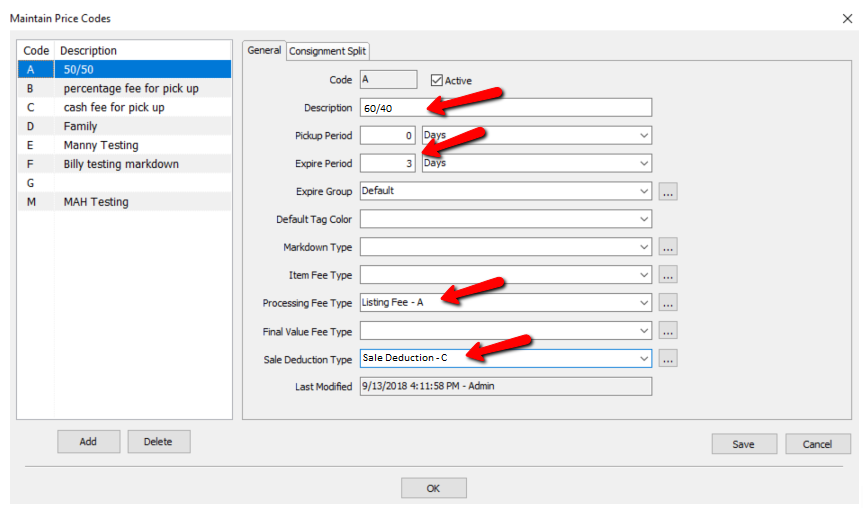
- Click the Save button then the OK button.
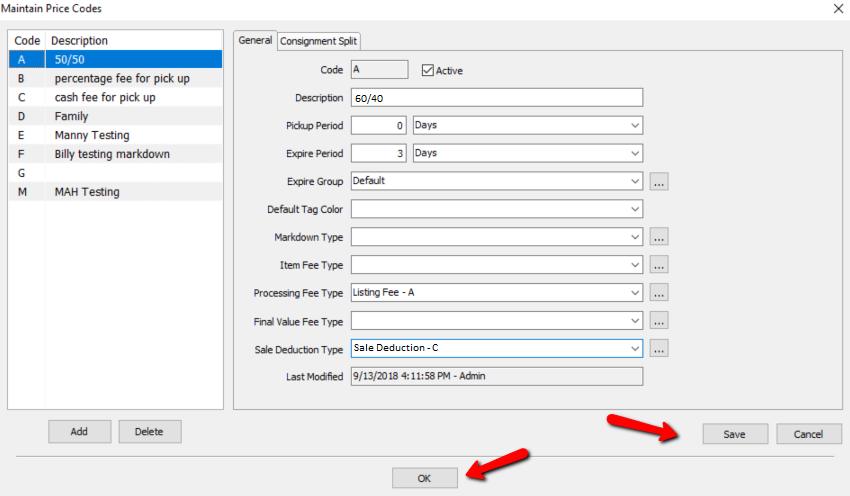


To View Other Price Codes:
From the left side in Maintain Price Codes, select a different Price Code. Once a new Price Code is selected, it will display the corresponding information for that Price Code.

Next Article In Section
Click the following link to move to the next article in this section:
Markdowns Overview