Table of Contents
Headers and Footers
You can define what prints in the header and footer sections of the following printouts:
- Statements : Cash Payout Statements signed and dated by consignors when they are paid with cash instead of a check. Cash Payout Statements are retained by the store to provide a written record of cash payouts.
- Item List : An inventory list to give to consignors.
- Point of Sale Receipts : Receipts printed from the receipt printer.
- Layaway : There are two types:
- Pending Layaway Footer : Use to list layaway terms and conditions, etc.
- Finished Layaway Footer : Use to show same information as for a regular purchase, plus additional information pertinent to layaways.
- Checks : This will only print on the footer of the check.
Note: It is not necessary to enter the store name, address or phone in the Headers, as this information is automatically printed by Liberty based on the information entered in Store Information.
How To Define A Header Or Footer
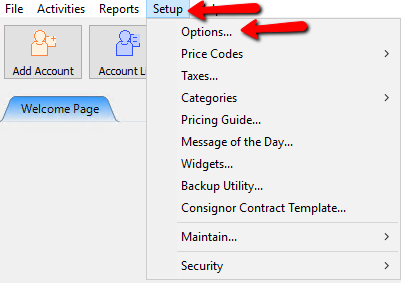
- From the main menu, click on Setup > Options.
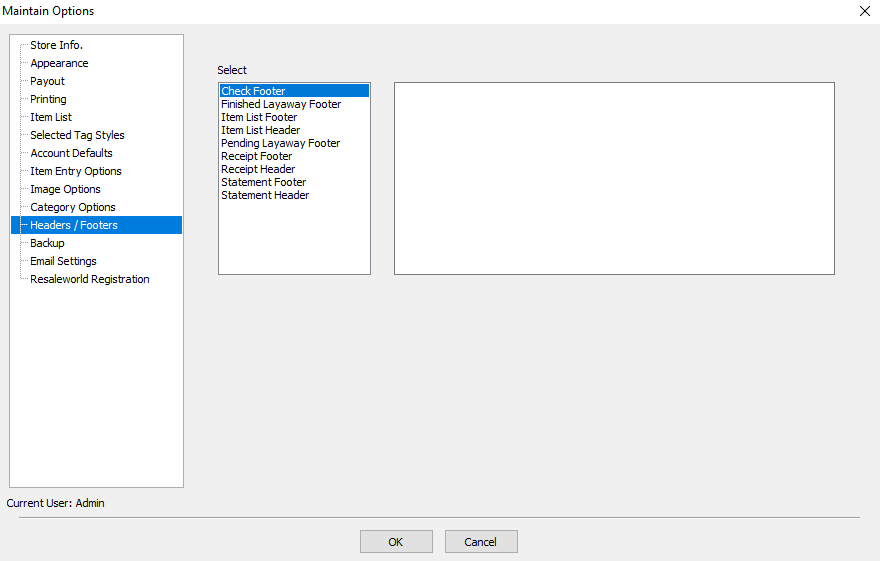
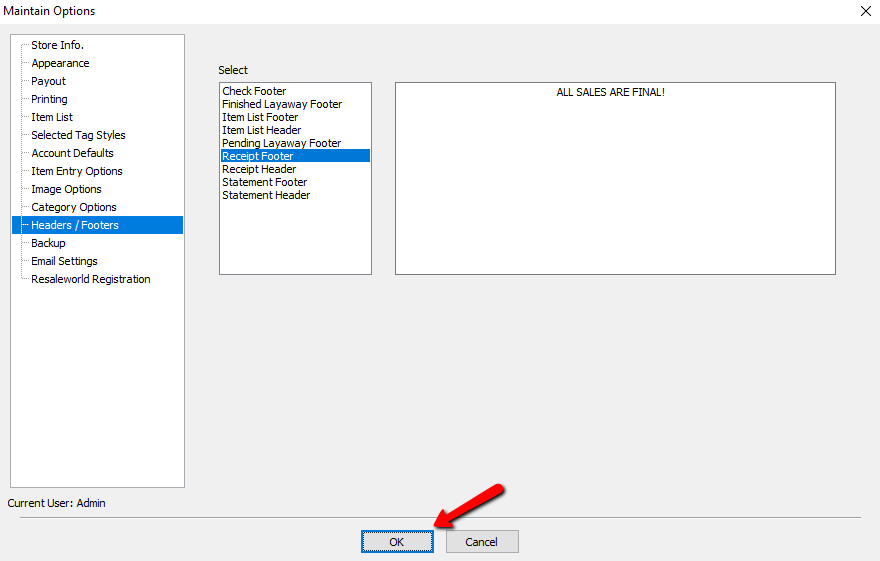
- Click on the Header/Footer tab. The Header/Footer window will display.
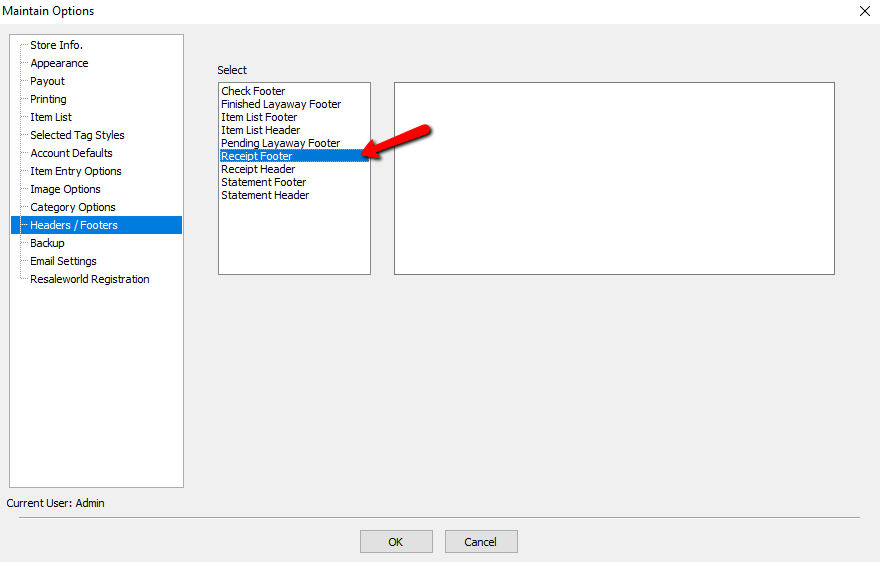
- Click on the Header or Footer you want to define.
- Click in the message box and type your message.
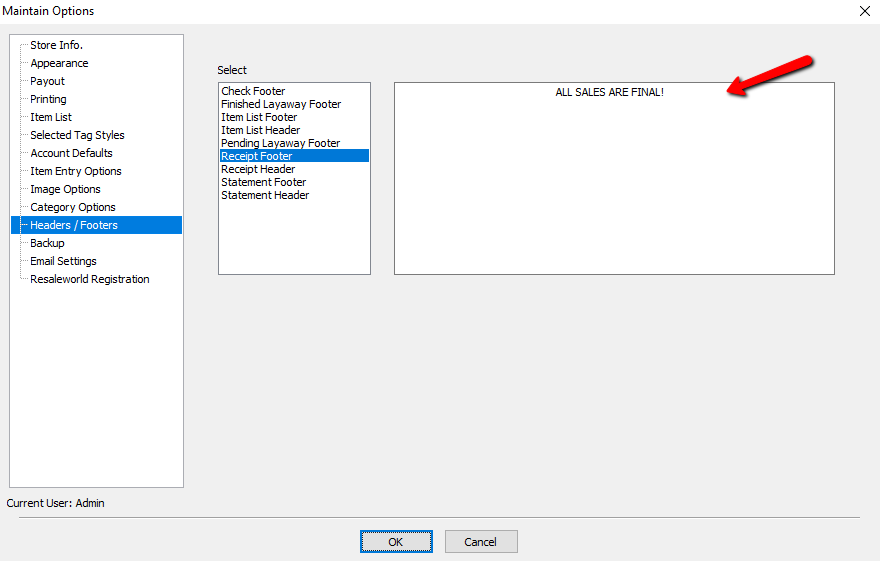
- Click the OK button when you are done typing your message.


Next Section Navigation Link
Click the following link to see a list of articles for the next section:
Price Codes