Table of Contents
Category Tax Code Update
Applies to: Liberty REACT Inventory Module 5.x and later | Last updated: May 2026
Overview
When a staff member changes the Product Line on a third-level category, Liberty now prompts whether to update the Tax Type on all items currently assigned to that category. This ensures that items remain consistent with the tax rules associated with the new Product Line.
Key facts:
- Third-level categories only. The prompt appears when editing categories at depth 3 — for example, Electronics > Accessories > Wireless Mouse. Changing the Product Line on a first- or second-level category does not trigger the prompt.
- Prompt appears after clicking OK. After saving the Edit Category dialog, a Confirm dialog asks: Would you like to update the Tax Type for Items in this Category?
- Yes or No choice. Selecting Yes updates the Tax Type on all items in that category to match the new Product Line. Selecting No saves the Product Line change but leaves existing items' Tax Types unchanged.
- One-time action per save. The prompt fires once each time you save a Product Line change. It will appear again if you later change the Product Line a second time.
Navigating to the Category Editor
- From the Liberty REACT Inventory Module main window, click Setup in the menu bar.
- Hover over Categories to expand the submenu.
- Click Category Editor.


Expanding the Category Tree to Depth 3
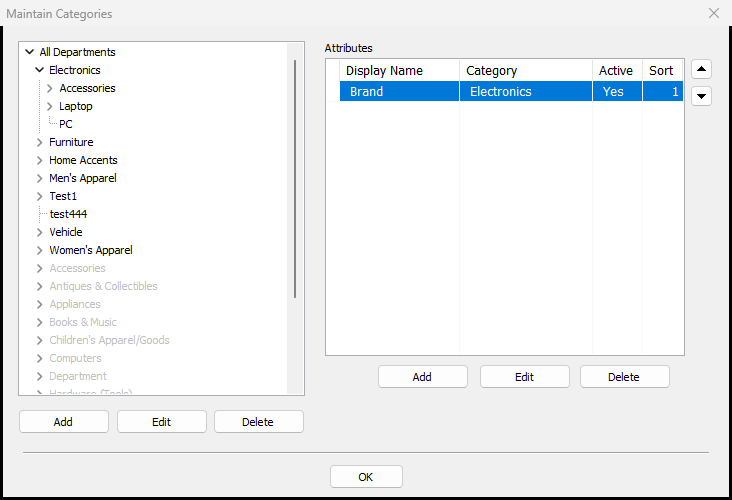
The Maintain Categories dialog opens showing the full department hierarchy. To reach a third-level category, you must expand two levels.

- Click the > arrow next to a top-level department (for example, Electronics) to expand it and reveal second-level categories.
- Click the > arrow next to the second-level category (for example, Accessories) to expand it and reveal third-level categories.
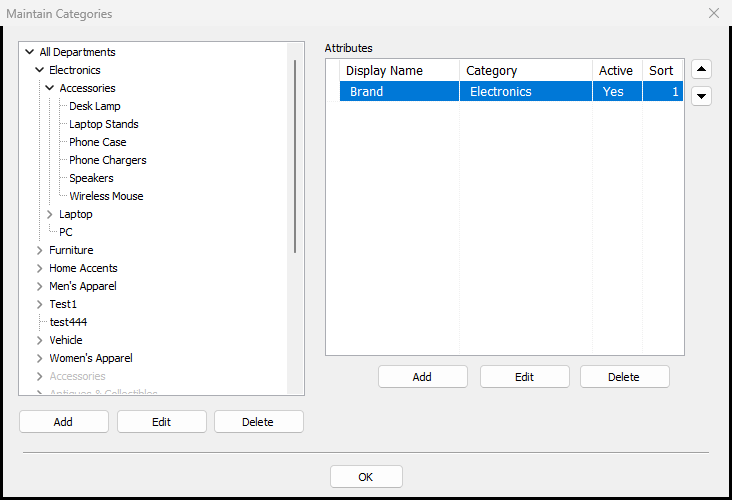
- Click on the third-level category you want to edit (for example, Wireless Mouse) to select it.


Note: Items can only be assigned at the third (leaf) level. The Tax Type prompt only appears when editing at this level.
Editing the Product Line on a Third-Level Category
- With the third-level category selected in the tree, click the Edit button at the bottom of the left panel.
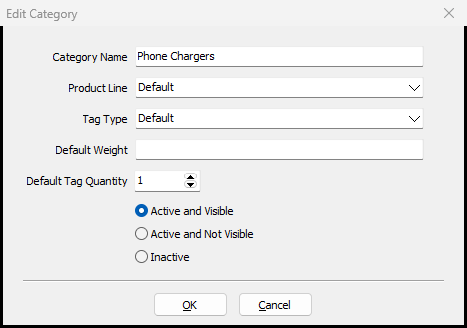
The Edit Category dialog opens showing the category's current settings. - Click the Product Line dropdown to open the list of available product lines.
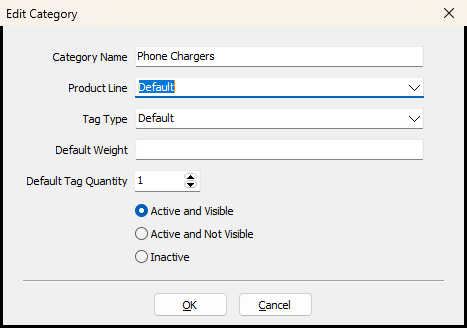
- Select the new Product Line from the list.
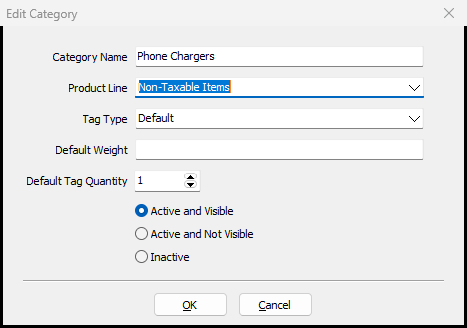
- Click OK to save the change.


The Tax Type Update Prompt
Immediately after clicking OK, a Confirm dialog appears.

The prompt reads:
Would you like to update the Tax Type for Items in this Category?
- Click Yes to apply the Tax Type associated with the new Product Line to all items currently assigned to this category.
- Click No to save the Product Line change only. Existing items will retain their current Tax Type.
Note: This prompt was added specifically for third-level categories. In previous versions, changing the Product Line on a level-three category did not prompt you to update items, which could leave item Tax Types inconsistent with the new Product Line. The prompt now ensures staff are aware of the downstream effect on item Tax Types.
When the Prompt Does Not Appear
The Tax Type prompt does not appear in these situations:
- First or second-level categories. Only depth-3 (leaf) categories trigger the prompt.
- No items are assigned. If no inventory items are currently assigned to the category, the prompt still appears but answering Yes has no effect.
- Product Line is unchanged. If you open Edit Category and click OK without changing the Product Line, no prompt appears.
Frequently Asked Questions
Why does this prompt only appear for third-level categories?
Items in Liberty are assigned at the leaf level — the lowest point in the category hierarchy. Since items live at depth 3, the Tax Type on items is tied to their specific sub-category. Changing the Product Line at a higher level (depth 1 or 2) does not directly change item assignments, so no prompt is needed at those levels.
What happens if I click No?
Clicking No saves the new Product Line on the category but does not modify any items. Items in that category retain whatever Tax Type they had before. You can re-open Edit Category and change the Product Line again at any time, which will trigger the prompt again.
Can I undo the change after clicking Yes?
Yes has no immediate undo. To revert the Tax Type on items, you would need to change the Product Line back to the original value and click Yes again, or edit individual items manually.
Does this prompt slow down the pricing workflow?
The prompt appears when editing categories in the Setup menu, not during item entry or POS transactions. It does not appear at the pricing screen.
Which Product Lines are available in the dropdown?
The list of available Product Lines is configured under Setup > Price Codes > Product Lines. Contact your system administrator to add or modify Product Lines.
Next Article In Section
Click the following link to move to the next article in this section:
Selecting Categories During Item Entry